Import customers
Who can do it
Owners.
Before you start
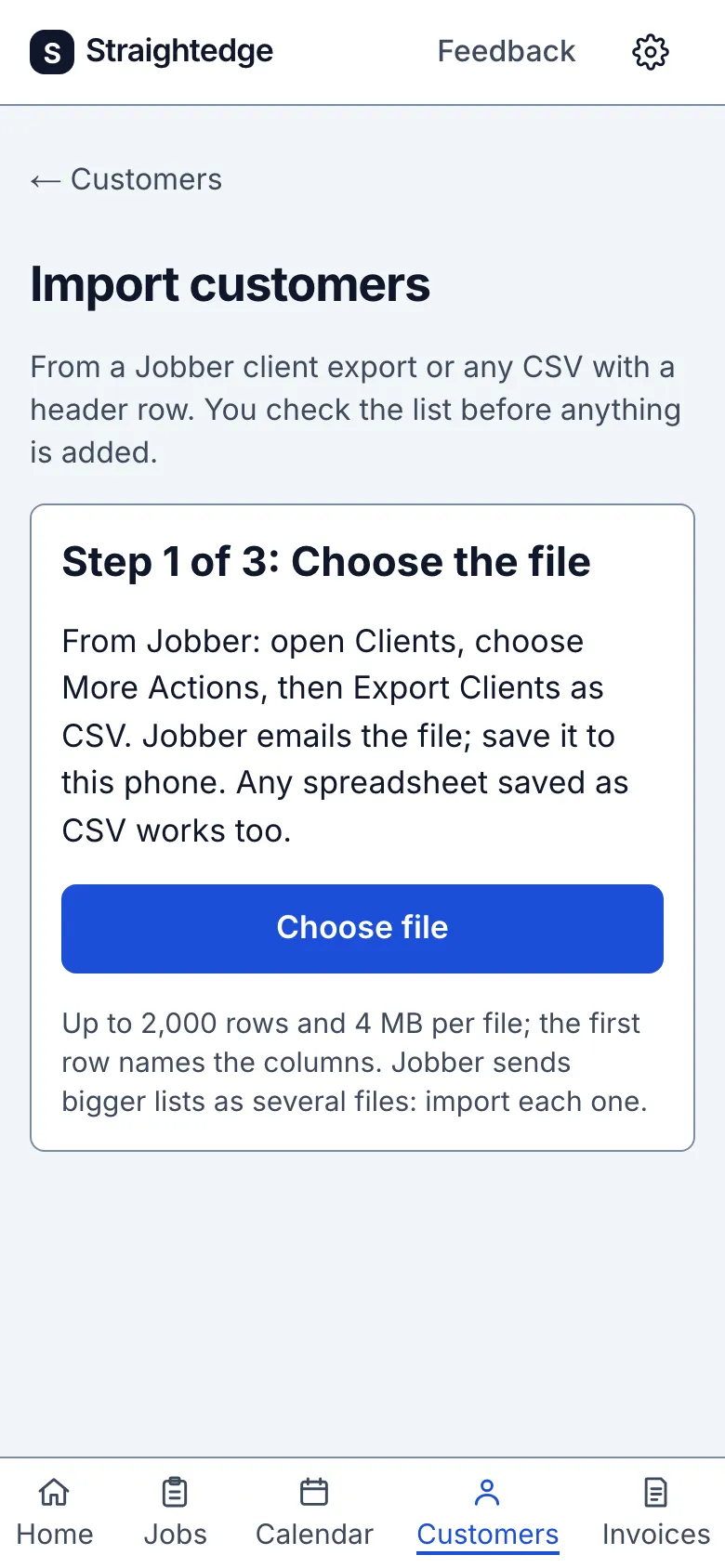
Moving from Jobber or a spreadsheet? Bring your customers over in one go instead of retyping them. You need a CSV file with a header row saved on this phone or computer. From Jobber: open Clients, choose More Actions, then Export Clients as CSV. Jobber emails the file; save it first.
1. Choose the file
Customers tab, then Import customers, then Choose file. CSV, TSV and plain-text exports with a header row are accepted. The file is kept for 24 hours while you work through the steps.
2. Match the columns
Pick which column holds the customer's name; phone, email and address are optional. A Jobber client export is recognised and matched already, so you only check it. Jobber lists each property on its own row, and rows for the same client are combined. Tap Check the list, or Choose another file.
3. Check the list
Straightedge shows who would be added, who is Already in your customers (matched by email, phone, or name and address) and which rows were combined. Tap Import N customers to add them. Keep the page open until it says it's done, then Go to customers or Import another file.
Limits
- Nothing is added until you tap Import, and the same file isn't imported twice. If the connection drops during the import, trying again is safe: nothing is added twice.
- Up to 2,000 rows and 4 MB per file; the first row names the columns. Jobber sends bigger lists as several files: import each one.
- The import adds customers only, not their jobs, invoices or notes.
- Each account has room for a set number of customers. If the file has more than fit, the page says how many more fit; import a smaller file or contact support to raise the limit.
- Can I bring my customers over from Jobber? Yes. Export Clients as CSV from Jobber, then Import customers on the Customers tab reads it, matches the columns and lets you check the list before anything is added.
When it goes wrong
- "This file couldn't be read": save it again as CSV with a header row, then Choose the file again.
- "Nothing to add from this file": every row is already in your customers, or no name column was chosen.
- Lost signal? Wait for the connection, tap Try again, and check the Customers list before importing again.
Still stuck? Email support@getstraightedge.com