The customer page
Who can do it
Owners.
1. The customer page
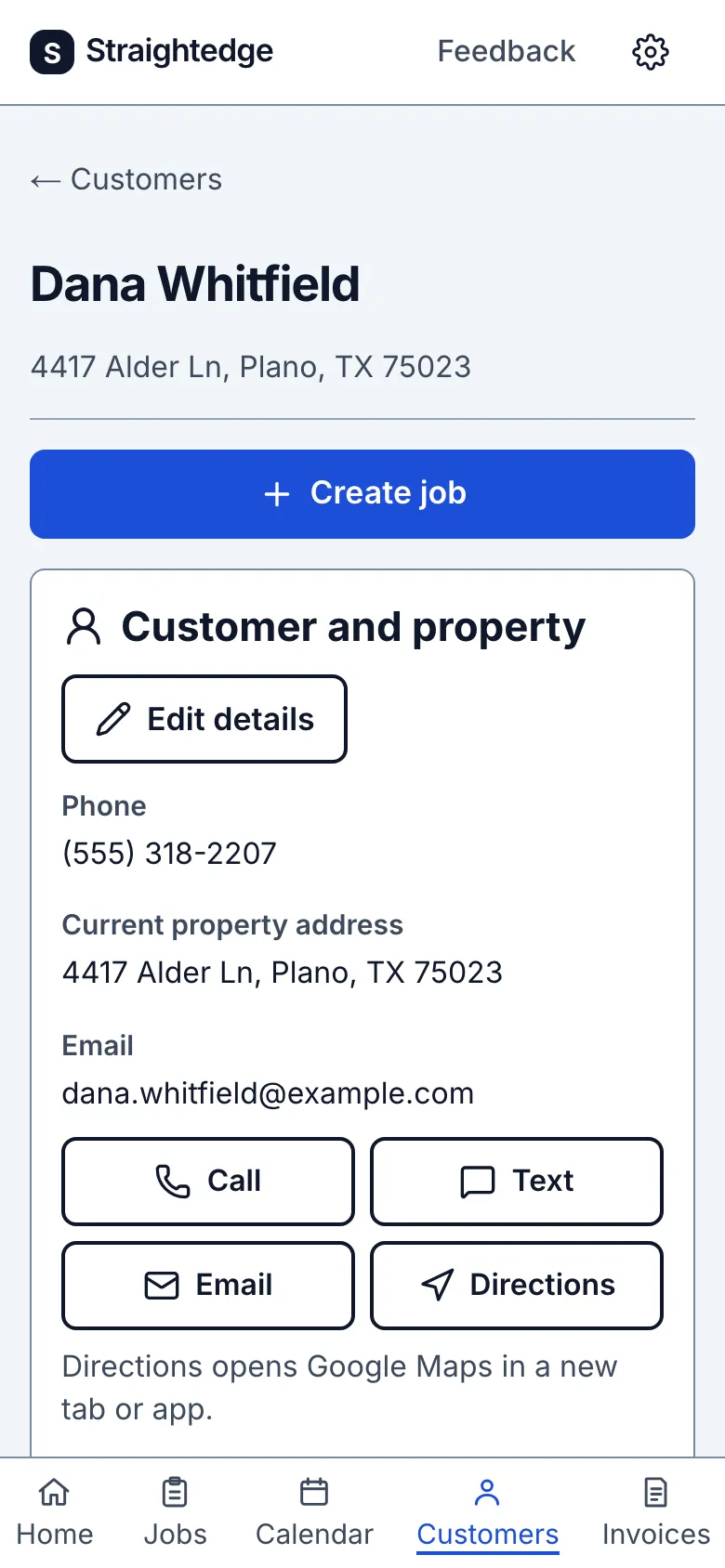
The customer's page has their details and four buttons: Call, Text, Email and Directions (which opens Google Maps). Create job starts a new job for them. Edit details changes the name, address, phone or email, and is also where you add notes about the customer.
2. See what they owe
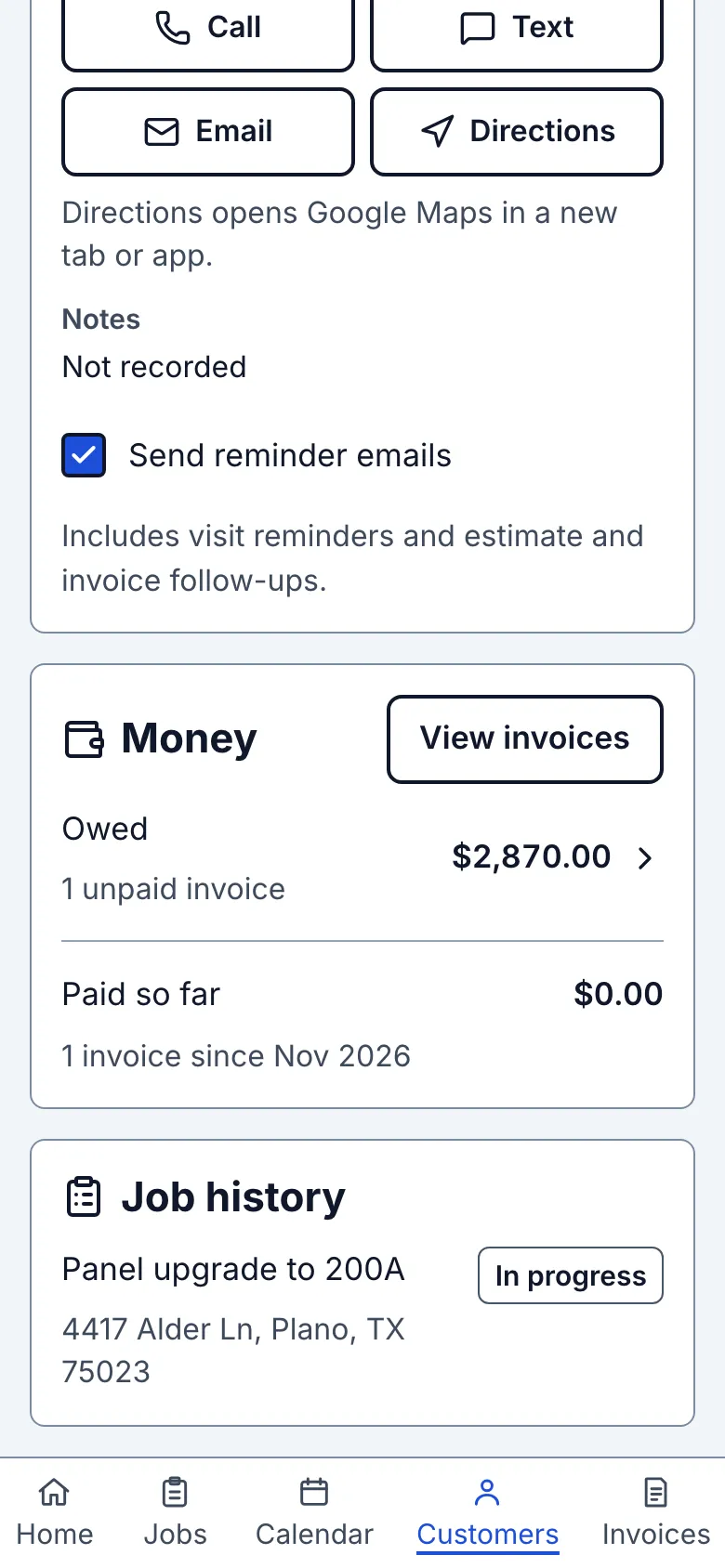
Read Money below the contact details. Owed is what remains on this customer's unpaid invoices, including part payments. Paid so far adds the paid amounts on their invoices; the invoice count and first month tell you how far back it goes. A processing payment stays owed until it clears.
3. Open their invoices
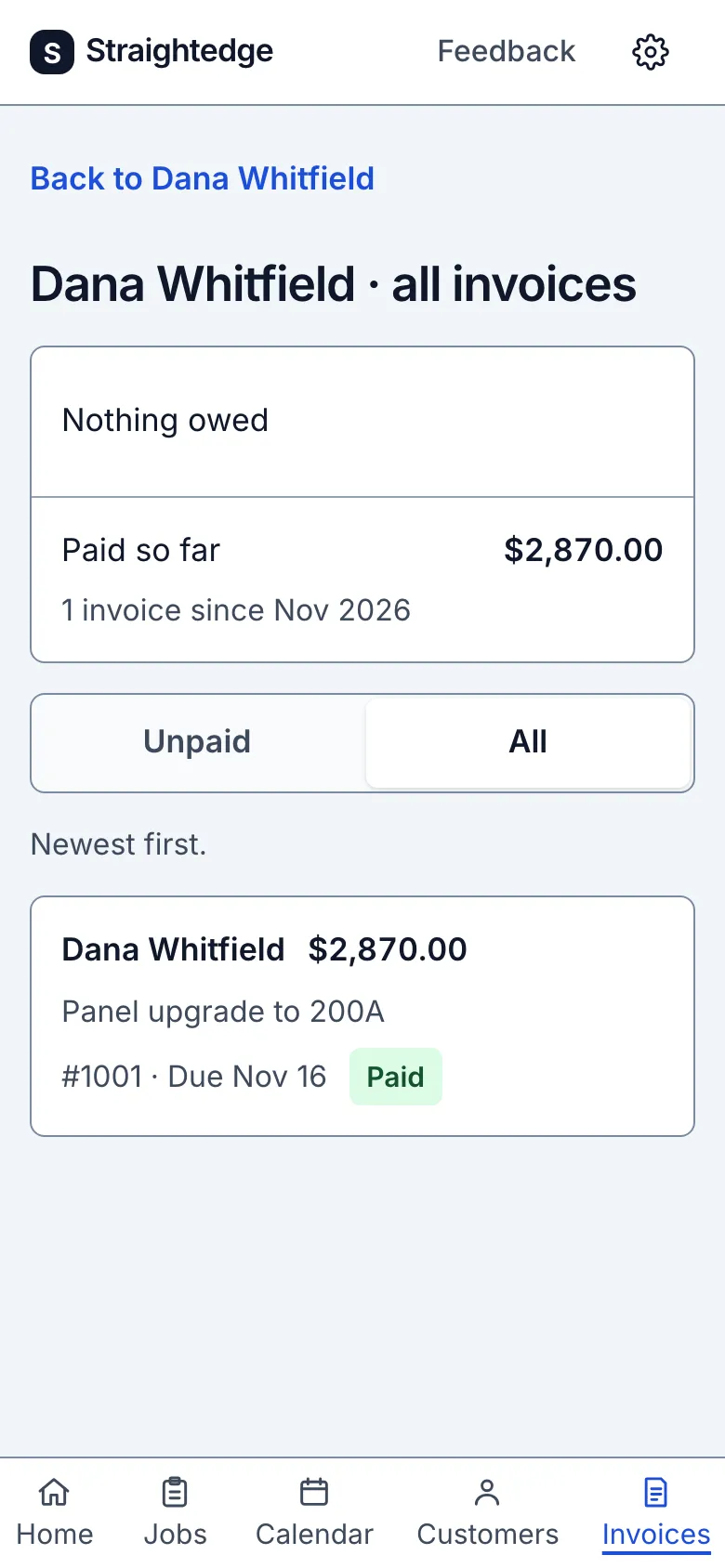
Tap View invoices to see every invoice for this customer, newest first. Paid invoices and void invoices are included; void invoices have a Void label and count toward neither figure. Choose Unpaid to see only what remains unpaid, oldest first, or All to see everything again. The owed row on the customer page opens the unpaid view directly.
What you see after
When you turn on Remind customers before visits or Follow up on estimates and invoices in Settings, this record shows Send reminder emails; while both are off, the switch is hidden. It starts on for every customer; turn it off to stop this customer's future visit reminders and estimate or invoice follow-ups. Reminders stopped by customer with a date means they used the stop link in an email (or marked it as spam) and the switch turned itself off. Talk to the customer before turning it back on; the switch asks you to confirm that you have. See Remind customers before visits.
Limits
Only invoices recorded in Straightedge count; importing customers brings no invoice history. Removed payments and processing payments do not count as paid, and overpayments are not applied to invoices. A refund made in Stripe leaves the invoice and Paid so far unchanged. A lost card dispute or returned bank payment lowers Paid so far and raises Owed.
A customer with no invoices, or only void invoices, has no Money section or View invoices link. Open a void invoice from its job or find it with invoice search. When invoices exist and nothing is due, the page says Nothing owed.
When it goes wrong
If the figures cannot load, the Money section says so. Tap Try again to reload; the contact buttons still work. View invoices remains available. In the invoice list, figures and invoices can each fail separately; retry the failed read rather than treating it as zero or an empty history.
If saving edited details says Customer details not saved — someone else changed this customer, another save reached the customer first. Your typed entries stay in the form. Tap Check current customer to see the saved details in a new tab. Then tap Save my version to save what you typed, or Discard changes to keep the saved details. Straightedge never retries the edit by itself. If the edited contact details match another customer, that existing customer opens instead.
Still stuck? Email support@getstraightedge.com