Add photos
Who can do it
Owners and crew members.
Before you start
Job photos live on the job: before, during and after, from the owner and from the crew. They're private to the business, and customers never see them unless you put them on an estimate or invoice.
1. Add photos
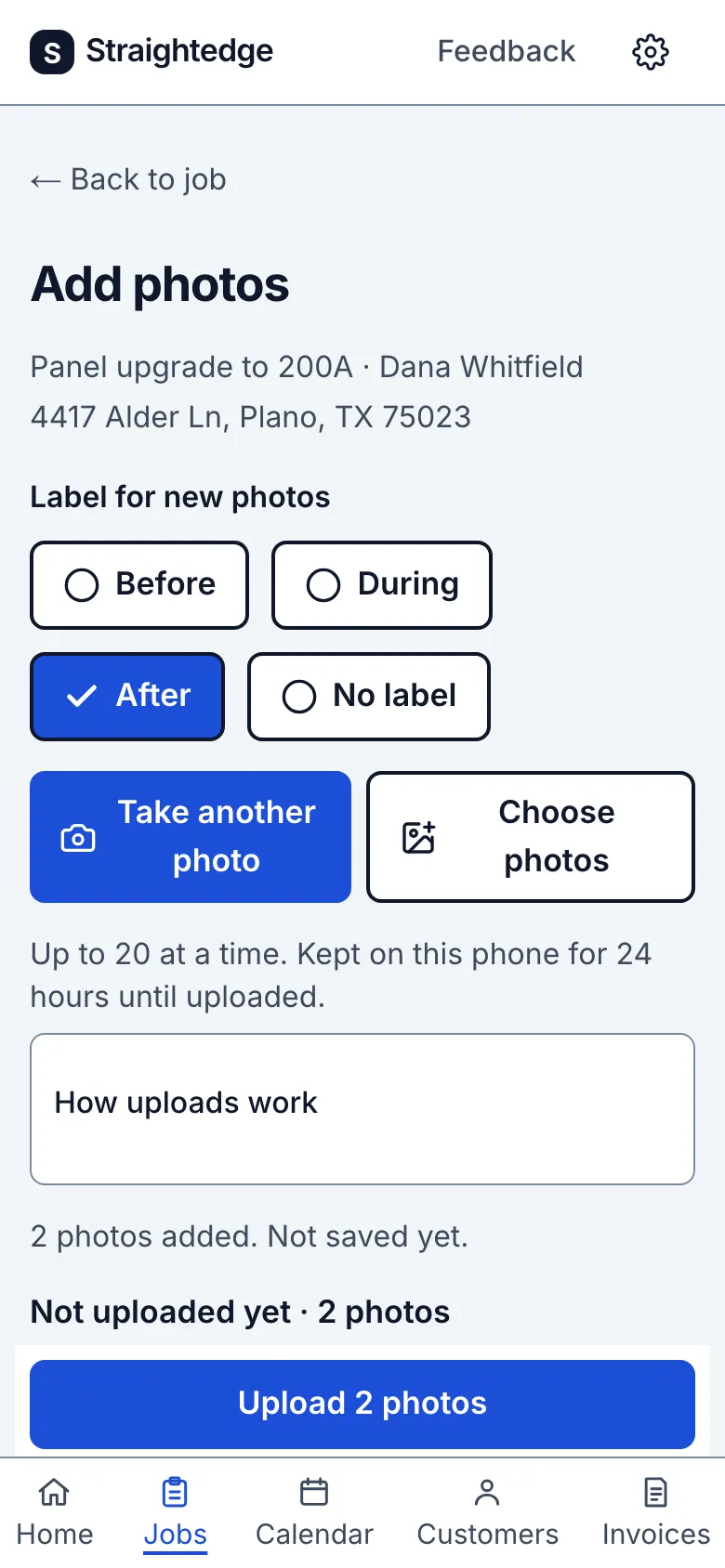
On the job page, under Photos, tap Add photo. Crew use Add photo on their visit. Pick the label first: Before, During, After or No label. One is always chosen, and it applies to every photo you take next.
On a phone, Take photo opens the camera. Choose photos picks from the photo library, up to 20 at a time. JPEG, PNG, WebP and iPhone HEIC photos are accepted, up to 25 MB each.
_Screens show a demo business with sample job photos._
Photos from a checklist:
Add photo on a checklist item opens capture for one photo and suggests the item wording as its caption. The saved photo stays job-owned. A replacement keeps the old thumbnail until the new photo finishes. Removing a photo also removes it from checklist items that use it; their history stays. A pending upload can expire; add it again.
Still stuck? Email support@getstraightedge.com