Connect QuickBooks Online
Who can do it
Owners.
1. Open the connection
In Settings, open QuickBooks Online. If your time zone has not been confirmed, the page shows the time-zone form straight away.
2. Start connecting
If Connect to QuickBooks is shown, tap it to go straight to Intuit sign-in. If the time-zone form is shown instead, continue to step 3.
3. Confirm your time zone
If the form is shown, check Business time zone. Straightedge fills in the saved zone, or your phone's zone if none is saved. Choose the zone where your business works, then tap Save and connect to QuickBooks. QuickBooks payments are dated in this time zone. Sign in to Intuit and choose the company. Connecting from Intuit's app listing follows the same check.
What you see after
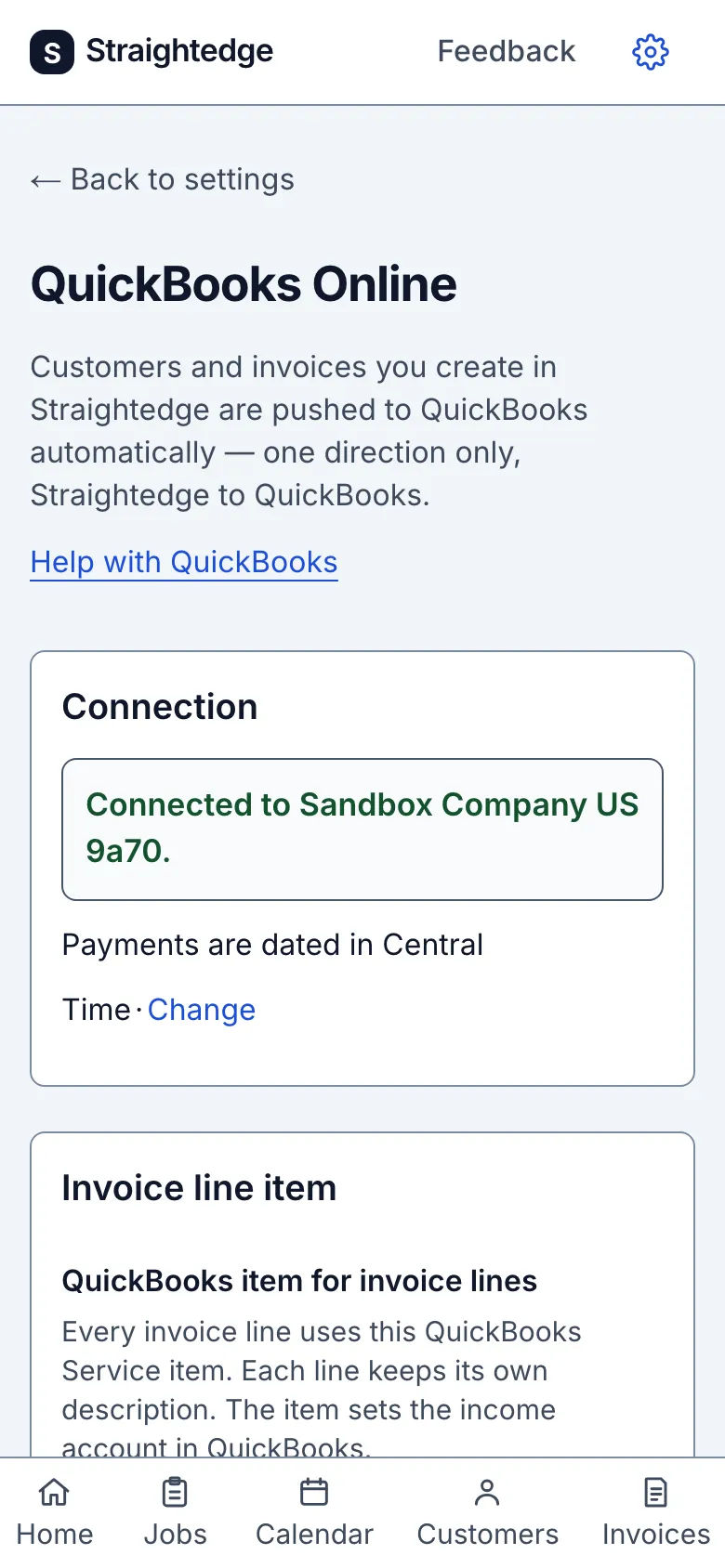
The connection shows Connected to followed by the company name. If QuickBooks has no company or legal name, the connection shows “Connected to QuickBooks.” with the full QuickBooks company ID below it. New customers, invoices and payments go to QuickBooks; estimates, visits, notes and photos stay in Straightedge.
Limits
QuickBooks Online only, one way from Straightedge. Existing invoices can be sent from their page with Send to QuickBooks. Choose an invoice line item before relying on invoice sync.
When it goes wrong
If the connection expires, use Reconnect to QuickBooks in Settings. If customer names collide in QuickBooks, rename one there and retry the invoice sync.
The connection shows the zone used for payment dates and Change. Change opens the form in place of that line; Save time zone saves it and Cancel returns to the saved state. A previously connected business with no zone sees the form with “Set your time zone so payments can be sent” and no Cancel. A connected business with a saved zone keeps this summary even if the zone has not been confirmed. Reconnect asks you to confirm that zone before continuing; reconnecting with a confirmed zone goes straight to Intuit. If the connection approaches its final expiry, reconnect before the date shown.
Still stuck? Email support@getstraightedge.com