One job, from first call to paid
Who can do it
Owners.
Before you start
If this is your first time, set up your business first.
Dana Whitfield calls Brightline Electric. The house has an old Federal Pacific panel that needs replacing, and Dana wants two new circuits for an induction range. This page follows that one job through Straightedge, start to finish, the way an owner would do it on their phone.
Brightline is a two-person shop: Alex Rivera, the owner, and Jordan Lee, who works for Alex. Everything here is test data on our QA copy of the app.
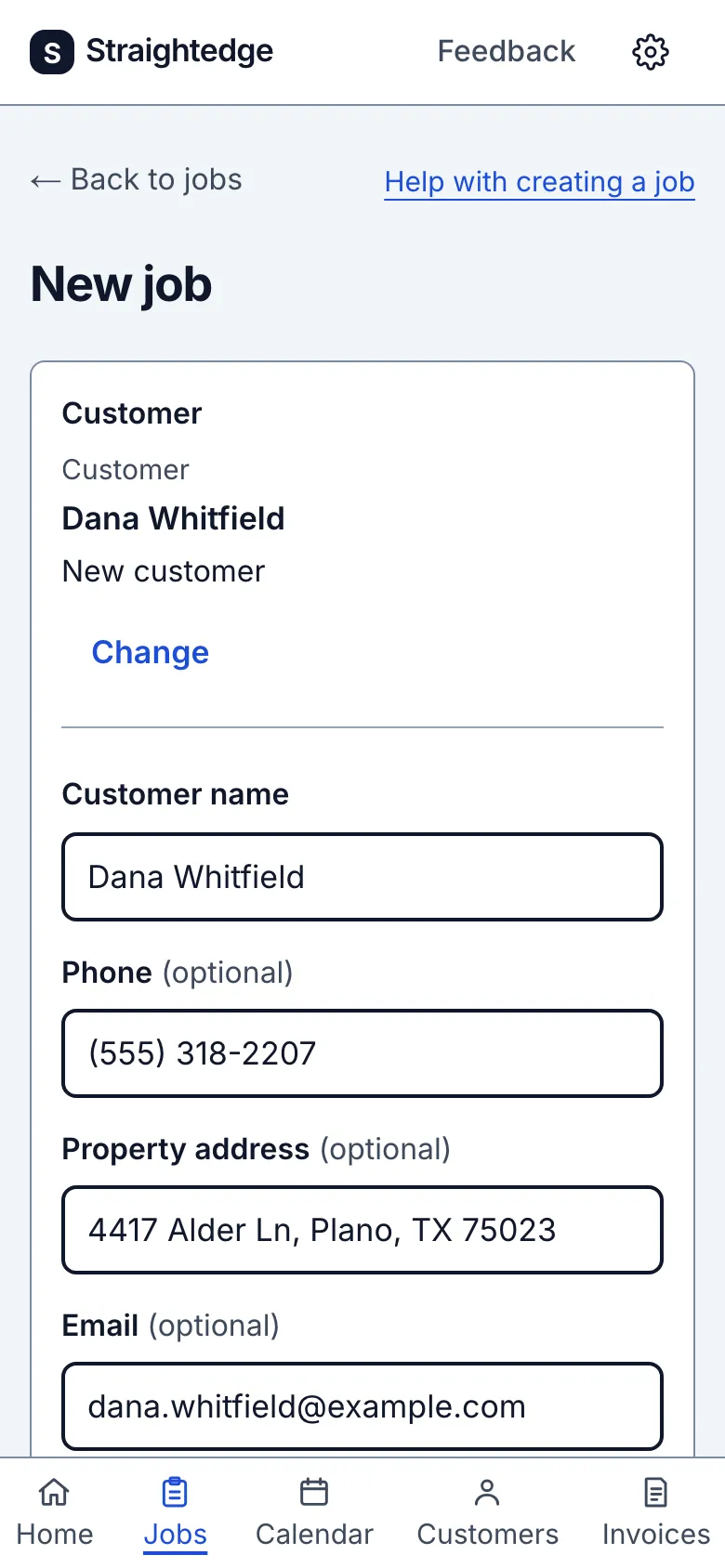
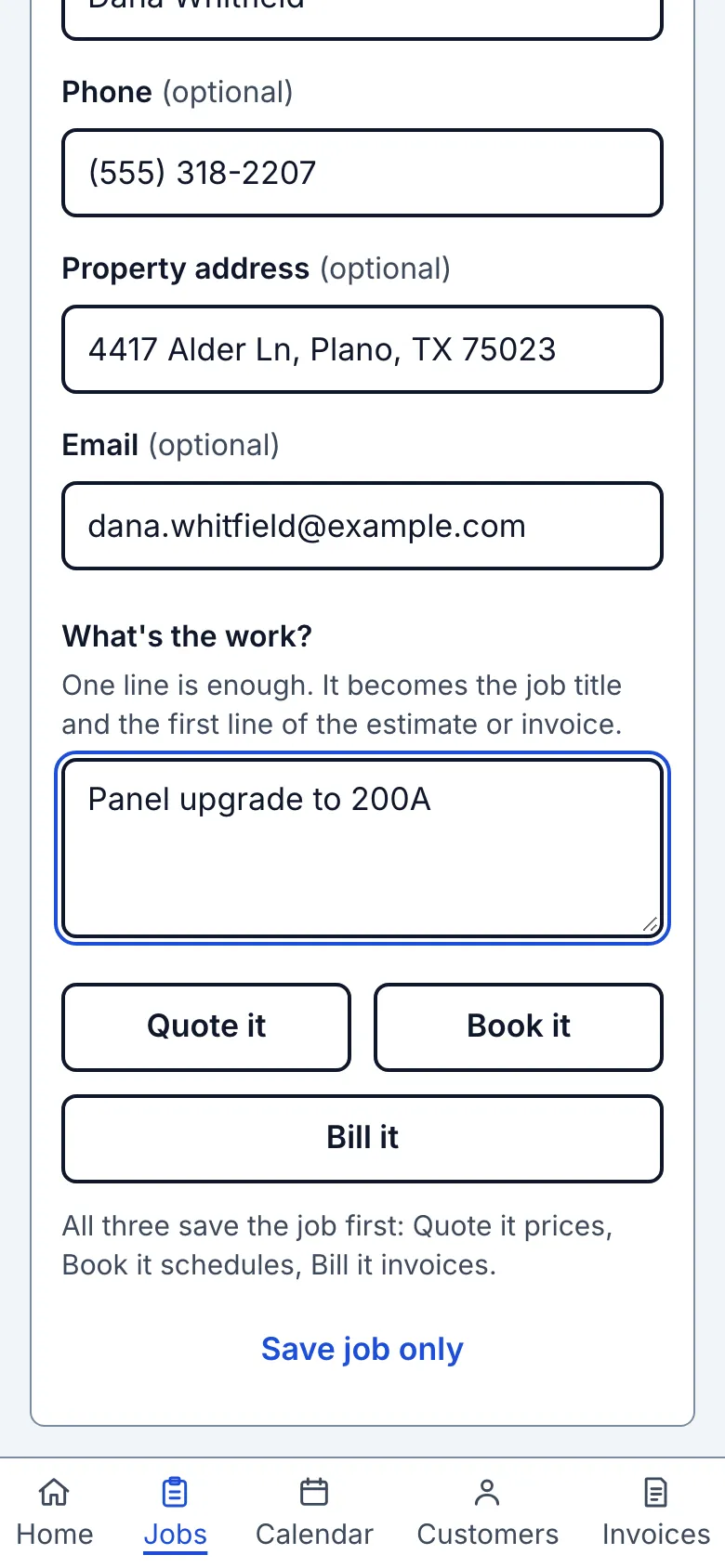
The New job form explains what Quote it, Book it and Bill it do below the three actions, and links to Help with creating a job beside Back to jobs.
1. Start the job for Dana
On Jobs, tap New job. Type Dana Whitfield in Customer and choose Add “Dana Whitfield” as a new customer. Name is required; phone, address and email are optional, but phone and address power Call, Text and Directions later. Type “Panel upgrade to 200A” in What's the work?. Straightedge uses that line as the job title. If contact details match someone already saved, choose whether to use that customer or add Dana anyway.
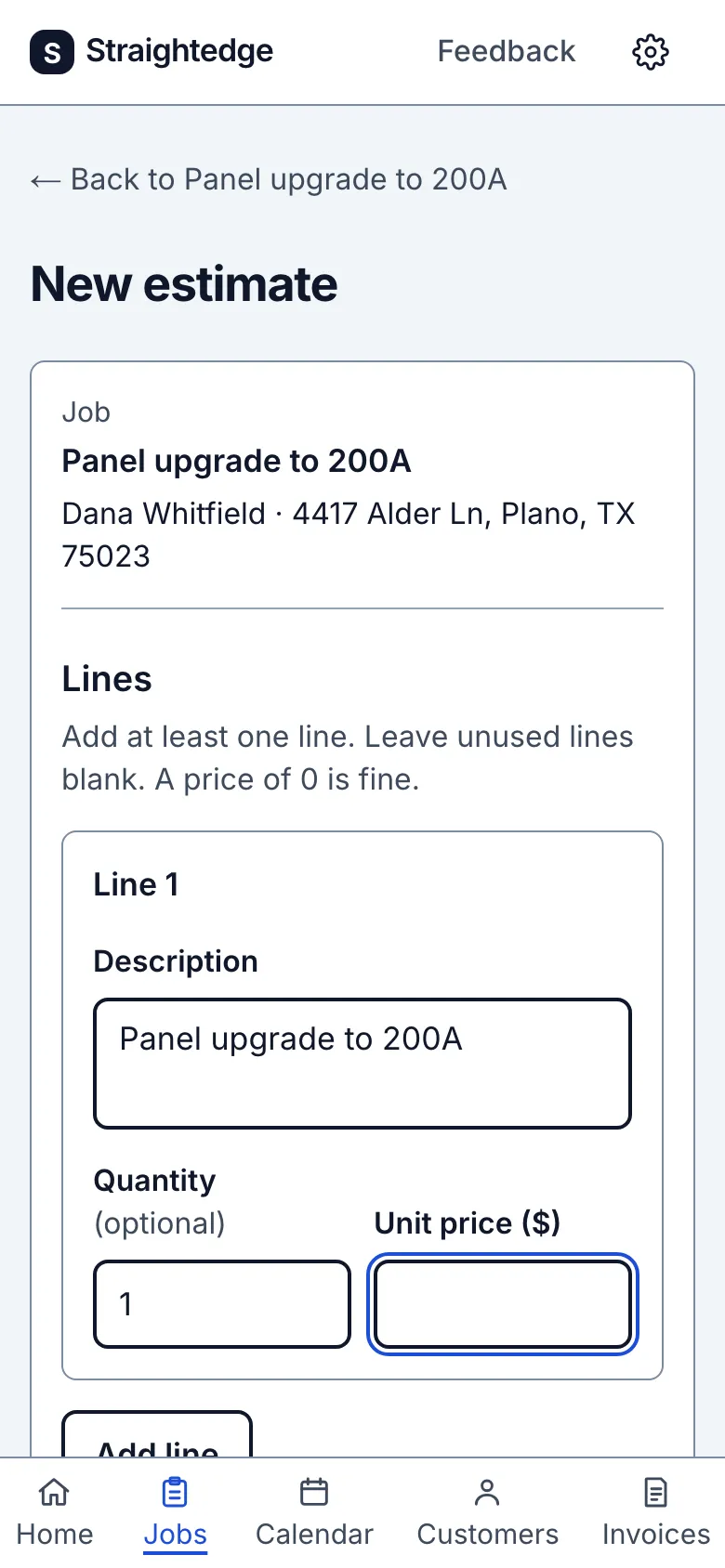
Choose Quote it. The job and customer are saved together, and the estimate form opens with the work already in its first line. Book it and Bill it open their own forms; Save job only opens the job page. No estimate is saved until you save its form.
2. Write the estimate
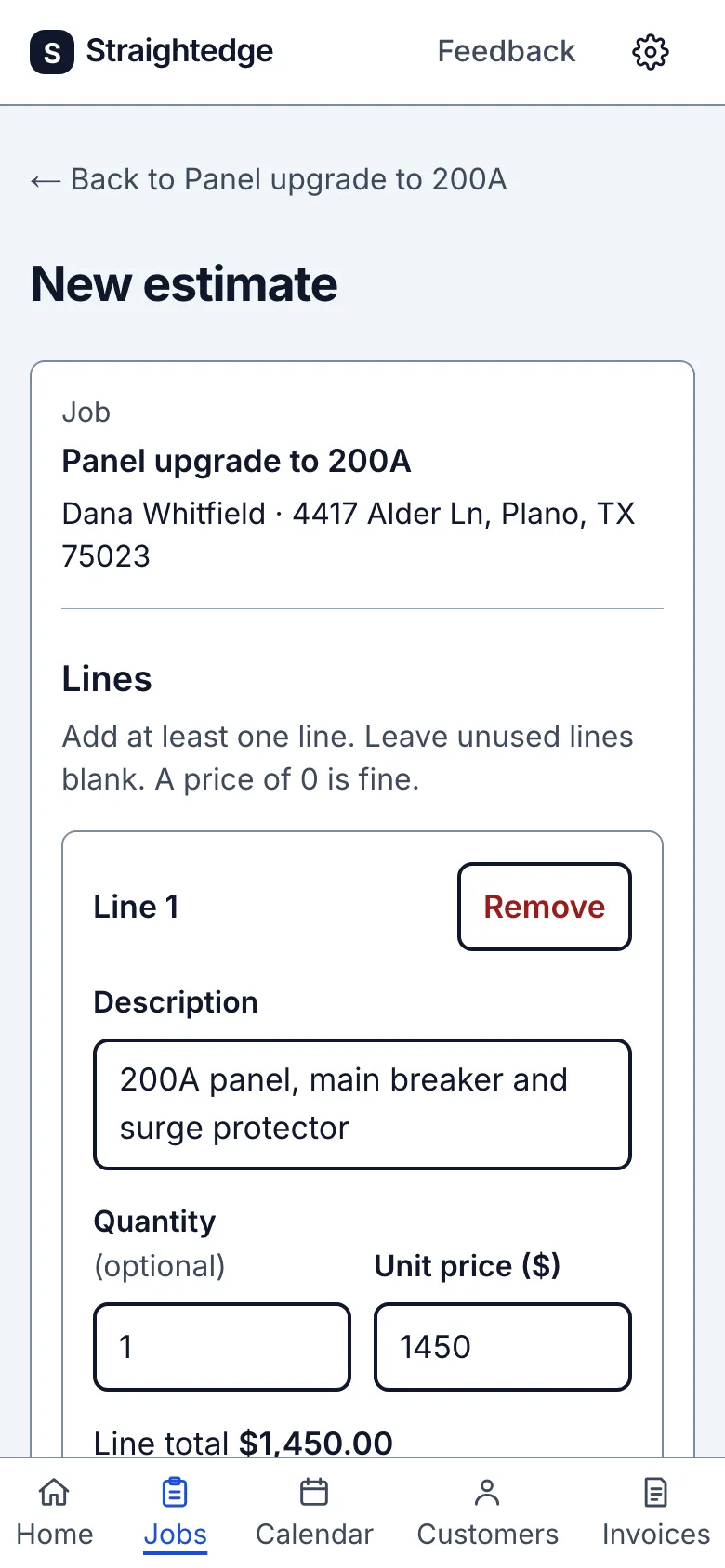
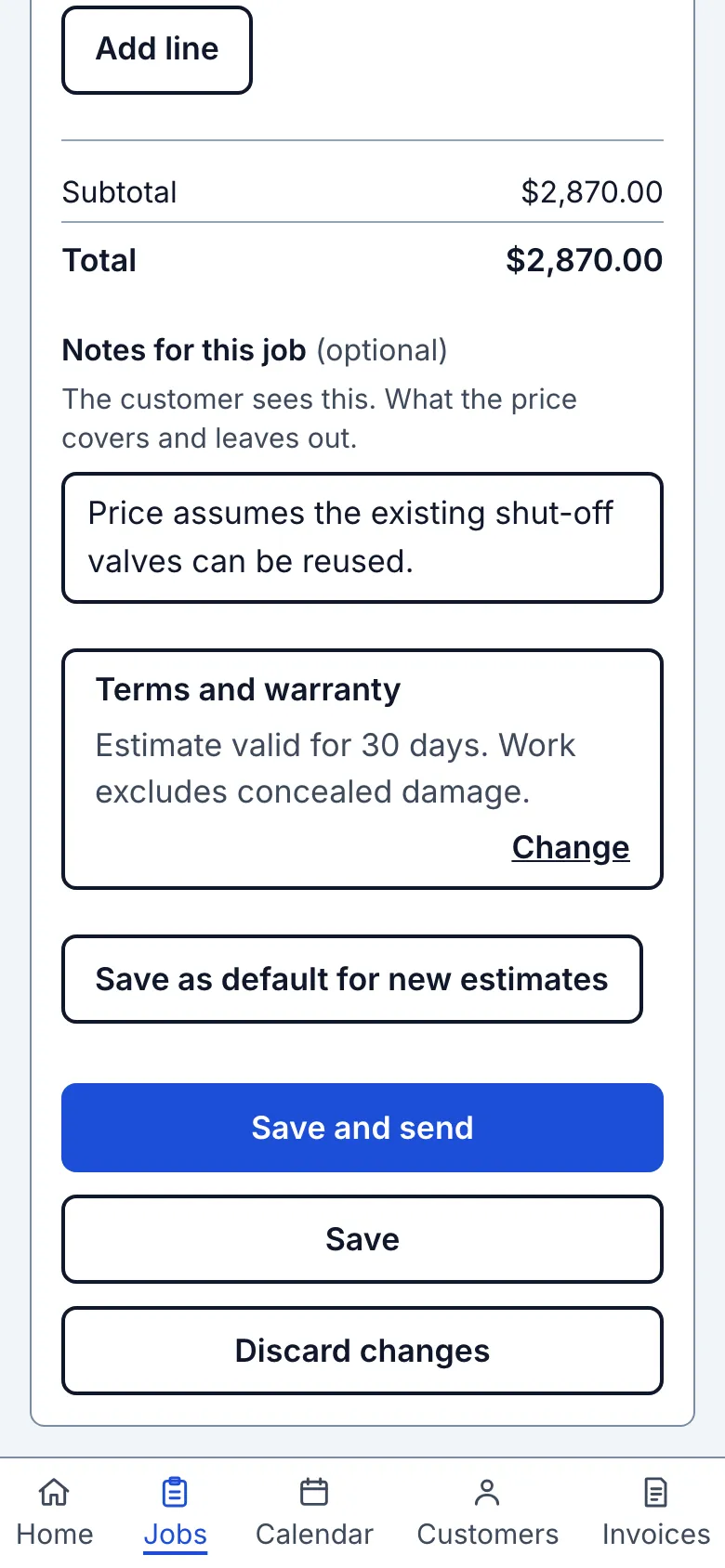
The estimate form is already open. Its first description is the job title and its quantity is 1. Enter the price, edit the line if needed, and add more lines (up to 50). The total updates as you type. Save and send opens the Send screen; Save opens the estimate instead.
3. Send it to Dana
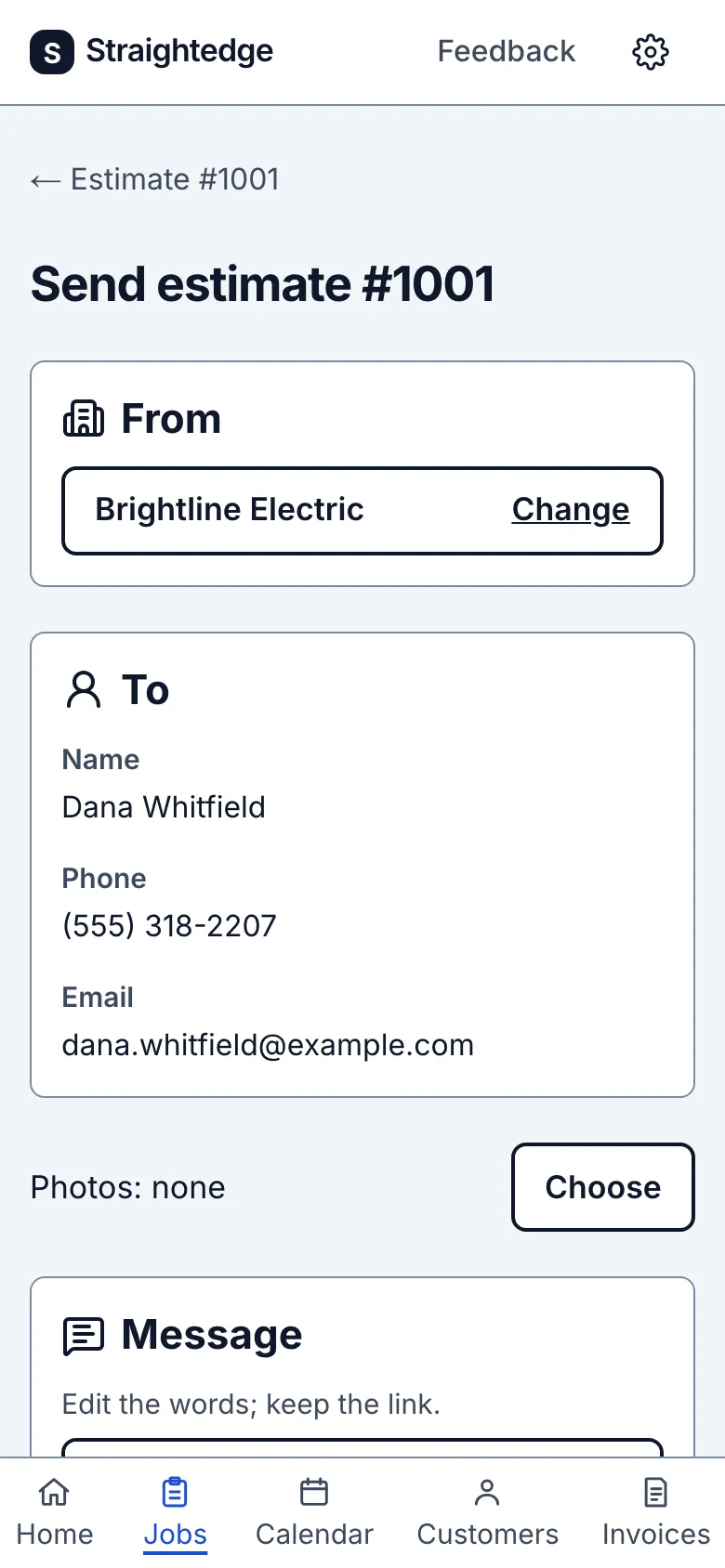
On the estimate, tap Send to customer. Straightedge writes a short message with a private link to the estimate. You can:
- tap Text (when Dana has a saved phone number) to open your phone's Messages with the message ready, then press send yourself
- tap Email (when Dana has a saved email) to do the same in your mail app
- tap Copy link and paste it anywhere, like WhatsApp
The first time, it asks for your business name, because that goes at the top of every estimate.
4. What Dana sees
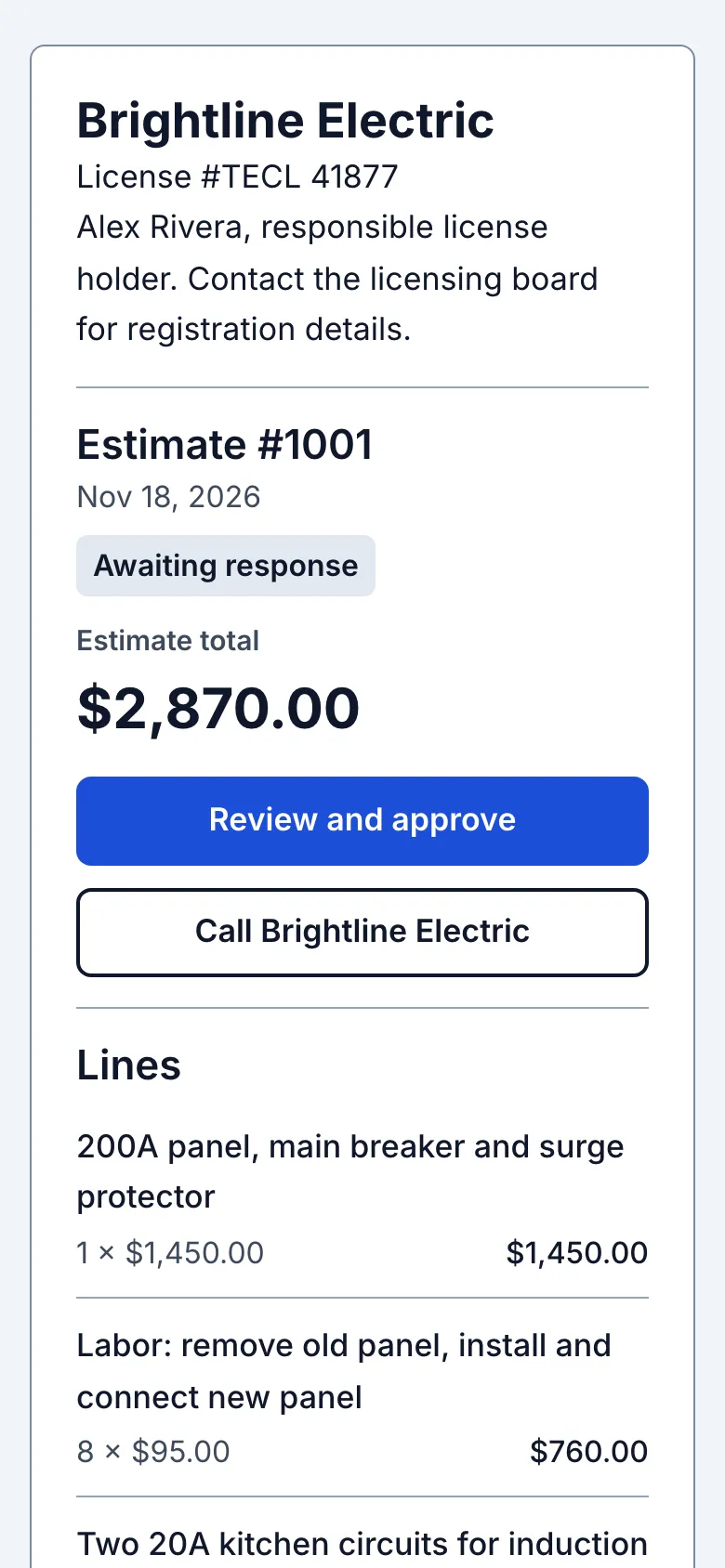
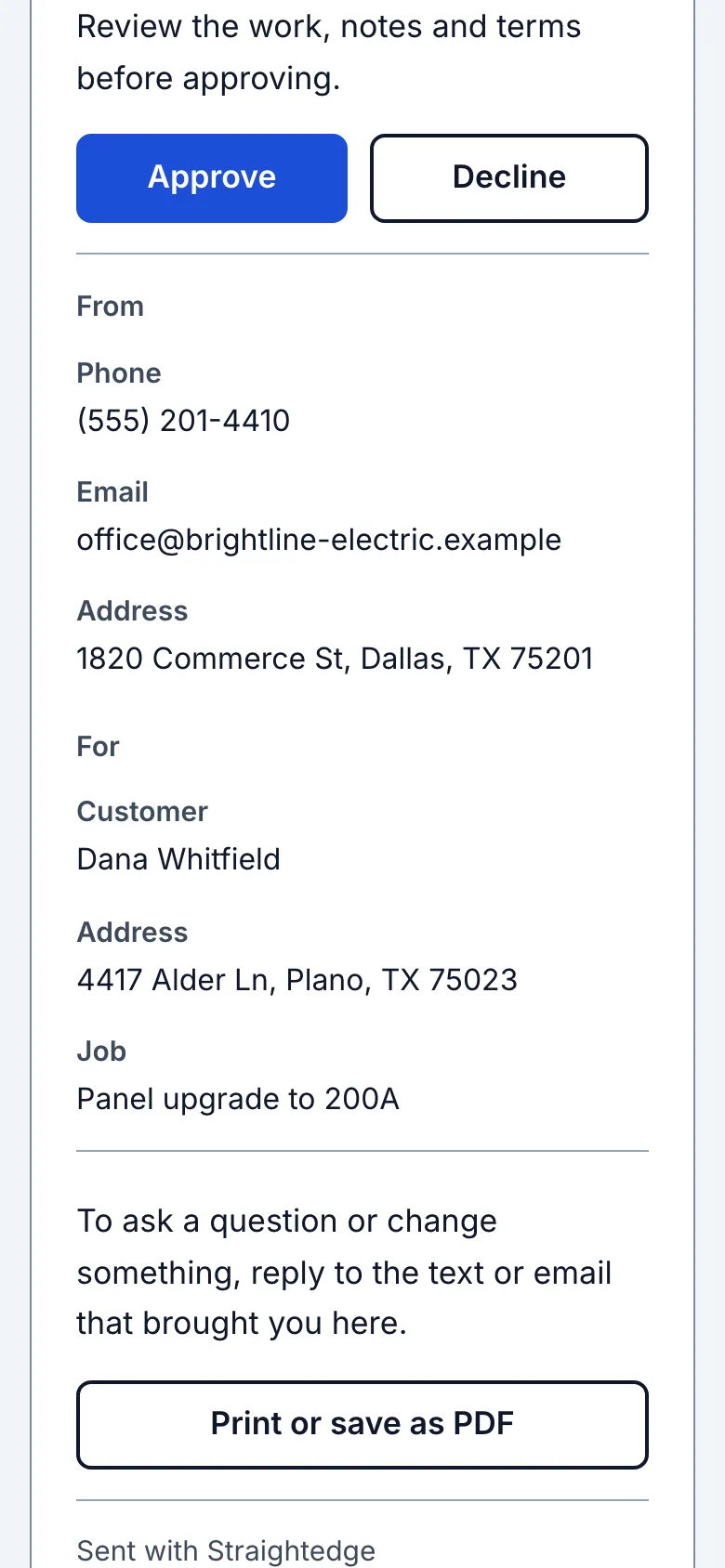
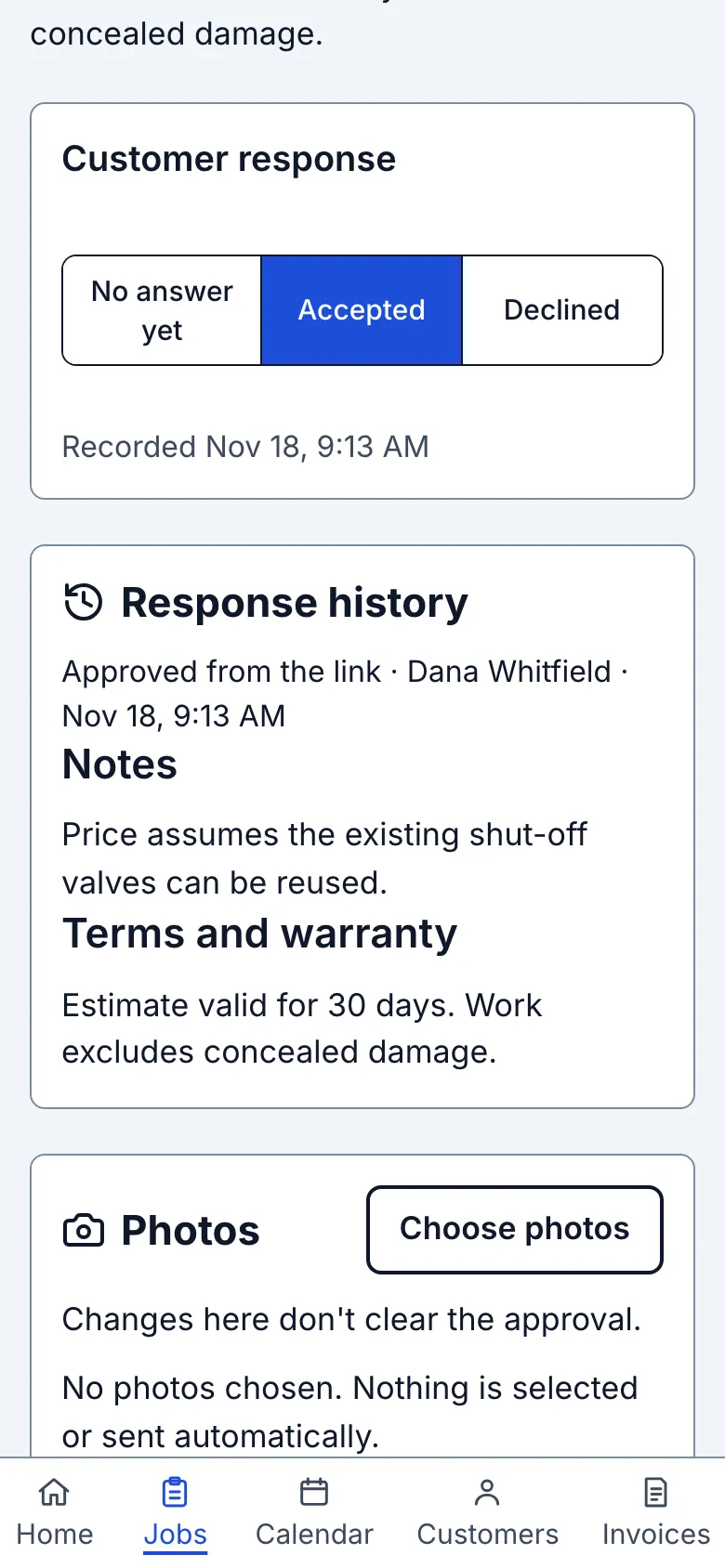
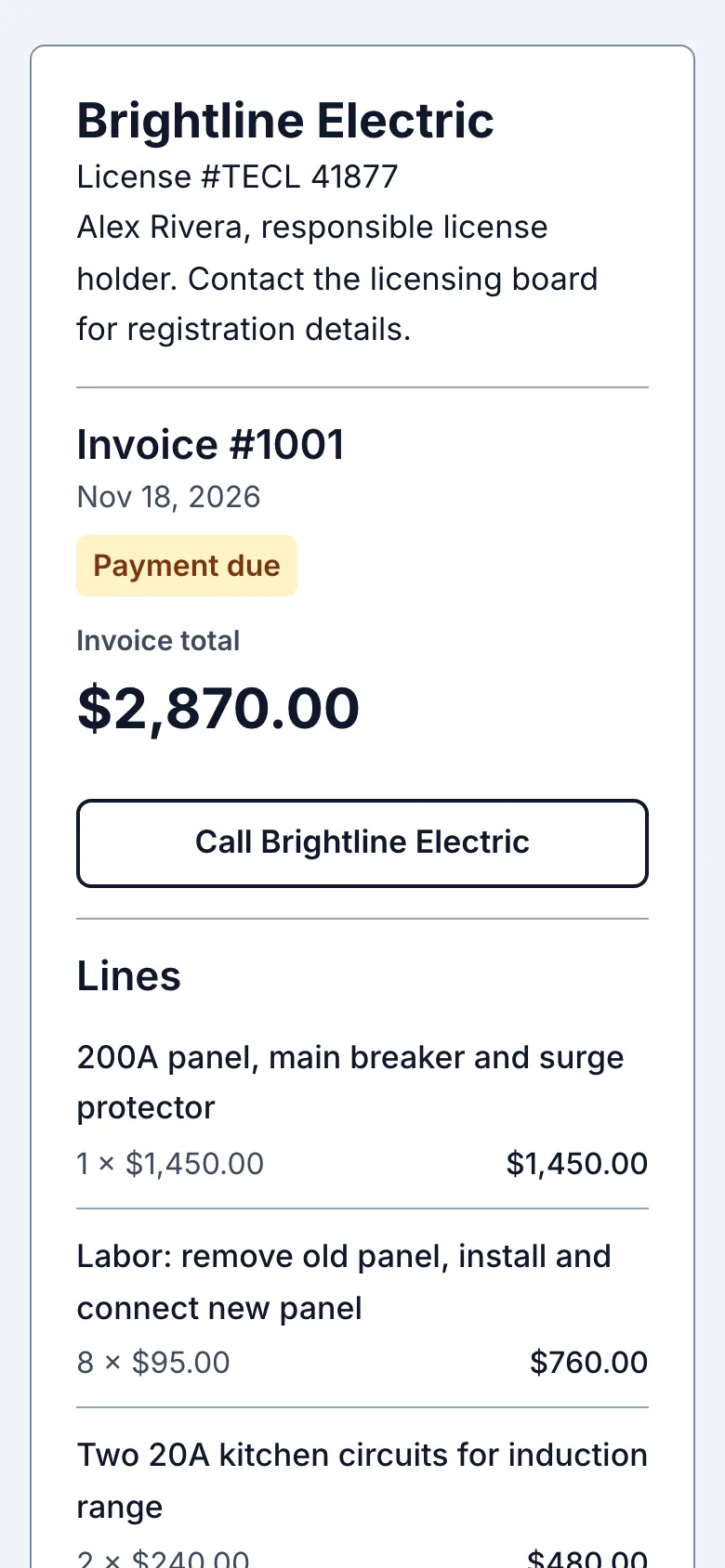
Dana taps the link and gets a clean page with your business details, the lines, and the total. Dana doesn't need an account or an app. To go ahead, Dana taps Approve beneath the total, enters a name and confirms the total. Decline works the same way, with an optional reason. To ask for a change, Dana replies to your text.
5. See that Dana opened it, and record the yes
Back on the estimate, the Sharing section shows when you sent it and when Dana opened the link. Your own previews don't count. When Dana approves from the link, Customer response shows the answer with the time and name Dana entered, and you get an email. If Dana says yes by phone instead, tap Accepted under Customer response yourself.
6. Schedule the visit
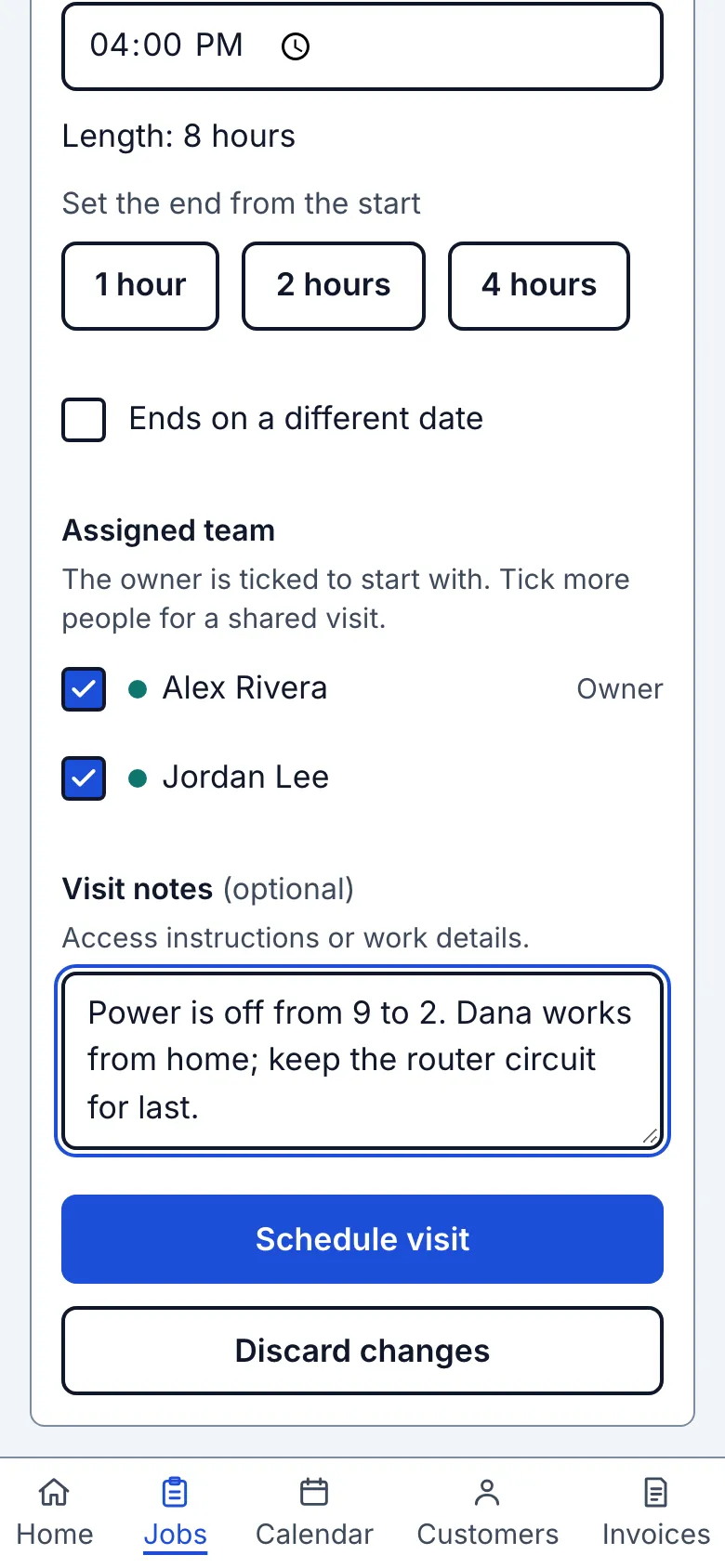
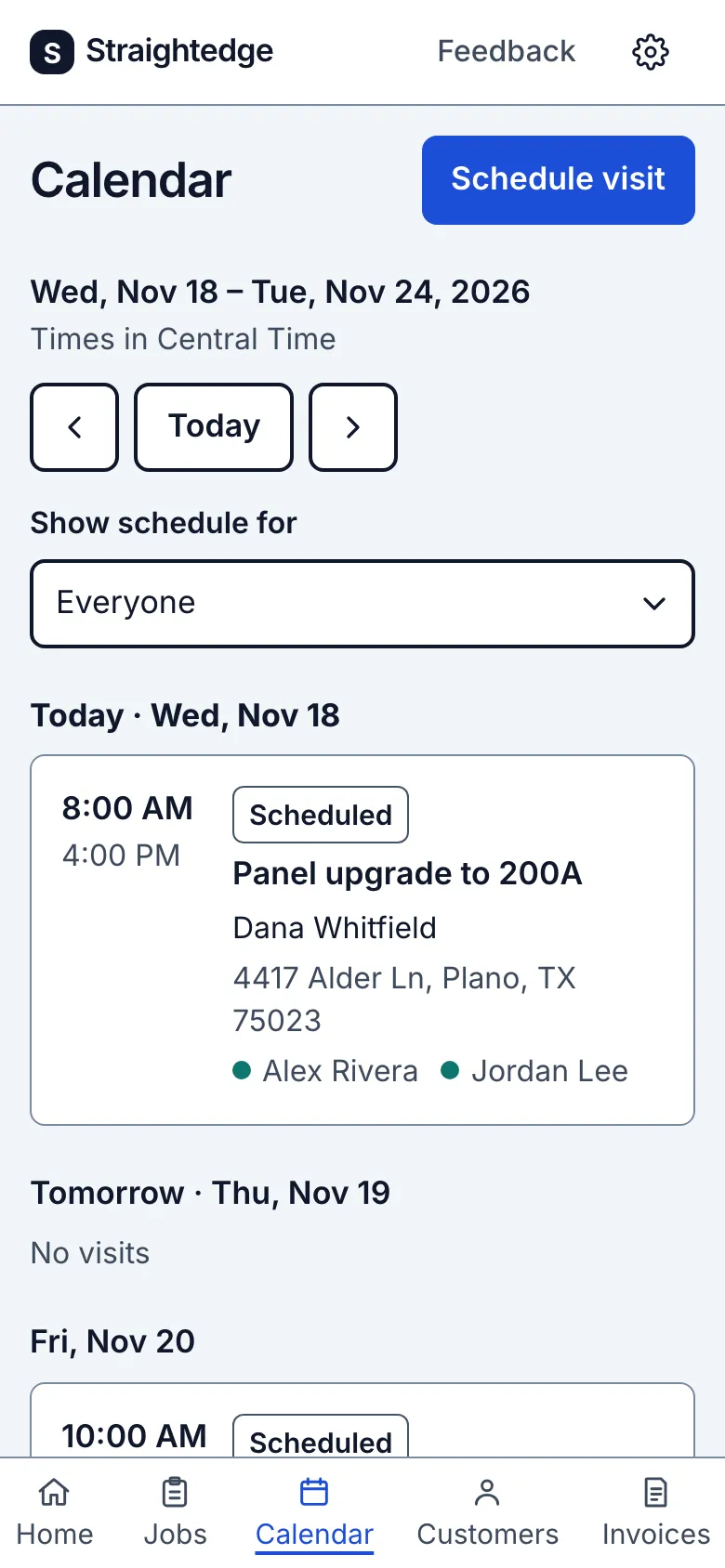
On the job page, tap Schedule visit. Pick Date and Start time; End time fills in an hour later, or tap 2 hours or 4 hours. Under Assigned team, you're ticked to start with; tick anyone else going. Visit notes are for things like gate codes and power shut-off times.
If someone is already booked at that time, Straightedge warns you. You can still book both if you give a reason.
7. Jordan's day
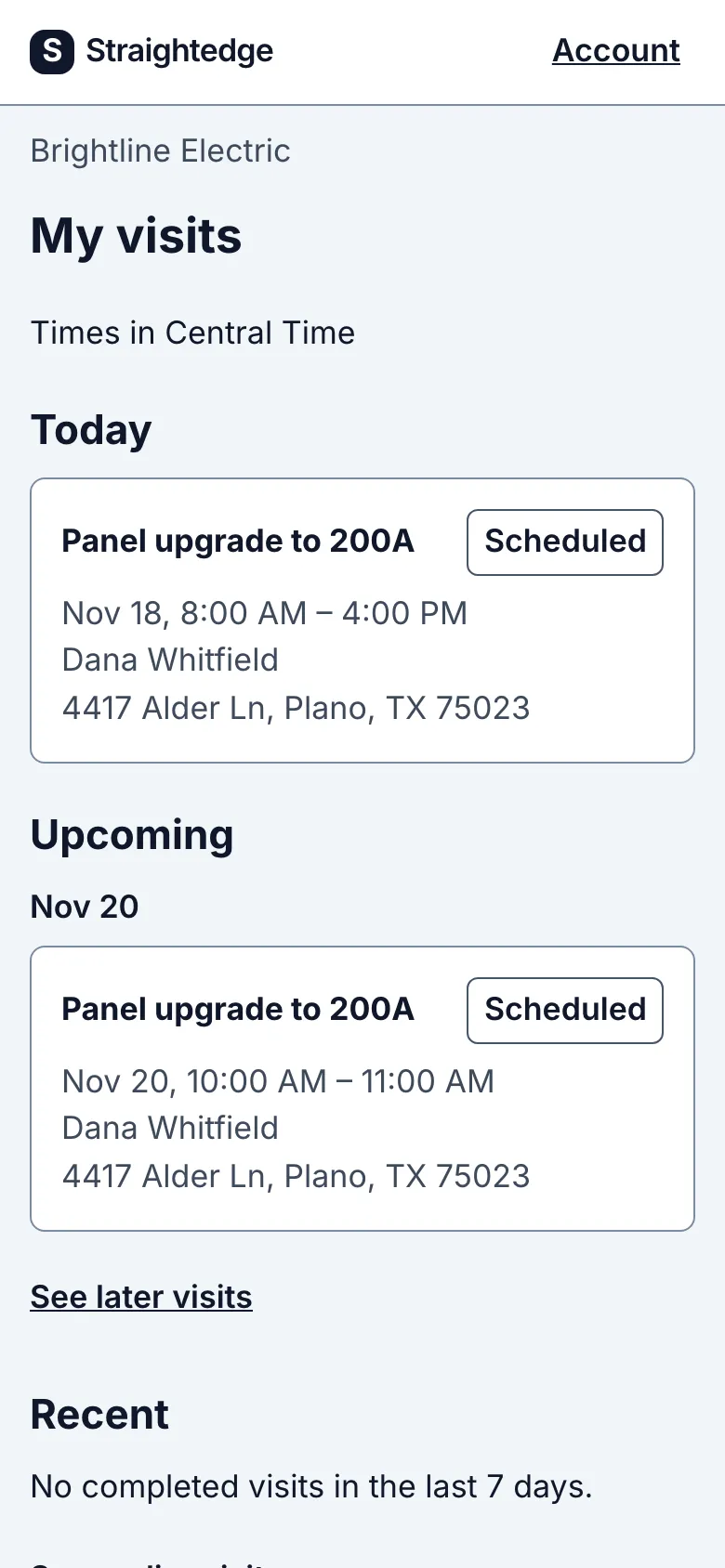
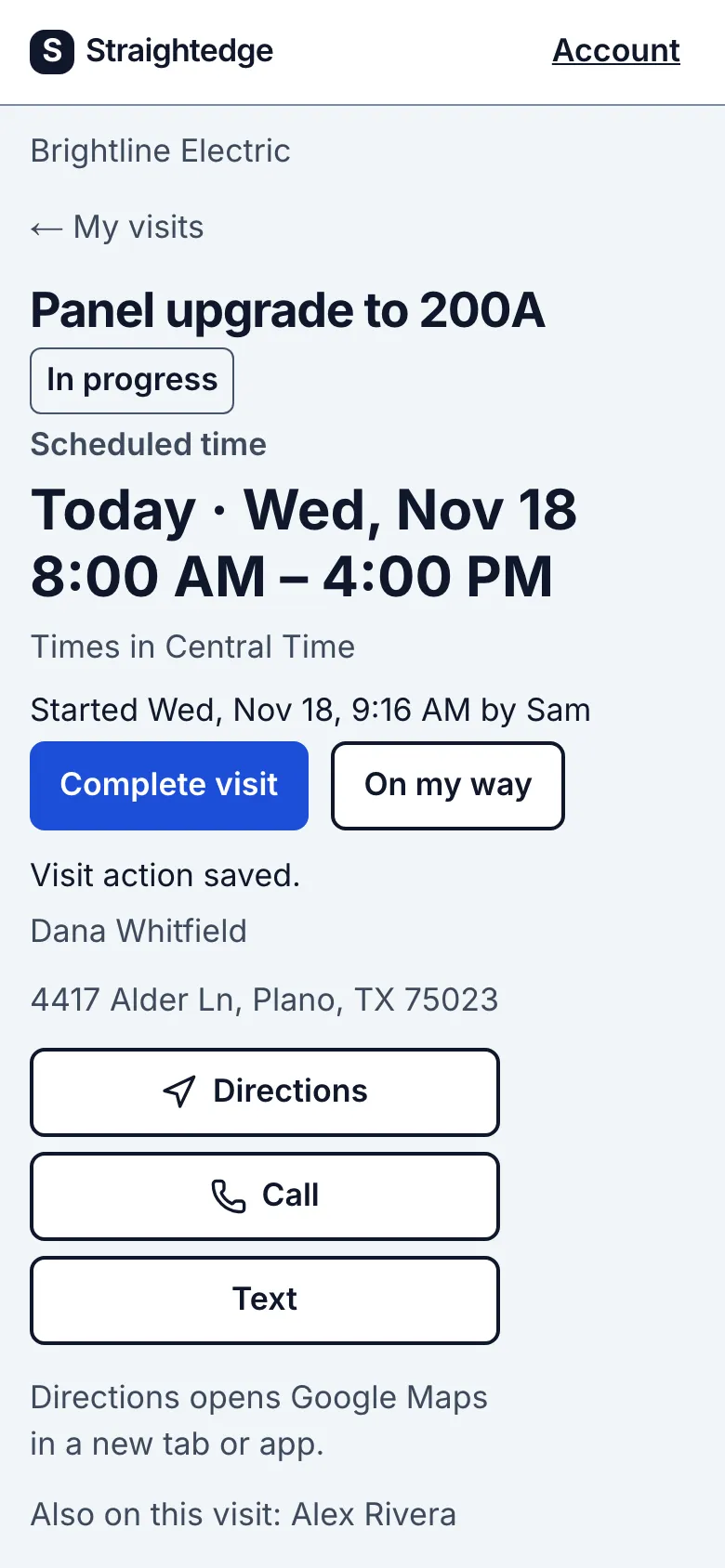
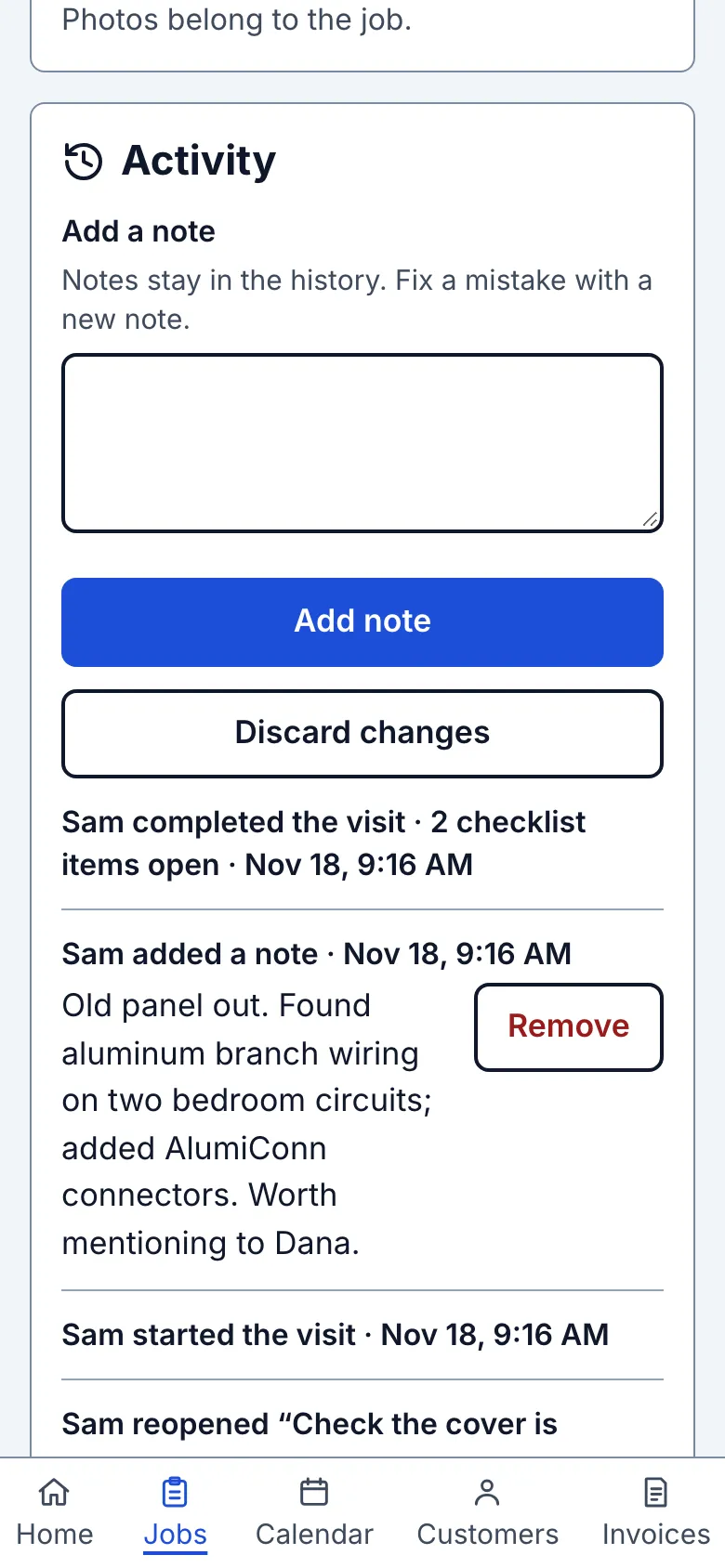
Jordan has a separate login and sees only assigned visits, with the address, Directions, Call and Text. No prices, no invoices. On site, Jordan taps Start visit, enters the note in Add a note and taps Add note, then taps Complete visit at the end.
8. Back at the office, or the truck
Everything Jordan did shows up on the visit's activity, with names and times. Completing a visit doesn't close the job. It stays open until you close it.
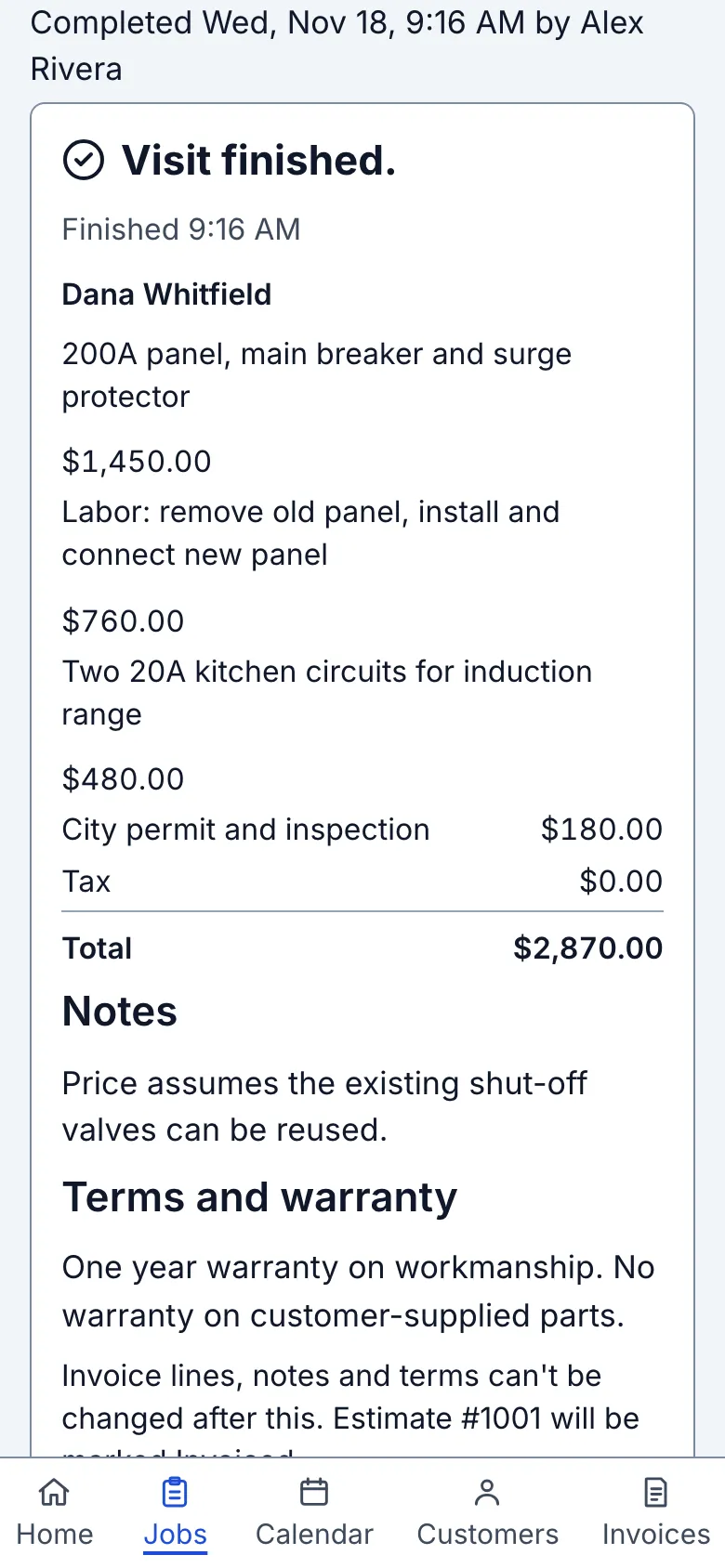
When a visit is completed, its page says Visit finished. and offers the next step. If the job has an accepted estimate, the Invoice button shows its total, so the invoice is one tap from the driveway. There may also be Add photos and Schedule next visit. The inspection two days later is where Alex taps Complete and sees it.
9. Turn the estimate into an invoice
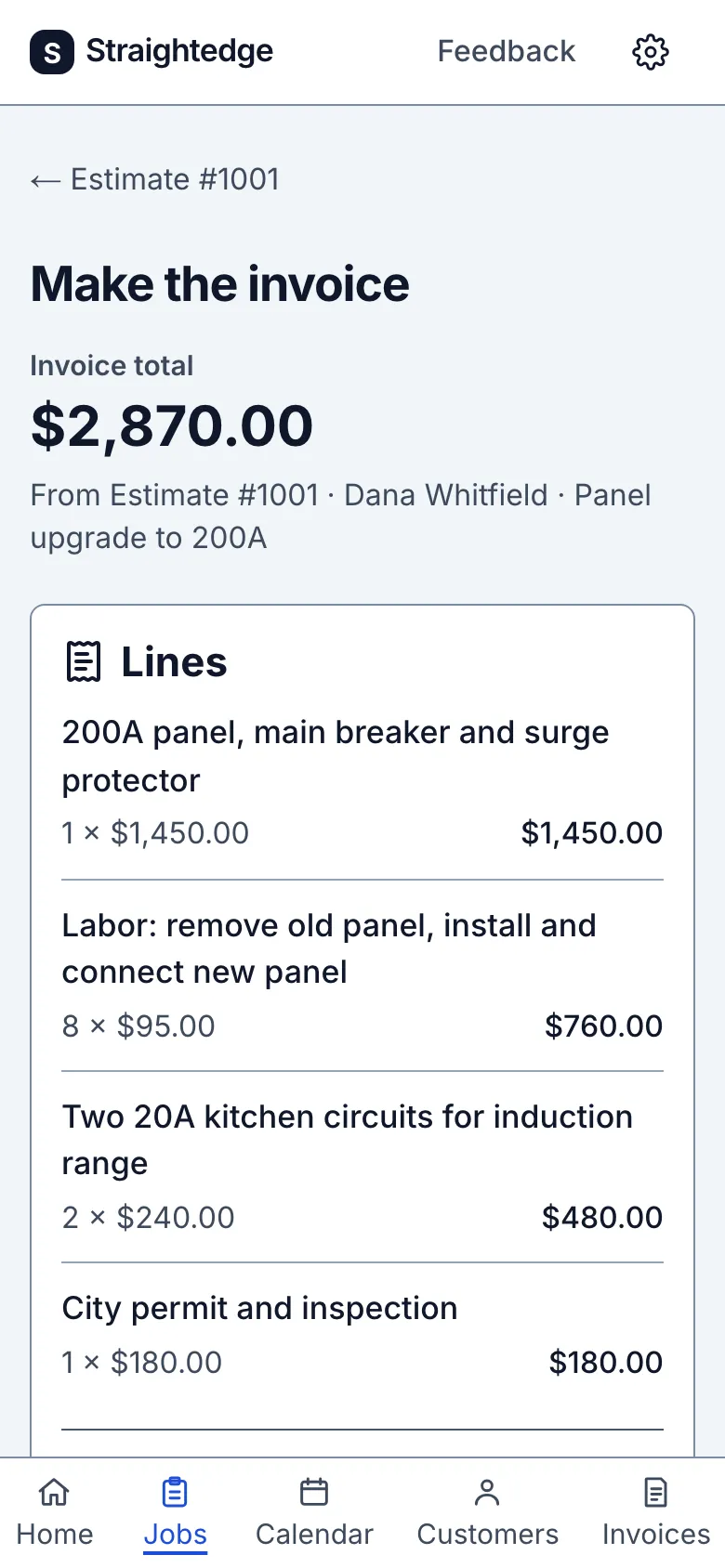
On the estimate, tap Make the invoice, review the lines, then tap Make the invoice. The invoice copies the estimate's lines. If the work changed, edit the estimate first, because invoice lines can't be changed afterwards. For work with no estimate, New invoice on the job page starts a blank one.
10. Send the invoice
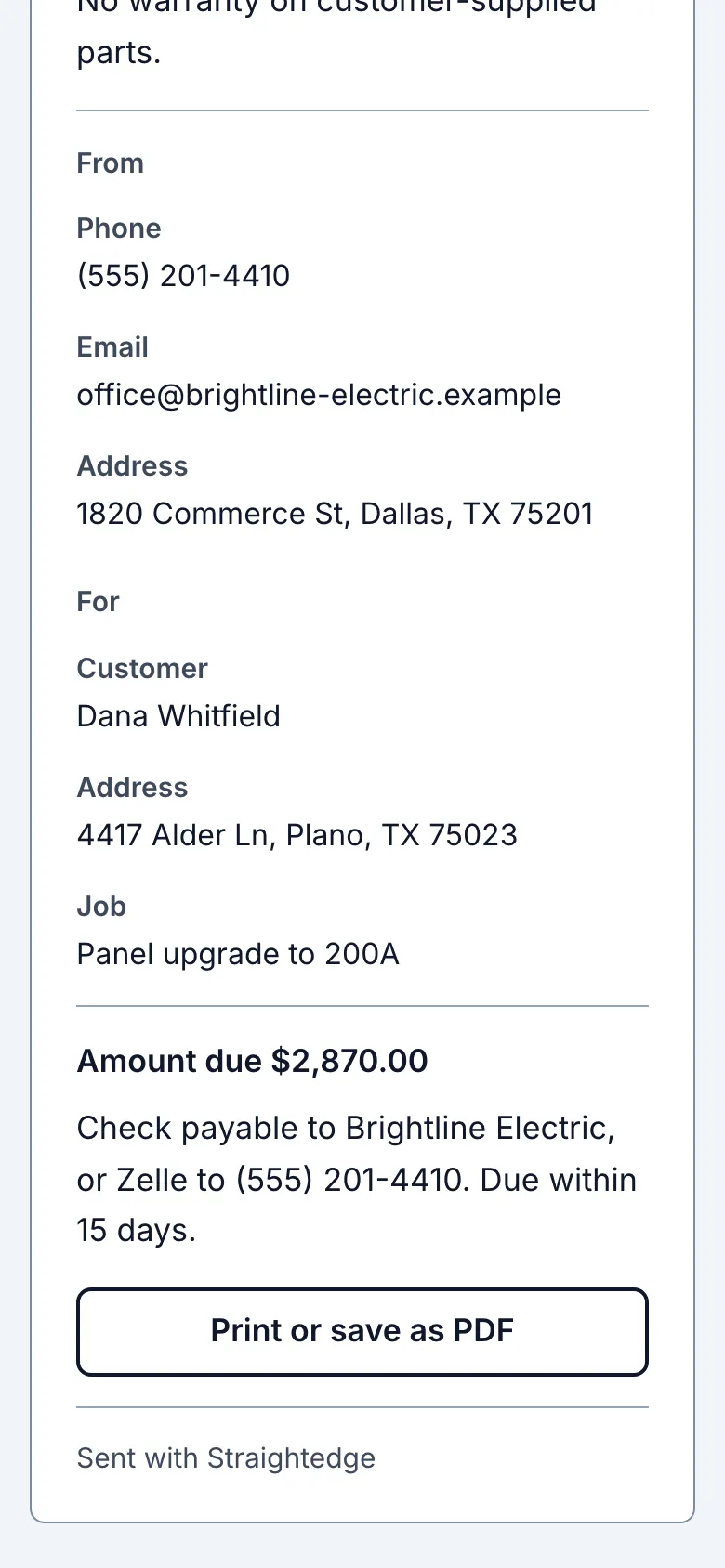
On the invoice, tap Send to customer. It works exactly like the estimate. Dana sees the amount due and your payment instructions, which you set once in Settings. The customer pays you the way they always would, or by card from the invoice link once you have set up online payments (Get paid online).
11. Record the payment
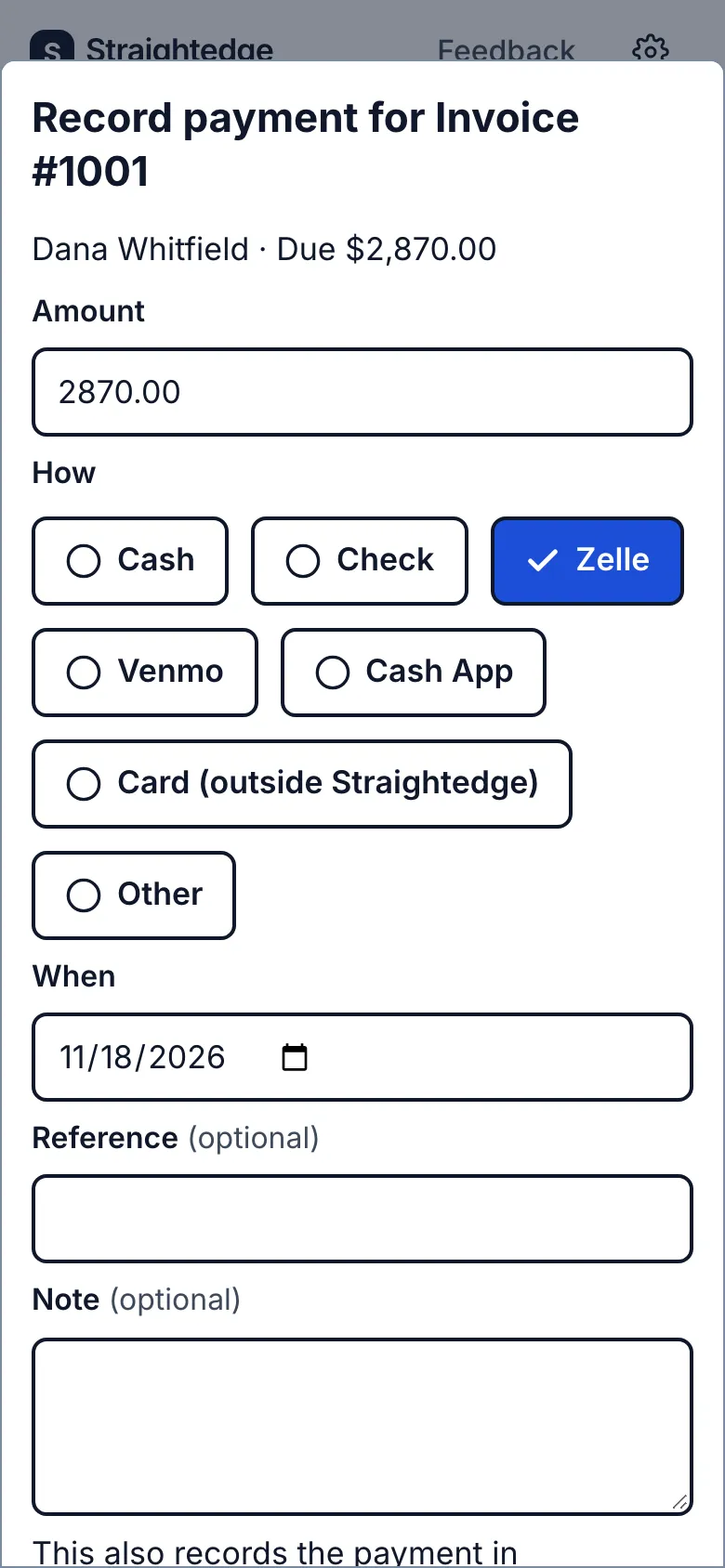
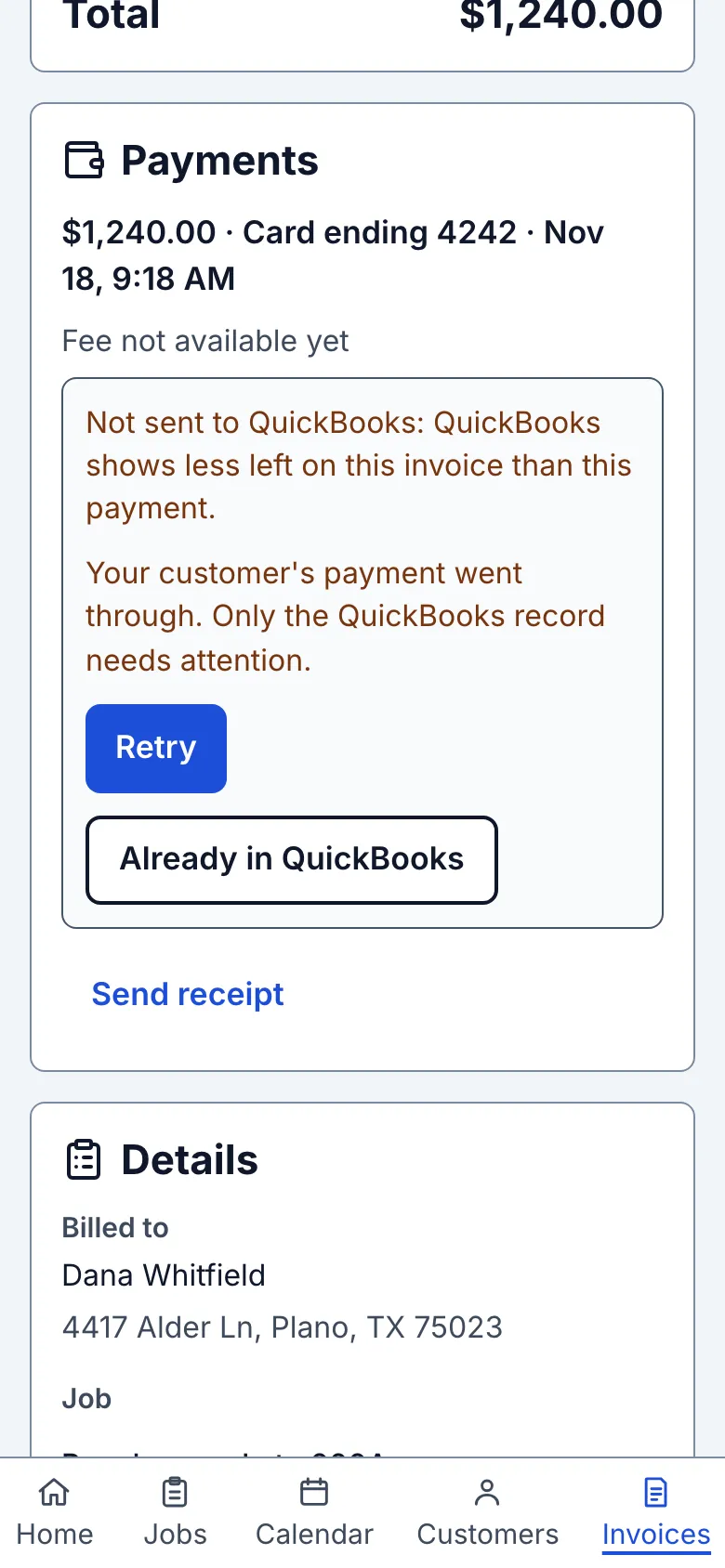
When the money arrives, tap Record payment on the invoice. The amount is filled in; choose How they paid (cash, check, Zelle and so on), then tap Record with the amount shown on the button. On the Send page, the Paid on the spot card records money taken there; use Text or Email afterward to send the receipt. The invoice is Paid. If QuickBooks is connected, check its sync status; a failure can be retried. Tapped it by mistake? Remove payment under Payments puts it back.
12. Close the job
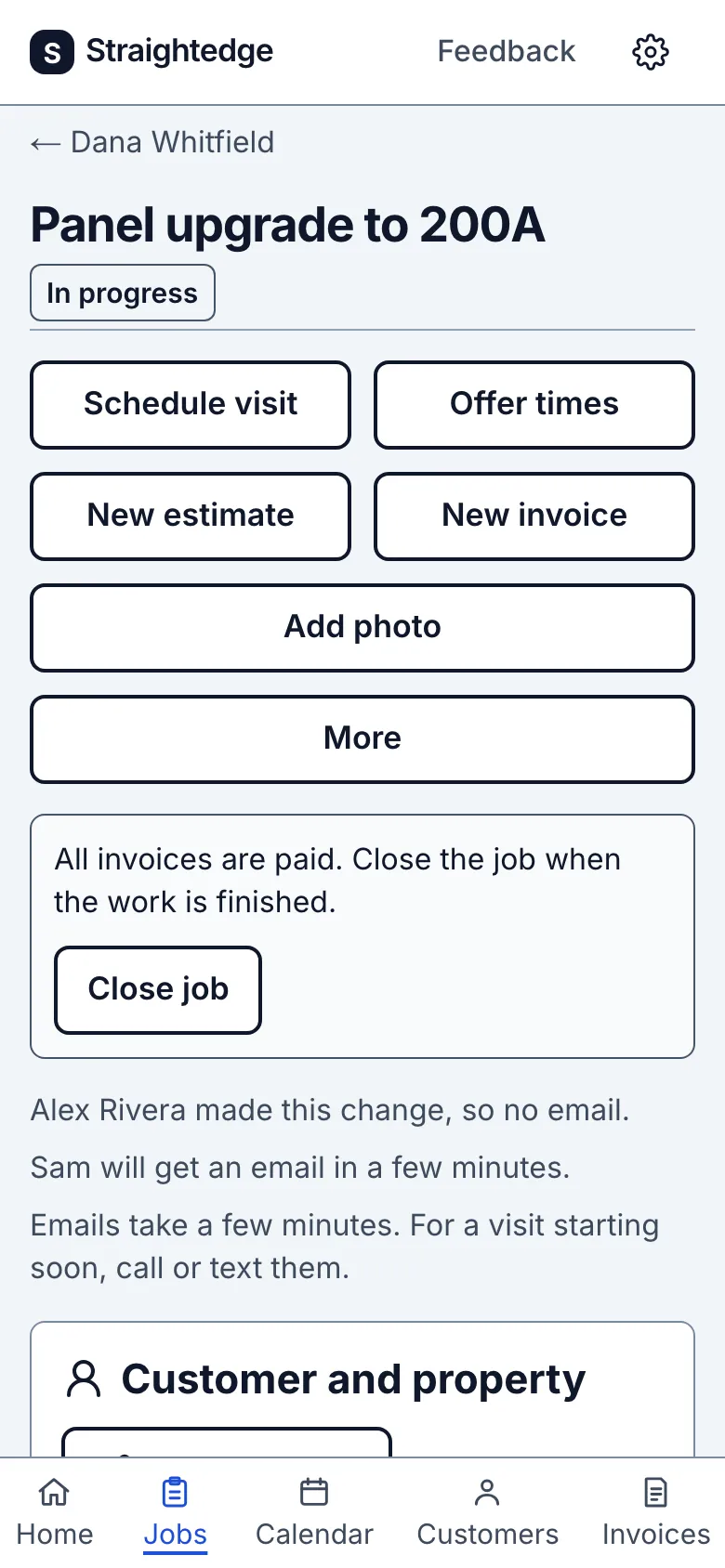
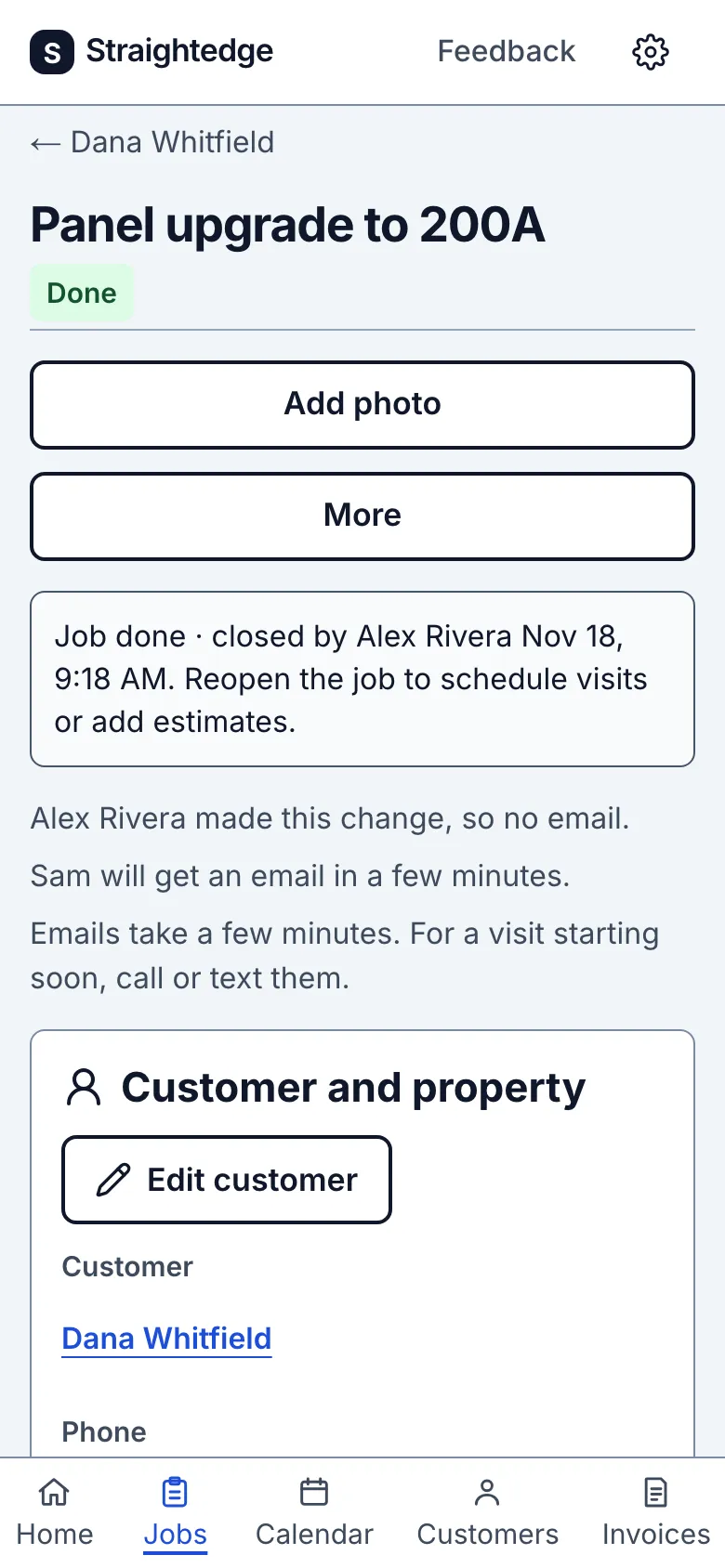
Getting paid doesn't close the job, so a deposit or a visit still to come never gets stuck. Once every invoice is paid and no visit is booked, the job page says "All invoices are paid. Close the job when the work is finished." Tap Close job there, or on the invoice. With nothing left to cancel it closes in one tap; otherwise a review page lists what's still booked first. The job page then says "Job done" with who closed it and when.
Limits
- Straightedge can't see inside your Messages app. The badge "Sent" means you tapped a send button, not that the message went out. Make sure you press send.
Still stuck? Email support@getstraightedge.com