Get paid online
Who can do it
The business owner can set up and change online payments. Crew cannot change these settings.
A payment made with Stripe Link shows as "Stripe Link", including in QuickBooks. The customer's invoice link calls it "Link".
Before you start
Setup happens on Stripe's own pages and takes about 15 minutes. Have these ready: your phone, your date of birth, your home address, the last 4 digits of your Social Security number, your bank's routing number and a checking account number, and a web address for your business (a website or the full link to a social media page such as your Facebook page). A registered business (LLC, partnership or corporation) also needs its EIN.
1. Open Payments
In Settings, open Payments. Before setup, the card says Get paid online.
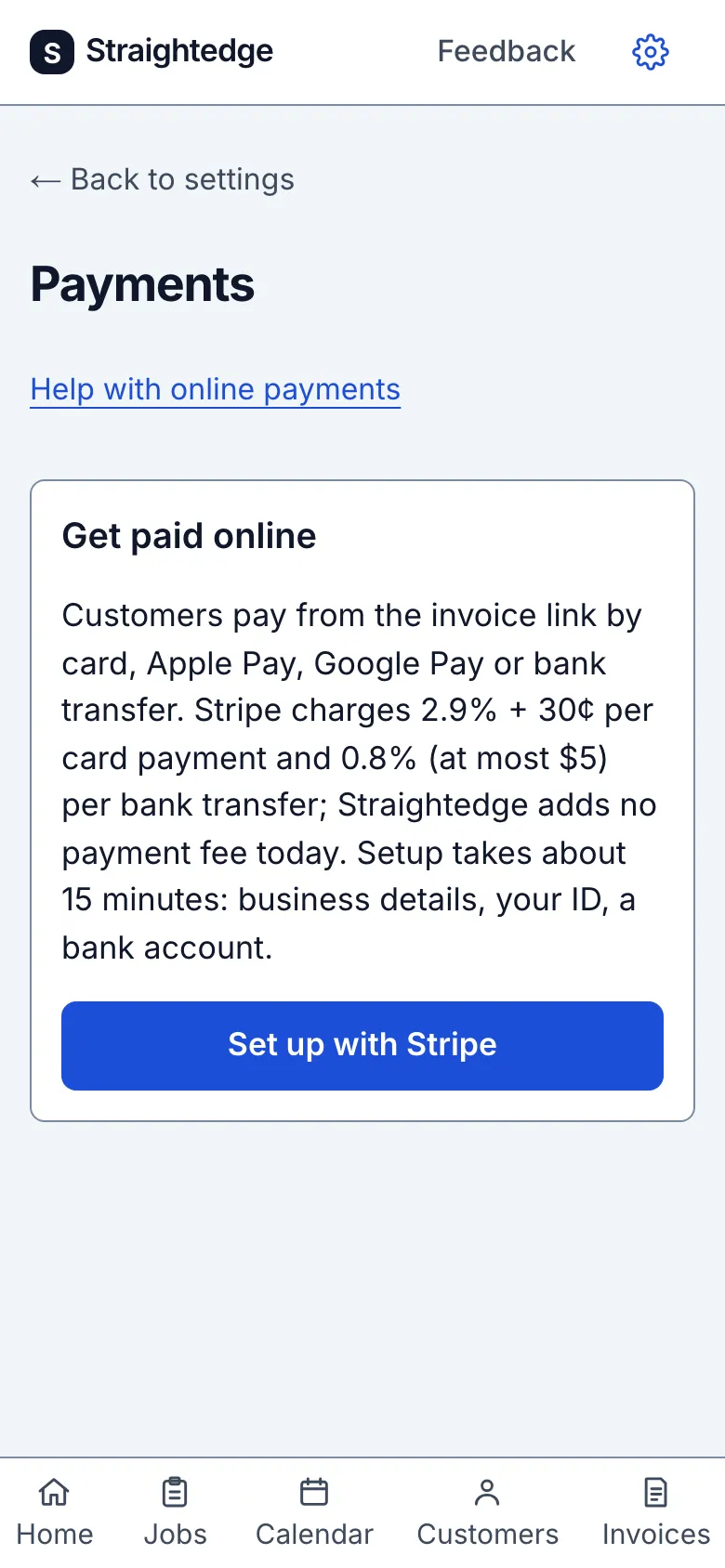
2. Start Stripe setup
If you see Business name, enter the name your customers know. Straightedge saves it, and Stripe shows it to customers on the payment page and the receipt. Tap Set up with Stripe. Stripe's setup opens; its screens follow.
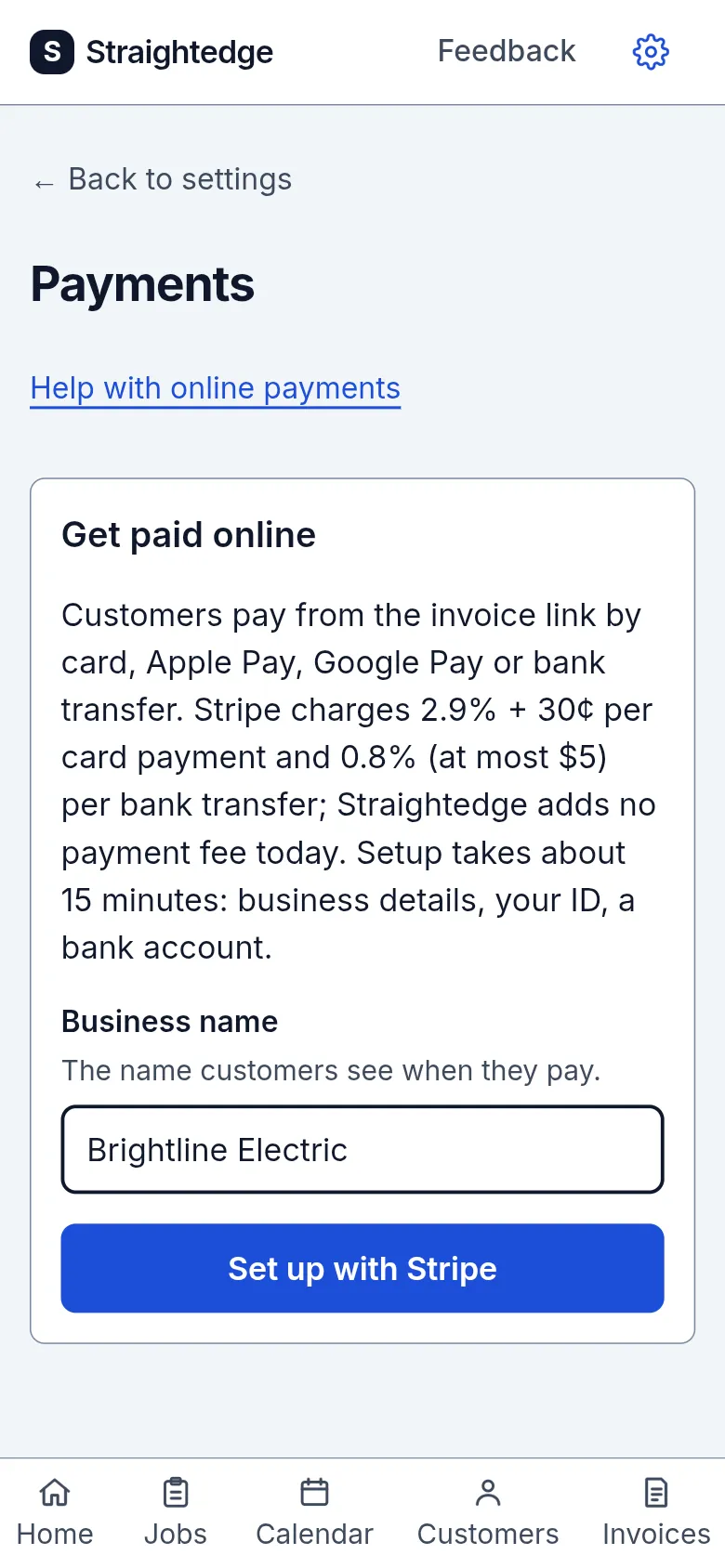
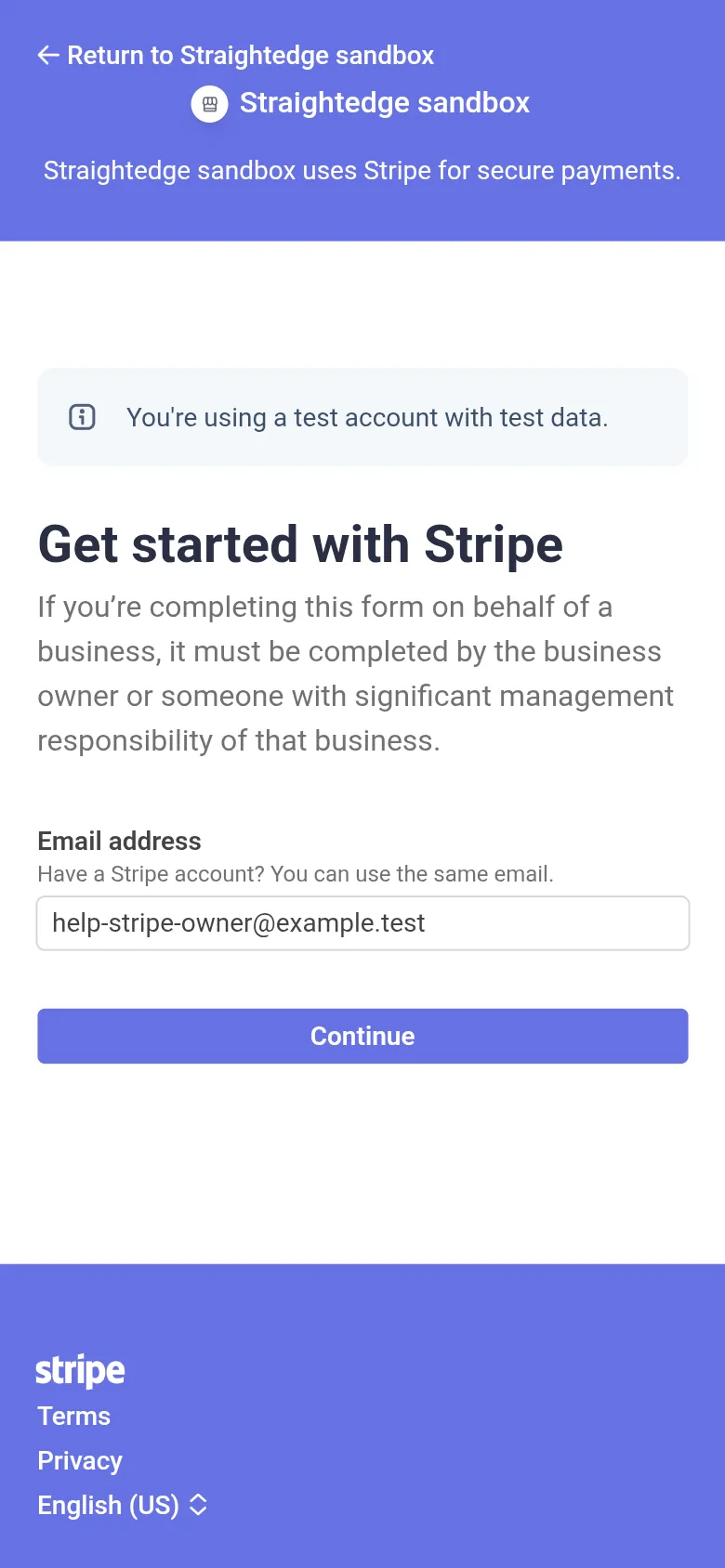
These pictures come from Stripe's test mode, so they say "Straightedge sandbox" and "You're using a test account with test data". Your screens say Straightedge and hold your own details. Stripe can change its screens; if a screen differs, answer what it asks.
Get started with Stripe: your email is filled in. Tap Continue. If you already use Stripe with this email, sign in with that account.
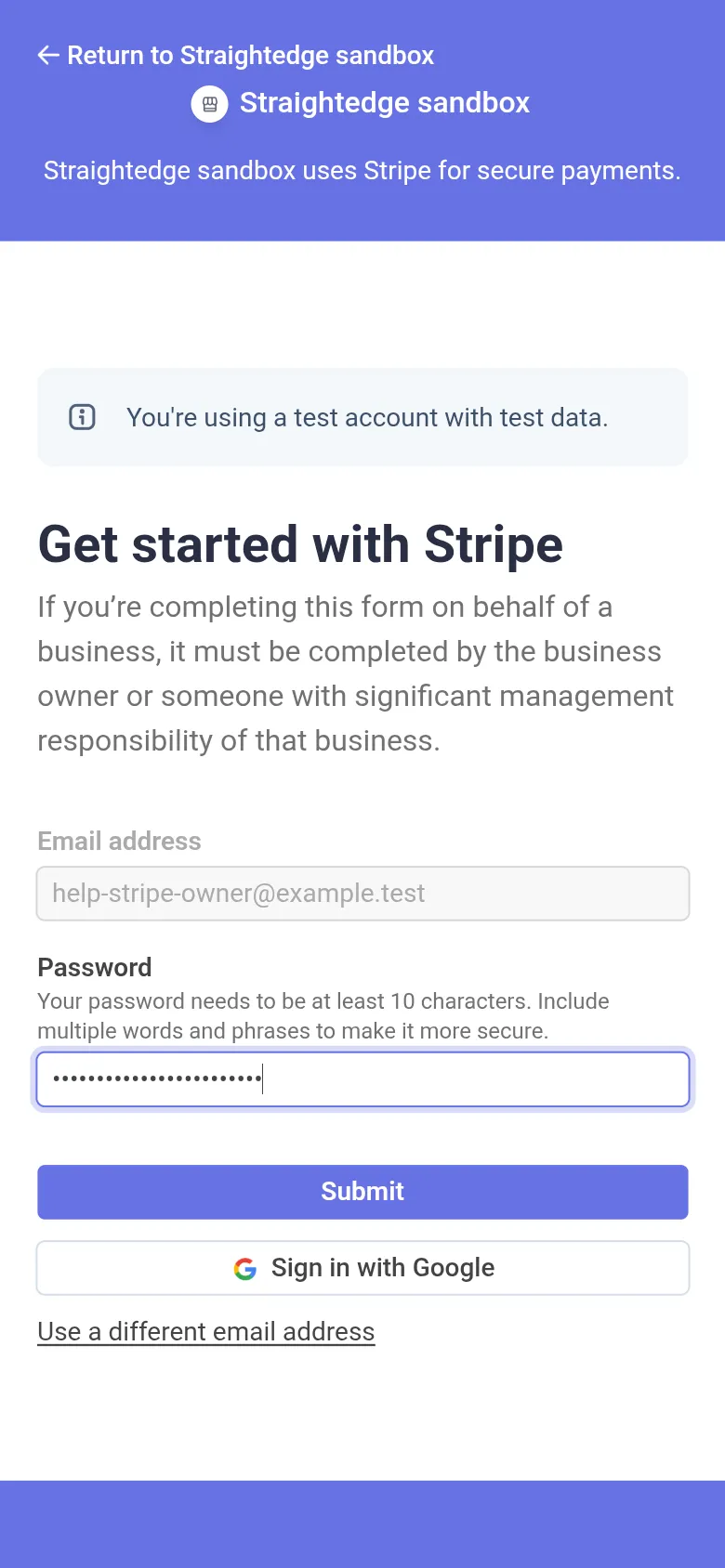
Choose a password for your Stripe login (at least 10 characters) and tap Submit.
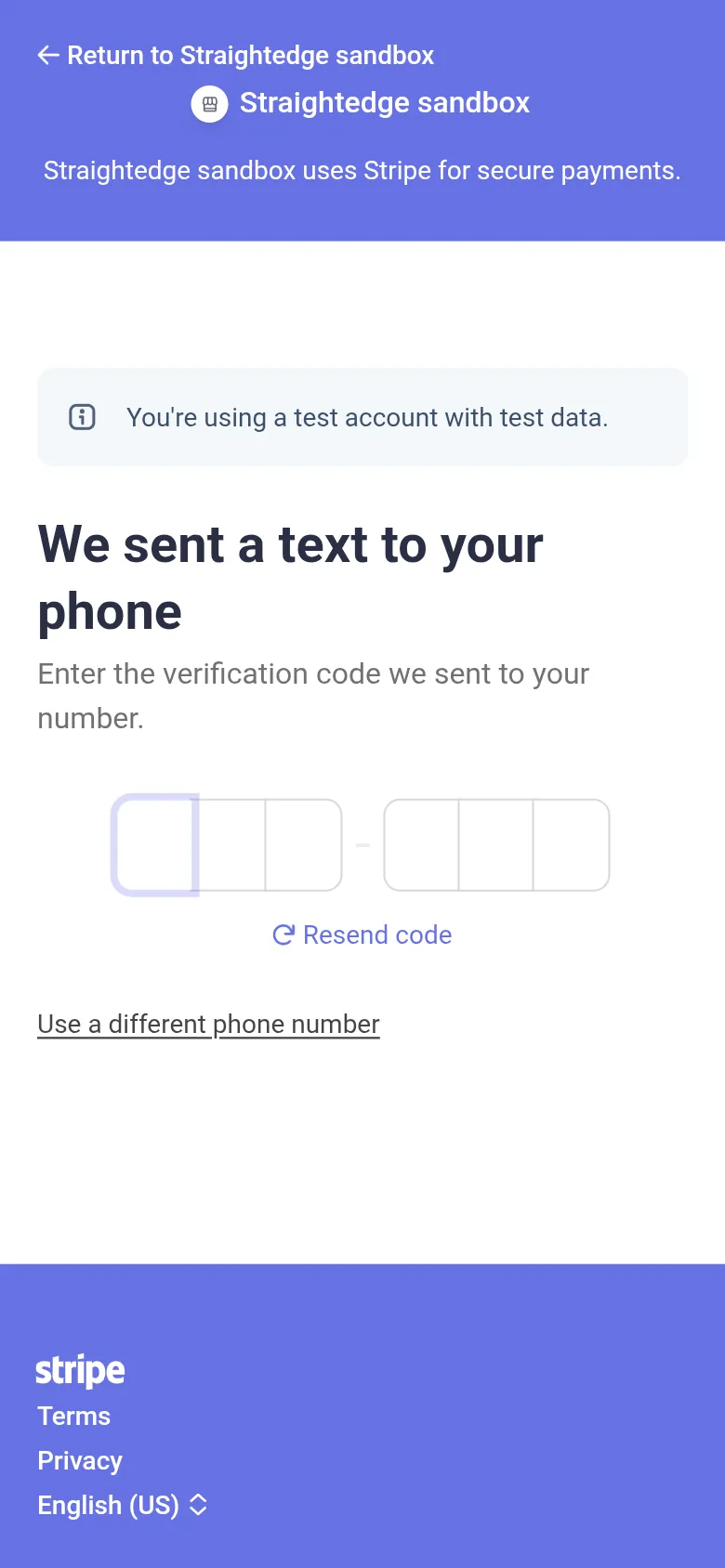
Stripe asks you to protect the login with two-step sign-in. Enter your mobile number and tap Send text, then type the code Stripe texts you. You can use an authenticator app instead.
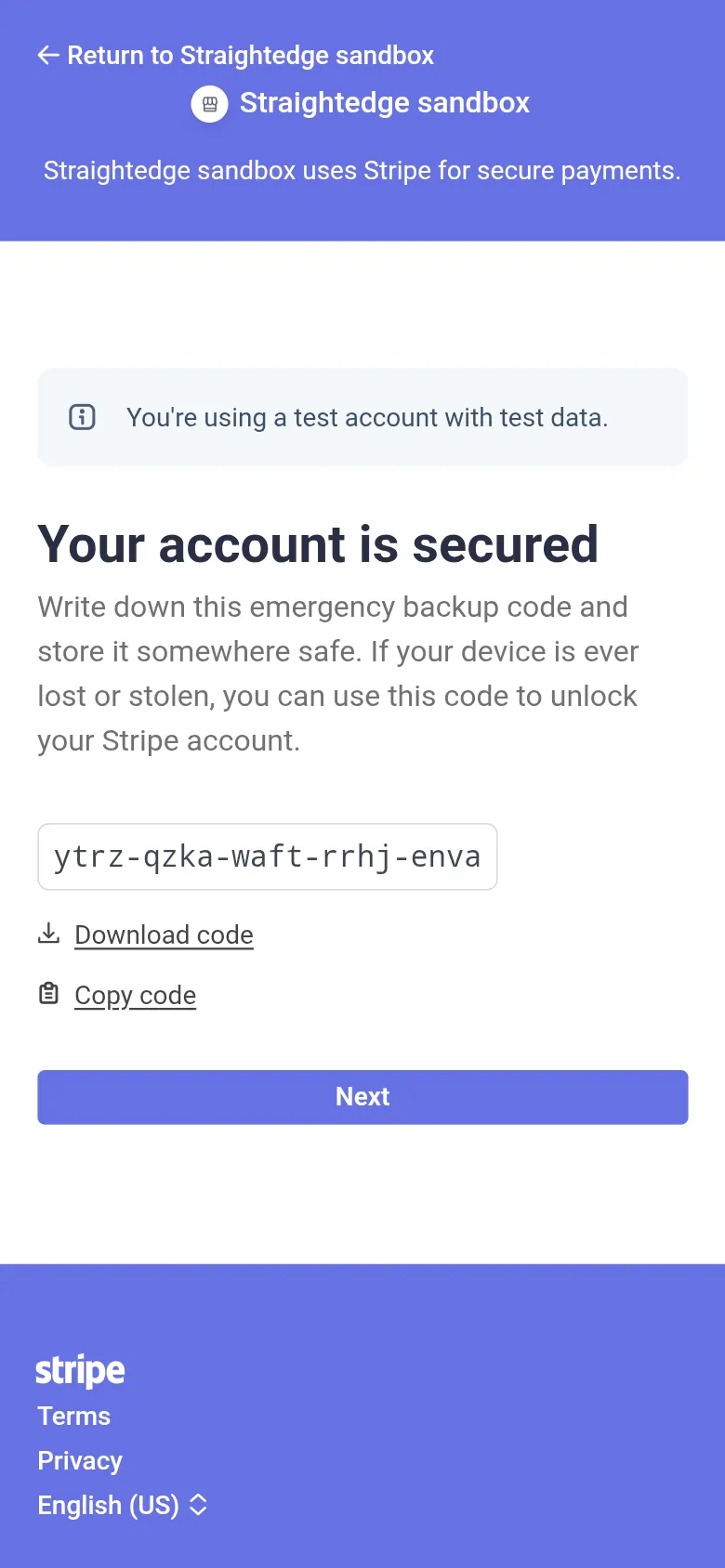
Stripe shows an emergency backup code. Write it down or tap Download code and keep it somewhere safe: it unlocks your Stripe login if you lose your phone. Tap Next.
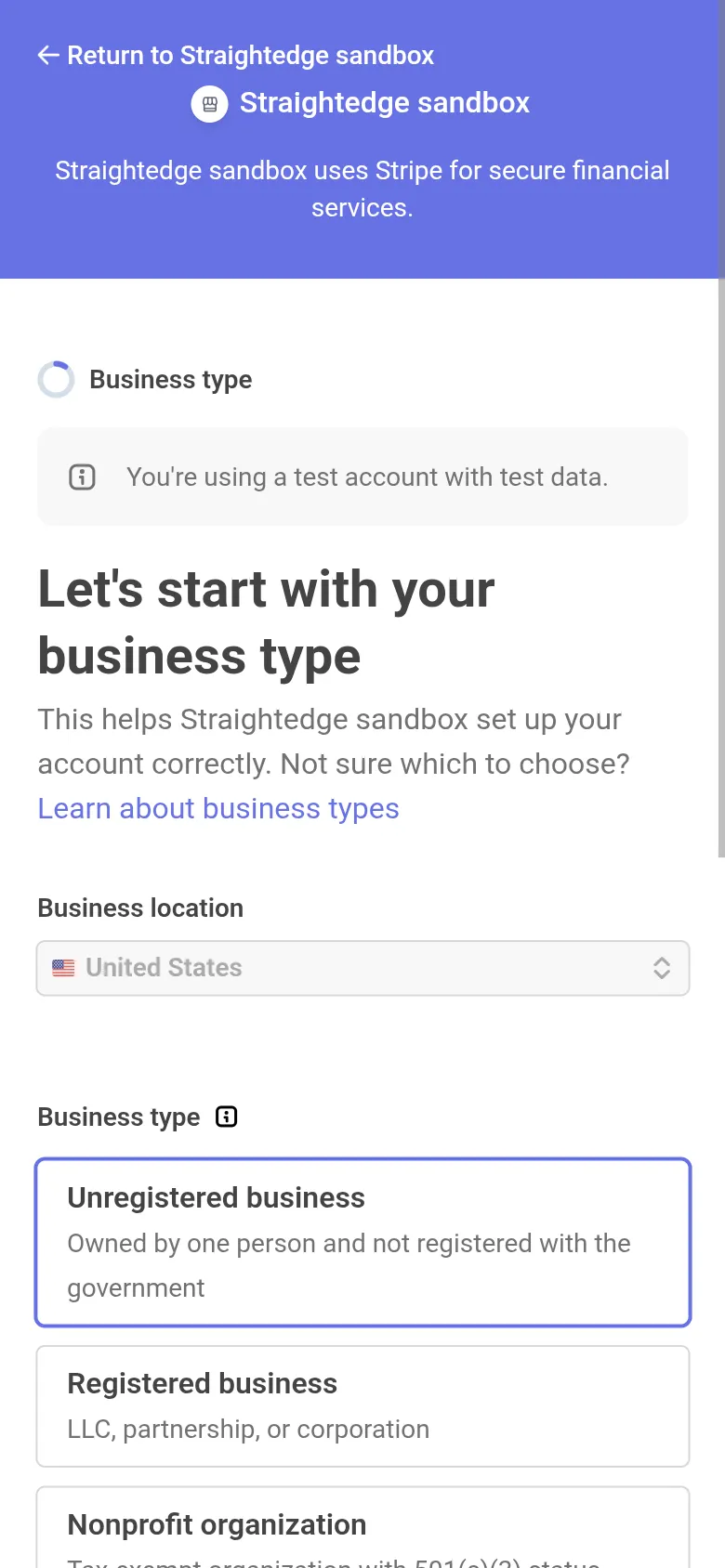
Business type: pick Unregistered business if you own the business alone and have not registered it with your state (a sole proprietor working under your Social Security number), or Registered business for an LLC, partnership or corporation. Stripe then asks whether you have an EIN. Tap Continue.
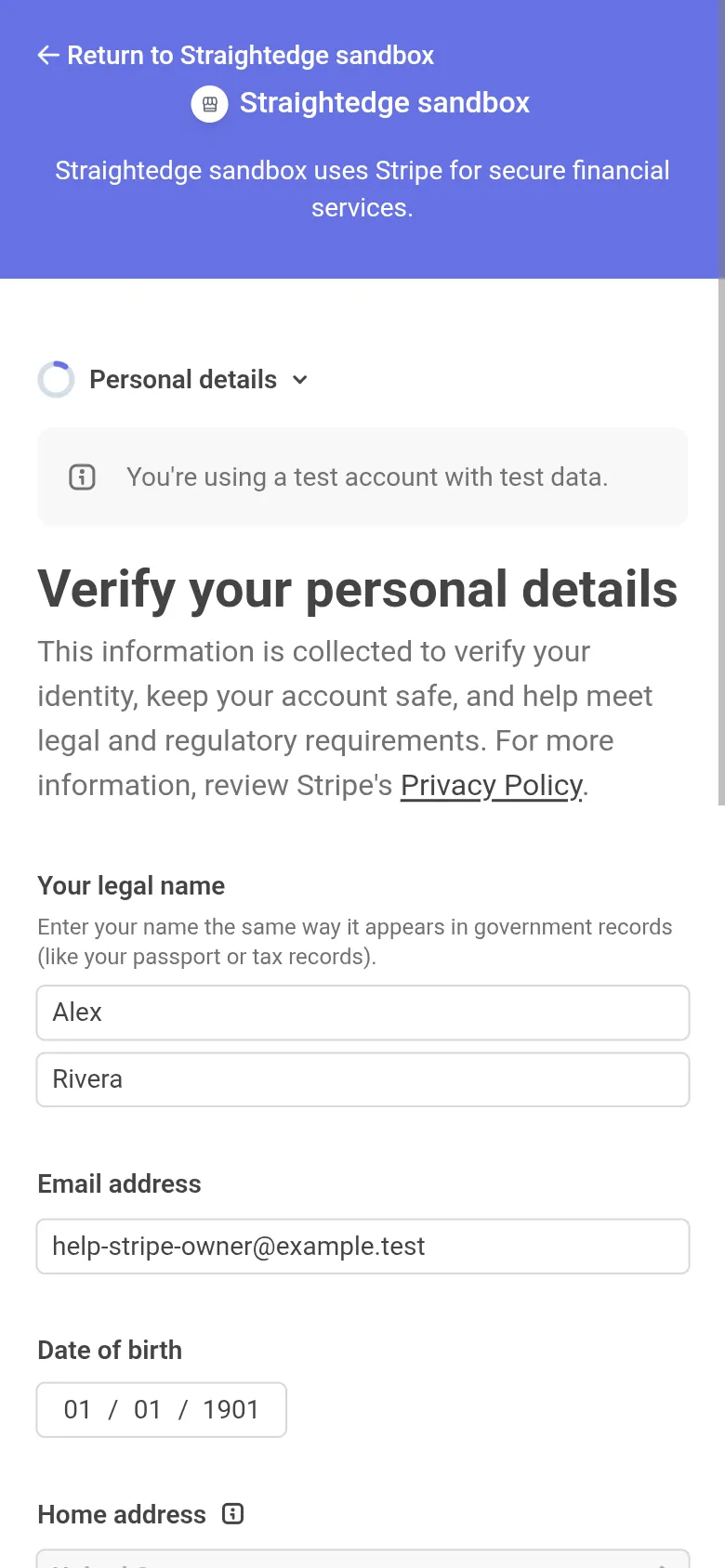
Verify your personal details: your legal name as on government records, date of birth, home address, mobile number and the last 4 digits of your Social Security number. Stripe uses them to verify who you are; customers never see them. Tap Continue.
Business details: under Industry, search for your trade (for example "electric" finds Electrical contractors; plumbing, roofing and other trades are under Building services).
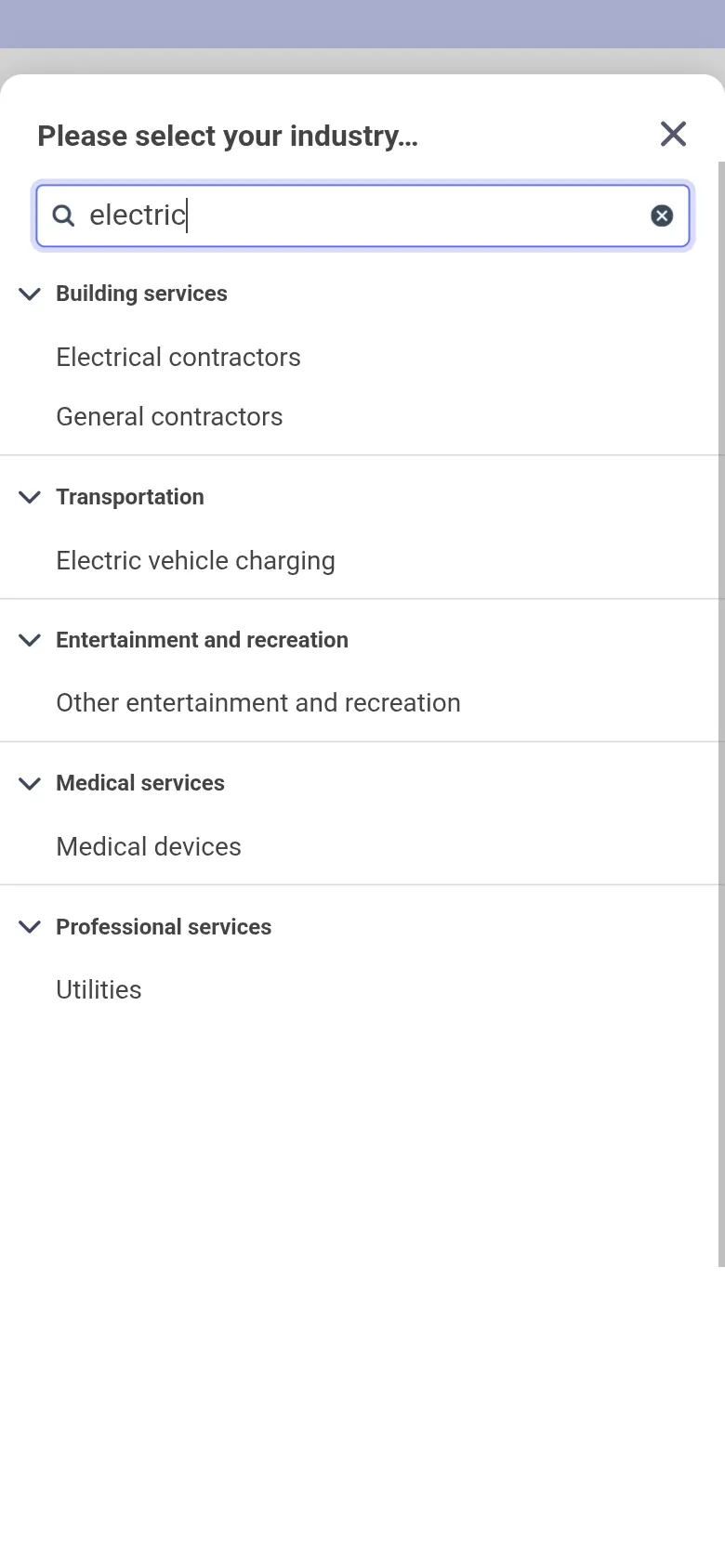
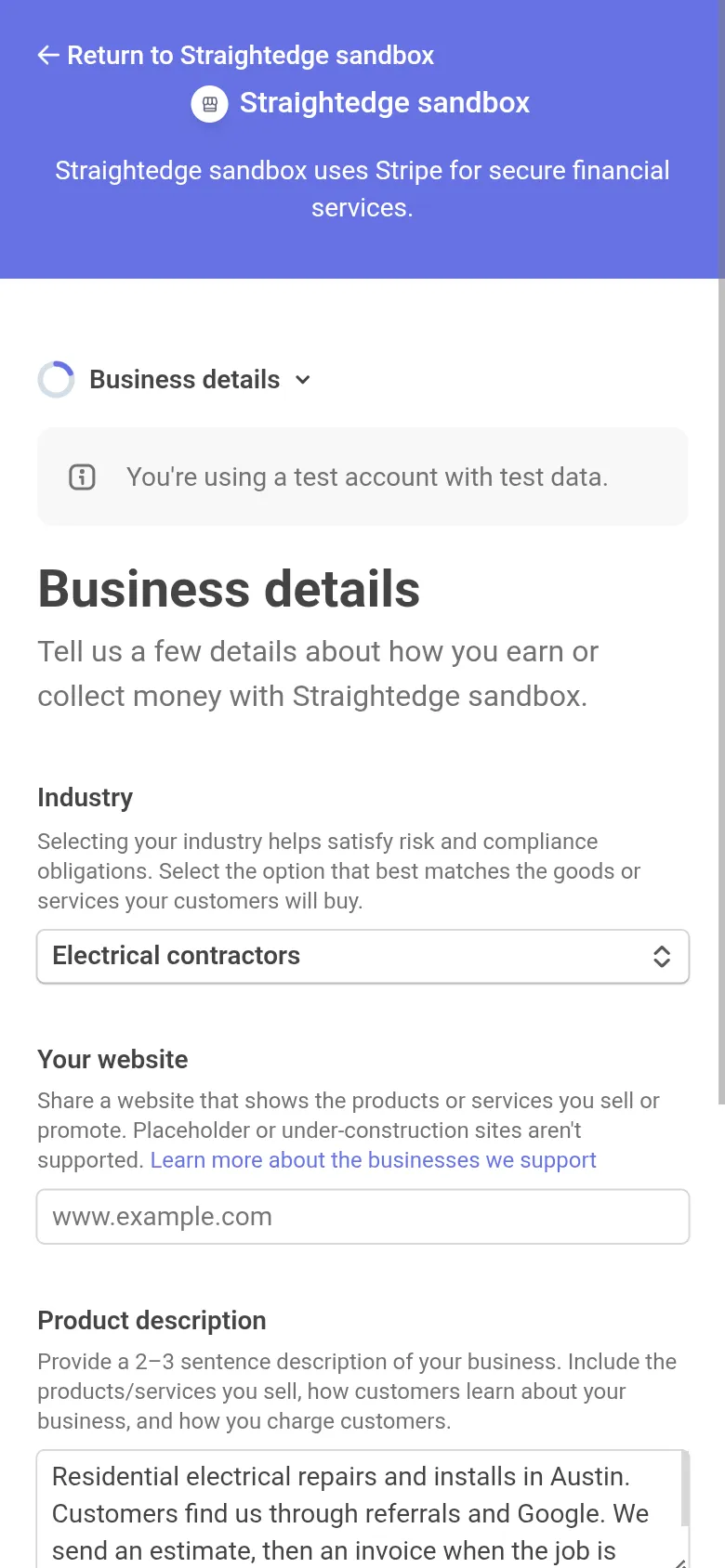
Then add your website and a 2–3 sentence description: what work you do, how customers find you and how you charge them (for example: "Residential electrical repairs and installs in Austin. Customers find us through referrals and Google. We send an estimate, then an invoice when the job is done."). Tap Continue.
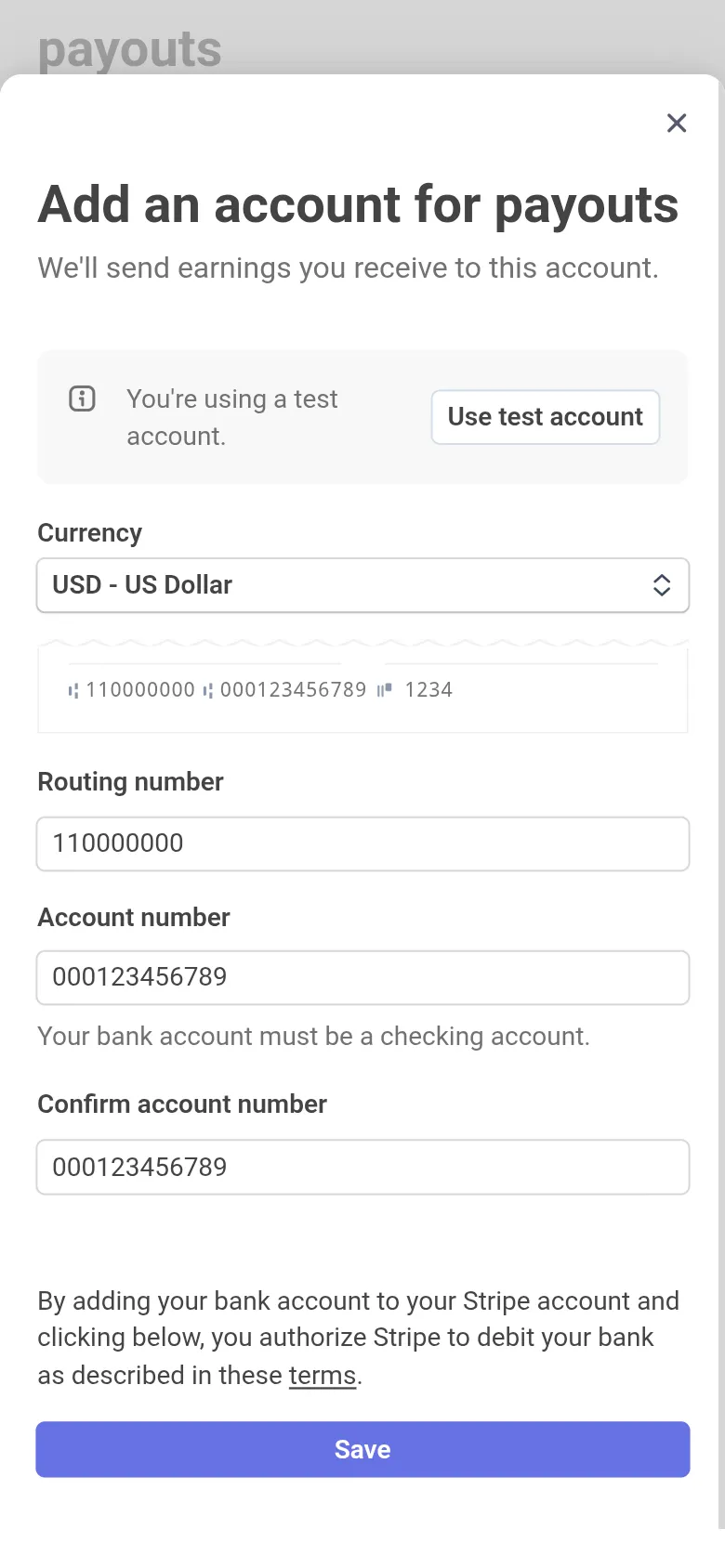
Payout details: pick your bank and sign in to it, or tap the link to enter your routing and account numbers by hand. The account must be a checking account. Tap Save.
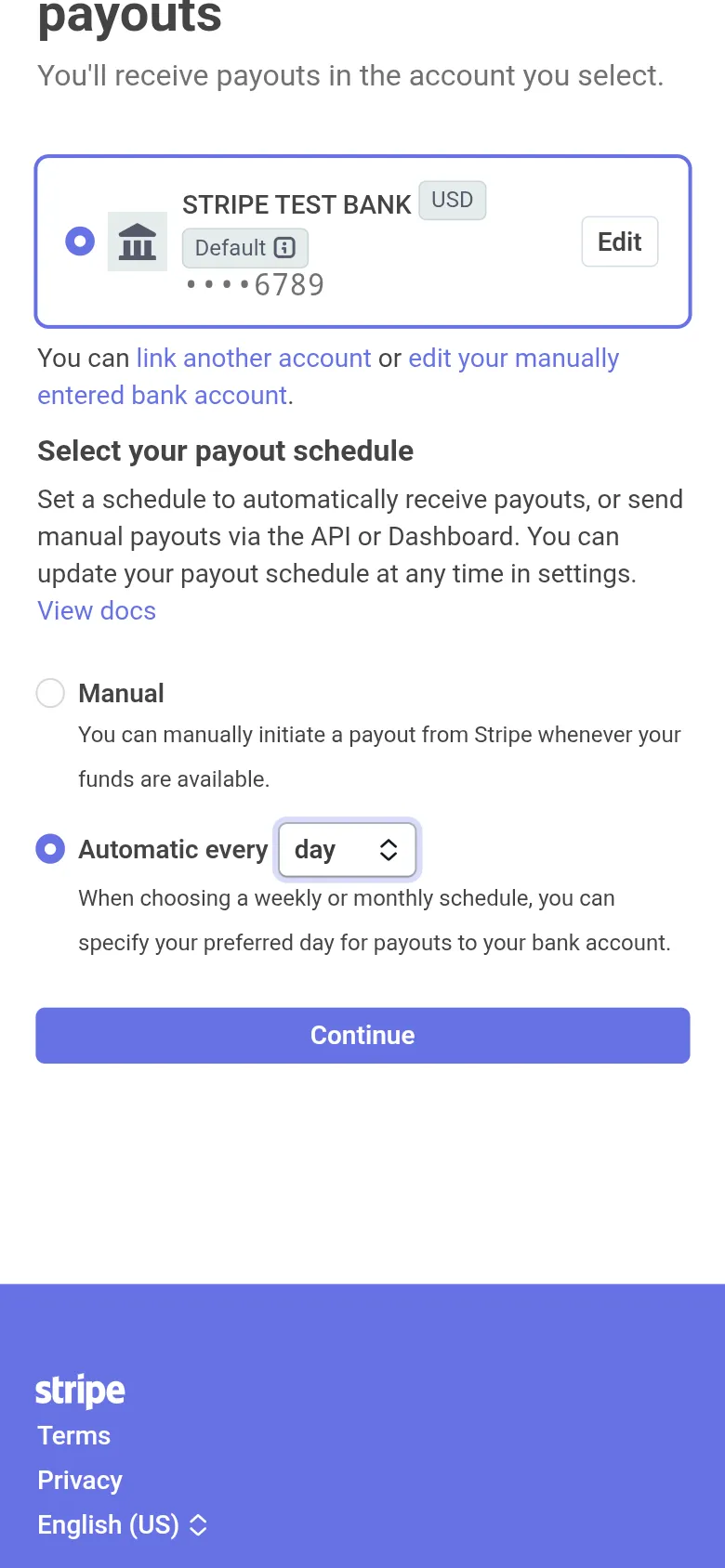
Then choose when Stripe sends money to your bank. Stripe starts this on Manual, which keeps the money in your Stripe balance until you send it yourself from Stripe. To get paid without doing anything, choose Automatic every day. Tap Continue.
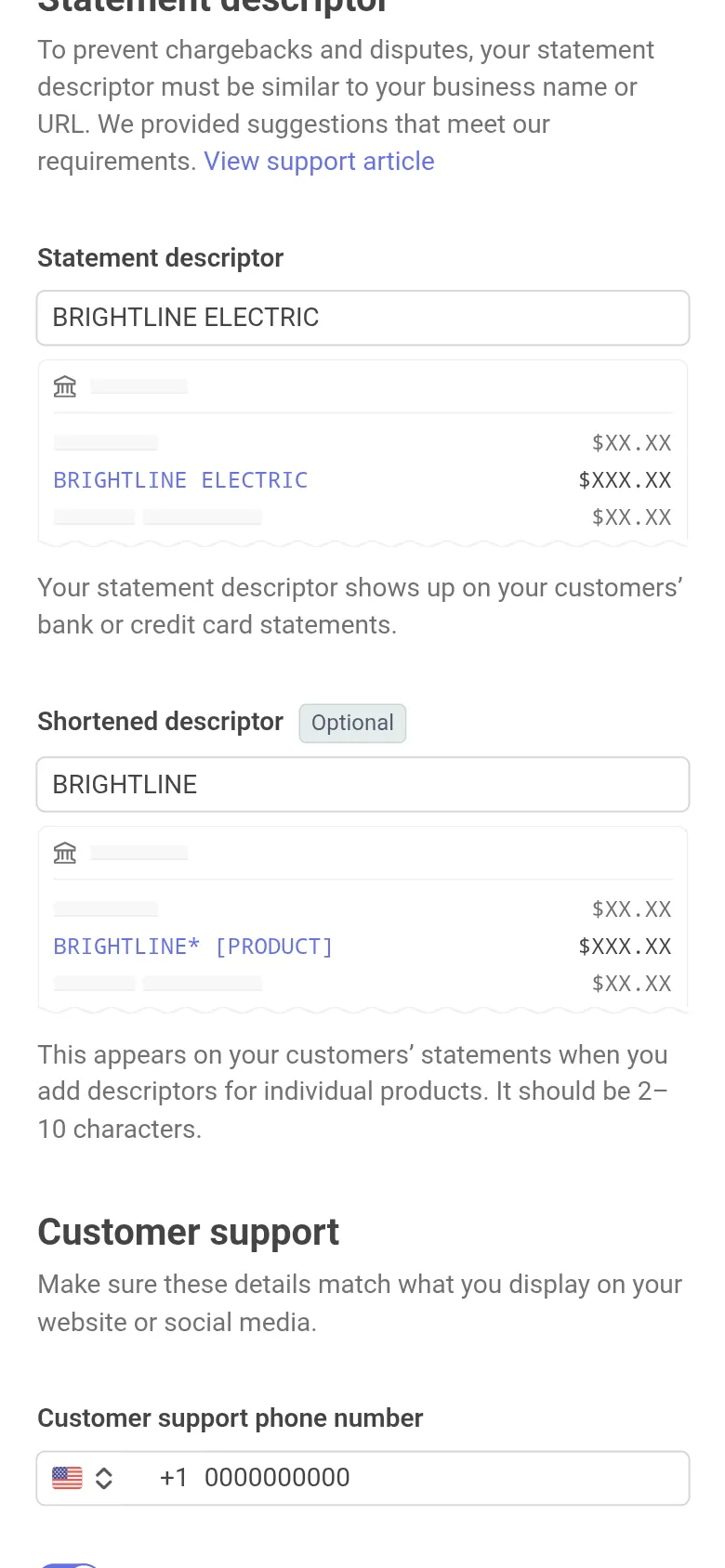
Add public details for customers: this is what customers see on their card statement and receipt. Stripe fills in your own name. Change the statement descriptor to your business name (and the shortened descriptor to a short form of it). If Stripe says the descriptor must match your legal name, fill in Business name (Doing Business As) with your business name and try again. The customer support phone and address are filled from your personal details and can show on receipts; change them to your business phone and address if you prefer. Tap Continue.
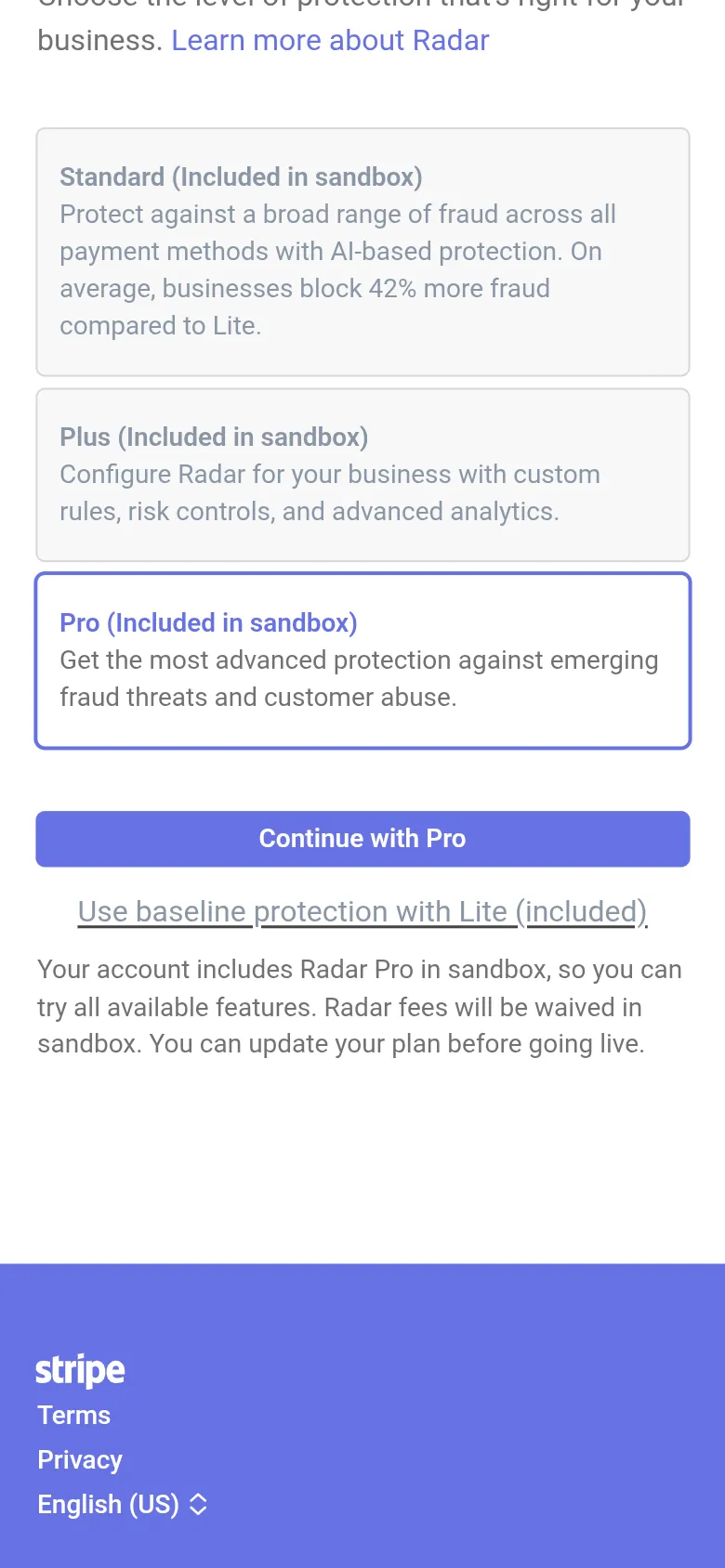
Protect your business from fraud: Lite protection is included in Stripe's fee. The other plans add a charge, shown on the screen. To pay nothing extra, tap Use baseline protection with Lite (included).
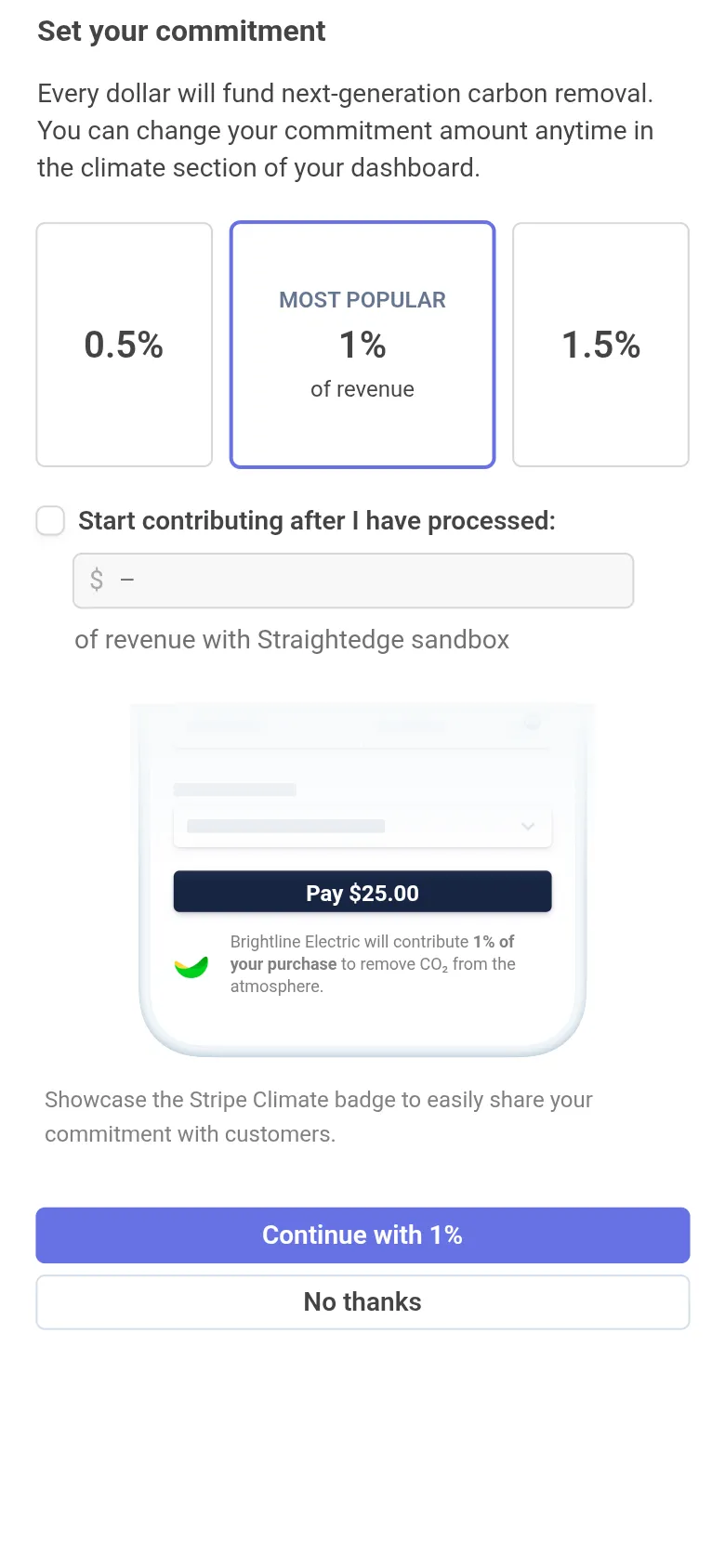
Climate contributions are optional and give a share of your revenue. Tap No thanks to skip.
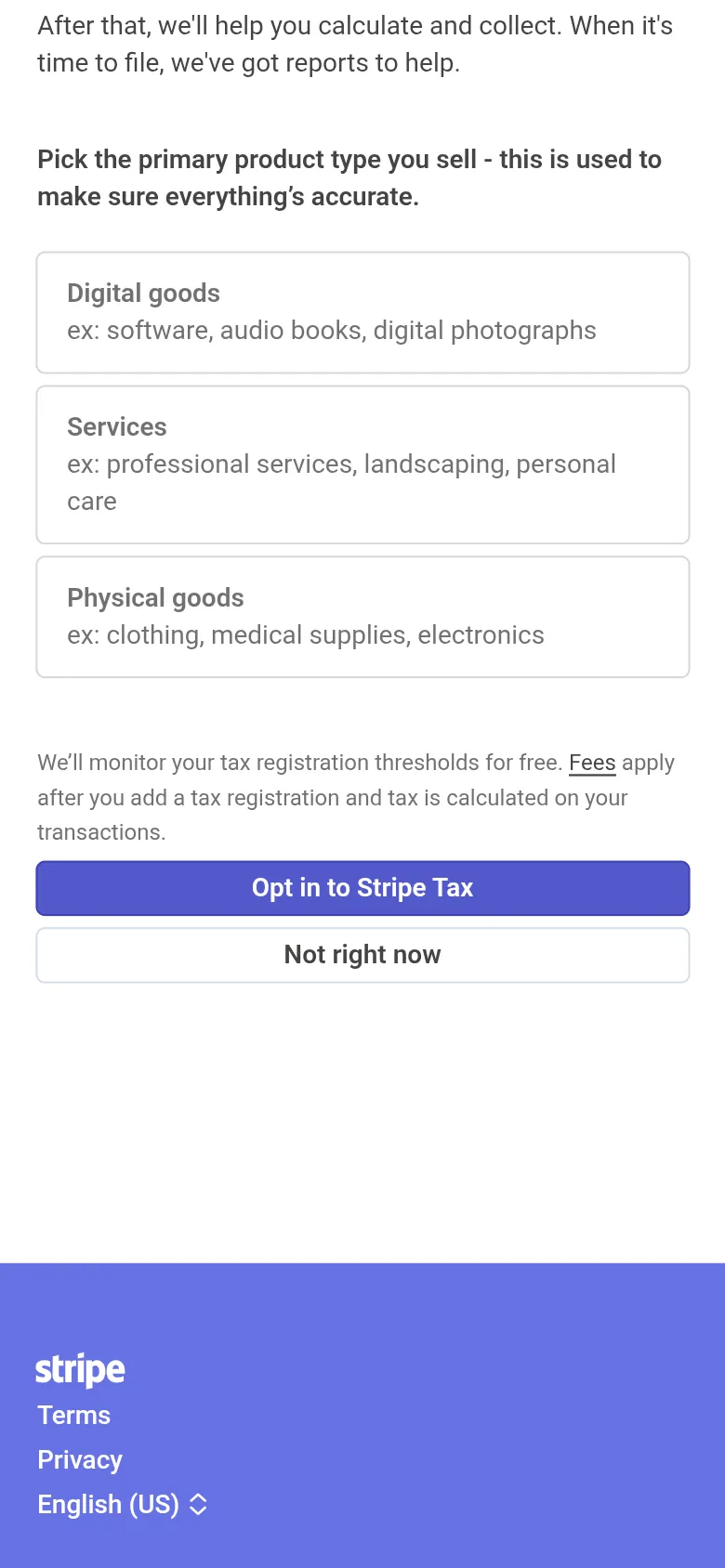
Stripe Tax is optional. Straightedge already adds the sales tax you set to your invoices, so tap Not right now unless you want Stripe to watch your tax thresholds too.
Review and submit: a section marked Incomplete needs more. Stripe can ask for a website here even after you gave a description; enter your website or the full link to your business's social media page (for example facebook.com/yourbusiness, not just the page name). Placeholder and under-construction sites are refused.
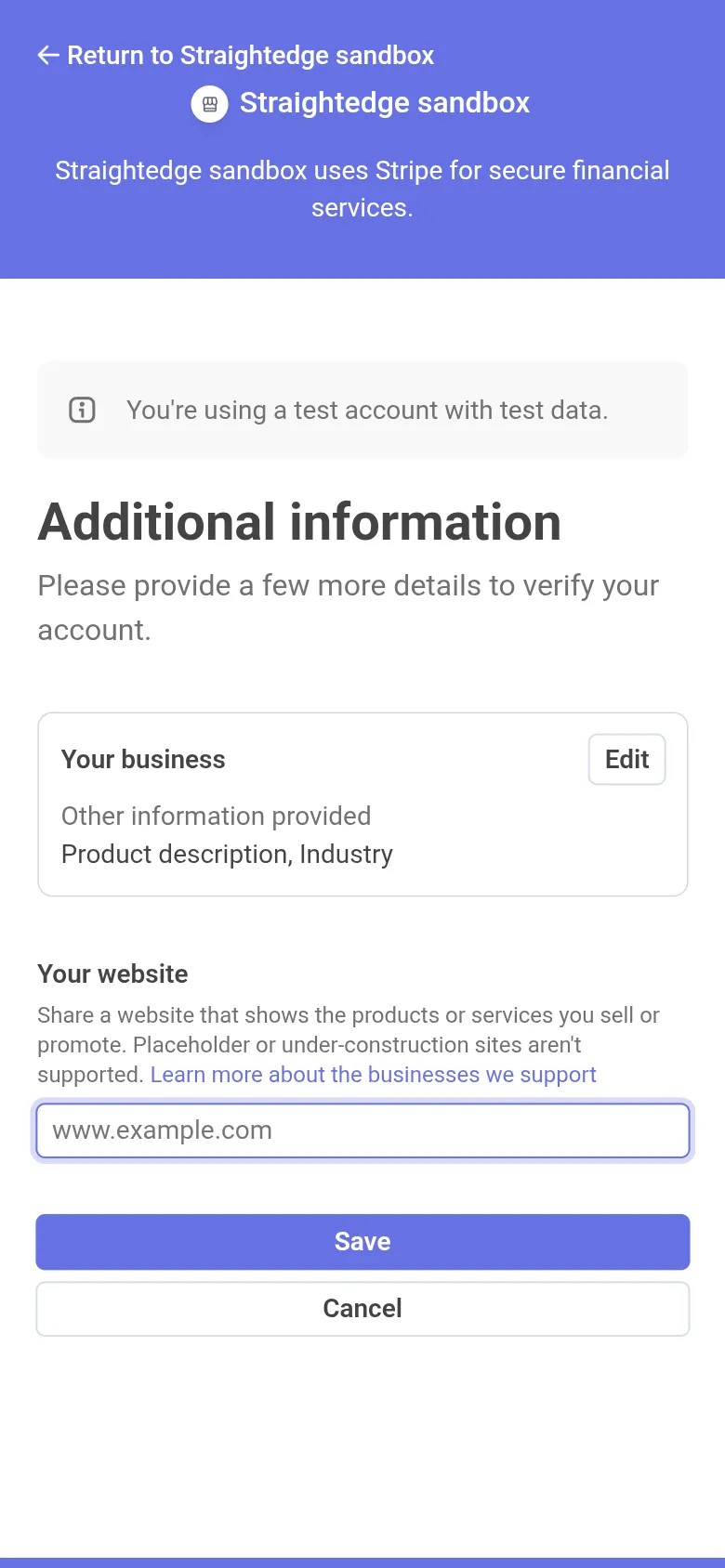
When every section is complete, tap Agree and submit. Stripe returns you to Straightedge.
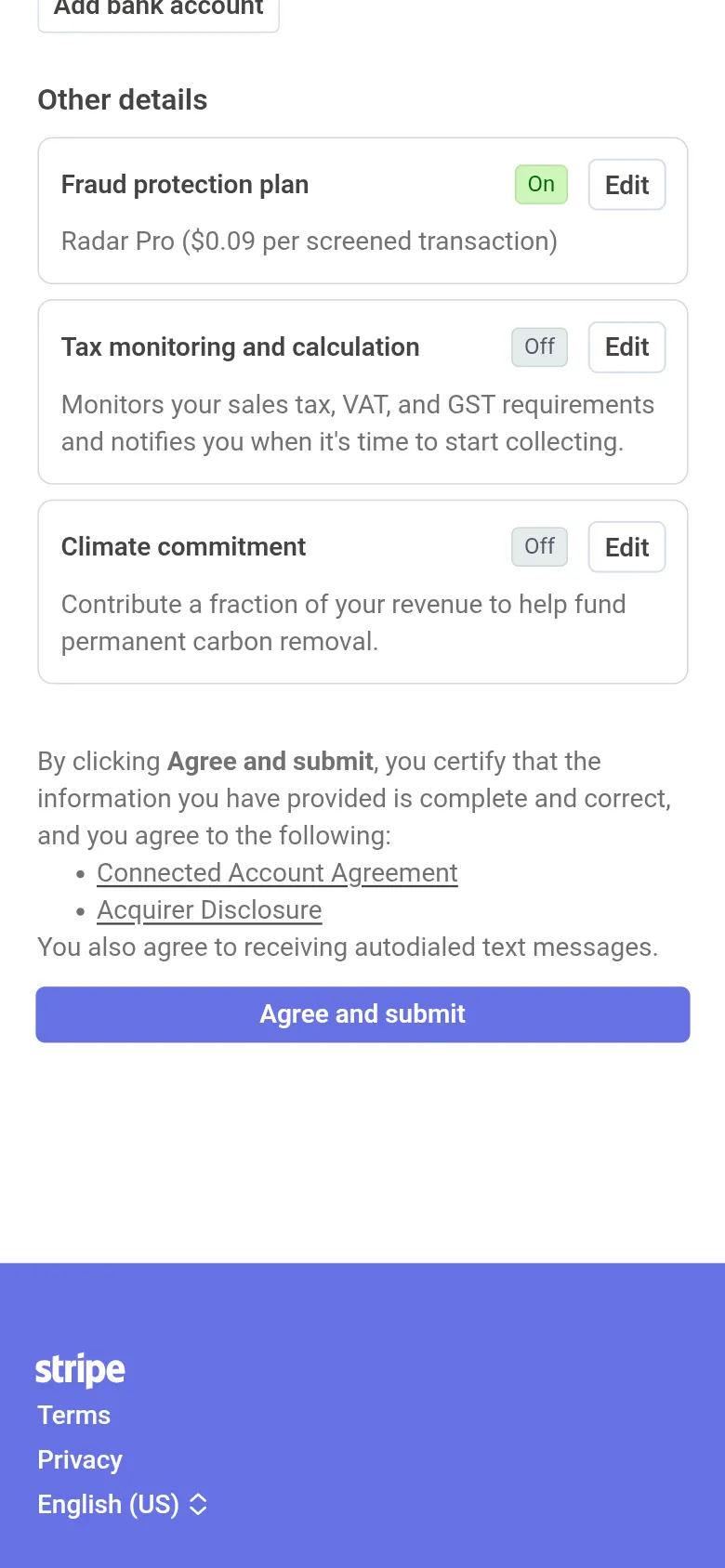
3. Finish information Stripe asks for
If the page says Action needed, tap Finish in Stripe and provide the details Stripe requests. Return to Payments to check the status.
4. Turn on online payments
When Stripe enables charges, turn on Online payments. If payouts are not enabled yet, acknowledge Customers can pay. Payouts aren't enabled yet; the money waits in your Stripe balance. and tap Turn on online payments.
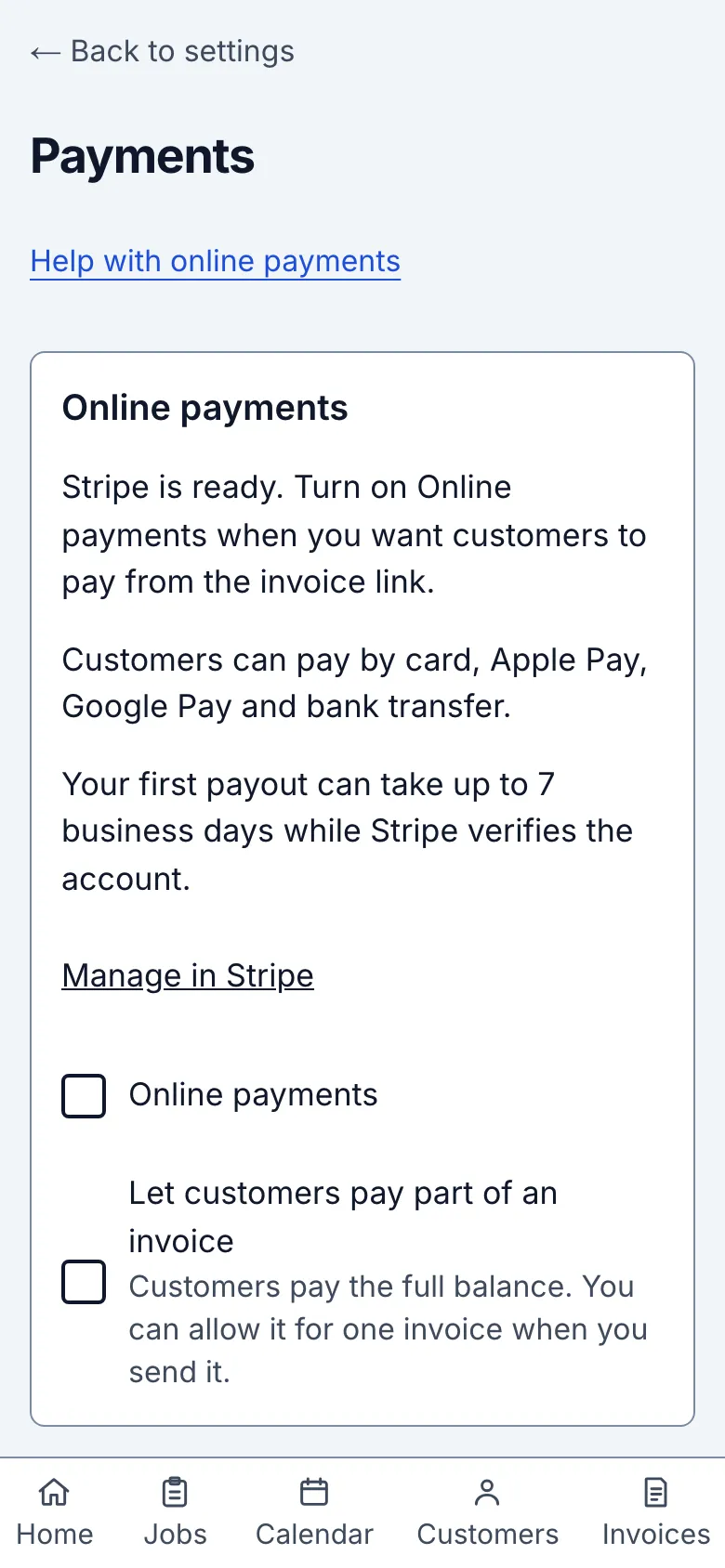
5. Choose whether to allow part payments
Use Let customers pay part of an invoice to set the business default. It starts off, and customers pay the full balance. When it is on, the invoice link also shows Pay a different amount, so customers pay some now and the rest later from the same link. You can change it for one invoice when you send it.
What you see after
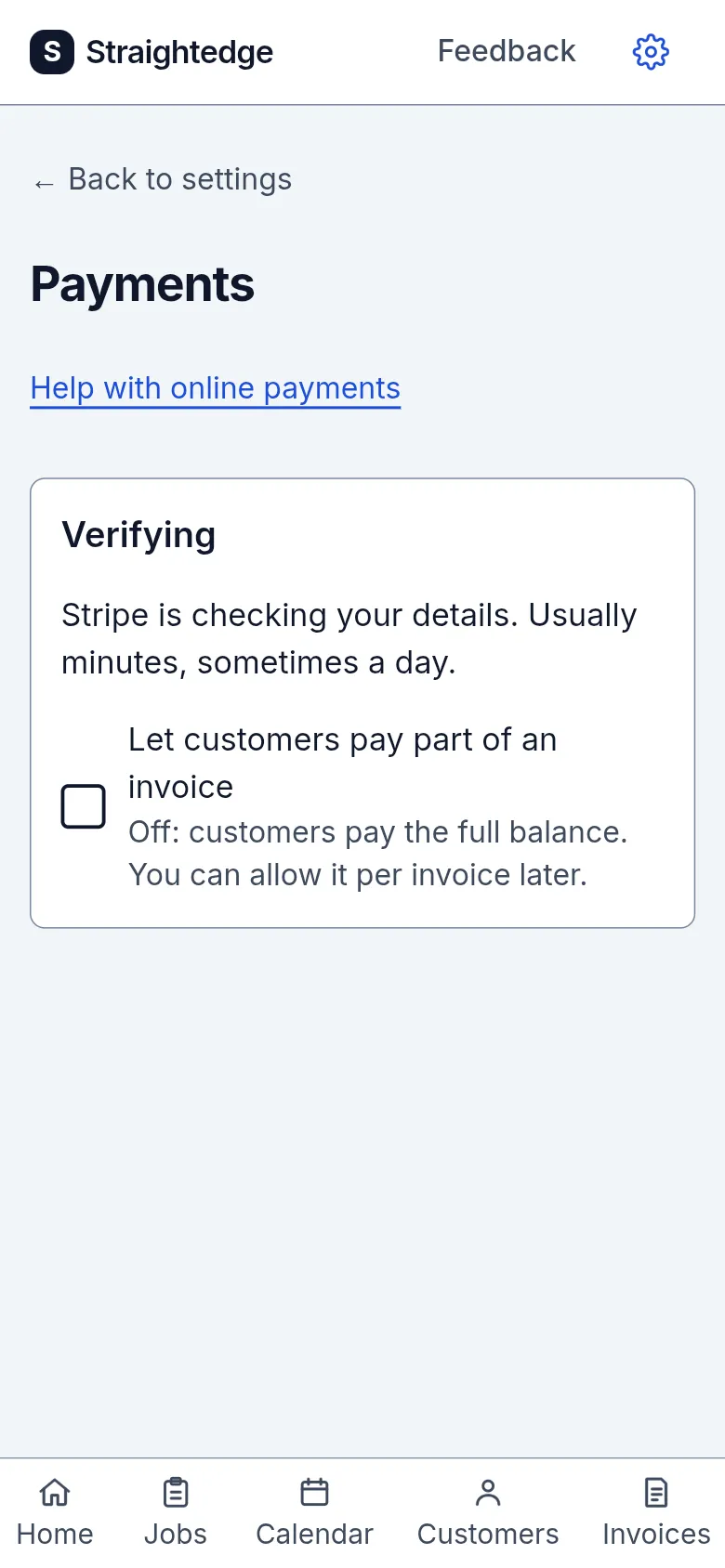
Verifying means Stripe is checking your details. It usually takes a few minutes (about 2 to 3 minutes in our tests), sometimes up to a day; you can leave and come back. On means online payments are enabled; Off means setup is ready but online payments are off. The card links to Manage in Stripe for payment methods and payout details. If payouts pause, the page says Payouts paused; if Stripe disables the account, it says Disabled. When customers start paying, see When a customer pays online.
Limits
Online payment setup is for US businesses. Customers pay from the invoice link by card, Apple Pay, Google Pay or bank transfer in Stripe Checkout. A bank transfer shows processing until Stripe confirms it. The owner gets an email when a payment succeeds, begins processing or fails. Stripe charges 2.9% + 30¢ per card payment and 0.8% (at most $5) per bank transfer; Straightedge adds no payment fee today. Extra Stripe services you choose during setup (a paid fraud plan, climate contributions, Stripe Tax) are charged by Stripe on top. Your first payout can take up to 7 business days while Stripe verifies the account. When QuickBooks is connected, a successful online payment goes to QuickBooks by itself within about 15 minutes, once the invoice is in QuickBooks; a read-only business waits until it becomes writable. Refunds and disputes are handled in Stripe. A refund gives the customer back the amount you choose, and Stripe keeps its fee from the original payment, so a refunded card payment still costs you that fee (refunding a bank transfer can add a small Stripe fee). A dispute (chargeback) takes the money back at once and Stripe charges $15. Straightedge records refunds, disputes and bank returns and emails every owner about meaningful changes. A refund leaves the invoice Paid; a lost card dispute restores due with automatic reminders paused, while a bank return follows normal reminders. QuickBooks adjustments are manual; the payment row links to the steps and offers Done in QuickBooks. See When a customer pays online.
When it goes wrong
If you leave Stripe before you submit, the card says Setup not finished. Tap Continue setup to pick up where you stopped; Stripe keeps what you already entered.
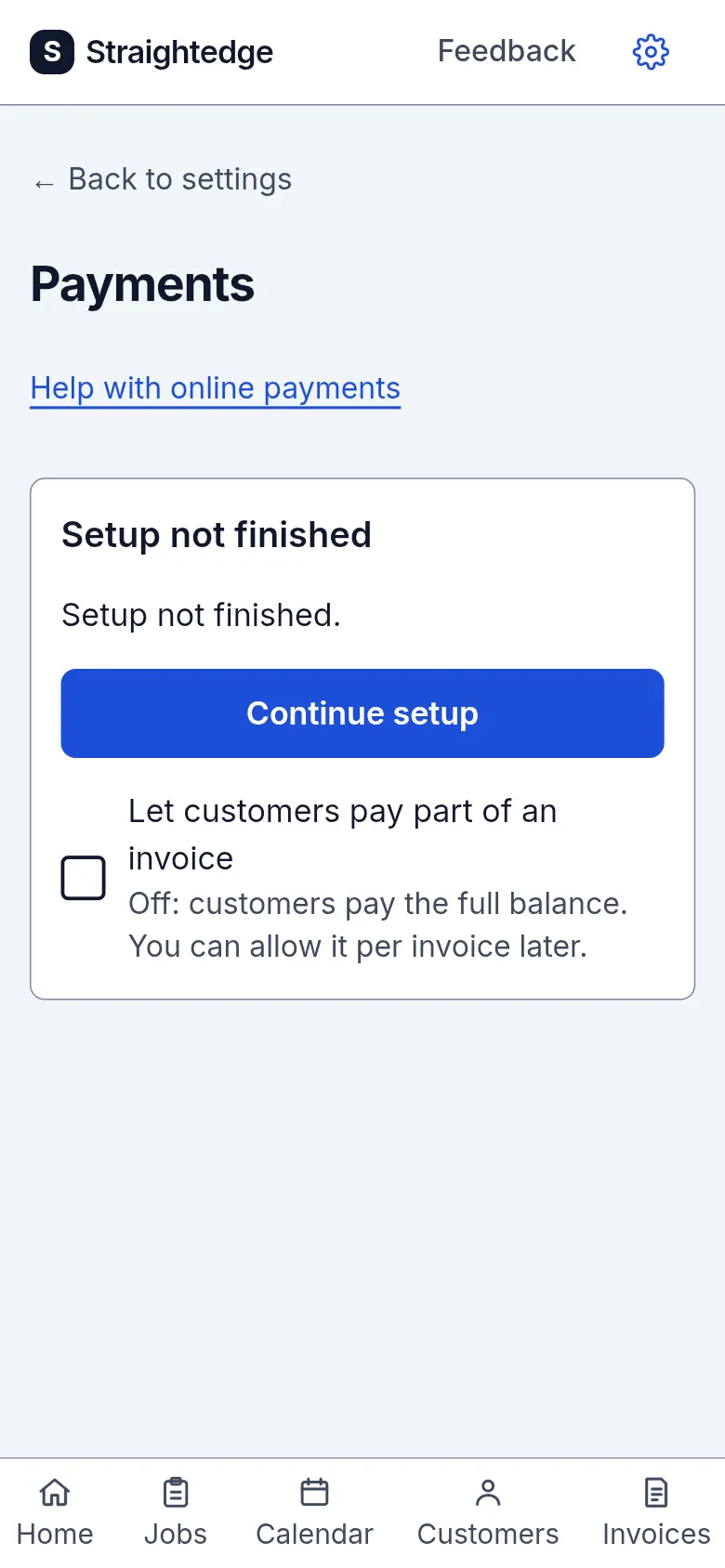
If Stripe needs more information, use Finish in Stripe. If payouts are paused, use Open Stripe. If money stays in your Stripe balance, check the payout schedule in Manage in Stripe: Manual means Stripe waits for you to send it. If setup says Stripe isn't available right now, wait a minute and try again. If it says Online payment setup isn't available right now., contact support. Stripe Checkout and its receipt use your Straightedge business name. To change it, open Settings › Business details; the next new Checkout uses the updated name. A Checkout already open can keep its earlier name for up to 24 hours. Your card statement name (statement descriptor) is set in Stripe, not in Straightedge. An account that is read-only can view its status but cannot change the switches.
If an online payment needs QuickBooks attention, its row explains why and offers Retry and Already in QuickBooks. Settings › QuickBooks groups Not sent and Waiting payments. Check QuickBooks sync explains the confirmation and how to resend a closed payment. Your customer’s money remains recorded while QuickBooks waits.
Still stuck? Email support@getstraightedge.com