Create a job
Who can do it
Owners.
1. Open the work form
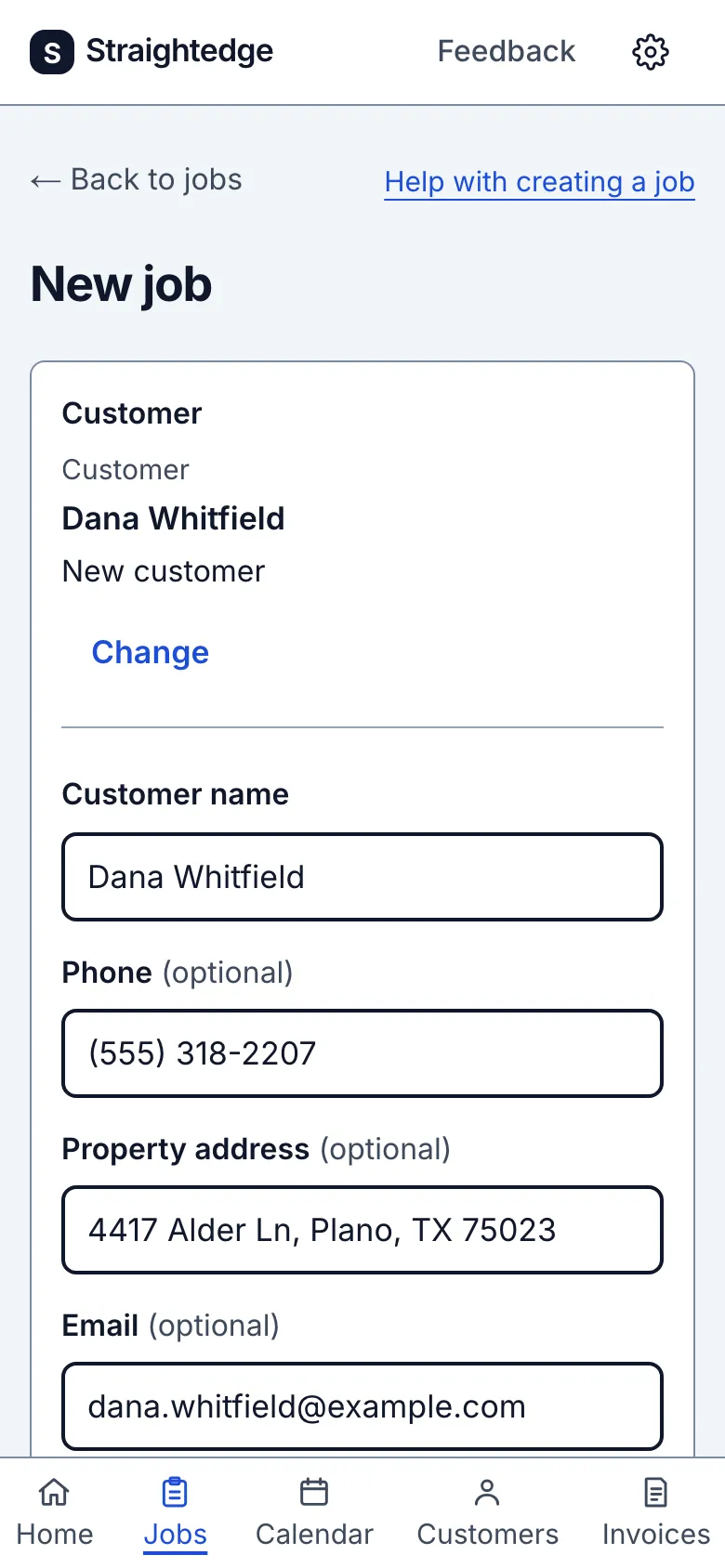
On Jobs, choose New job. The form header links to Help with creating a job.
2. Choose the customer
Use Customer to pick a recent customer or search by name, address, phone or email. To add someone new, type their name and choose the option to add that name as a new customer. Only the name is required.
3. Describe the work
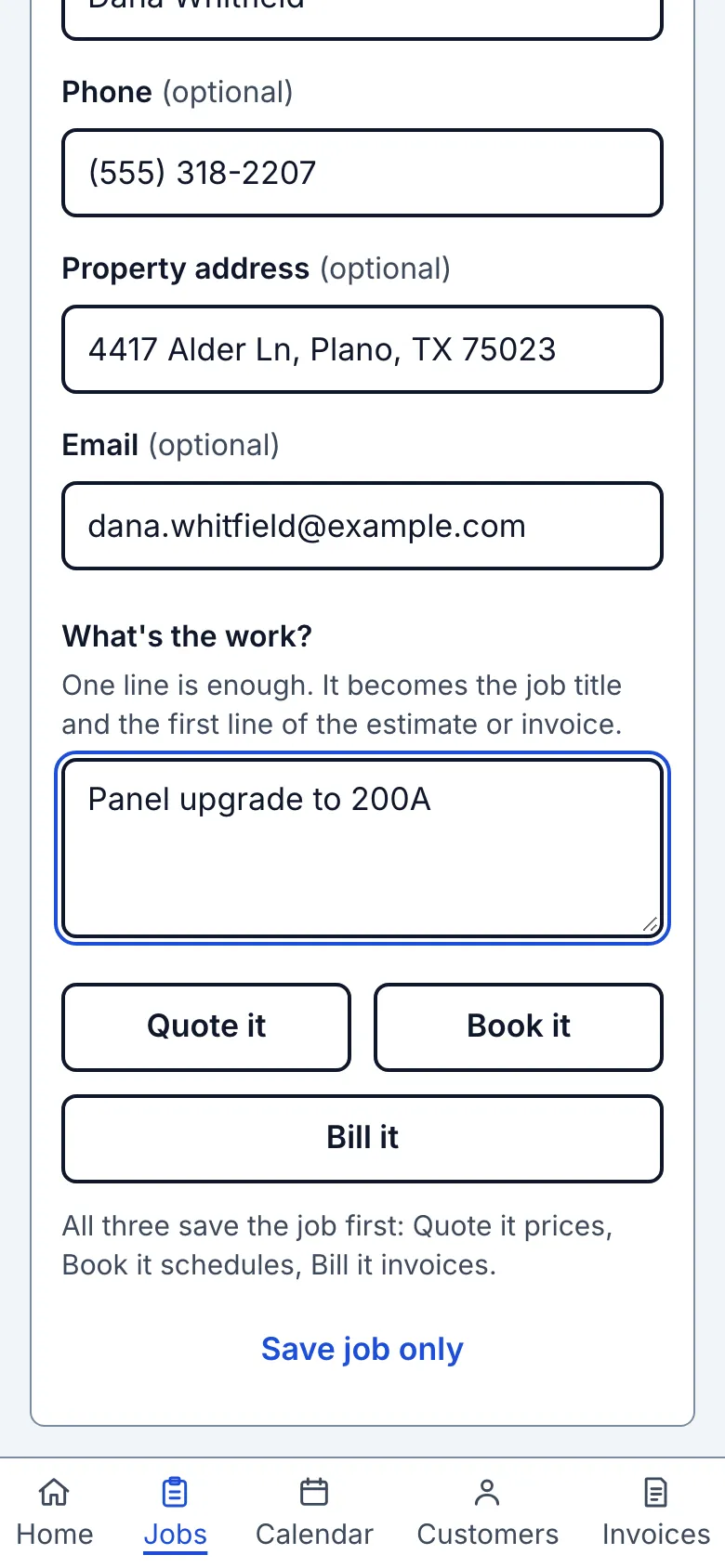
In What's the work?, write what needs doing. The first nonblank line becomes the job title; it is also the first line of a new estimate or invoice. The full description stays on the job when it is longer than the title.
4. Choose the next task
The sentence beneath the actions says: "All three save the job first: Quote it prices, Book it schedules, Bill it invoices." Choose Quote it for an estimate, Book it for a visit, Bill it for an invoice, or Save job only to open the job page. The customer and job are saved together; an estimate or invoice needs its own save.
What you see after
The job starts Unscheduled. A new estimate or invoice starts with the job title and quantity 1. The customer sees the title on estimates and invoices; the crew see the title and the description.
Limits
A job belongs to one customer. The job title is the first work line, cut at 80 characters. You can change it later with Edit job details. The separate Create job link on a customer page uses a title and description form.
When it goes wrong
If the new customer's details match an existing record, choose the suggested customer or Add a new customer anyway. If you see Job: save not confirmed, use Check jobs before retrying; the save may have succeeded.
Still stuck? Email support@getstraightedge.com