See what your crew did
Use a job’s checklist to see the checks people recorded, without asking them to send a separate update. It shows the latest choice and note for each item, with earlier entries in History.
A tick is a record of what someone says they did. It is not proof that the work was done correctly. Read the notes and look at the photos when you need more detail. Ask the crew member if anything is unclear.
Who can do it
Owners and full access partners. If you do not see Checklist on a job yet, it is not turned on for your business.
1. Read the count on the job and Jobs list
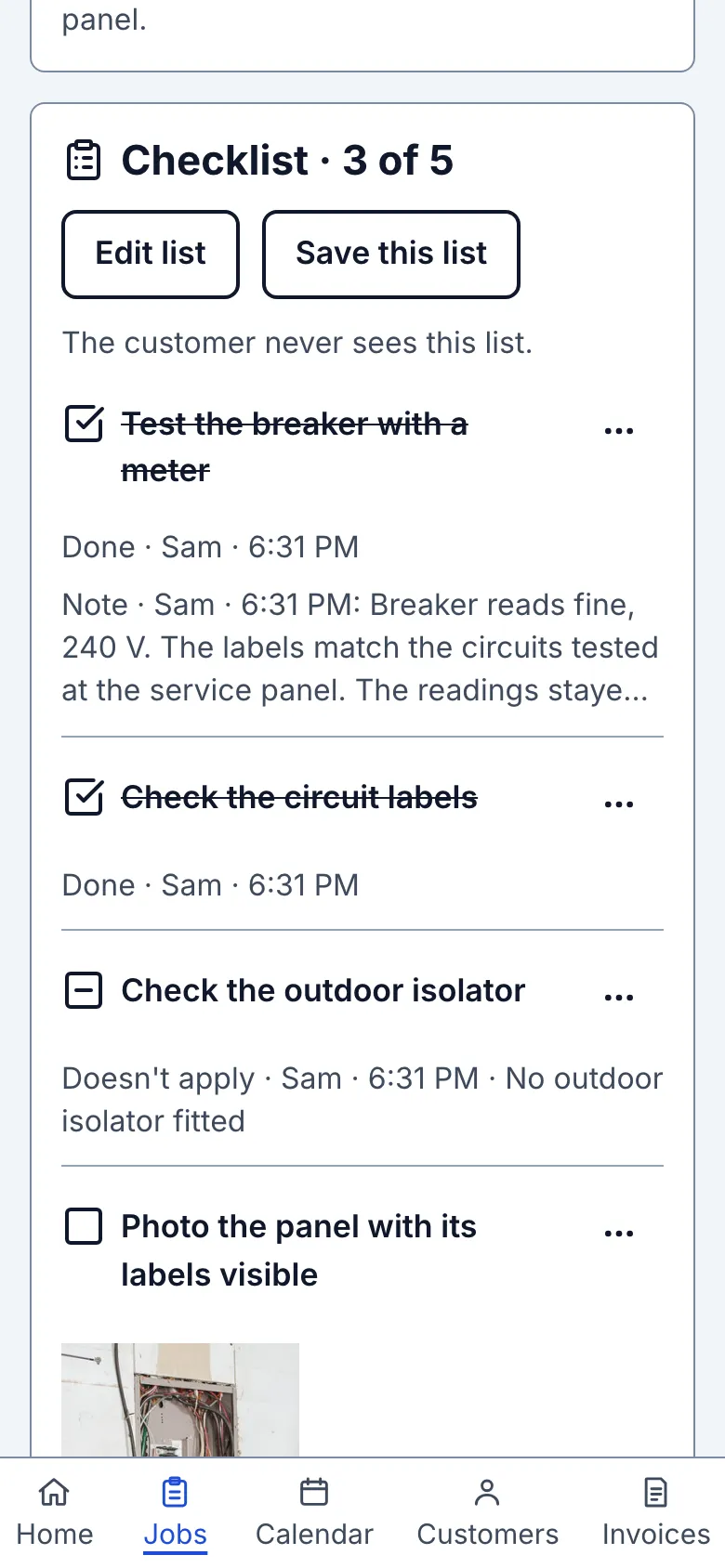
Open the job and find Checklist below Visits. A count such as 3 of 5 means three of the five items are either Done or marked Doesn't apply. It does not mean that all three checks were carried out.
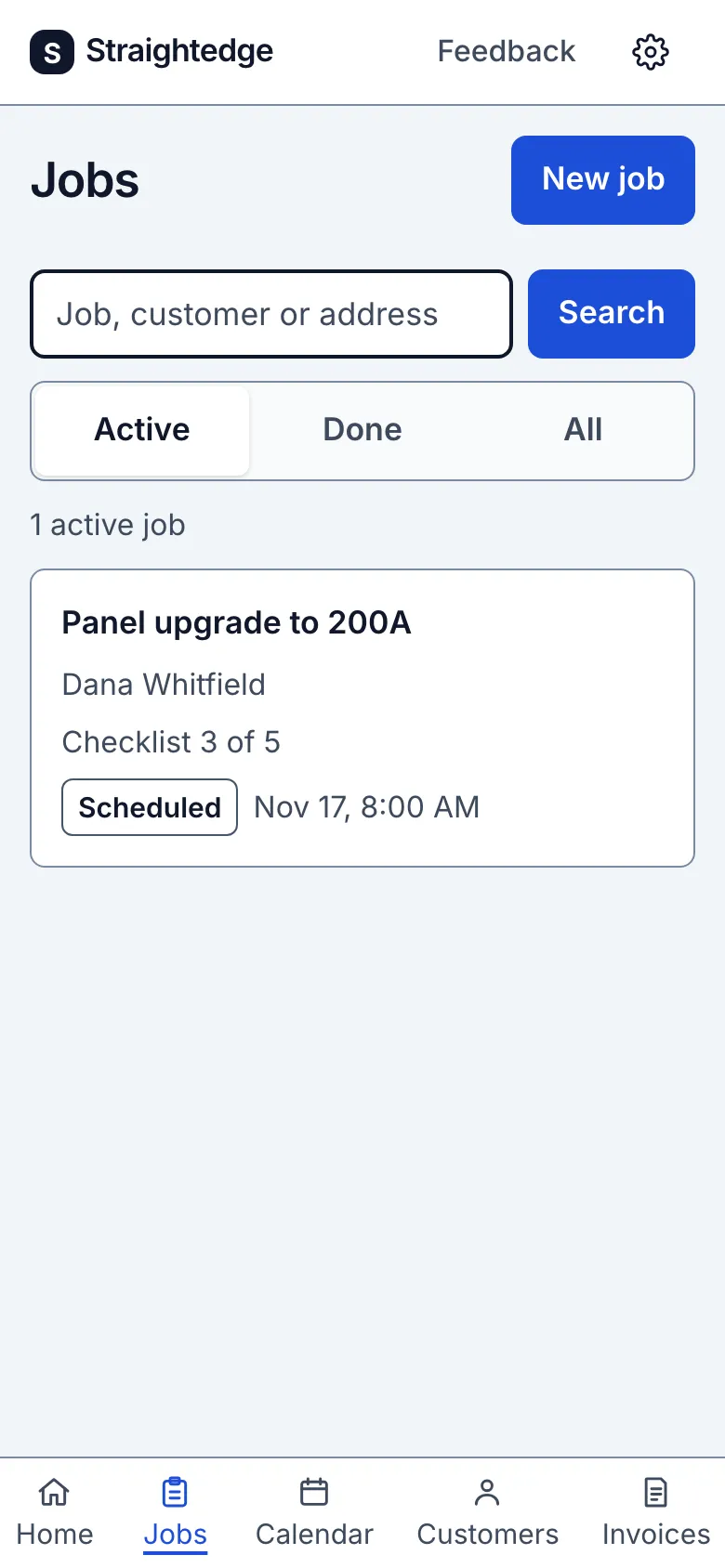
The same count appears beside the job on the Jobs list, as Checklist 3 of 5. A job with no checklist items has no count. Open the job to see which checks are still open.
2. Read who checked each item and what they wrote
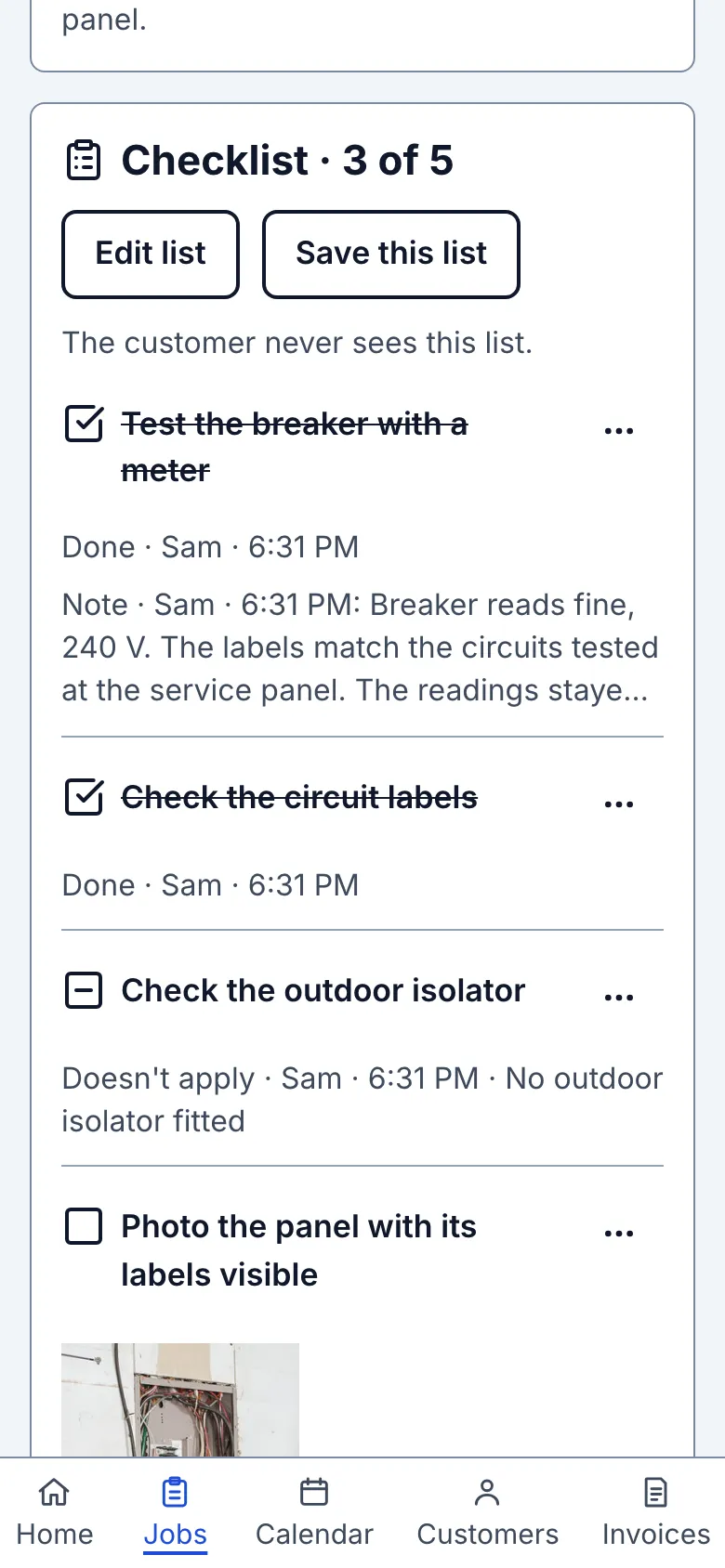
Under a ticked item, Done · Sam · 10:42 means Sam recorded it as done at that time. The words stay crossed out so you can still read the instruction.
Doesn't apply · Sam · 10:42 · No outdoor isolator fitted means Sam said that check did not fit the job and gave a reason. The reason is optional. These items use a minus mark and count towards the completed total. An empty box means the item is still open.
The newest note appears just below the name and time, beginning Note · Sam. Long notes show up to three lines here. Open History to read the full note and any earlier notes. These notes belong to the checklist item; they do not replace the visit notes.
3. Read earlier choices and the full note
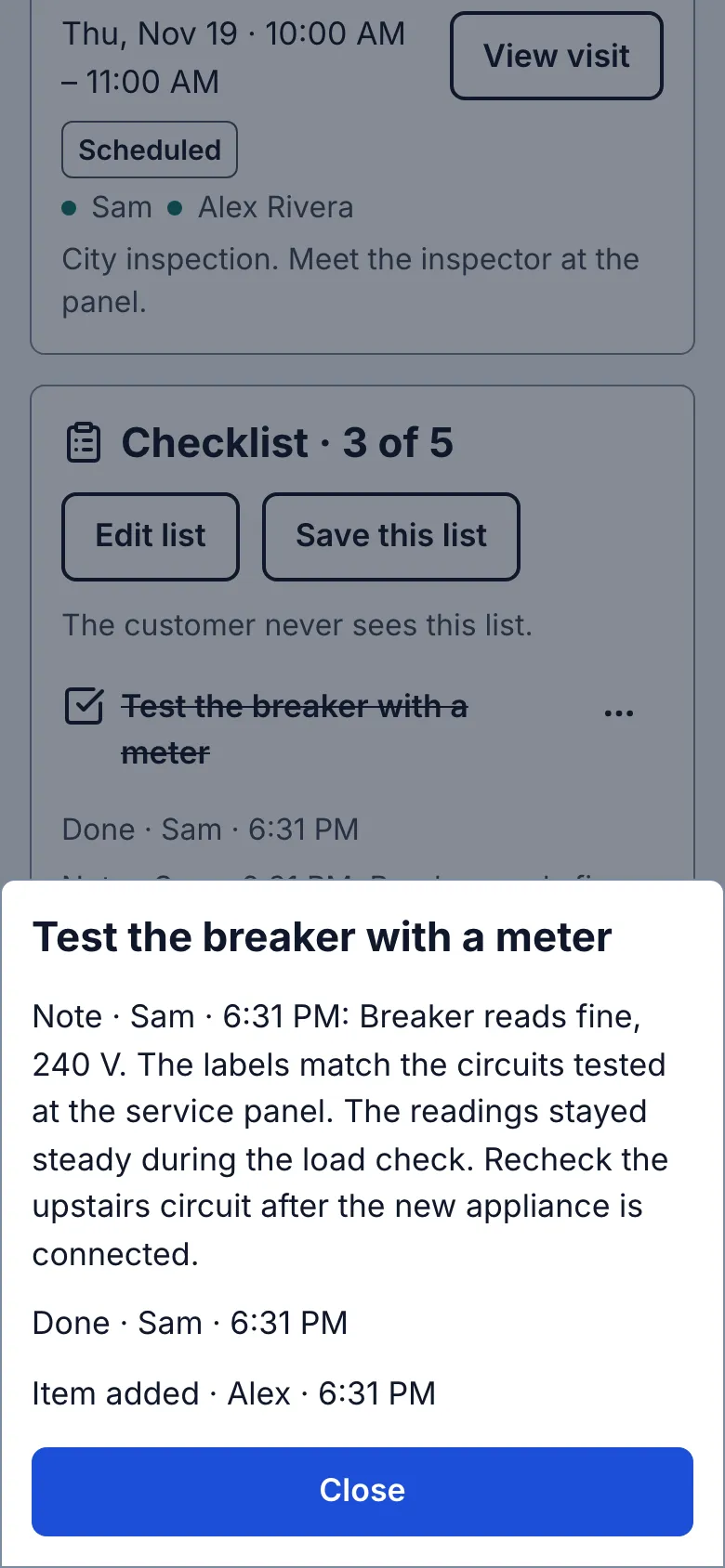
Tap Options next to the item, then History. The button includes the number of entries. Read the list of earlier ticks, reopened checks, reasons, notes, wording changes and photo changes, with the person and time for each.
If there are more entries, tap Earlier history to read them. Close returns to the checklist. A later choice or note does not erase the earlier entries.
4. Look at the photo for an item
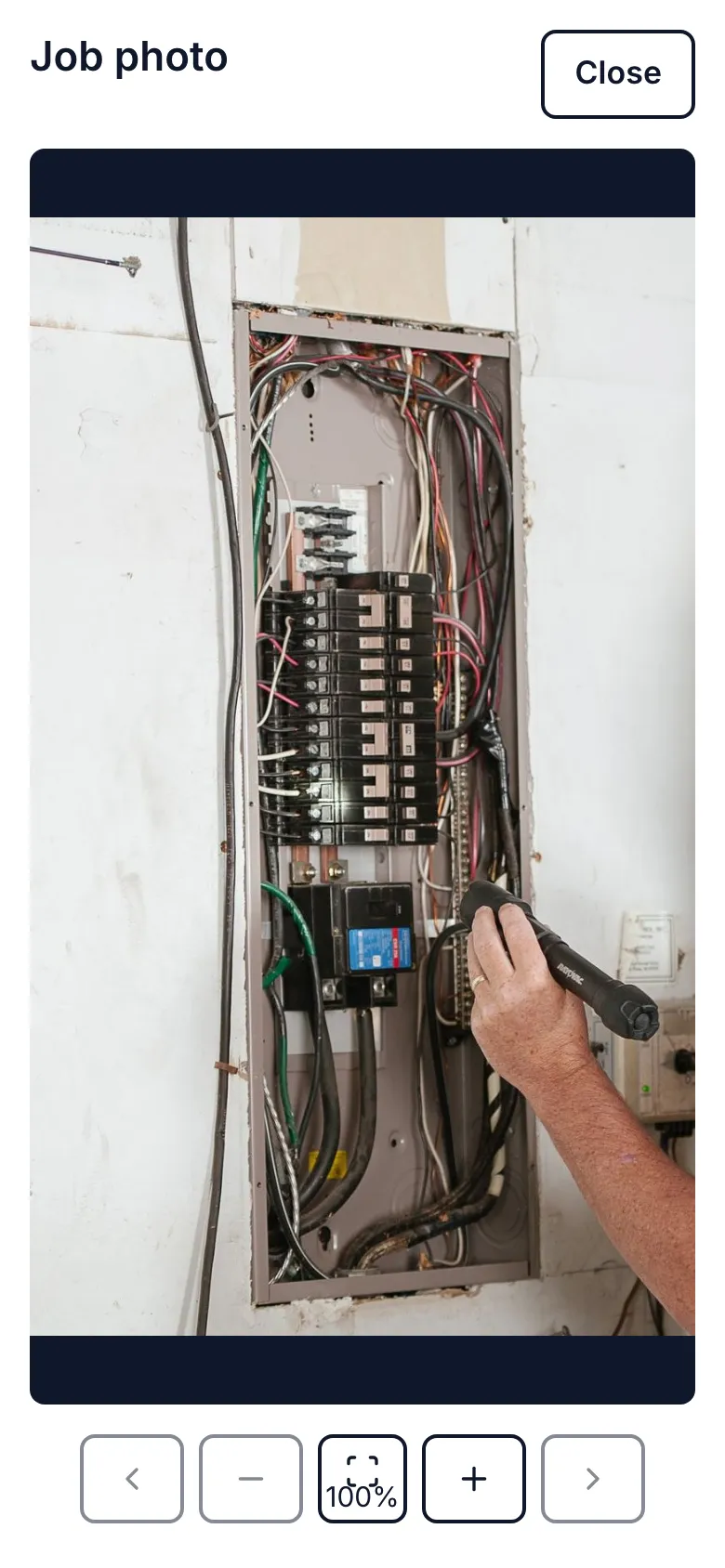
If an item has a photo, tap View photo below it. Check the image and its caption. The same photo also belongs to the job’s Photos section.
A new photo replaces the image shown on the item when it finishes saving. History keeps the earlier photo change. Removing a photo also removes it from the item. A photo can help explain what was seen, but does not by itself prove that a check was done correctly.
5. Read the visit’s Activity
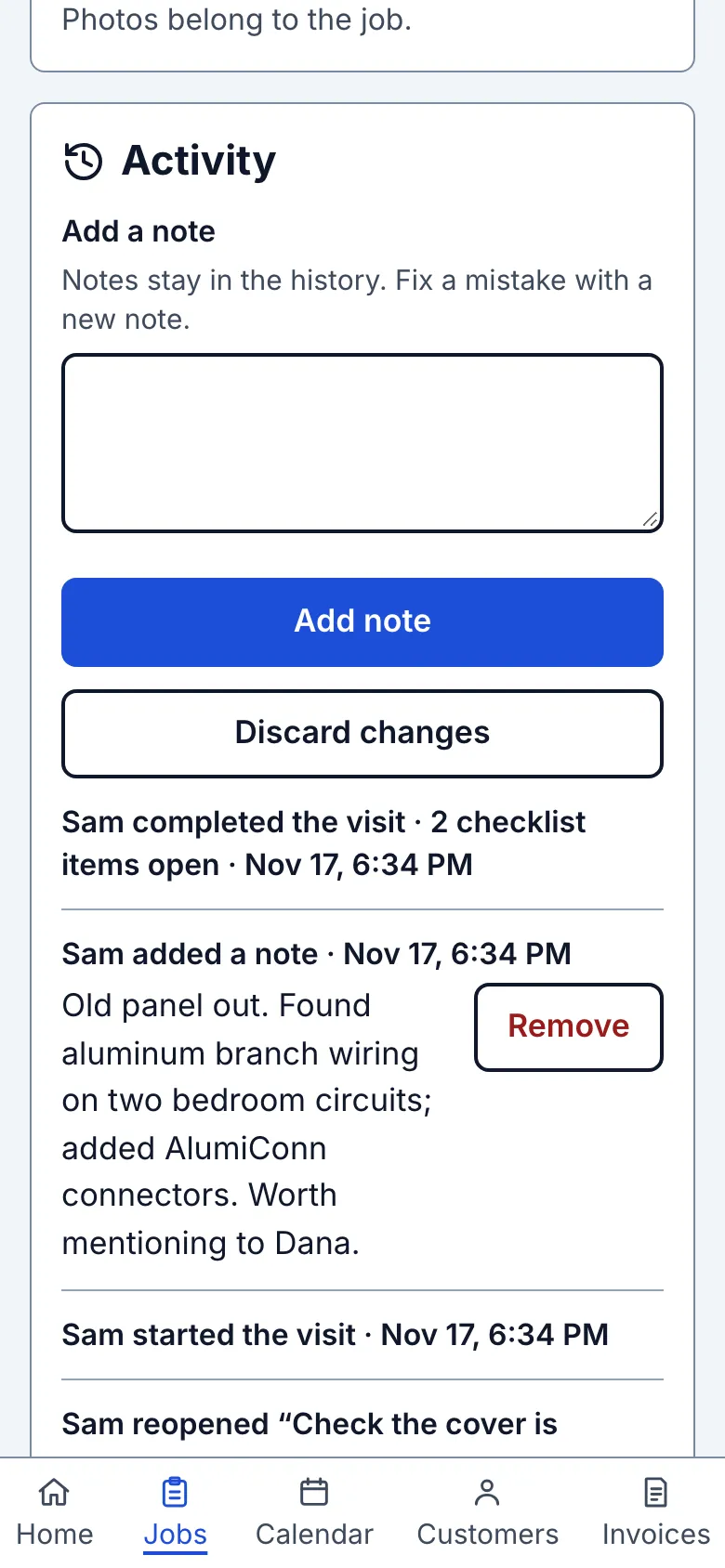
Open the visit from the job. Find Activity. Ticks and changes to Doesn't apply or open made on that visit appear here with the person and item wording. Changes made on the job itself stay in the item’s History.
A line such as Sam completed the visit · 2 checklist items open records how many were still open when that visit was completed. It stays as that record even if someone ticks the items later. Completing is allowed with open items. Notes and photos are read under their checklist item, not as separate checklist Activity entries.
What you see after
You can follow what was recorded across every visit of the same job. Your crew see the same checks and the latest notes. The customer never sees this list or its reasons, notes or History.
Limits
There is no checklist report across all jobs. The count includes Doesn't apply as well as Done. A completed visit can still have open checks. Nothing blocks ordinary work.
When it goes wrong
If the latest checklist cannot load, use the Retry link or refresh the page. If a photo is still uploading, wait for it to finish. Ask the crew member about a missing or unclear entry rather than treating an empty box as proof that the work was not done.
Still stuck? Email support@getstraightedge.com