Save and reuse checklists
Save a list when you expect to use the same checks on another job. For example, keep a short Panel checks list for electrical panel work. Choose a saved list yourself when a new job needs it. Straightedge never adds one automatically.
Saved lists are copies of the instructions. They do not contain the ticks, notes, reasons, photos or History from the job you saved.
Who can do it
Owners and full access partners. If you do not see Checklist on a job yet, it is not turned on for your business.
1. Save the wording from a job
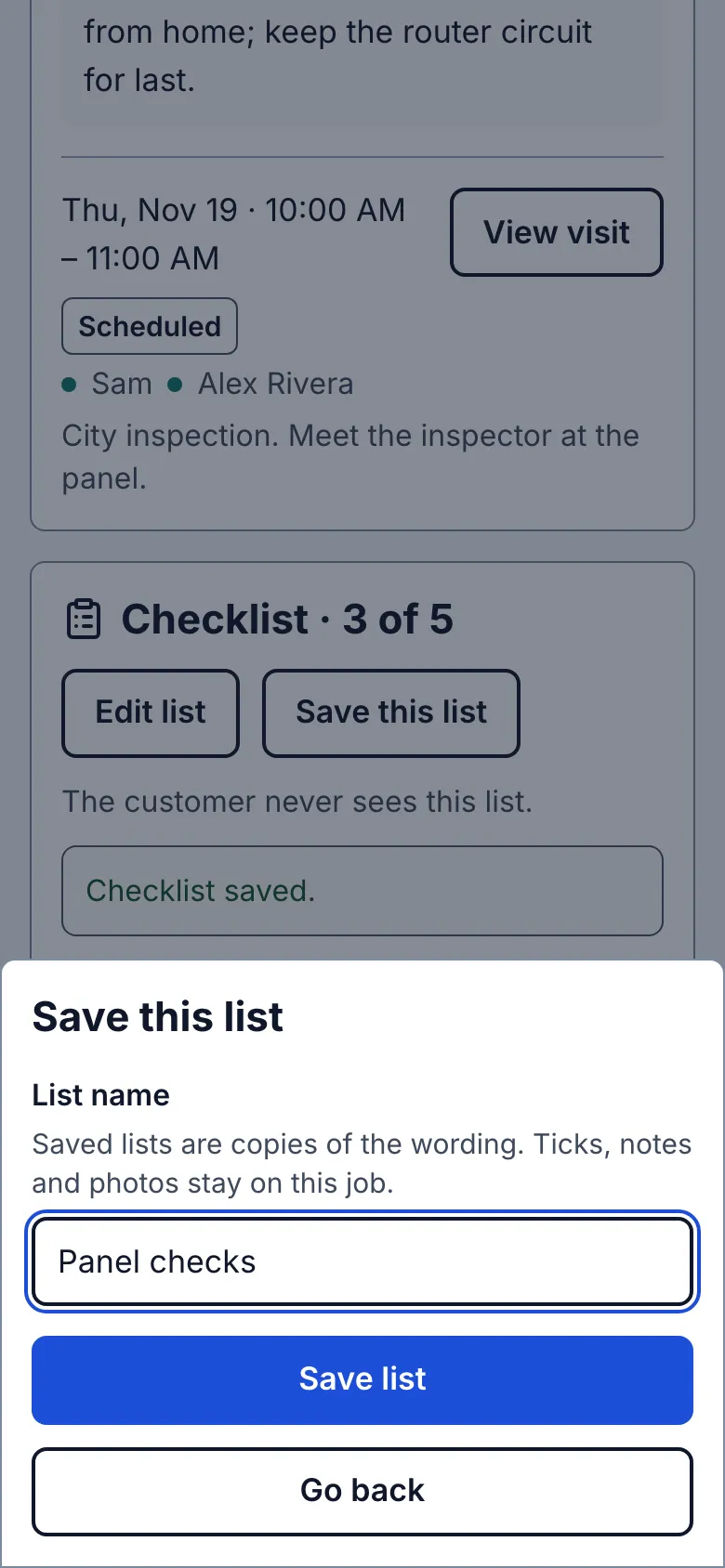
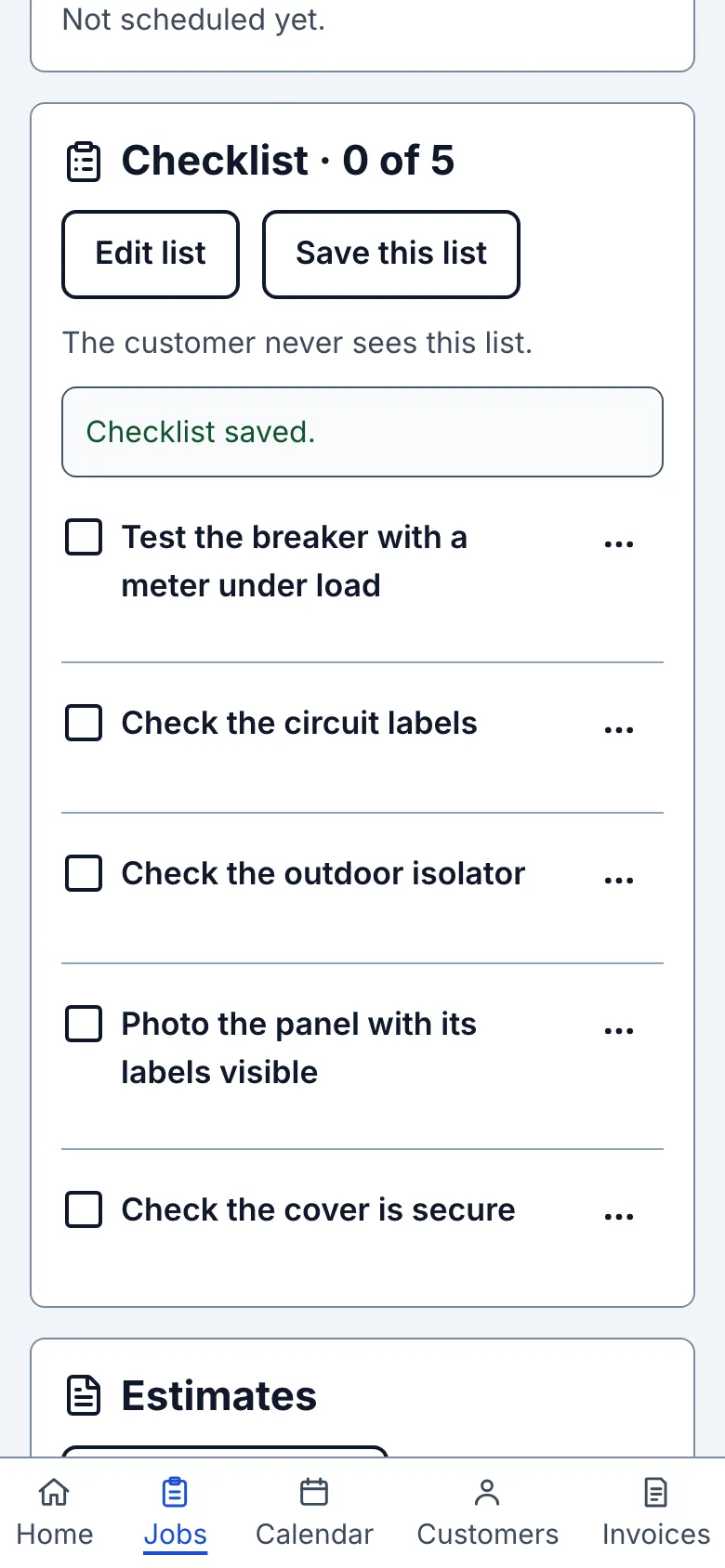
On a job that has checklist items, tap Save this list. Enter a short, useful List name, such as Panel checks. Tap Save list.
You return to the job and see that the list was saved. The job keeps its own checklist and all its recorded work. Saving does not reset any ticks.
2. Create a list in Settings
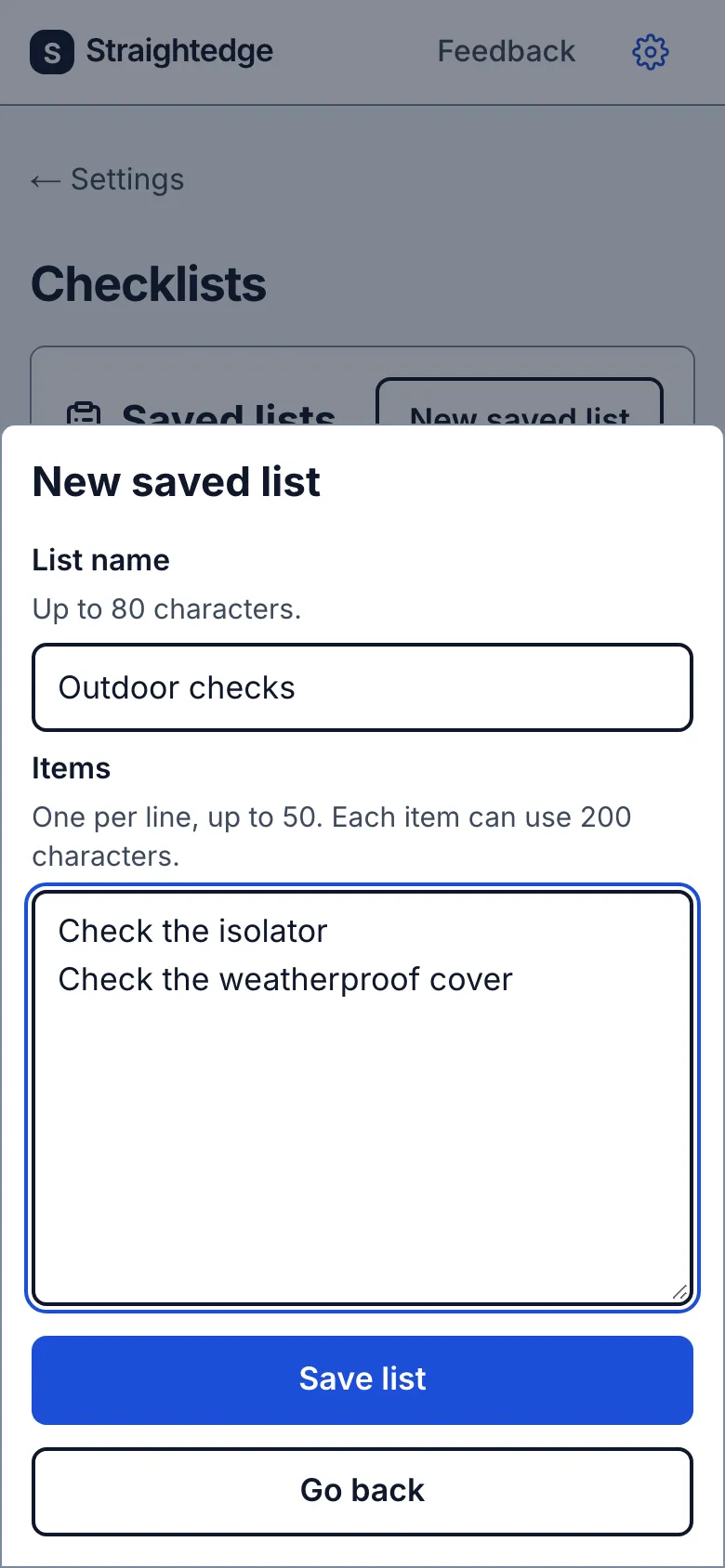
Open Settings, then Checklists. Tap New saved list. Enter List name and type the checks in Items, one per line. You can paste a list here too. Tap Save list.
The new list appears in Settings. You can store up to 50 saved lists. Each can contain 1 to 50 items, with up to 200 characters per item. Names can contain up to 80 characters.
3. Rename a list or change its items
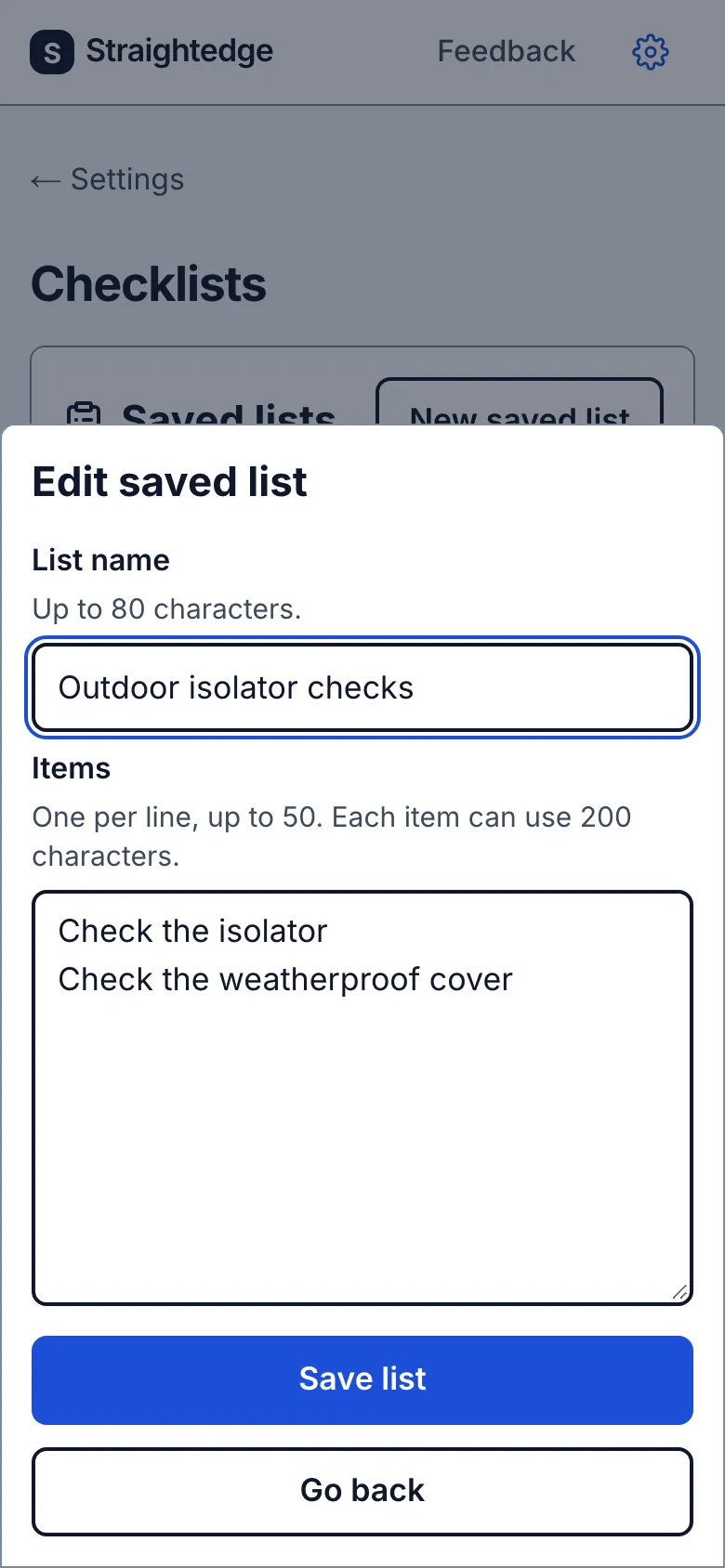
Find the saved list in Settings → Checklists. Tap Edit saved list beside it. Change List name to rename it. Change Items to add, remove or rewrite instructions. Tap Save list.
Only this saved list changes. Jobs that already used it keep their earlier copy, including their wording, ticks, notes and photos. The changed list is used the next time you choose it for a job.
4. Delete a saved list you no longer need
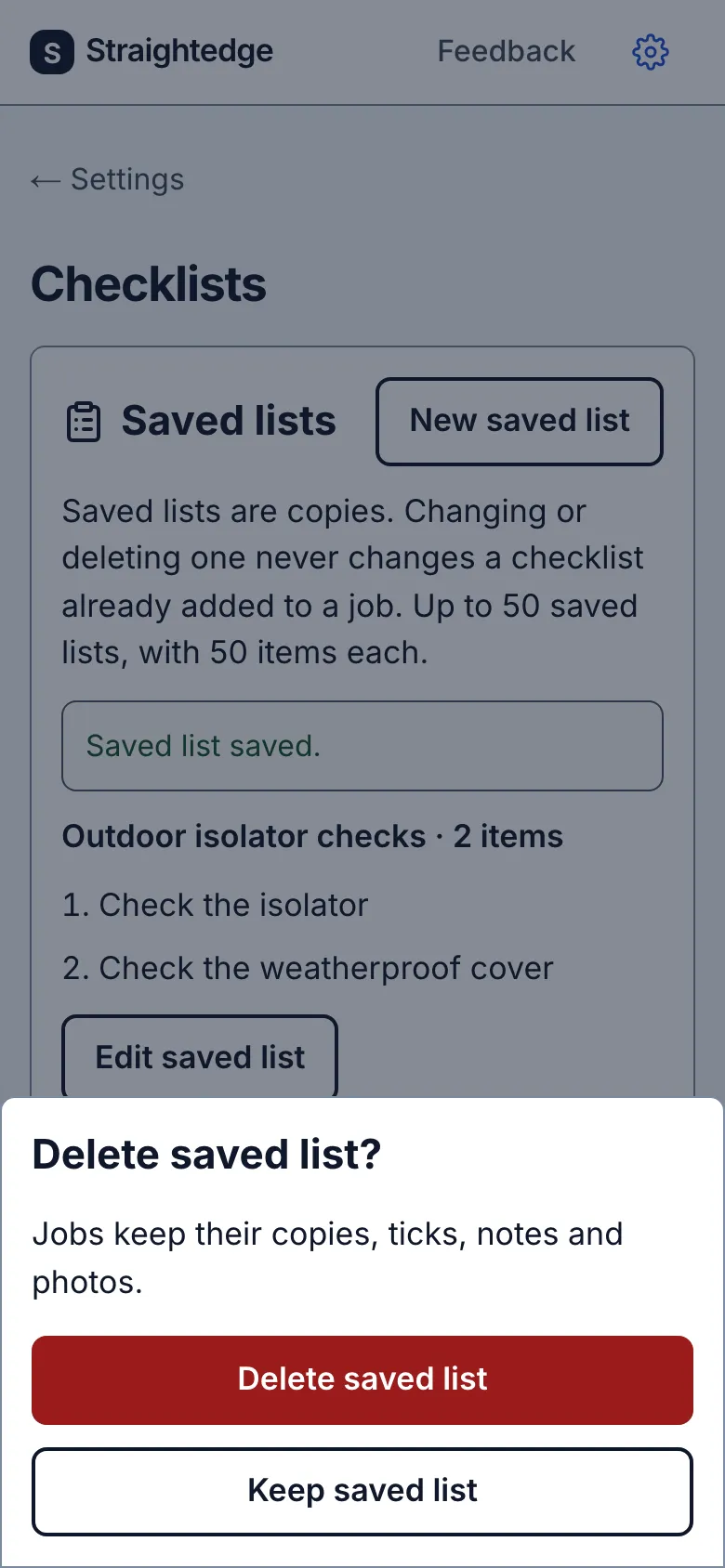
Tap Delete saved list beside the list. Read the confirmation, then tap Delete saved list again to remove it. Keep saved list goes back without deleting it.
Deleting frees one of the 50 saved-list places. Jobs that already used the list keep their copies and all the recorded work.
5. Put a copy on another job
Open a job without checklist items. Tap Add a checklist, then Pick a saved list. Choose the list under Saved list and tap Save checklist.
Read the new copy on the job. All its items start open. Check that the wording fits this work; use Edit list to adjust this job’s copy if needed. A saved list is a starting point, not a requirement to use every check.
What you see after
You can reuse useful wording without carrying over anyone’s old ticks. The saved list and each job copy can be changed independently.
Limits
Only owners and full access partners manage saved lists. Crew cannot edit the instructions. Customers never see them. Saving a list does not make any check compulsory.
When it goes wrong
If saving fails, keep the words on screen and use Retry. If another person changed the same list, reopen it and check their changes before trying again. If you reach 50 lists, delete an unused saved list; its job copies will stay.
Still stuck? Email support@getstraightedge.com