The job page
Who can do it
Owners.
1. Open a job
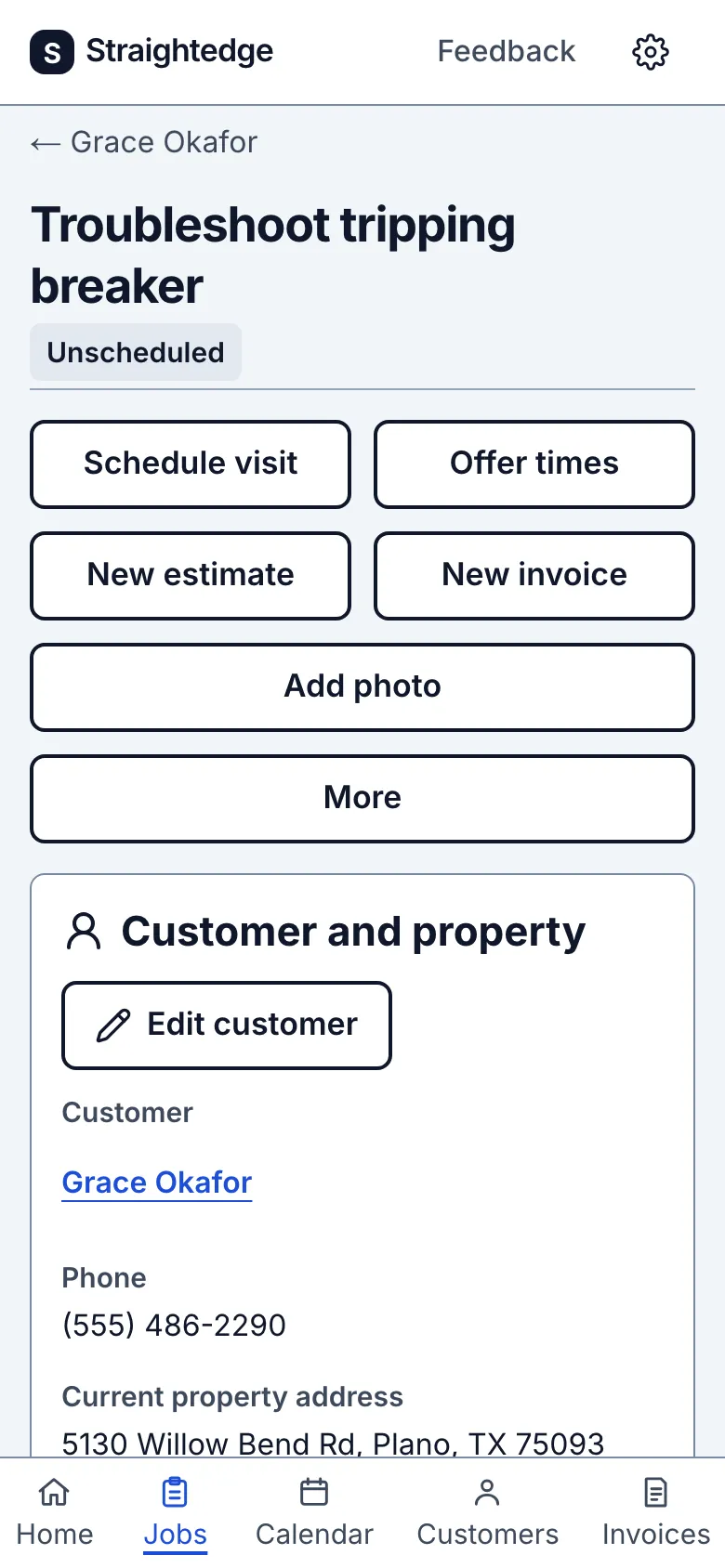
From Jobs, open the job you need. Its page shows the work title, status and the actions you can take.
2. Add work records
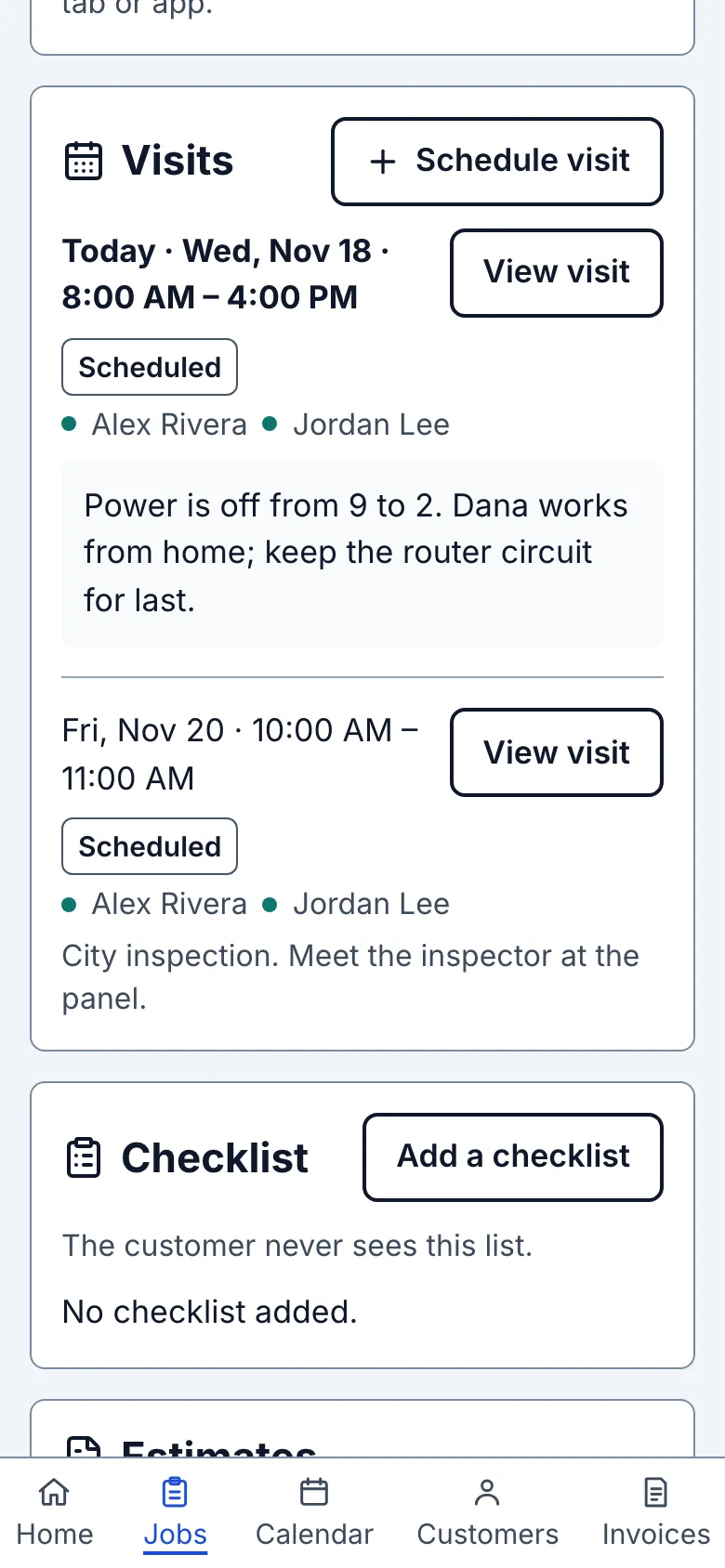
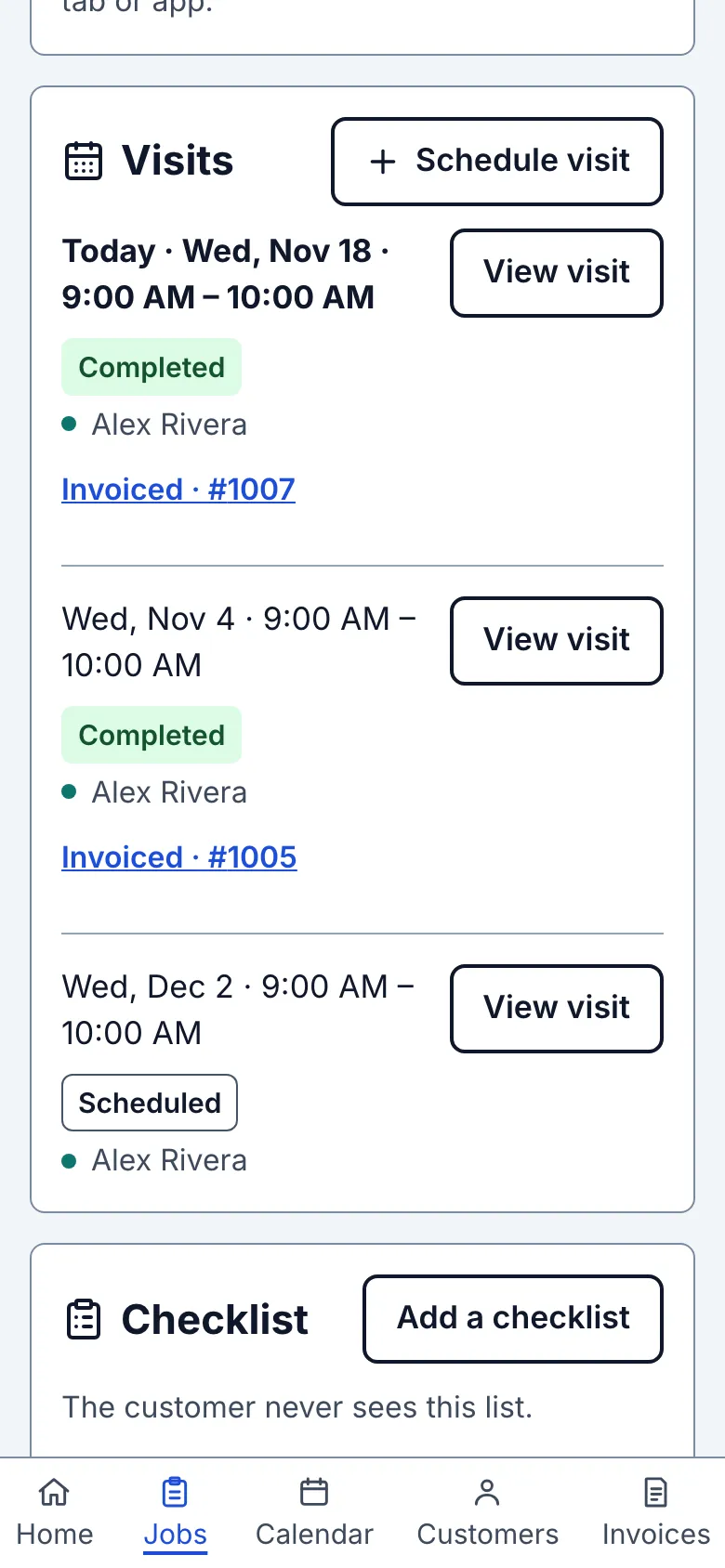
The first actions are Schedule visit, Offer times, New estimate, New invoice and, when photo capture is available, Add photo. The sections below are Customer and property, Visits, Estimates, Invoices, Activity, Photos and Documents. Every visit appears here with its time, status, people and notes. Offer times lets the owner send a private link with arrival windows for the customer to pick; the offer status appears under Visits.
3. Manage the job
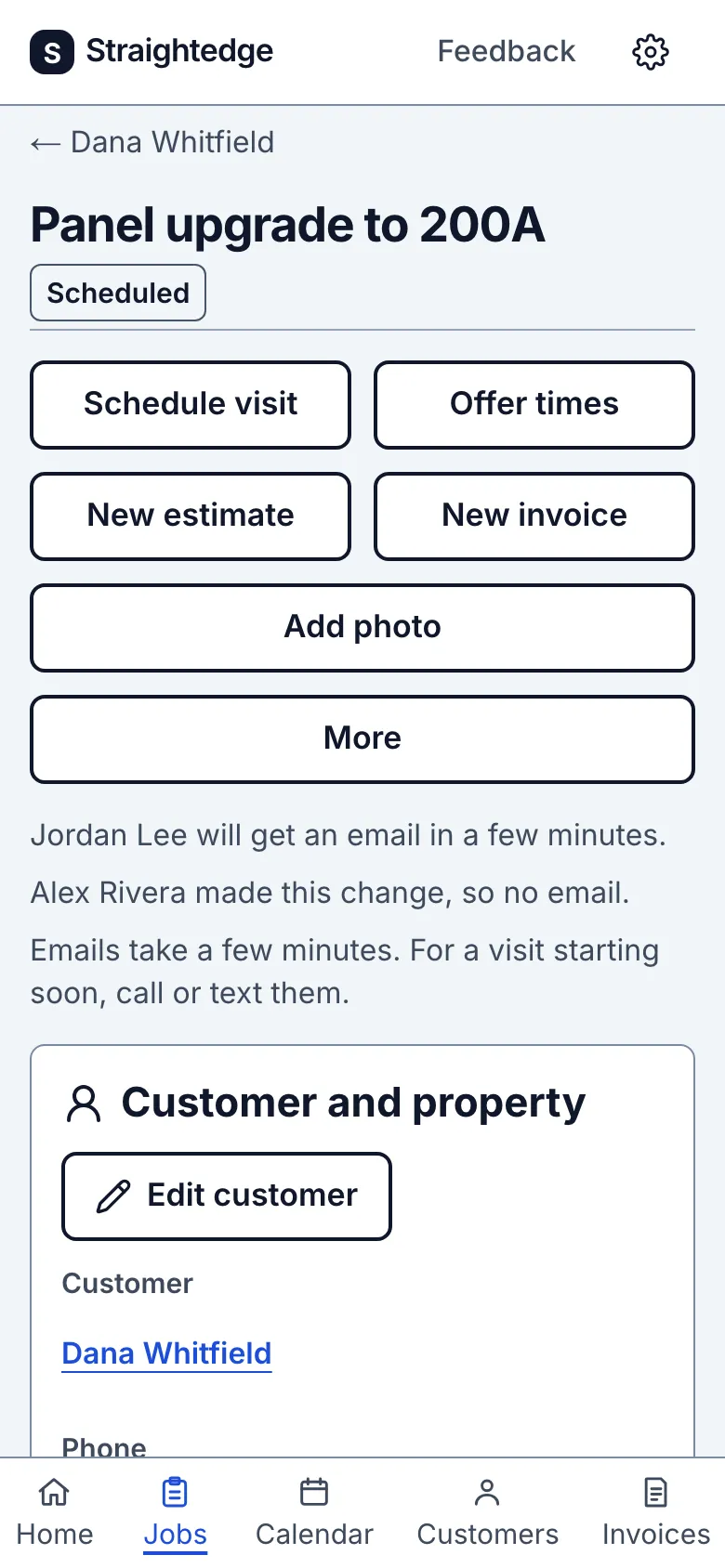
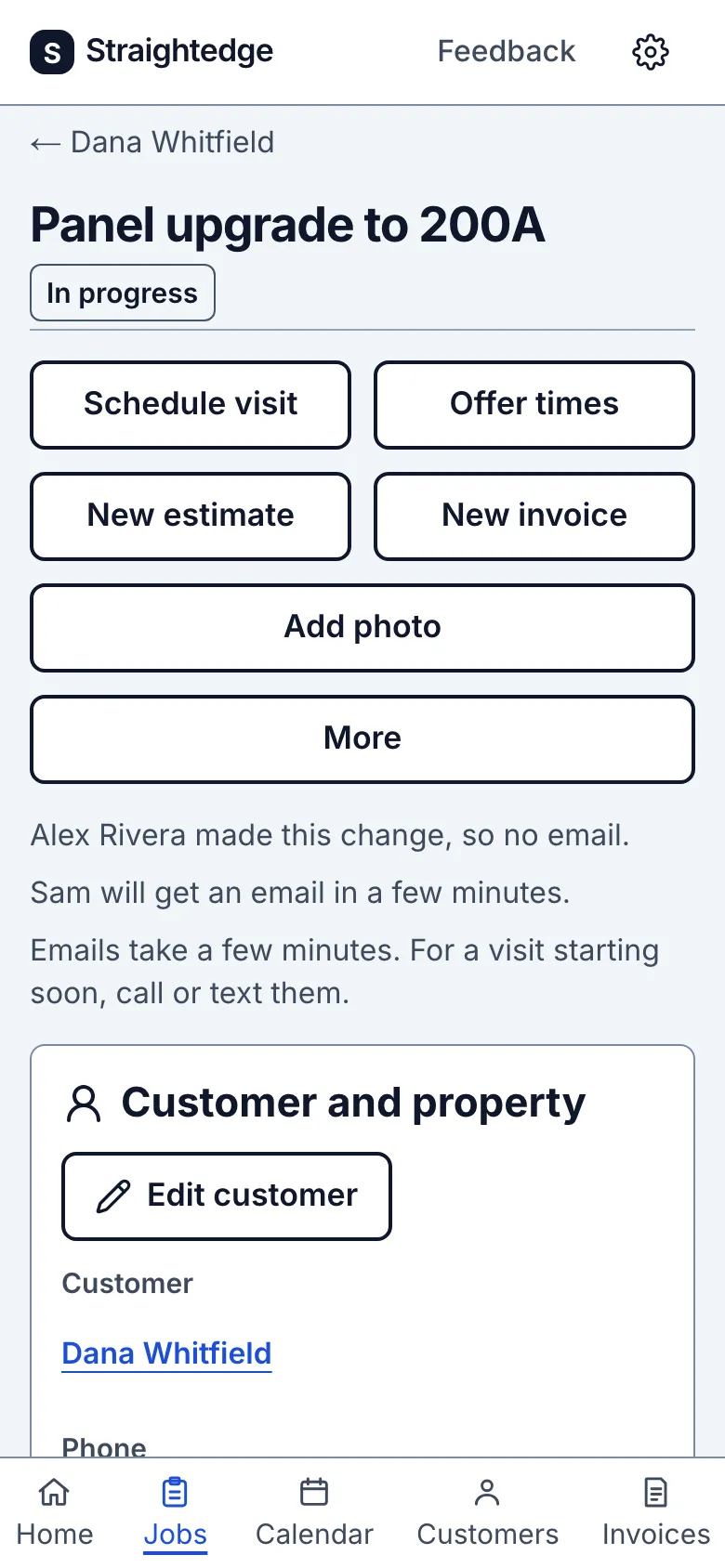
Tap More for Edit job, Close job or Cancel job. A Done job offers Edit job and Reopen job there. When all invoices are paid and nothing needs review, the notice below the actions also offers Close job in one tap. To begin work, open the visit and use Start visit; the job then becomes In progress.
4. See which visits were invoiced
In Visits, “Invoiced · #47” opens the invoice made for that visit, whether it is paid or unpaid. The link stays if the visit's time or status is corrected. “Not invoiced” opens a completed visit that can be invoiced using last time's lines. A scheduled visit without an invoice shows neither label. Older invoices made before visits could be linked do not get a guessed visit.
An invoice made with New invoice on the job page stays at job level; it does not mark a particular visit invoiced.
What you see after
The status moves from Unscheduled to Scheduled when you book a visit, and to In progress when work starts. It becomes Done only when you close it. Completing a visit or receiving payment does not close the job.
Checklist, when available, follows Visits. It belongs to the job and carries ticks across visits; the customer never sees it.
Limits
You cannot add new visits or estimates to a Done or Canceled job. Reopen a Done job before adding more work; a Canceled job is final.
Still stuck? Email support@getstraightedge.com