Offer times
- Can customers book themselves? Yes, from times you offer them; there is no public booking page. The owner sends one private link for each offer.
Who can do it
Owners and full access partners. Crew can see the booked visit, but cannot offer or revoke times.
Before you start
Nothing is offered automatically when you start a job or schedule a visit. You must choose Offer times on an open job, or on a future scheduled visit that has No set time. The job must have a customer. Save a business name and time zone under Business details first. If either is missing, the sheet names it and links to Business details. You need an active team member to attend. The owner starts selected. To open your phone's Messages or Mail app, save a customer phone or email; without either, the sheet says “No phone or email saved” and links to the customer edit page. You can still copy the link.
1. Open the offer sheet
Open an open job and tap Offer times beside Schedule visit. After Start a job, you are already on the job page. For a future date-only visit, open its visit page and tap Offer times under the schedule. The sheet shows tomorrow through 14 days in your business time zone. Today cannot be offered.
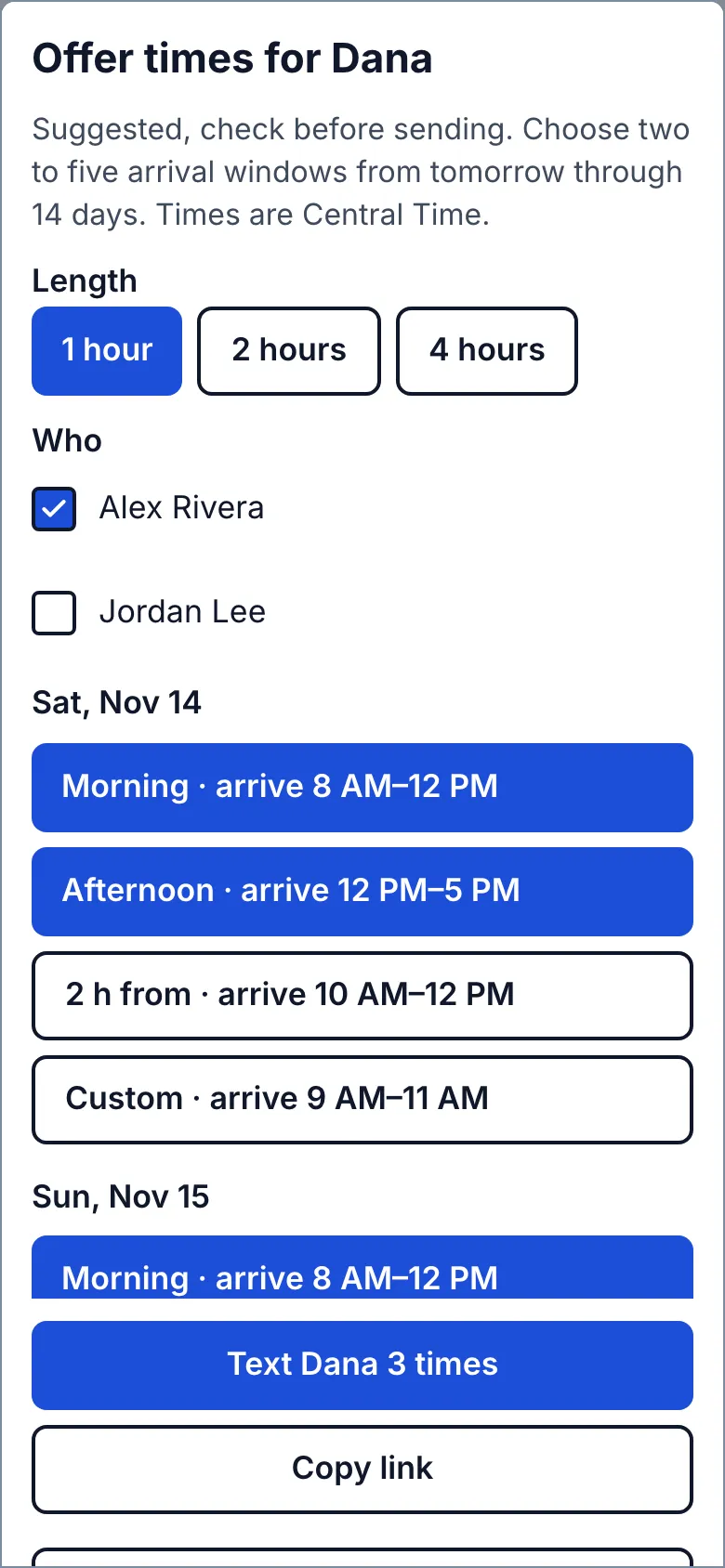
2. Choose windows and hand off the link
The Morning and Afternoon chips show explicit arrival hours, as do 2 h from and Custom. Tapping the 2 h from chip opens its time field; tapping Custom opens its from and to fields. Free Morning and Afternoon chips on the next five Monday–Friday business-local days say “Suggested”; the sheet says “Suggested, check before sending.” They start unticked. A chip says “N other visits” when an assigned person has timed work overlapping that window, or “Full” and cannot be selected when every selected person has a timed visit covering it. These hints do not calculate travel or general availability. Choose two to five windows, check Length (one hour by default) and Who (the owner by default), then tap Text or Email to open your own composer. Tap Send there. You can use Copy link instead. The main button says why when you choose too few or too many windows.
The link belongs to this job, works once, and expires when the last offered window begins. Making a new offer revokes the old link. Revoke on the job page stops an open offer. Scheduling a timed visit on the job, canceling the date-only visit tied to an offer, or closing the job also stops it.
3. Customer picks and confirms
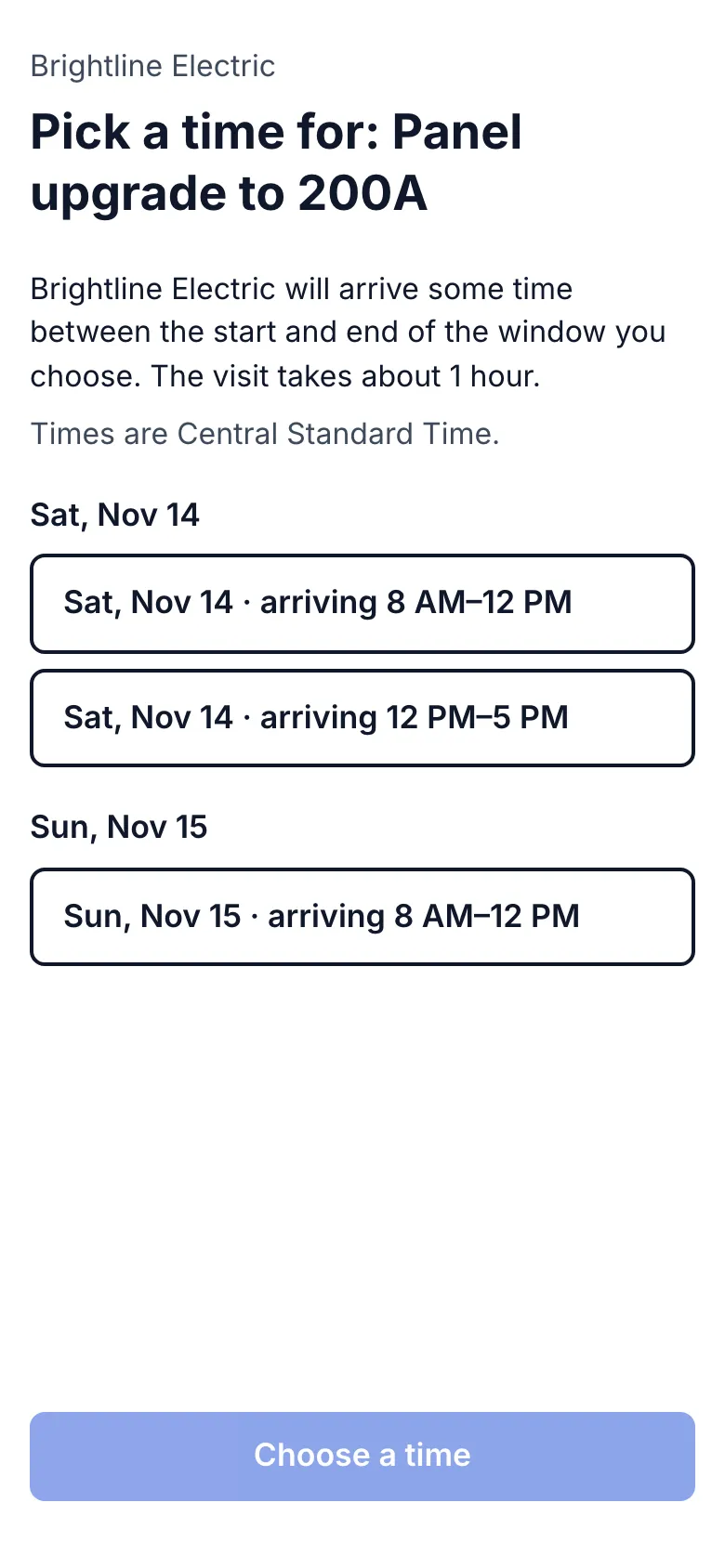
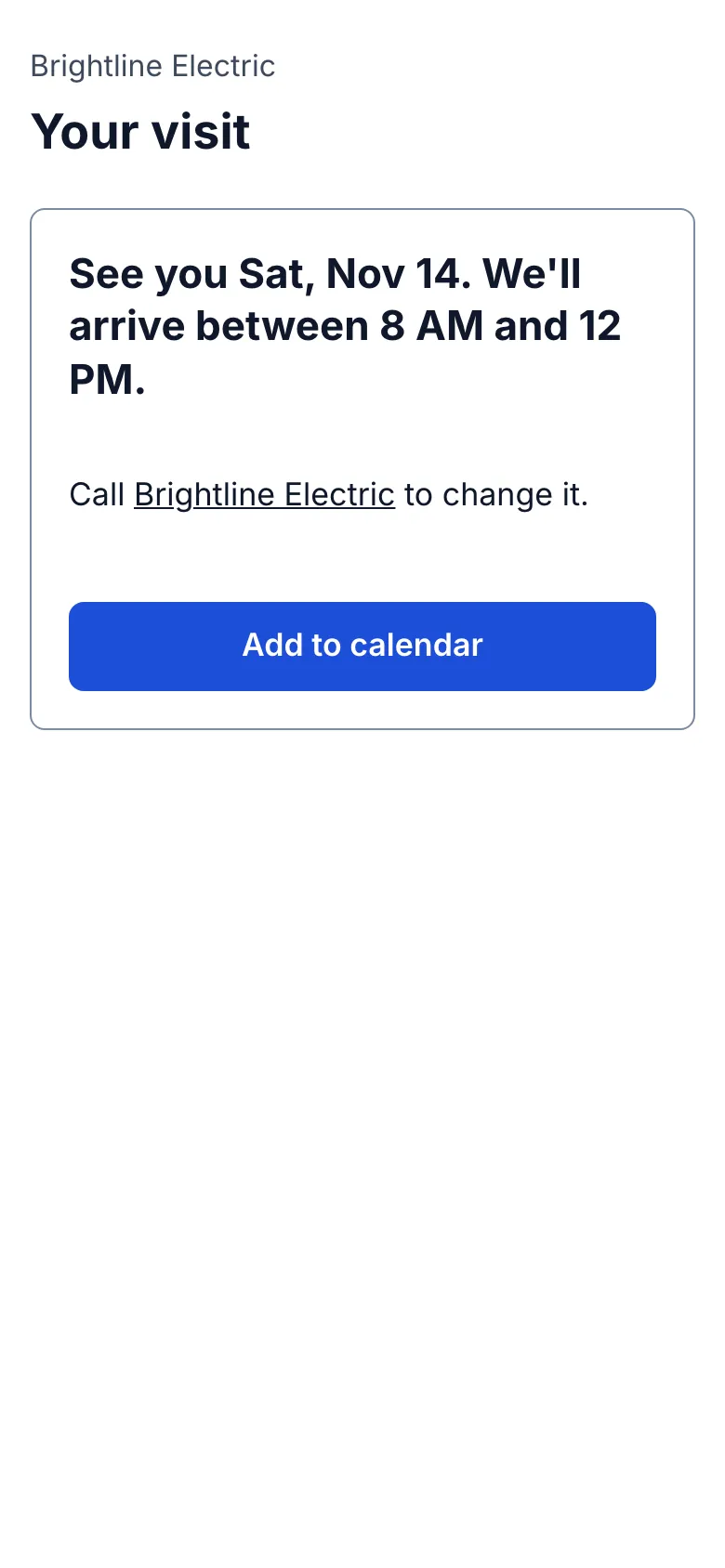
Your customer sees your business name and the job title, full-width arrival choices, and the business time zone. The page says you may arrive any time inside the chosen window, and that the work takes about the shown length from when you arrive. They choose a window, check their prefilled full name and phone, may add “Anything we should know?”, then tap Confirm. Their edits become a note on the job; they never replace the saved customer record. They see “We'll arrive between …” and can tap Add to calendar. They cannot cancel or change the visit from the link; it tells them to call you. A second opening says “Already booked”; an expired link says “These times have passed”; a newly taken time disappears and the page asks them to try another.
What you see after
The visit appears immediately on Calendar and the job, with “Arrive 8 AM–12 PM · ~1 h” for a morning choice. The booked calendar block starts at 8 AM and lasts the estimated hour; it helps you plan, but does not promise an 8 AM arrival or a 9 AM finish. The job history records who picked which window and when. Straightedge emails the owners about the pick. The customer gets an automatic confirmation email only if Remind customers before visits is on under Business details and that customer's reminder emails are on. The email leads with your business name and shows the arrival window and estimated work length together, followed by how to reply or call you. Its “Stop emails from {business}” link opens a page explaining that it stops visit reminders, booking confirmations and estimate and invoice follow-ups from you. Otherwise, your own text or email is their confirmation. Crew see the assigned visit like any other.
Still stuck? Email support@getstraightedge.com