The visit page
Who can do it
Owners and full access partners.
1. Open the visit
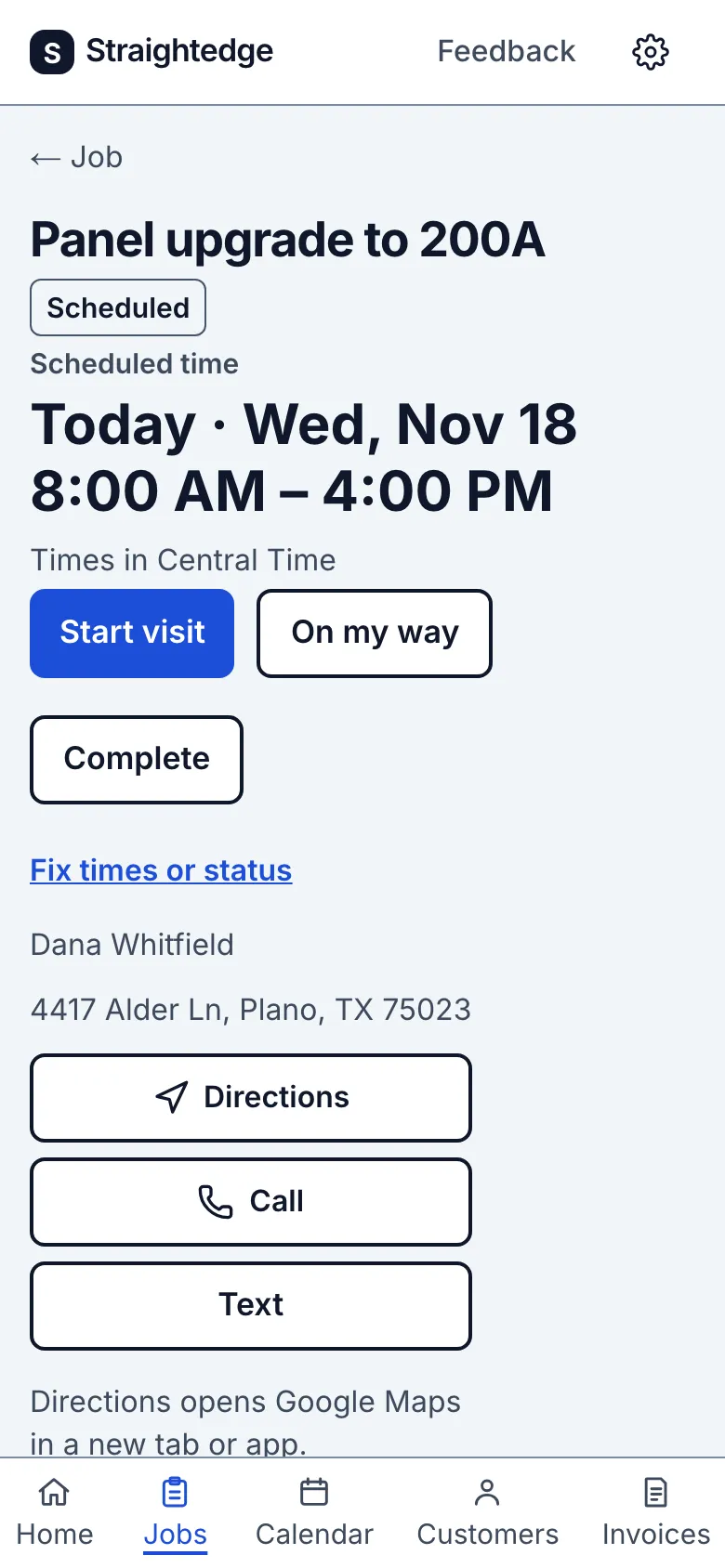
Open a visit from the job or Calendar. The page shows the schedule in the business time zone, the customer and address, and Assigned team and Visit notes below.
2. Record progress
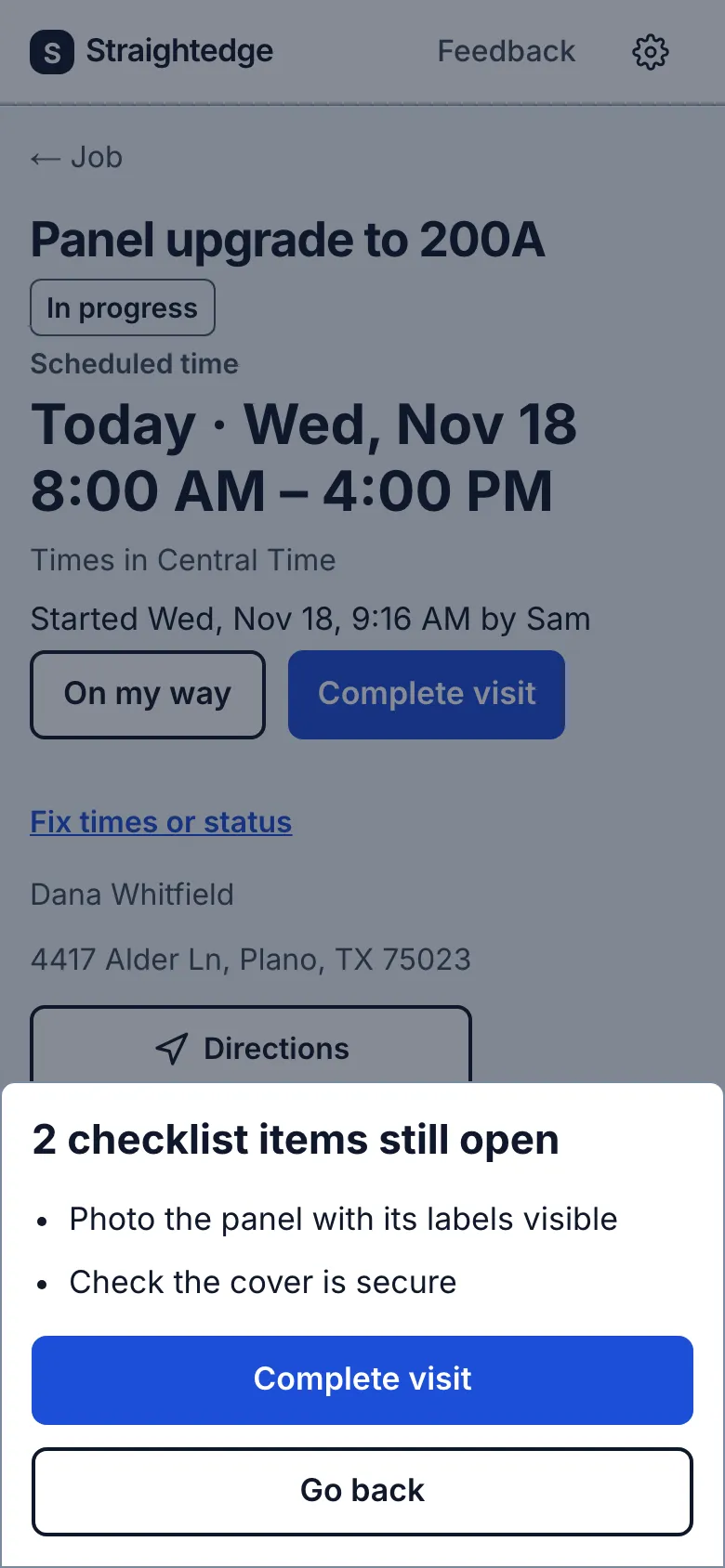
Tap Start visit when work begins, then Complete visit when it ends. If the job has open checklist items, Complete visit shows their number and lists their wording. Read the list. Tap Go back if you want to check them first, or Complete visit in the confirmation to finish anyway. A checklist never stops the visit being completed.
If the list cannot be checked within four seconds, you can still finish. If the page already showed the checklist, the confirmation uses those items and says “These may not include the last few minutes of changes.” If no list could be loaded, a message says “Checklist could not load. You can still complete the visit.” Its Complete visit button lets you finish.
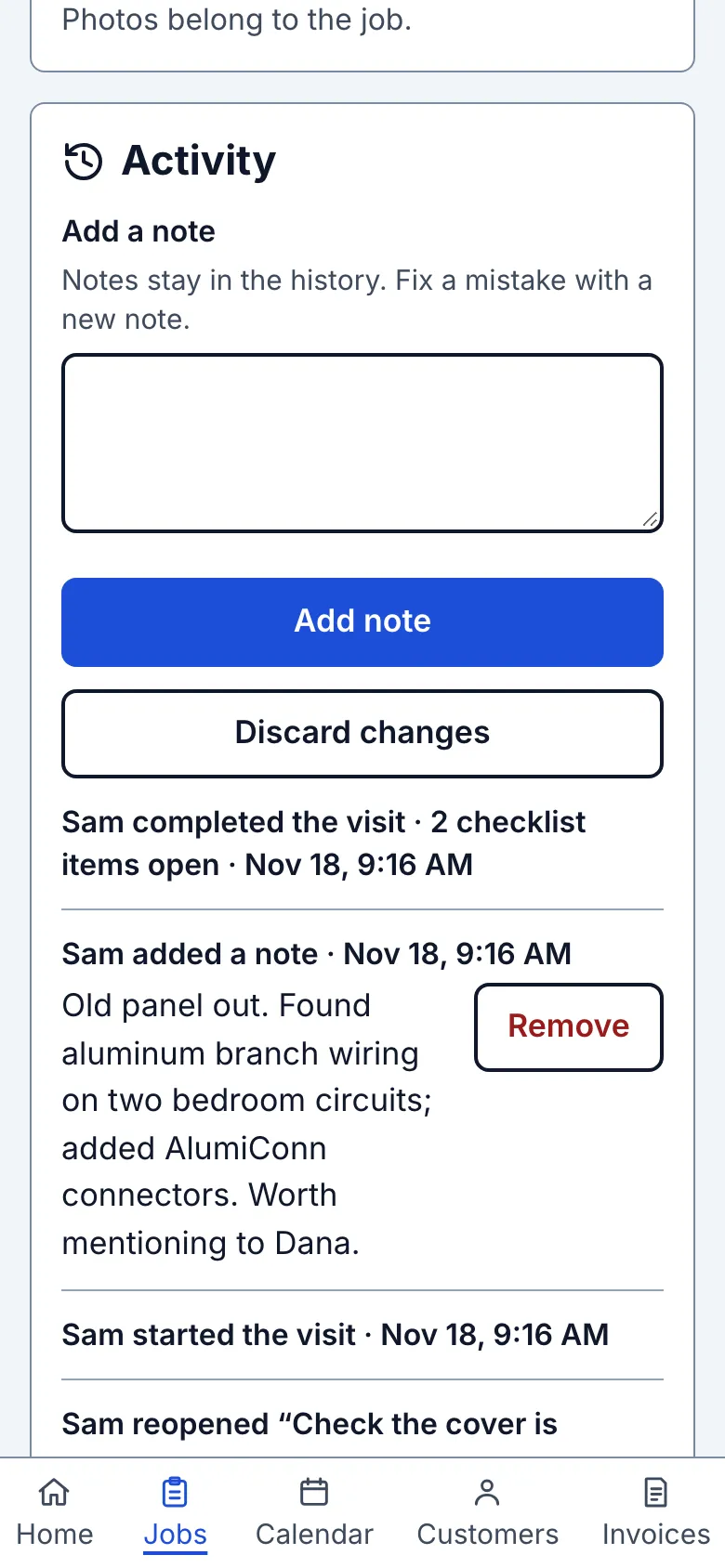
The recorded events appear in Activity; the scheduled time stays as booked. The completion line also records how many checklist items were open when it saved. Starting or completing does not message the customer.
3. Manage the visit
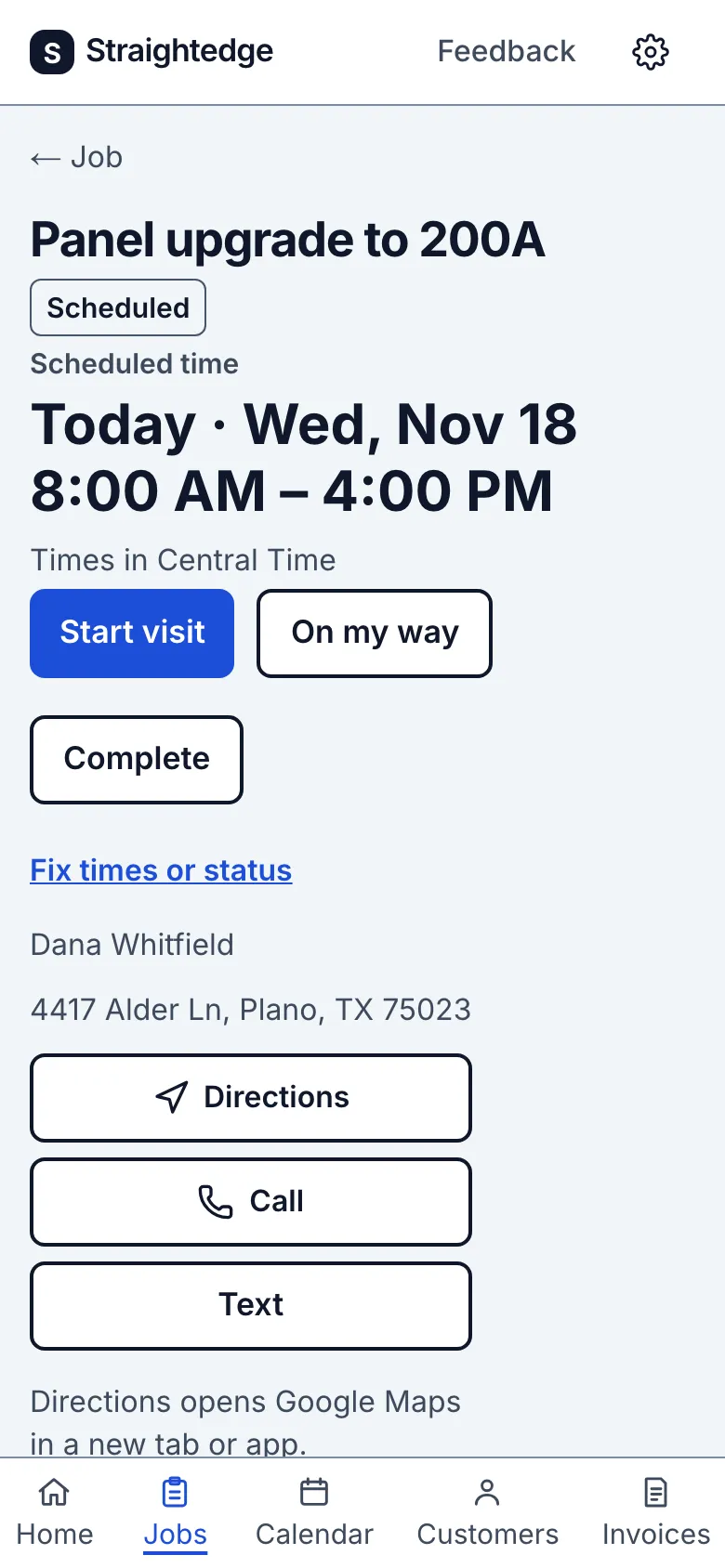
Use Reschedule, Edit team or Edit notes to change the plan. For a wrong start or finish time, use Fix times or status and enter the actual time; the correction remains in the history. Cancel a visit explains cancellation.
4. Open a customer message draft
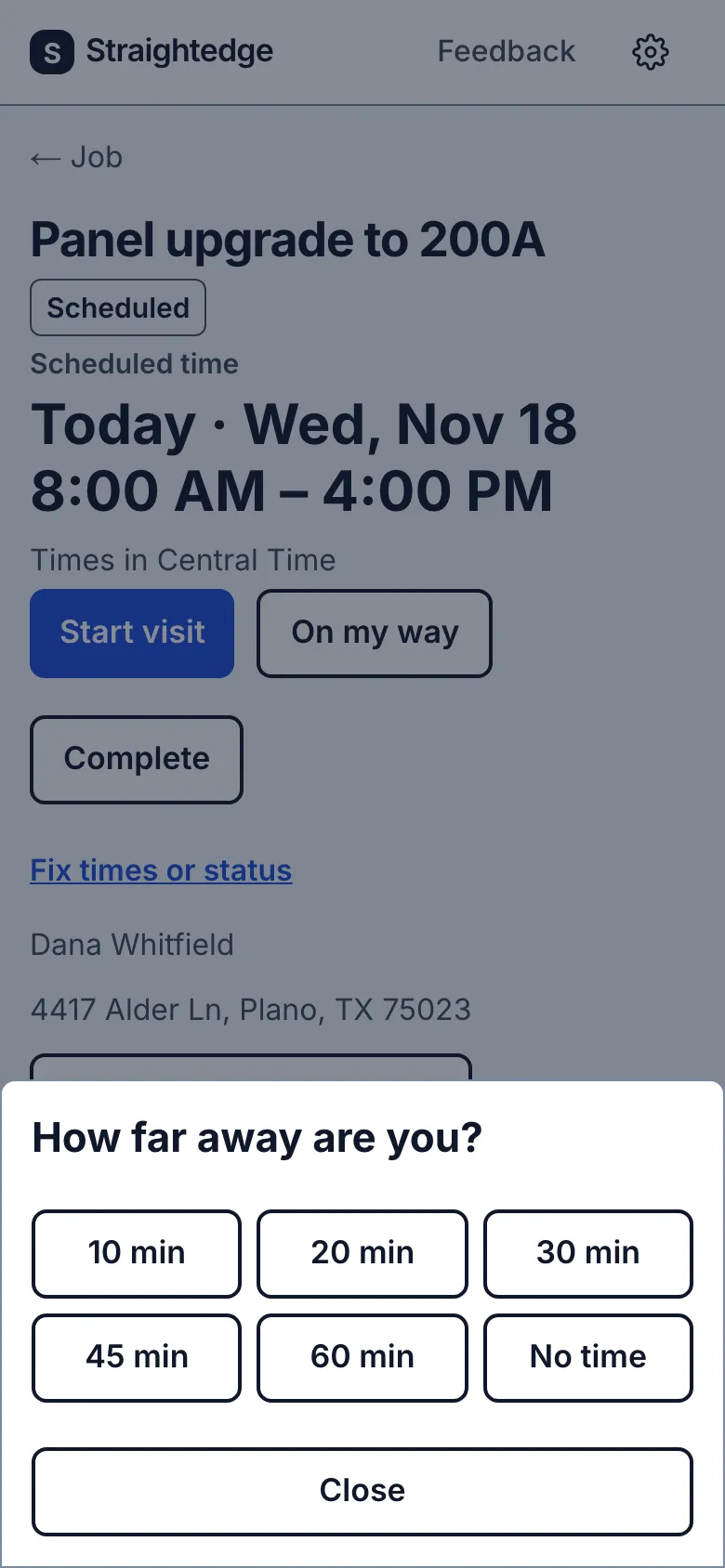
While a visit is scheduled or in progress, tap On my way beside Start visit, then choose 20 min (or another minute choice or No time). Your phone opens Messages with a draft for the customer; edit it if needed and tap Send there. Back on the visit, Opened Messages. Make sure you tap Send there. confirms only that the message screen opened.
Tap Text for Running late, Reminder (owner only, before a future scheduled visit), or Blank text. A reminder has the visit date and its set time, if any. If the customer has no phone but has email, the draft opens Mail. If neither is saved, use the customer edit link. Activity records a drafted hand-off as “Text message screen opened” or “Email screen opened” with the person and time; it cannot confirm Send. Blank text is not recorded.
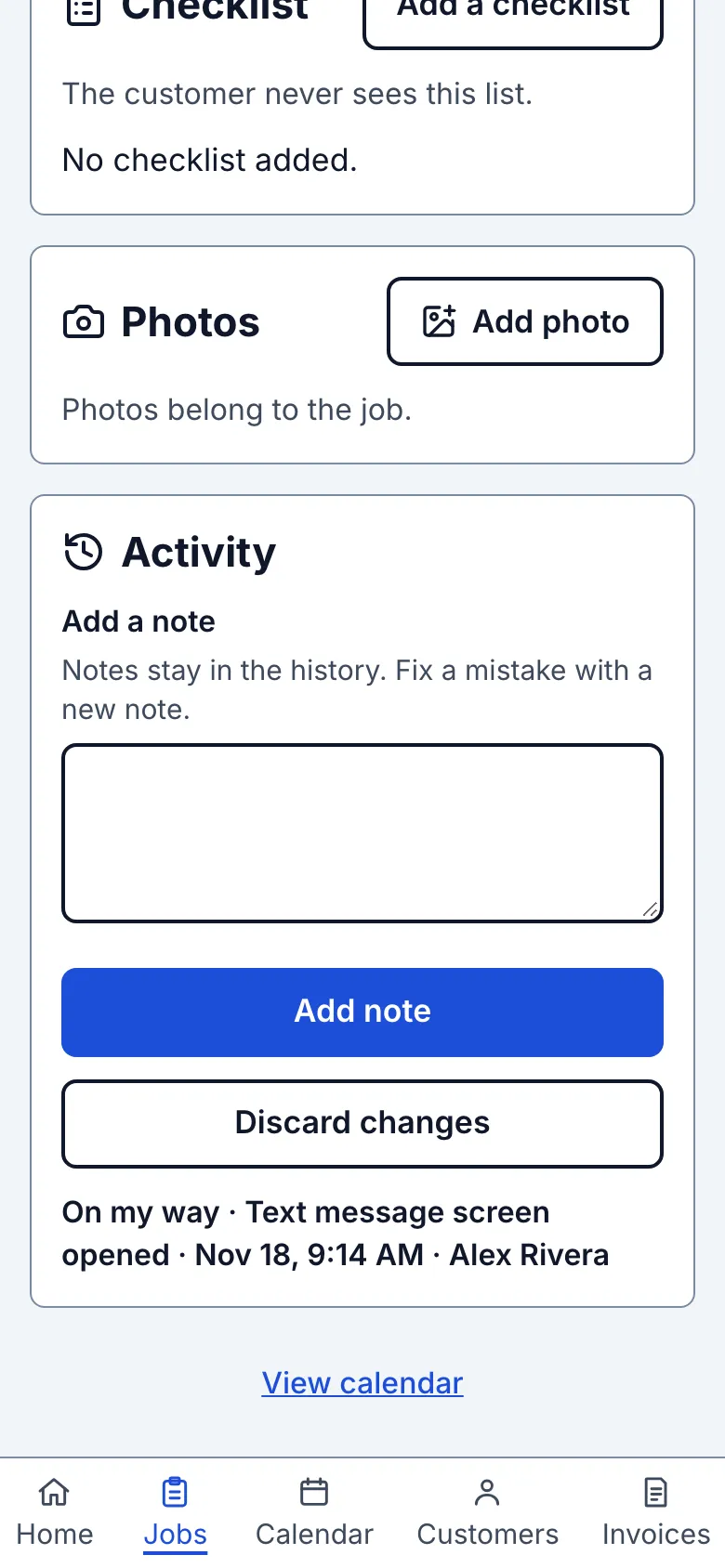
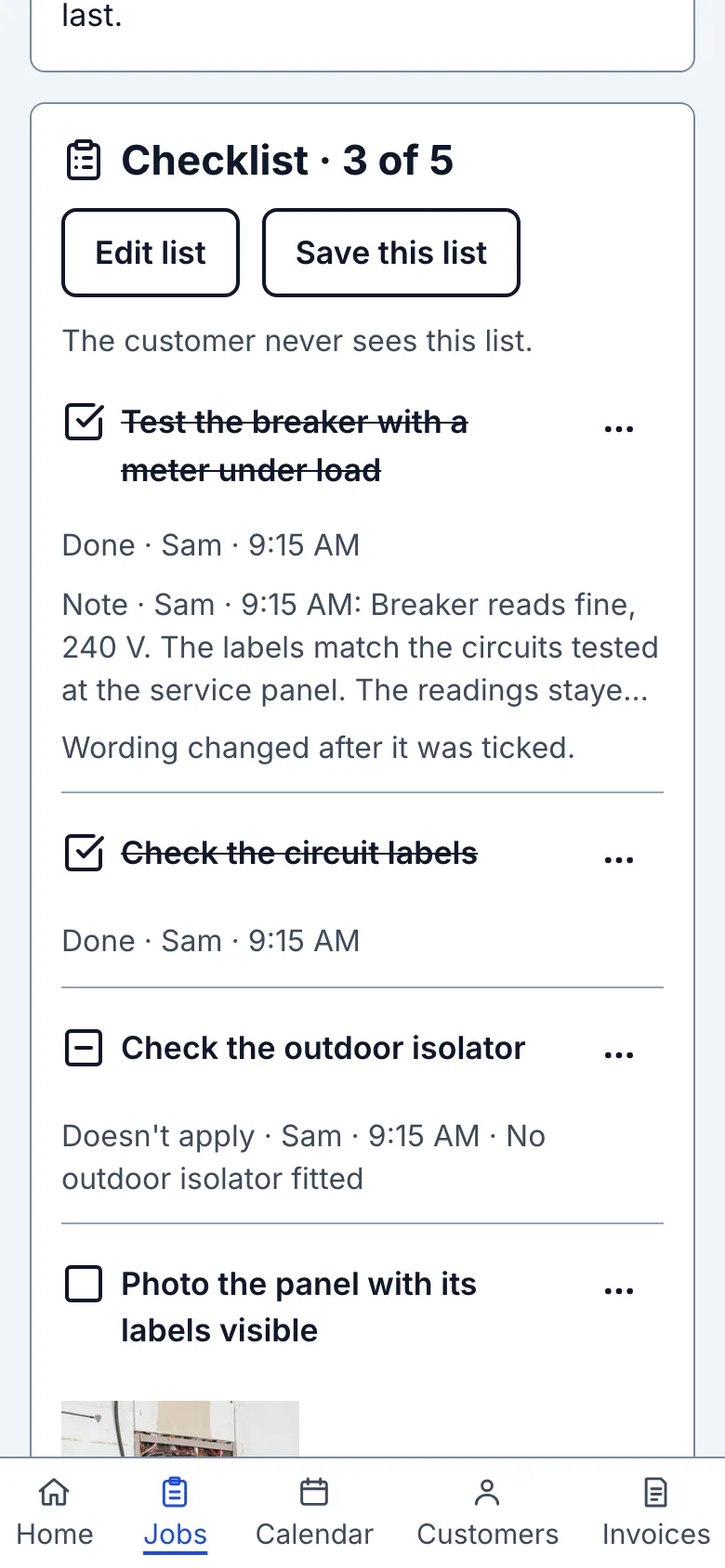
The job’s Checklist, when present, is below visit details and above Photos. You and the crew see the same list on every visit. Corrections and reopening do not replace the earlier completion count.
5. Review a finished visit's invoice
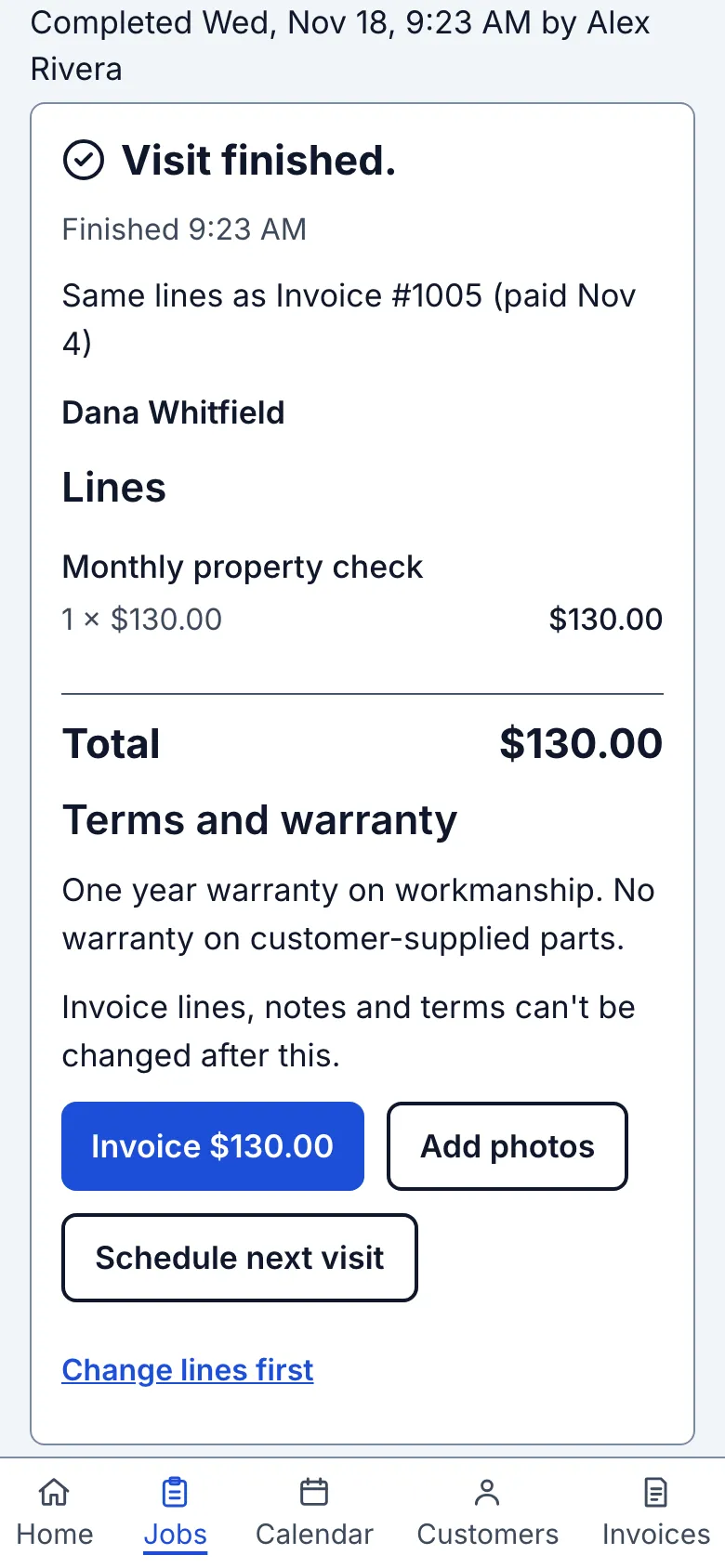
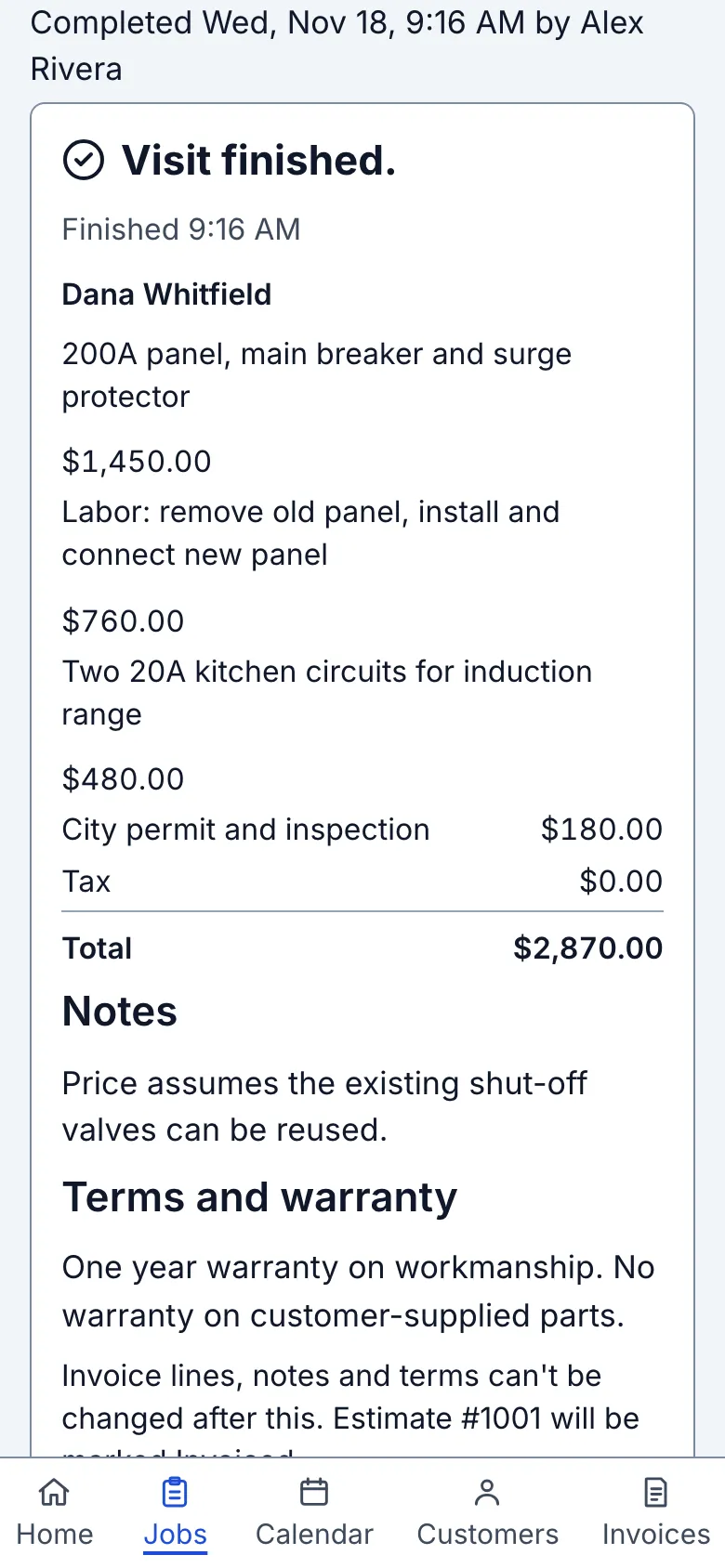
The finished block also shows the Notes and Terms and warranty that will be frozen on the invoice. Read them before using the Invoice button. From an estimate, notes carry across and a nonempty invoice default supplies the terms, otherwise the estimate terms are used. On a later visit, notes start empty and terms use the invoice default; the earlier invoice's text is never copied. Use Change lines first to change the note or terms too. Invoice lines, notes and terms cannot be changed after saving.
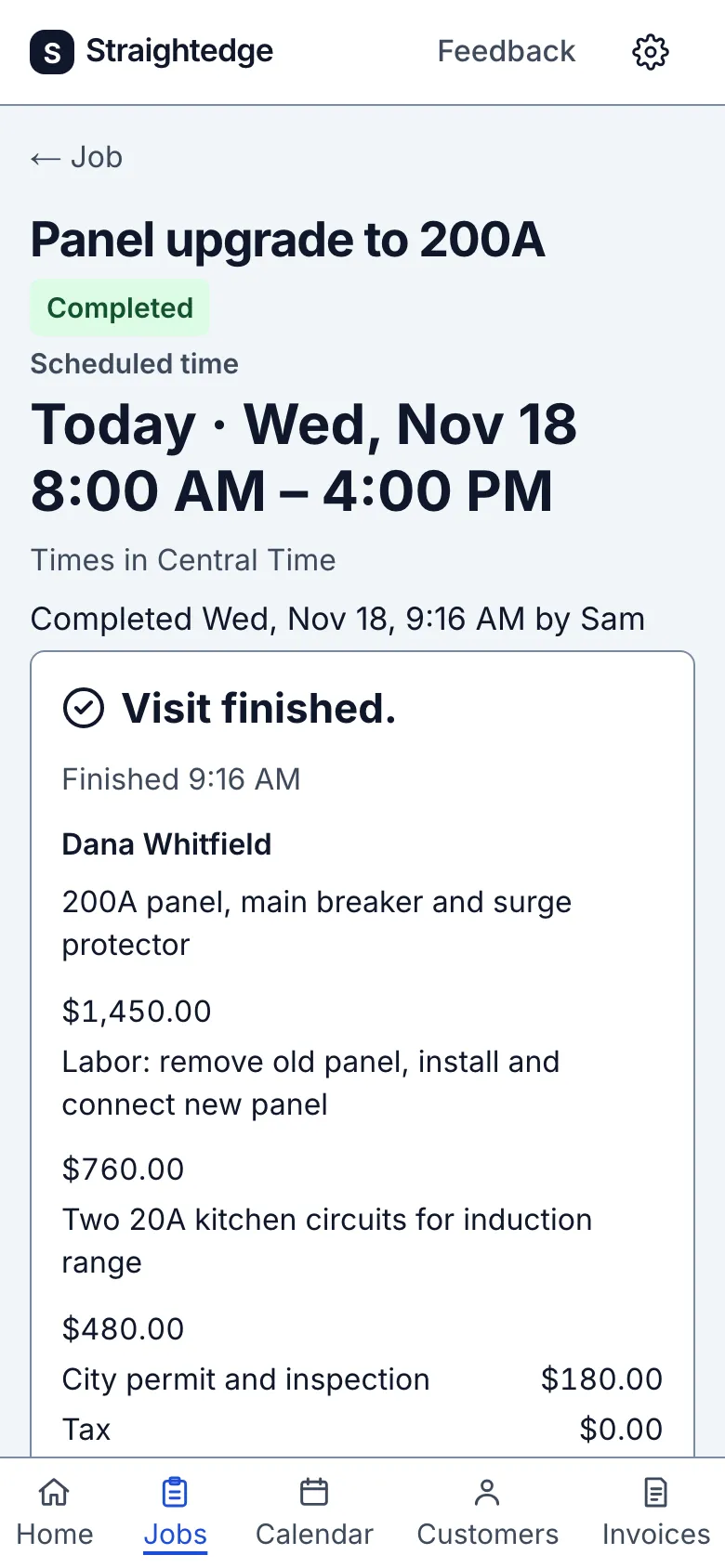
Read Visit finished. on an open job. One eligible estimate shows its lines and an Invoice button with the total; several estimates open a chooser. With no earlier invoice, Invoice opens a blank form. Each invoice made from this block remembers the visit, including when you change its lines on the form.
With a tax rate chosen, the review marks each ticked line with an amount as Taxable and shows what the rate was charged on beneath its name. A $0.00 line shows no word. Choose No tax through Change lines first to make an invoice without a tax row.
On a later visit, the block can show last time's invoice lines, customer, tax and total. Check them before using Invoice, or tap Change lines first to edit them. This requires more than one non-canceled visit and an earlier live invoice made before this visit finished. A changed or archived tax rate offers Change lines first only. Make an invoice walks through each choice.
The visit's own unpaid invoice opens Send; once paid, its invoice link says paid. With no eligible estimate or later-visit offer, an unpaid job invoice can be sent, while a paid job invoice alone gives no billing action. Add photos and Schedule next visit stay available. Crew do not see invoice actions.
What you see after
Activity lists who started and completed the visit, with times and notes. After completion, the finished block offers the next billing step described above and Schedule next visit. An existing unpaid invoice can be sent from there.
Limits
- Completing a visit does not close its job. Close the job when the work is finished.
- A canceled visit cannot be started, and a completed visit cannot be reopened once its job is closed.
When it goes wrong
- If a progress action is not confirmed, check the visit's status and Activity before tapping again. If a correction is not confirmed, use Check visit to inspect what saved.
Still stuck? Email support@getstraightedge.com