Schedule a visit
Who can do it
Owners and full access partners.
Before you start
A visit belongs to an open job. Each visit has its own schedule, assigned people and notes.
1. Open the form
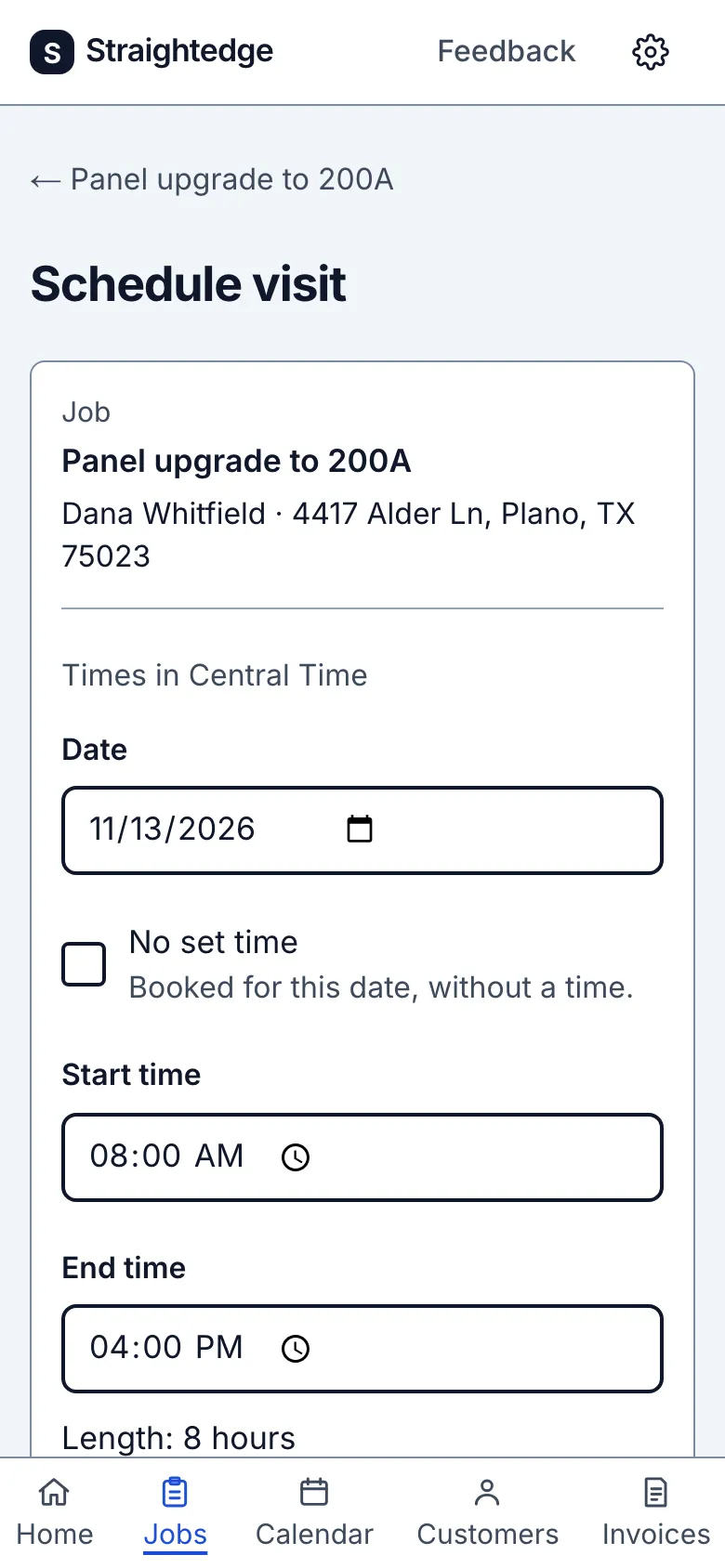
On the job page, tap Schedule visit. You can also tap Schedule visit on Calendar and choose an open job.
2. Set the time
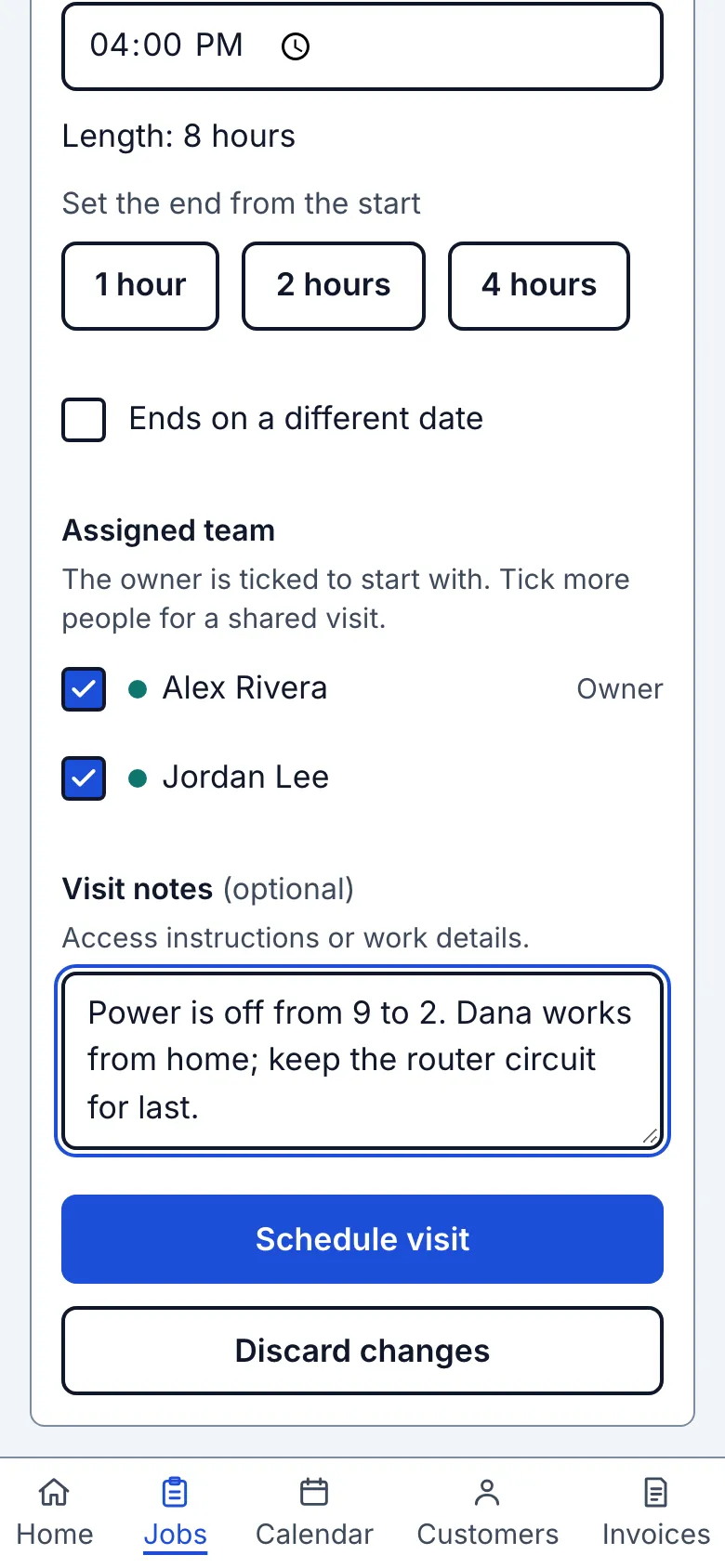
Choose Date and Start time. End time starts one hour later; change it, or tap 1 hour, 2 hours or 4 hours under Set the end from the start. Times use the business time zone. If you know the day but not the time, tick No set time. For a visit past midnight, tick Ends on a different date and enter End date.
3. Assign people and save
Under Assigned team, leave at least one person selected; the owner starts selected. Add visit notes for the people going, then tap Schedule visit.
What you see after
The visit appears on the job and Calendar as Scheduled. Assigned crew find it in My visits. When a customer picks an offered arrival window, those rows say “Arrive 8 AM–12 PM · ~1 h”; the booked block is a planning aid, and the business may arrive any time within the window.
After saving, crew visit emails tell the people you assigned or moved about the change in a few minutes, if their emails are on.
Limits
- A visit needs an open job, a date and at least one active assignee. A multi-day job needs a visit for each day. A visit with no set time does not create a double-booking warning.
- Timed overlaps require a correction or a deliberate override; Straightedge does not silently double-book a member.
When it goes wrong
- If the form shows a clash, change the time or team. To keep both bookings, tick Book both visits anyway, enter a reason and save again. The reason stays on the visit.
- If you see “Visit: save not confirmed,” use Check job visits (or Check calendar when scheduling from Calendar) before trying again. Another save could create a second visit.
Still stuck? Email support@getstraightedge.com