Email crew about visit changes
Who can do it
Owners can turn emails off or on for the business. Each person controls their own emails too.
Before you start
Straightedge sends one email a few minutes after you assign, move, remove or cancel a crew member's scheduled visits from today on. Several changes go in one email, showing the final plan. For a visit starting soon, call or text them.
Anyone on the visit with a Straightedge login can get an email, owners included. The person who made the change does not get one. Team members without a login or with a pending invite do not get emails; the visit says who cannot get an email and why, by name.
The business switch, Email crew when their visits change, and each person's own Email me when my visits change switch both start on.
Crew visit emails are being turned on for businesses in stages. If you don't see the switch in Settings › Business details, it isn't on for your business yet.
1. Turn business emails off or on
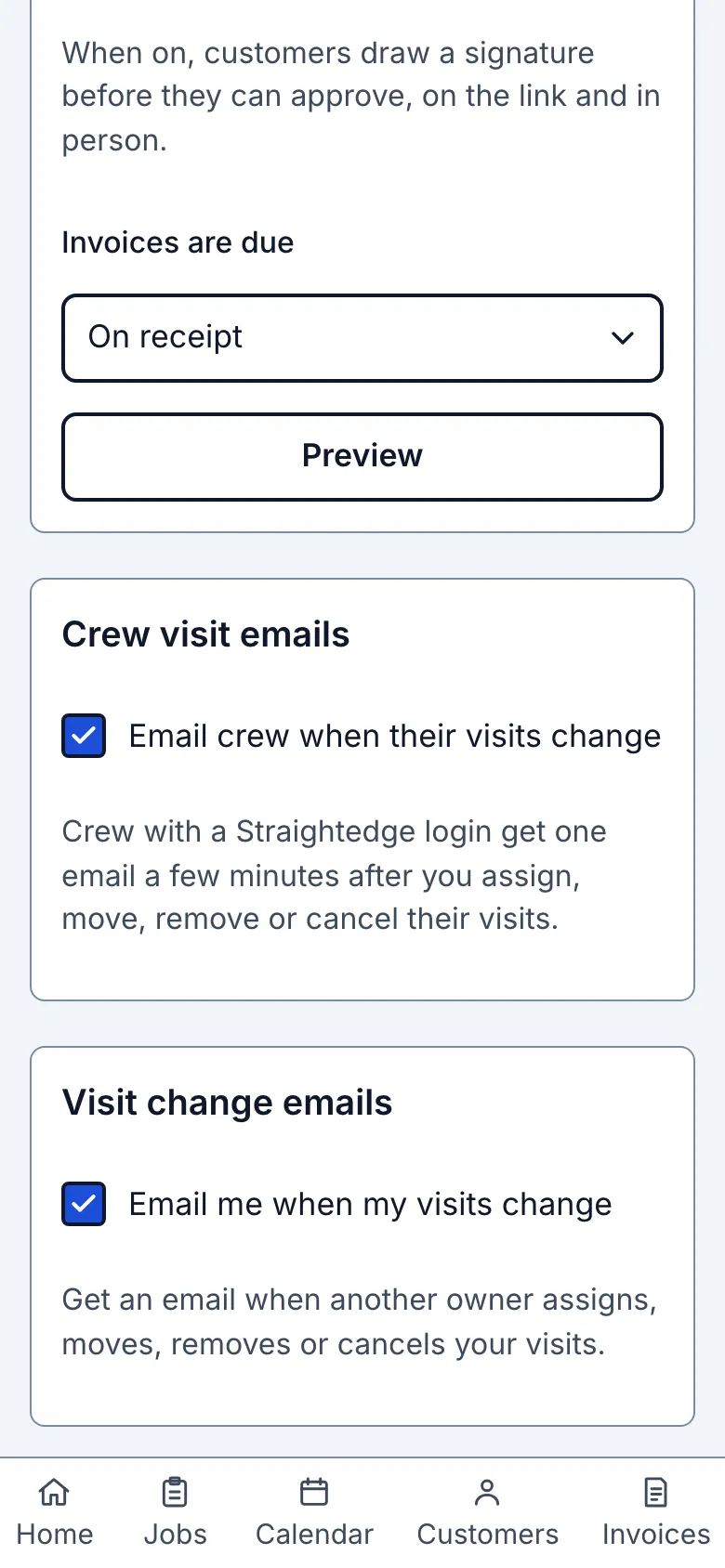
Open Business details in Settings. Under Crew visit emails, turn Email crew when their visits change off or on. Turning it off stops emails that have not been sent yet, for everyone in the business.
2. Change your own emails
On the same page, under Visit change emails, turn Email me when my visits change off or on. This changes only your emails for this business; another owner's edits can email you when you are assigned to a visit.
What you see after
After saving a visit, a line names who will get an email and who cannot, with the reason. It describes only the people affected by that save. Each person's email status also appears on the visit. There is no crew line after saving if your change did not affect anyone's visit emails.
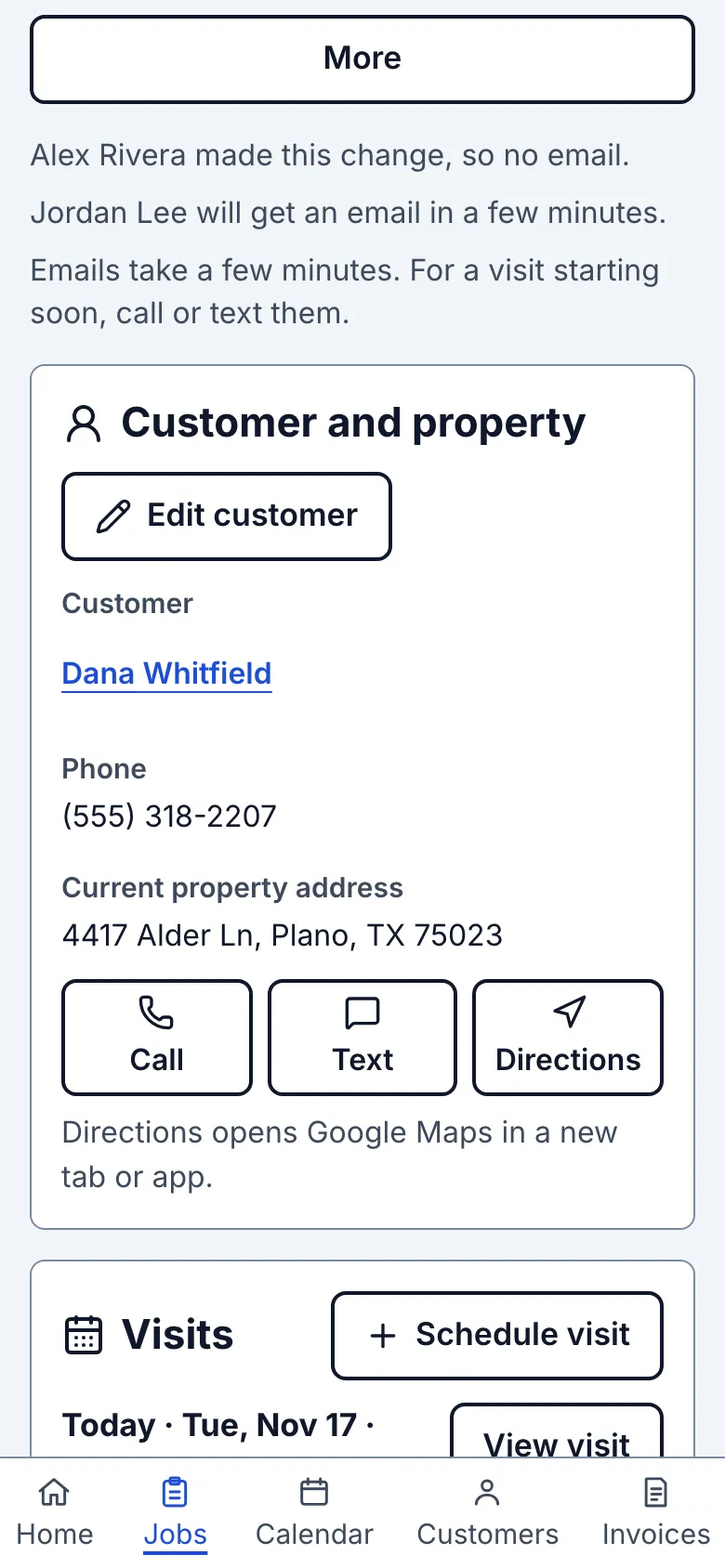
Activity shows what happened:
- Crew emailed means our email service took the email, not that the person read it.
- Crew email bounced means the person's email service refused it.
- Crew email not sent means no email went out; the line explains why.
The email starts with “Your schedule changed” and says who changed how many visits, when that person's name is known. Its subject names the change and the business; for one visit it also names the day.
Each visit has its own box, starting with “Added to your schedule”, “Moved”, “Canceled — you don't need to go” or “Taken off this visit”. The box gives the date and time, the job title and “Customer:” followed by the customer's first name. A moved visit shows the new time first, then the old time on a separate line. A visit without a time says “no set time”. Times are in your business's time zone.
Assigned and moved visits also show the address and an “Open this visit” link inside that visit's box. Removed or canceled visits show the old time, job title and customer's first name only, with no address or visit link. Those visits disappear from the crew member's My visits; “Open My visits” below the boxes opens their remaining work. Owners get “Open the calendar” instead. An email already waiting before job titles were added may have no job title.
Emails come from “{your business} via Straightedge”. Replies go to your business email when you have one saved in Business details.
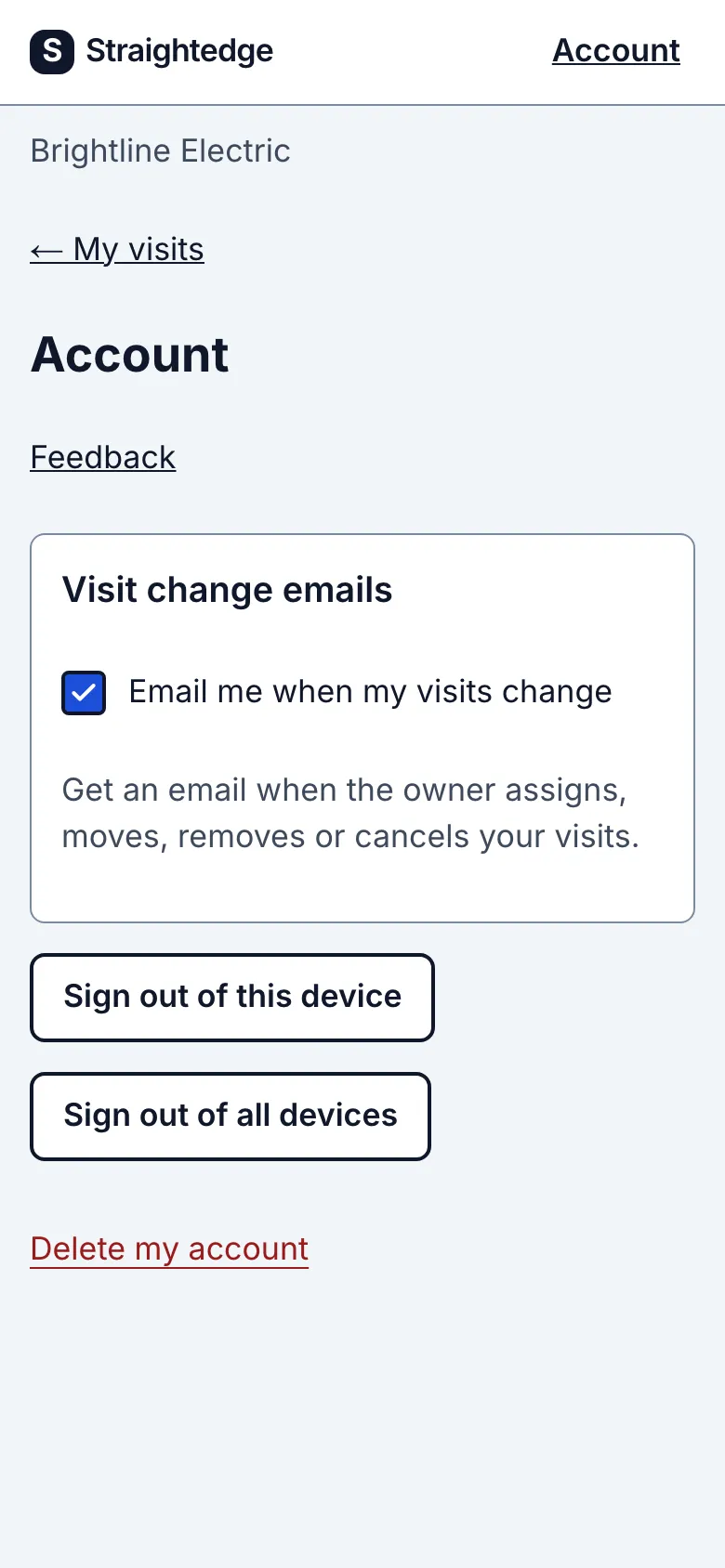
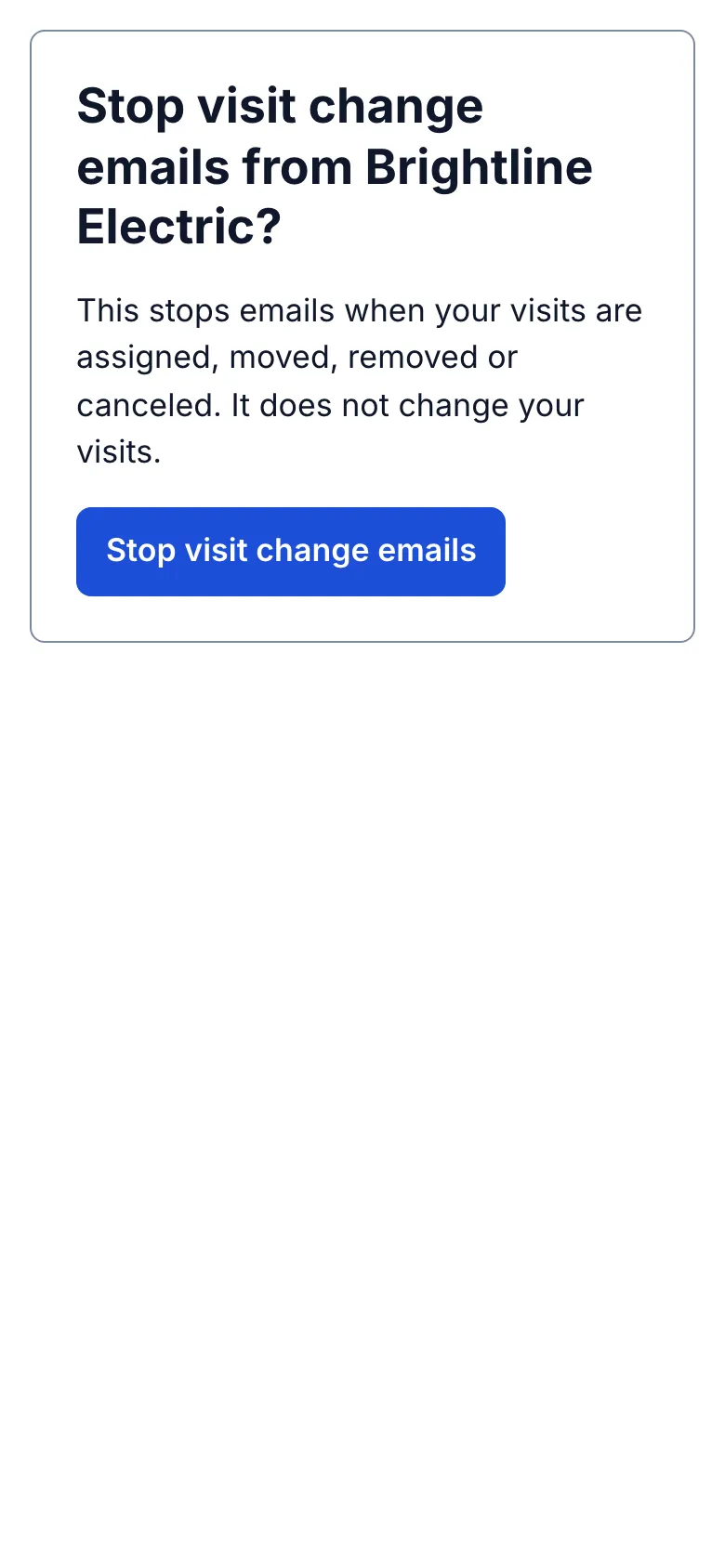
Crew members can turn emails off in Account, under Visit change emails. They can also choose Stop visit change emails in an email; the page asks before stopping them. Each business a person works for has its own switch.
Limits
Emails take a few minutes, and several changes can share one email. Visits already started or completed do not send new change emails. Email is not a way to confirm someone read a change.
When it goes wrong
If an email bounces or is not sent, call or text the person and check the email address on their login. The reason on the visit can also tell you that their own emails or the business switch are off. An old failed email has no Retry button: tell them the current plan directly.
Still stuck? Email support@getstraightedge.com