Make an invoice
Who can do it
Owners.
1. Start on an open job
On the job page, tap New invoice. If the job has one eligible estimate, its lines fill the form; with several, choose a source or start blank. You can also use Convert an estimate to an invoice.
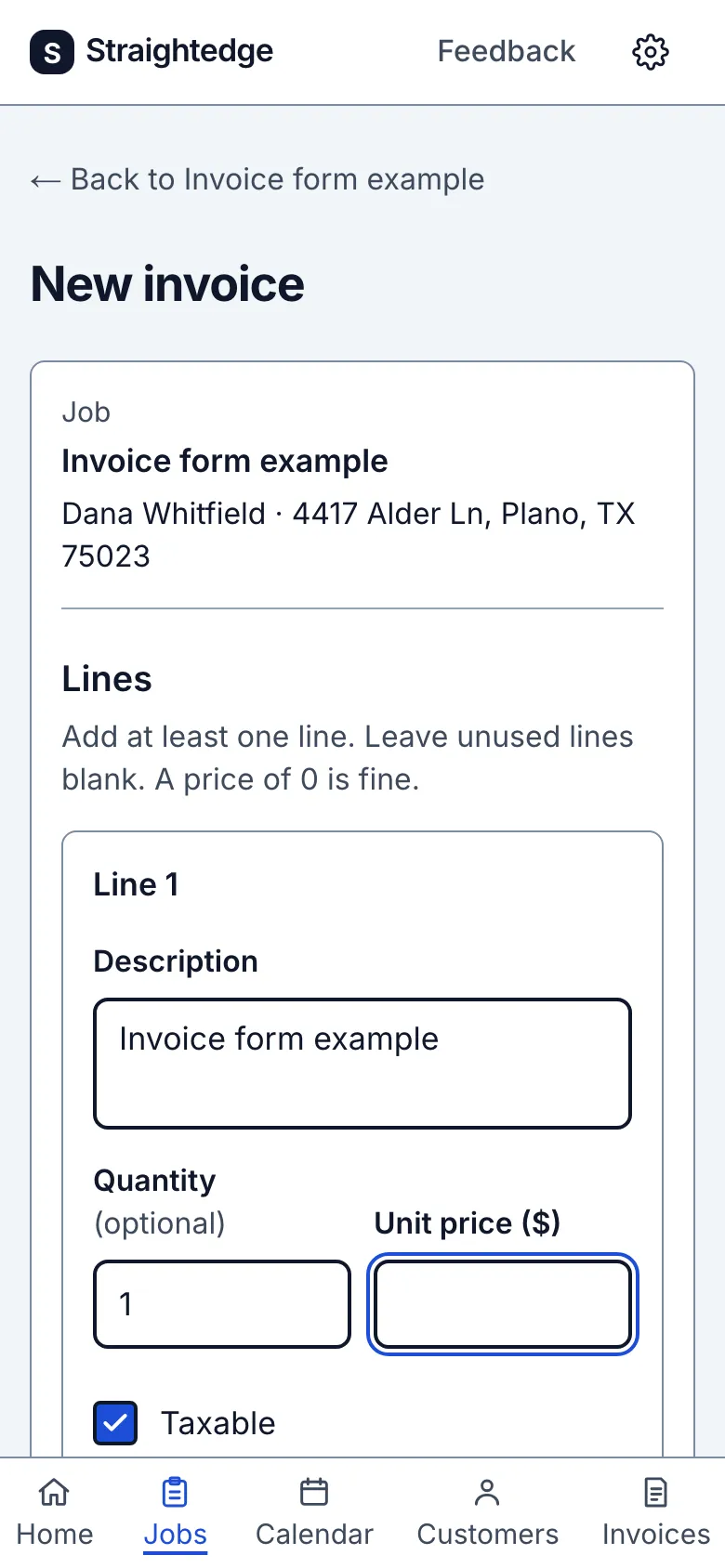
2. Enter the work and price
Below the total, enter Notes for this job (optional) for model and serial numbers, install date, work declined or temporary repairs. The customer sees this note. Open Terms and warranty with Change or Add. A blank invoice starts with your invoice default, or no terms if none is set. From an estimate, the note comes across; a nonempty invoice default replaces the estimate terms. When the page says the terms differ, use Show the estimate's terms to read them, or Use the estimate's terms to copy them into this invoice. Edit either field before saving. Save as default for new invoices is a separate action and does not save the invoice.
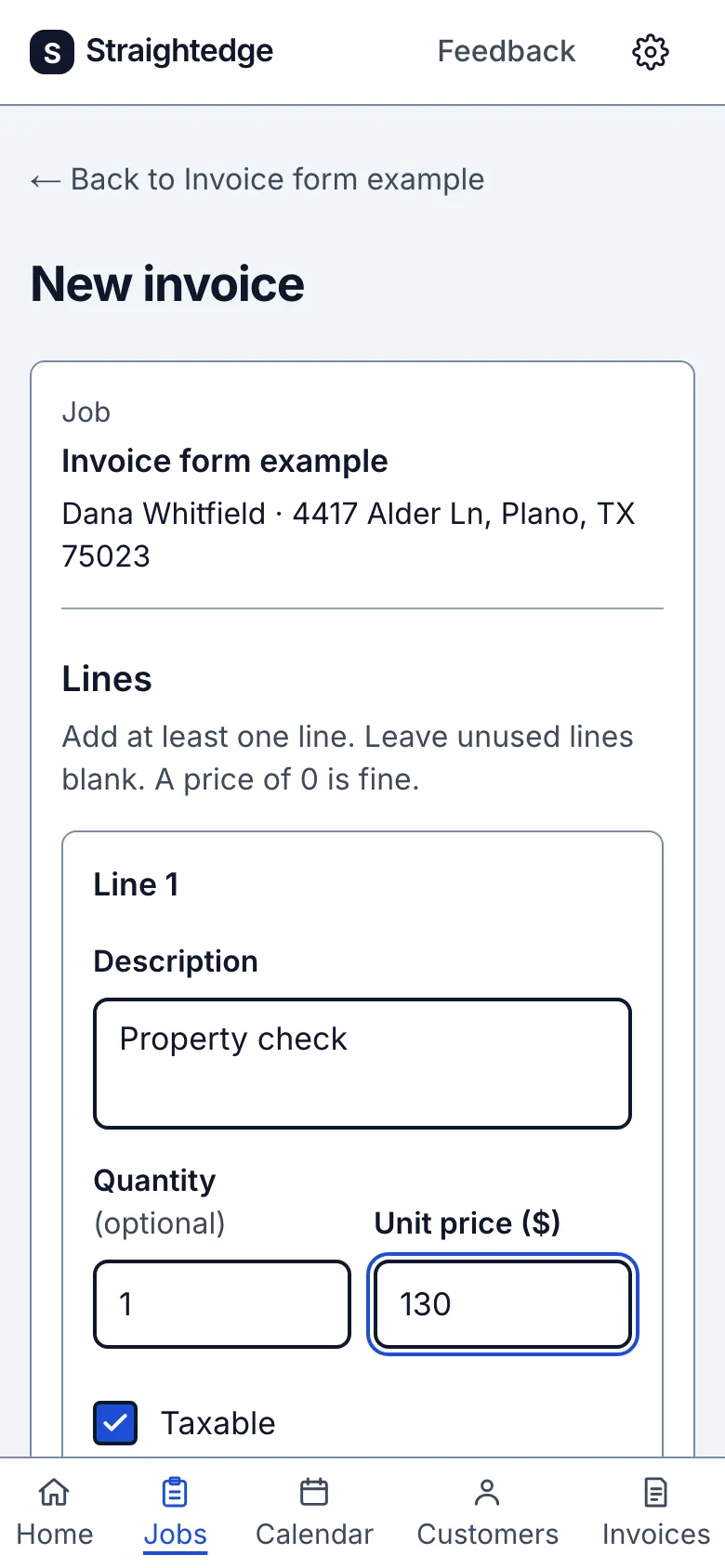
Enter a price for each line. Tap a blank Description to see three recent lines and their last prices. Tap one to fill its description and unit price; the quantity stays at 1 unless you change it. Type two characters to search older lines. You can always type a new description as usual.
3. Save the invoice
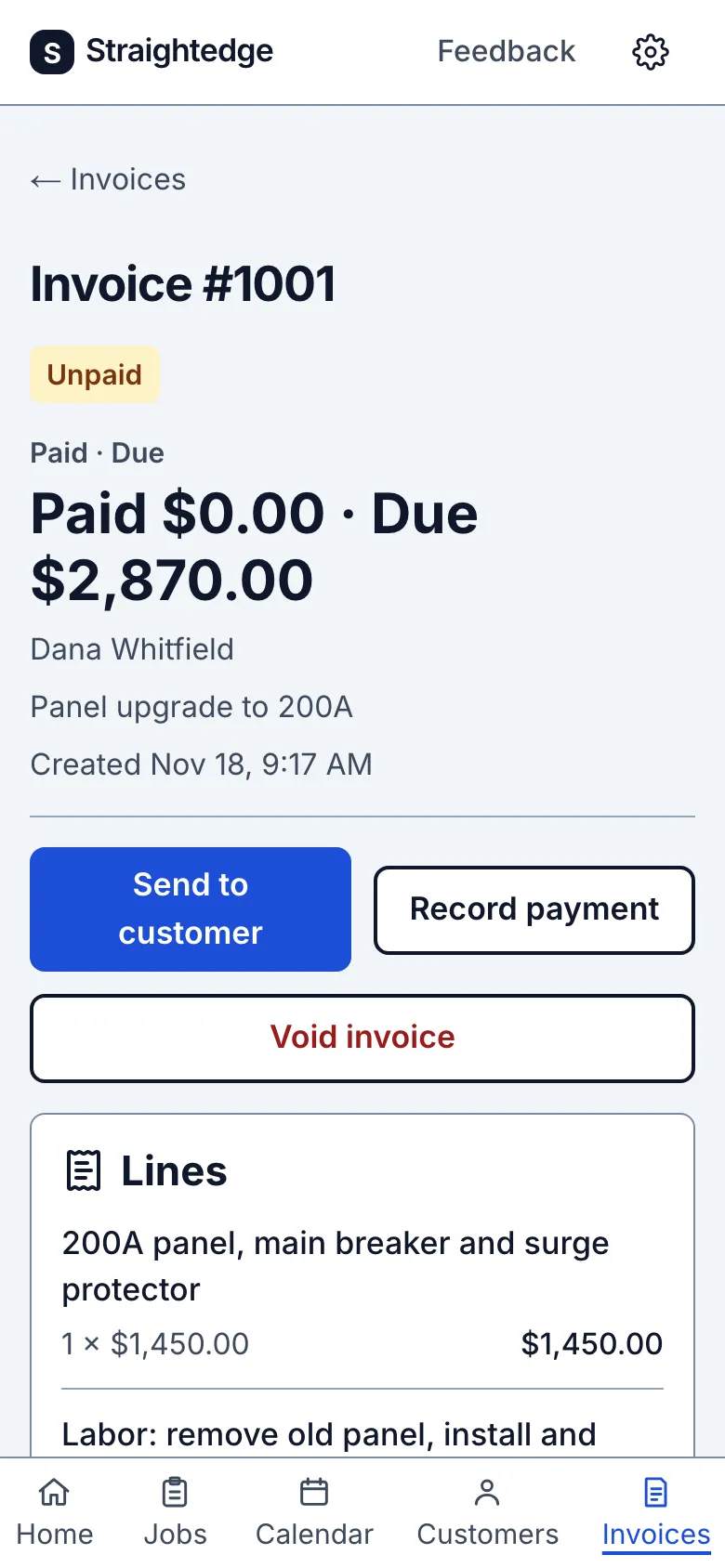
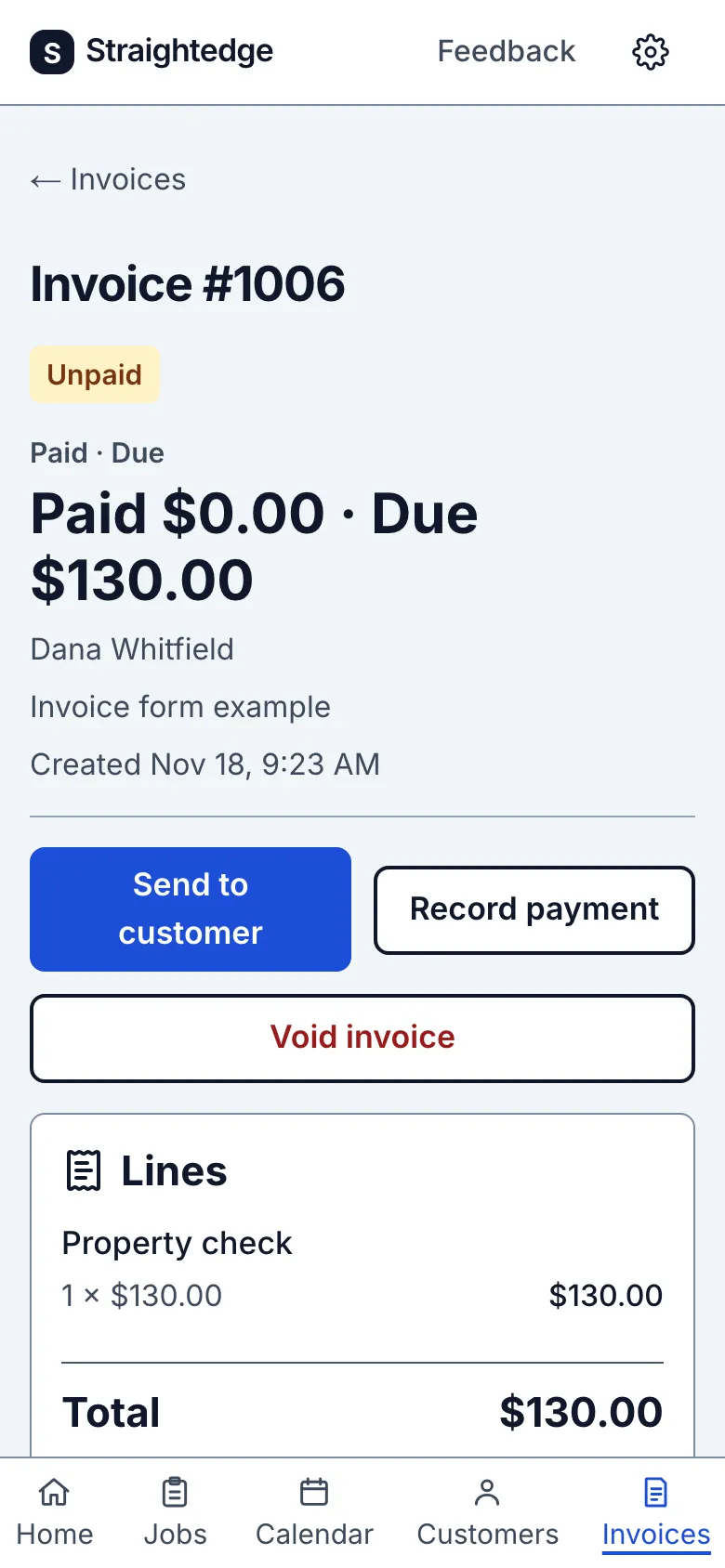
Tap Save invoice. Review the numbered invoice before using Send an invoice.
4. Finish a later visit
Open the later visit on the job. If work has started, tap Complete visit when you finish. The page now says Visit finished. Completing does not make an invoice, send a message or close the job.
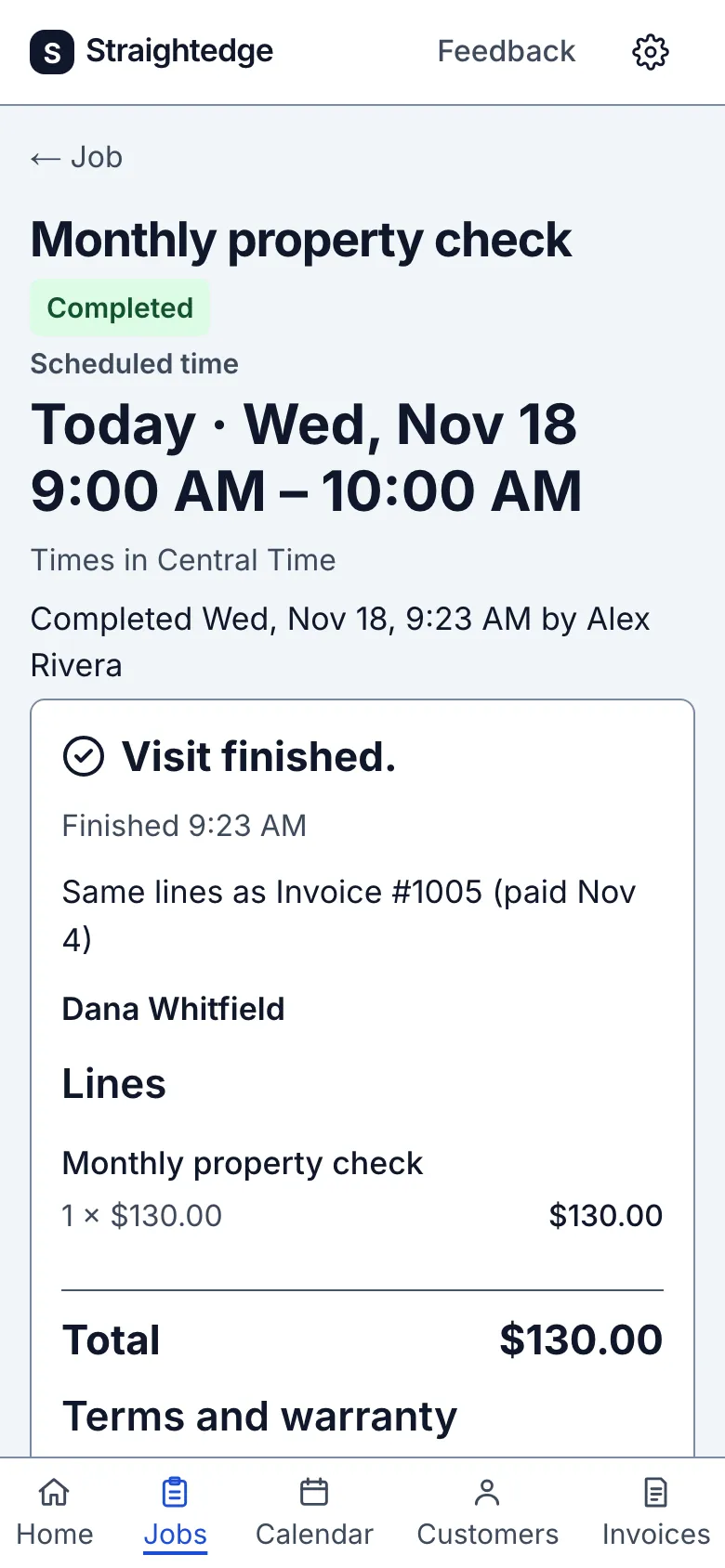
5. Check last time's work and price
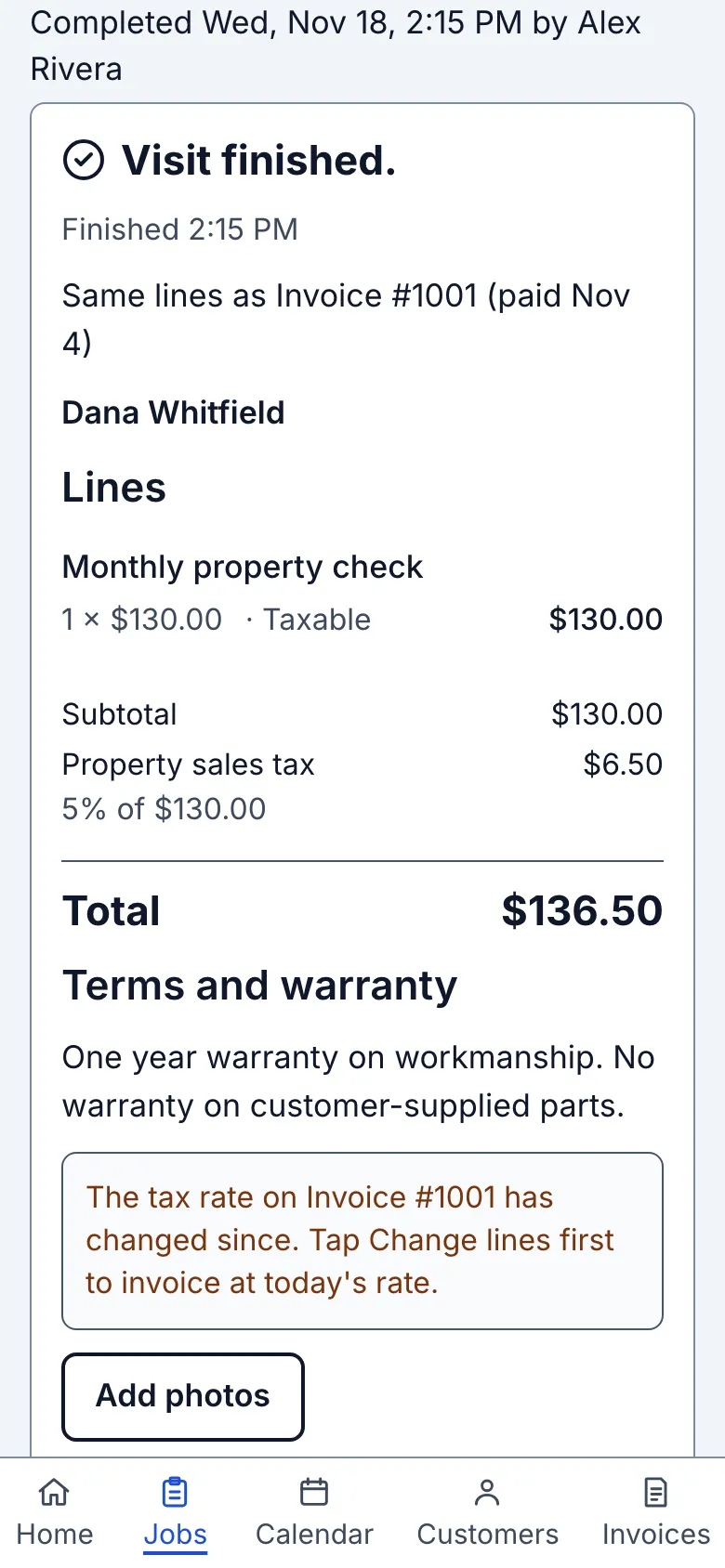
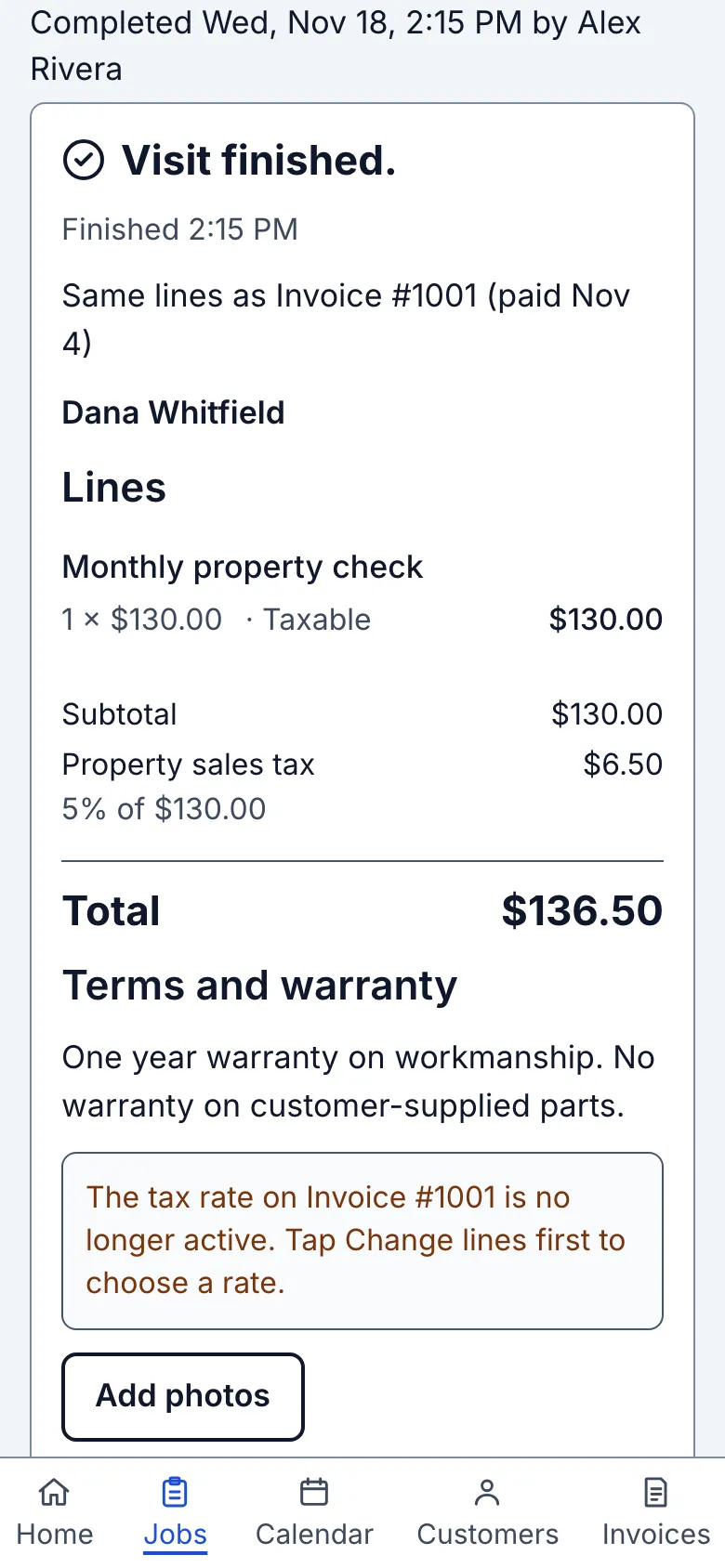
Read the Lines and Total in the finished block. Read any terms shown below them too. Notes start empty for this later visit; terms start with the invoice default, not the earlier invoice’s wording. It names the invoice being copied, for example “Same lines as Invoice #41 (paid Nov 3)”, or gives the amount still due when it is unpaid. Check the customer, descriptions, quantities, prices and tax. An extra from last time will be copied too, so change the lines first if it does not belong on this visit.
This offer appears only on a job with more than one visit that has not been canceled, after the job has its first invoice. The last invoice must have been made before this visit finished, and this visit must not already have its own invoice. A job with one visit behaves as before. An eligible estimate takes priority: one estimate shows its review; several ask you to choose.
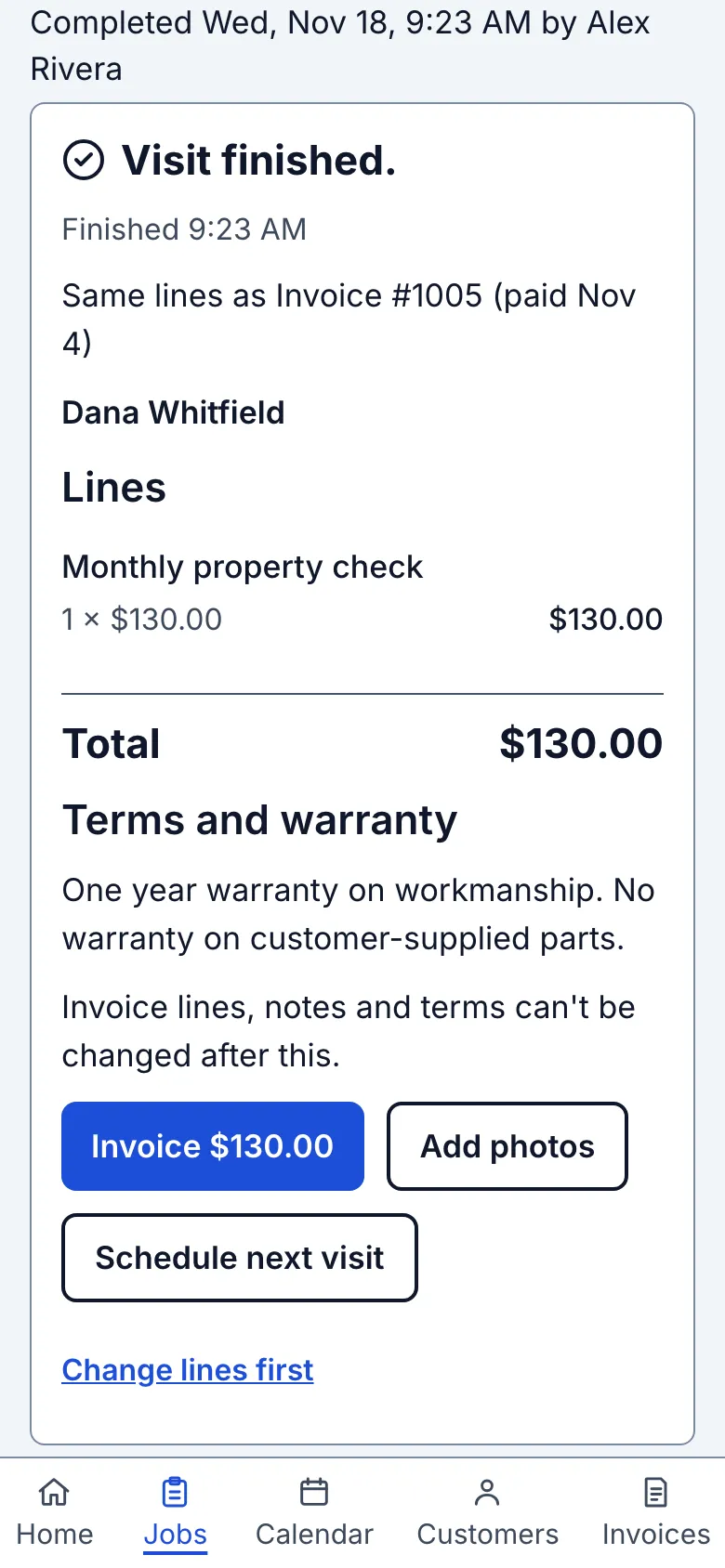
6. Make this visit's invoice
If the review is right, tap Invoice with the amount beside it. For the property check example, the button says Invoice $130.00. The lines, notes and terms cannot be changed after saving. The app makes one new numbered invoice for this visit and opens Send invoice with its new number. Creating the invoice does not send it. Use Send an invoice to share it, or leave Send and come back later.
If an older invoice is still unpaid, a second outline button opens that invoice's Send page. It does not invoice this visit or combine the amounts.
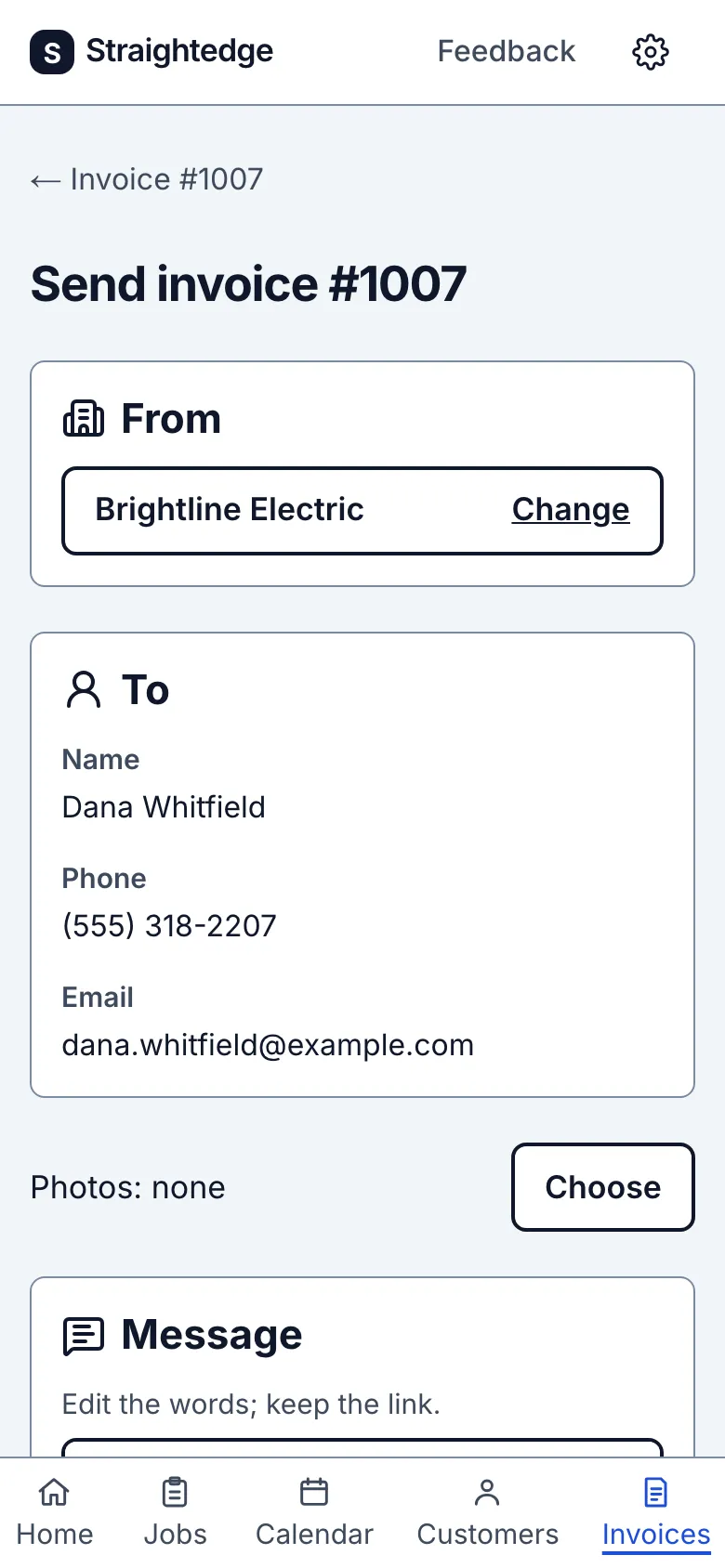
7. Change the lines before saving
If the review needs changing, tap Change lines first instead. The invoice form opens with last time's lines and today's tax rate, empty notes and your invoice-default terms. It never copies the earlier invoice's text. Change the work, quantity, price or tax as needed, check the total, then tap Save invoice. This opens the invoice page. The invoice still belongs to the visit you came from. Leaving the form without saving makes no invoice.
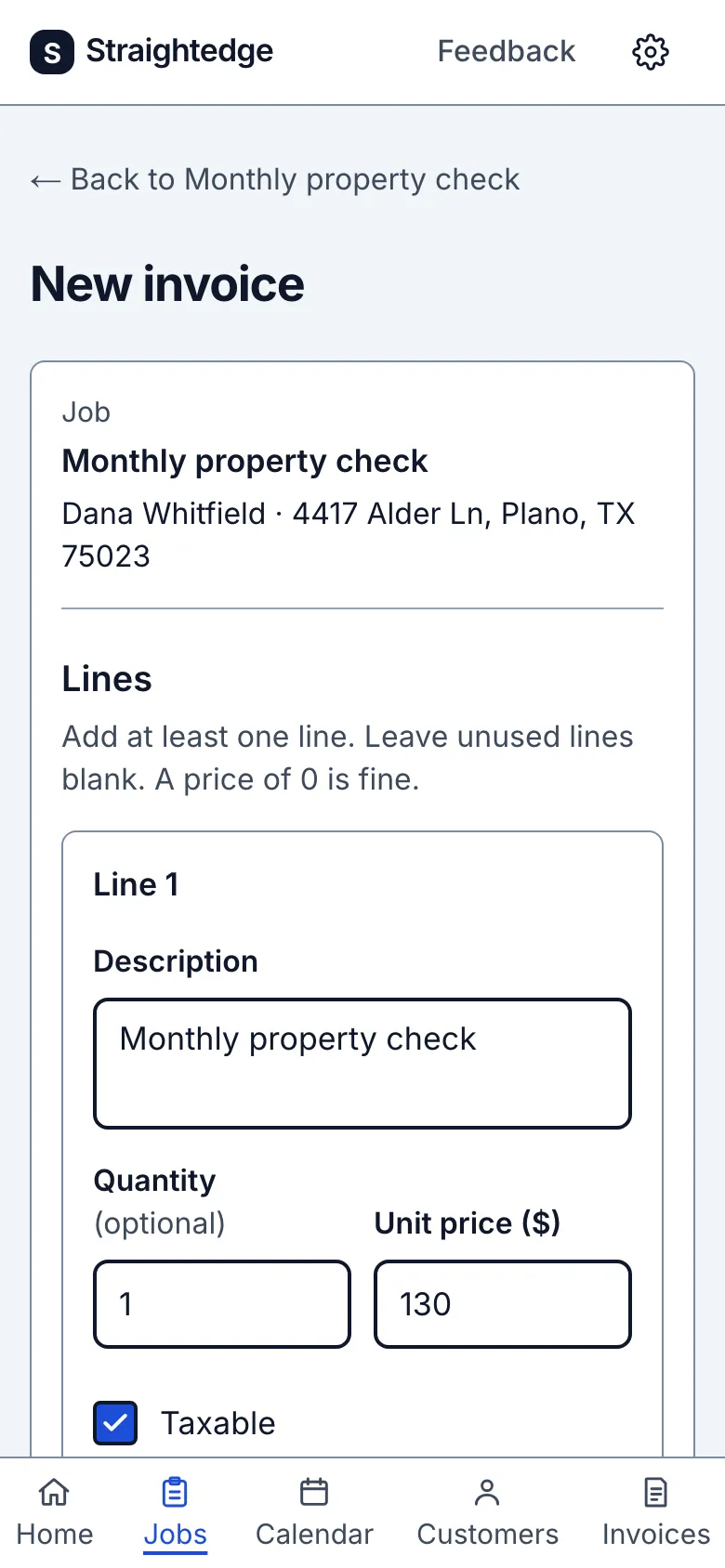
8. Check a tax rate that changed
The review shows Taxable on each ticked line with an amount and, under the saved rate name, what it was charged on, for example 5% of $130.00. A $0.00 line shows no word. Choose No tax on the form to make an invoice without a tax row.
If last time's tax rate changed, the block says “The tax rate on Invoice #41 has changed since. Tap Change lines first to invoice at today's rate.” If it was archived, it says “The tax rate on Invoice #41 is no longer active. Tap Change lines first to choose a rate.” There is no one-tap Invoice button in either case. Tap Change lines first, choose an active rate or No tax, and check the new total before Save invoice. An archived rate is not applied to the new invoice.
What you see after
The invoice is Unpaid. If it came from an estimate, that estimate becomes Invoiced.
Limits
You cannot add an invoice to a Done or canceled job, or change invoice lines, notes or terms after saving. To correct an unpaid invoice, void it and make a new one. Customers can pay online once you set up online payments. Credits are not available, and refunds are made in your Stripe Dashboard, not in Straightedge; see When a customer pays online.
When it goes wrong
If the form says the invoice was not saved, correct the shown fields and save again. If the result is uncertain, check the job's invoice list before retrying. A failed one-tap save keeps its request id, so Retry cannot make a second invoice. If the review changed while you were reading it, use Reload review and check the new lines and total before tapping Invoice again.
- Can I take a deposit or split a job into payments? Yes. Record part payments on one invoice, or make a deposit invoice and later an invoice for the balance. Payment does not close the job.
Still stuck? Email support@getstraightedge.com