Convert an estimate to an invoice
Who can do it
Owners.
Before you start
Check the estimate's lines first. Invoice lines, notes and terms cannot be changed after creation.
1. Open the conversion review
The estimate's note starts in Notes for this job (optional) and can be changed before saving. Terms and warranty uses your invoice default when one is set, otherwise the estimate's terms. A swap is stated on screen. Choose Show the estimate's terms to read the earlier wording, or Use the estimate's terms to put that wording on this invoice. Open Change to edit the selected terms. The approved estimate keeps its own wording and link; nothing says these invoice terms were approved. Invoice lines, notes and terms cannot be changed after saving.
On the estimate, tap Make the invoice. Review Invoice total and the Lines that will become the invoice. If work changed, choose Edit the estimate instead and return to the estimate before reopening this review.
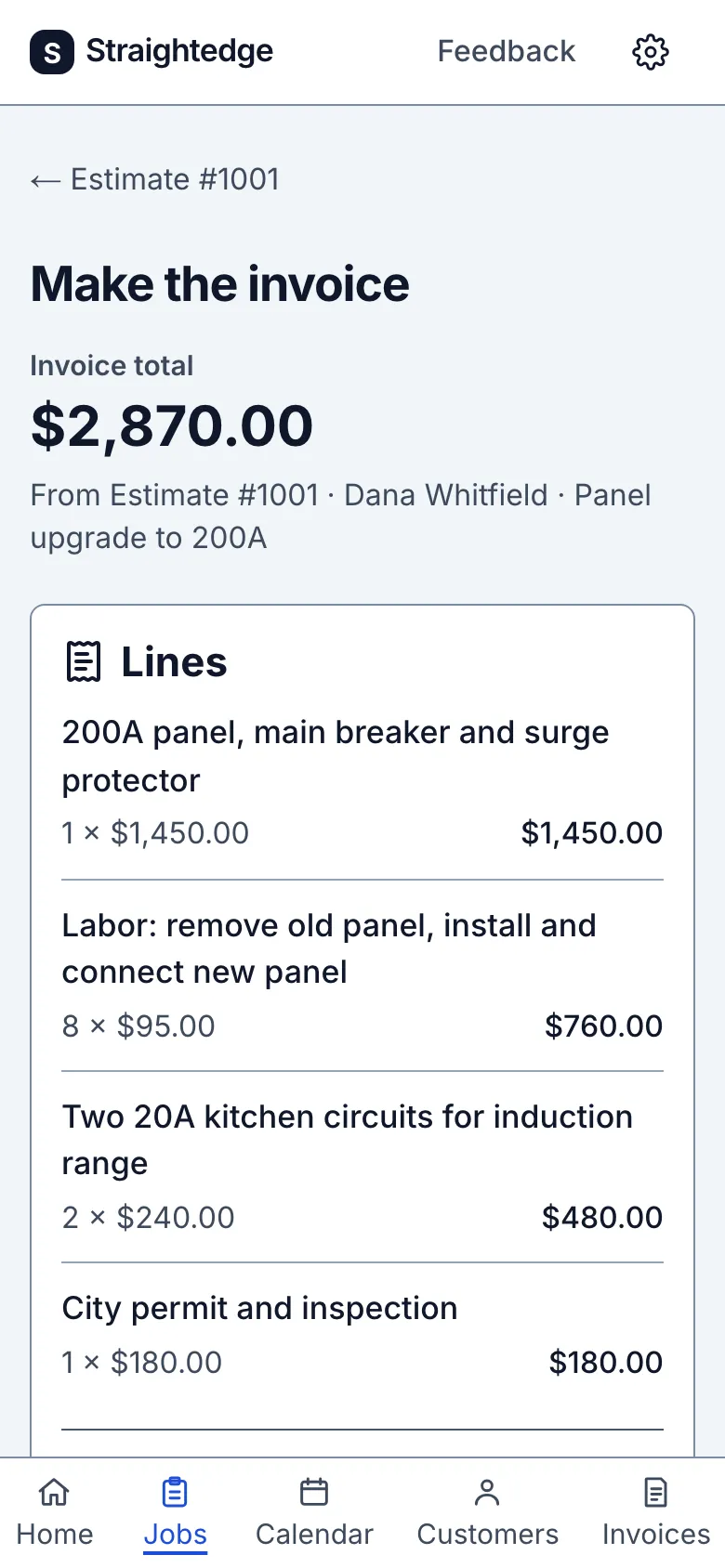
2. Create the invoice
Tap Make the invoice. The estimate becomes Invoiced and the new invoice opens. An acceptance is shown on the customer estimate link only when it was recorded before conversion.
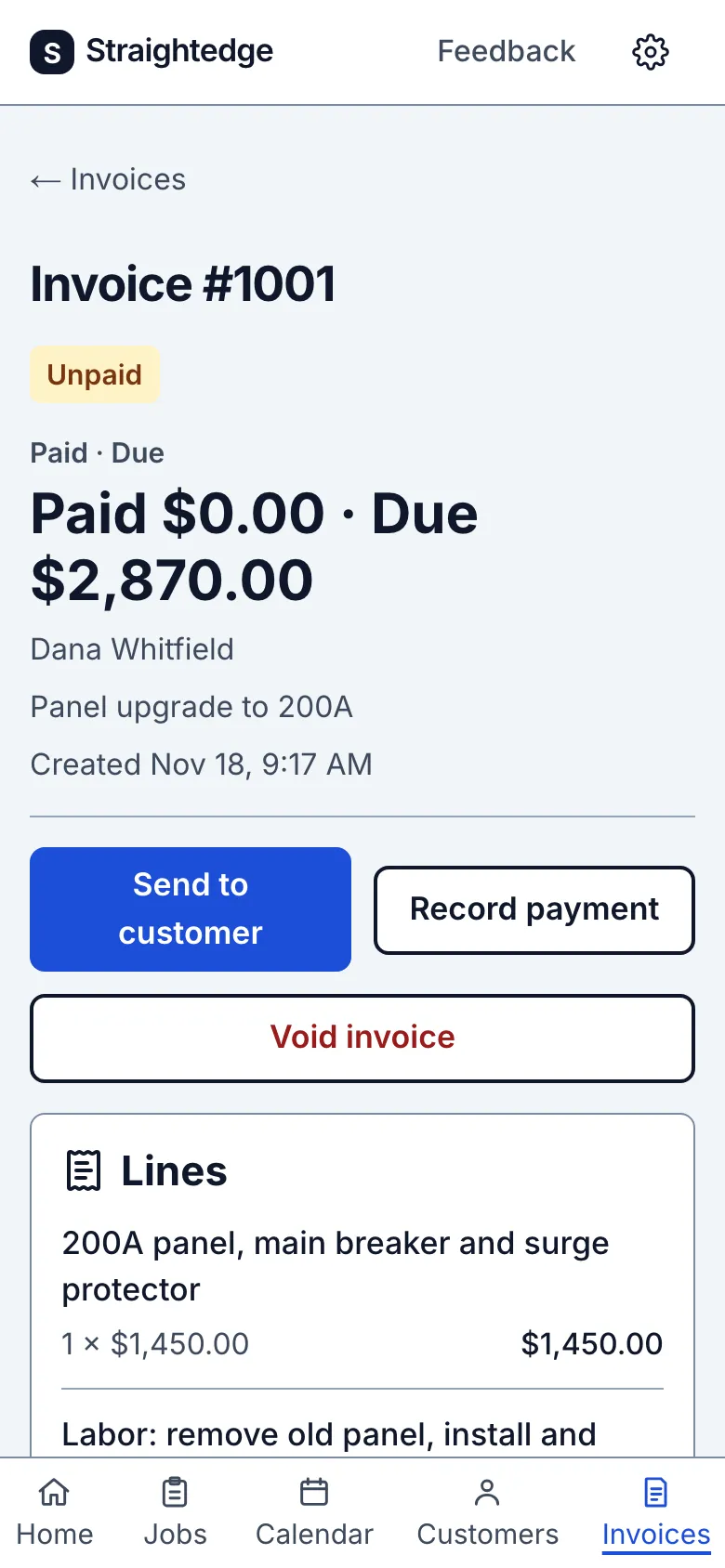
What you see after
The estimate says Invoiced. The new invoice is unpaid until you record a payment.
Limits
The invoice's lines, notes and terms cannot be edited after creation. For work without an estimate, use Make an invoice. A mistaken unpaid invoice can be voided.
When it goes wrong
If creation is not confirmed, check the job's invoice list before trying again so you do not mistake a slow response for a missing invoice.
Still stuck? Email support@getstraightedge.com