Remind customers to pay an invoice
Who can do it
Owners. Crew members cannot turn on, pause or send these emails.
Before you start
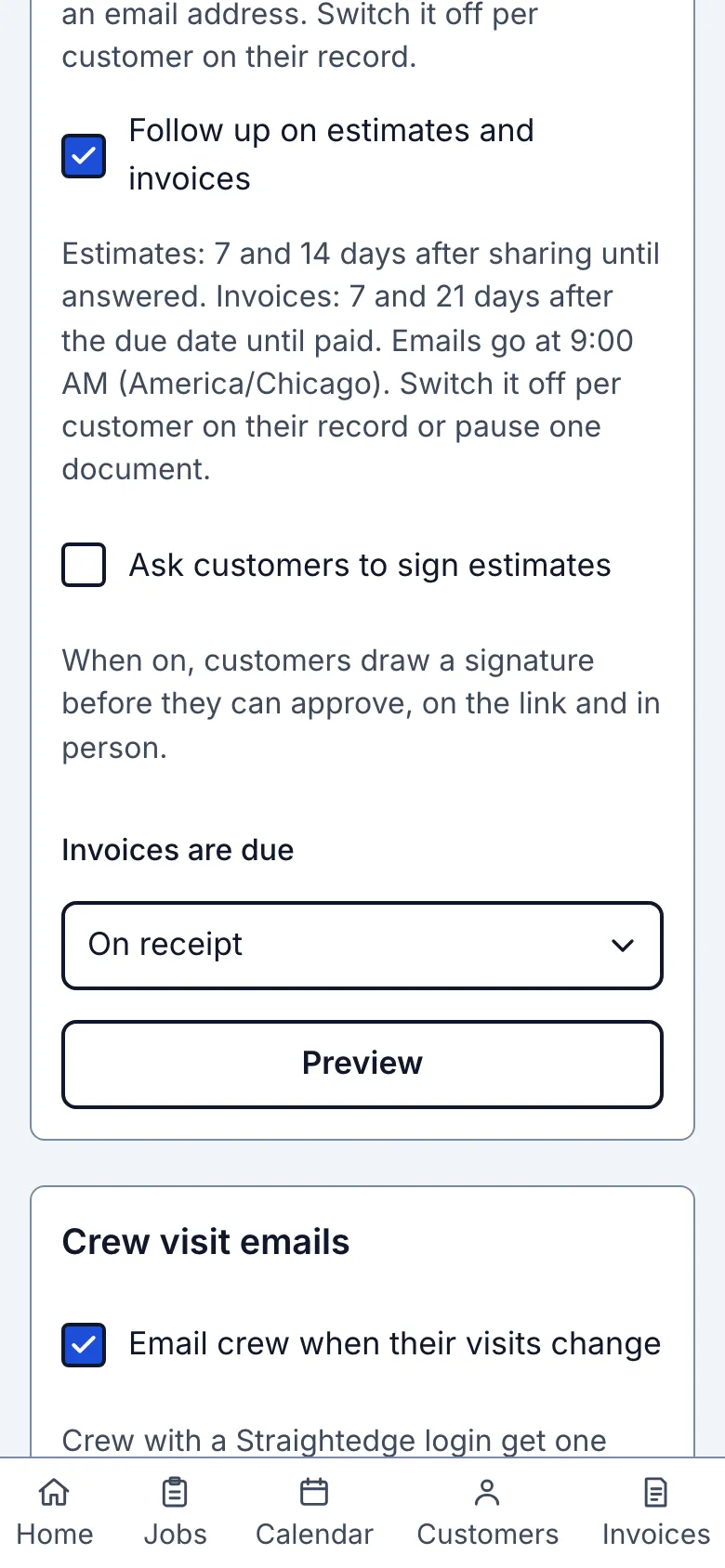
Payment reminders are off for every business until an owner turns on follow-ups. Save a business time zone, phone number and email address under Business details in Settings. The customer must have an email address and their Send reminder emails switch on. Every reminder carries a stop link. You can pause one invoice without affecting the others.
The terms setting applies only when an invoice is first shared while follow-ups are on. “On receipt” is the default; 7, 14 and 30 days are the other choices. The invoice and customer link then show the frozen due date. Changing terms or sharing again never moves that date. An invoice first shared before the switch was on has no due date and never gains an automatic reminder by re-sharing. A paid invoice that you share still gets a due date but no reminder, because nothing is owed.
The email leads with your business name, puts the amount and date in one box, and has one button to open the document. The “Stop emails from {business}” link opens a confirmation page and stops visit reminders, booking confirmations and estimate and invoice follow-ups from your business. To receive them again, the customer needs to talk to you.
1. Set terms and turn on follow-ups
Open Business details in Settings. In Customer emails, choose Invoices are due (On receipt, 7 days, 14 days or 30 days), then turn on Follow up on estimates and invoices. If the time zone, phone or email is missing, save it first; the switch stays off and names the missing detail. Open Preview and read the Invoice preview to see the fixed message. Choose Email for the layout or Plain text for the same facts and full links; the sender, reply address and subject appear above both. Each email app shows it a little differently.
2. Share and check the invoice
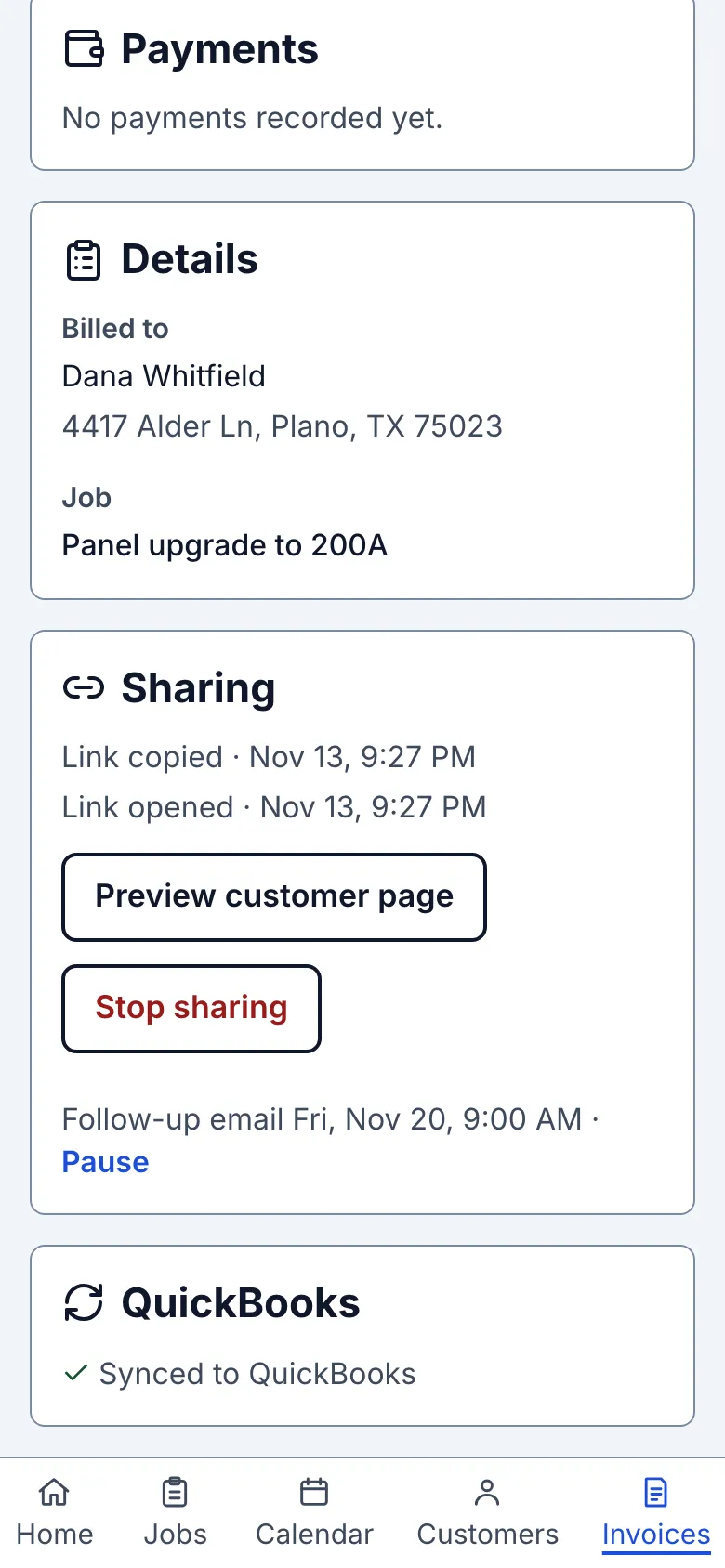
Open an invoice and choose Send to customer. Send the link using your own Messages or Mail app, Share, or Copy link. The invoice and customer link then show Due with its date. Under Sharing, the owner sees the next follow-up time and Pause. If the customer has no email, use Add email; if their switch is off, use Customer settings.
3. Pause one invoice
Choose Pause before a send. The line changes to Paused with Resume. Resume before the 9:00–11:00 AM business-time send window closes to allow that step; a missed step never sends late. The later step stays eligible.
What you see after
An unpaid invoice with a positive balance receives at most two emails, at 9:00 AM business time 7 and 21 calendar days after the frozen due date. The email comes from your business “via Straightedge,” states the remaining amount, due date, payment instructions when saved, invoice link, reply address and stop link. It never calls the invoice overdue. A partial payment reduces the amount in the next email; full payment or voiding stops the schedule. A pending card payment skips that send rather than asking for money that may already be paid.
The line says “Follow-up emailed” when the provider accepts an email, or “Follow-up email bounced” when it refuses it. Job activity records both. Provider acceptance does not prove inbox delivery. Record cash, check or other payments in Straightedge before the next send, even if the customer told you they paid.
What the line can say:
- “Follow-up email {day, time} · Pause”: the next send is scheduled; choose Pause to stop it.
- “Paused · Resume”: choose Resume before 11:00 AM business time on a send day to allow that step.
- “Follow-up emailed · {date}”: the provider accepted the email; job history has the record.
- “Follow-up email bounced”: correct the customer email before the later step.
- “No follow-up: no email saved · Add email”: save the customer email before the window closes.
- “Follow-ups off for {name} · Customer settings”: check the customer's reminder switch.
- “No follow-up: estimate changed, send it again”: on an estimate, share the revision again.
- “No follow-up: shared before follow-ups were turned on · Send again”: on an estimate, share it again while follow-ups are on.
- “No follow-up: payment pending”: check the card payment's outcome.
- “No follow-up: send window passed”: that step is skipped; the later step can still send.
The line is hidden while the business switch is off, before the first share, and after an answer, full payment or void.
When it goes wrong
If no due date appears, the invoice was first shared before the switch was on; make a new invoice if it needs terms. If the customer email is missing, save it before the window closes at 11:00 AM business time. If an email bounces, correct the address. The 9:00–11:00 AM business-time window permits a late worker; after it closes, the step is skipped permanently.
Still stuck? Email support@getstraightedge.com