The visit
Who can do it
Crew members.
1. The visit
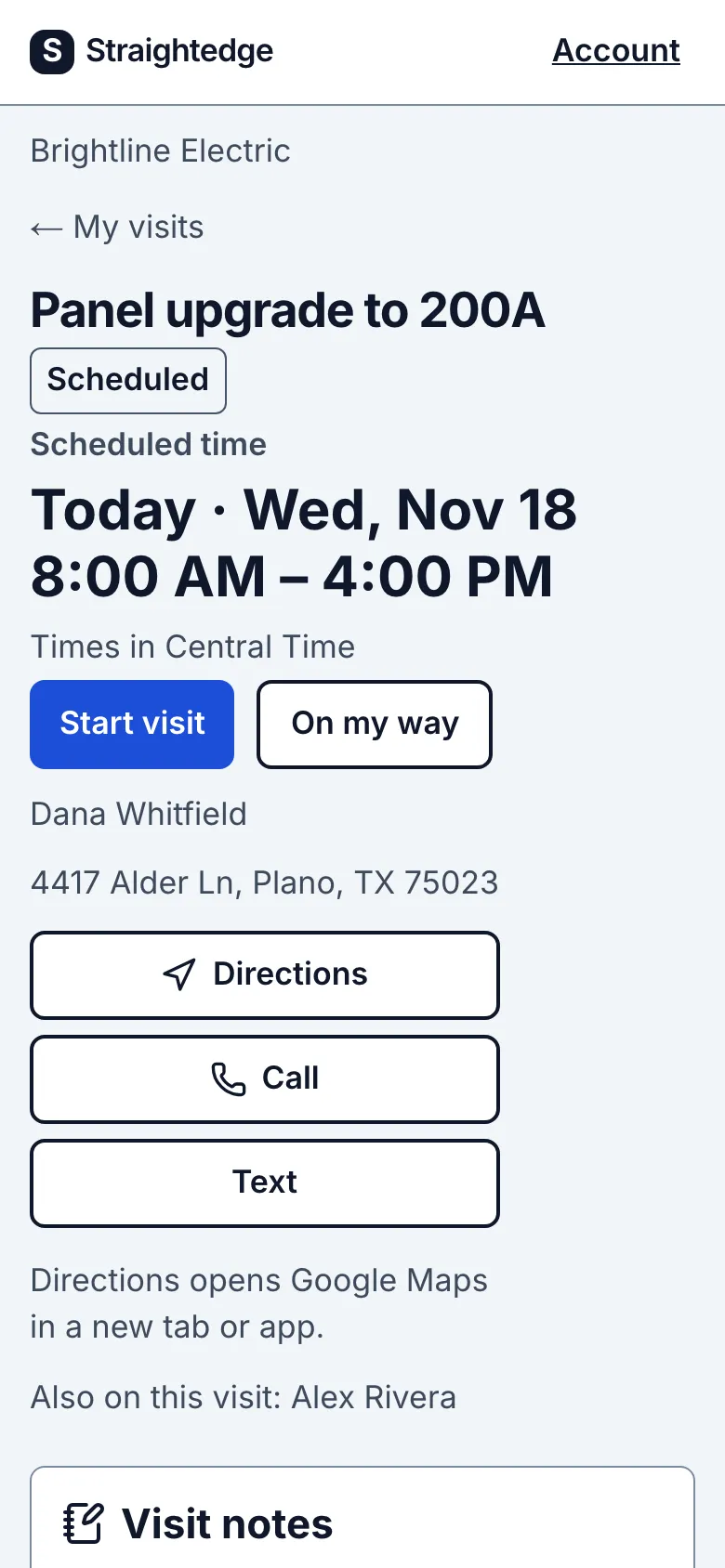
Tapping a visit shows the job title and status, then the scheduled day and time in large text, with the business time zone underneath. Start visit or Complete visit comes next, before the customer's name, address and big Directions, Call and Text buttons. Starting or completing keeps the scheduled time and adds who did it and when, if recorded. Below that: who else is on the visit, the visit notes Alex wrote, and the job description. Checklist, when available, comes next; then Activity, with Add note above the history, followed by Job photos and Job documents. Each has its own titled card; Add photo and Add document are in their card headings.
What Jordan doesn't see: estimates, invoices, prices, payments, the customer's email, the notes on the customer's record, other customers, or anyone else's visits. If Jordan opens an owner page by link, it says "This page is for business owners."
2. Open a customer message draft
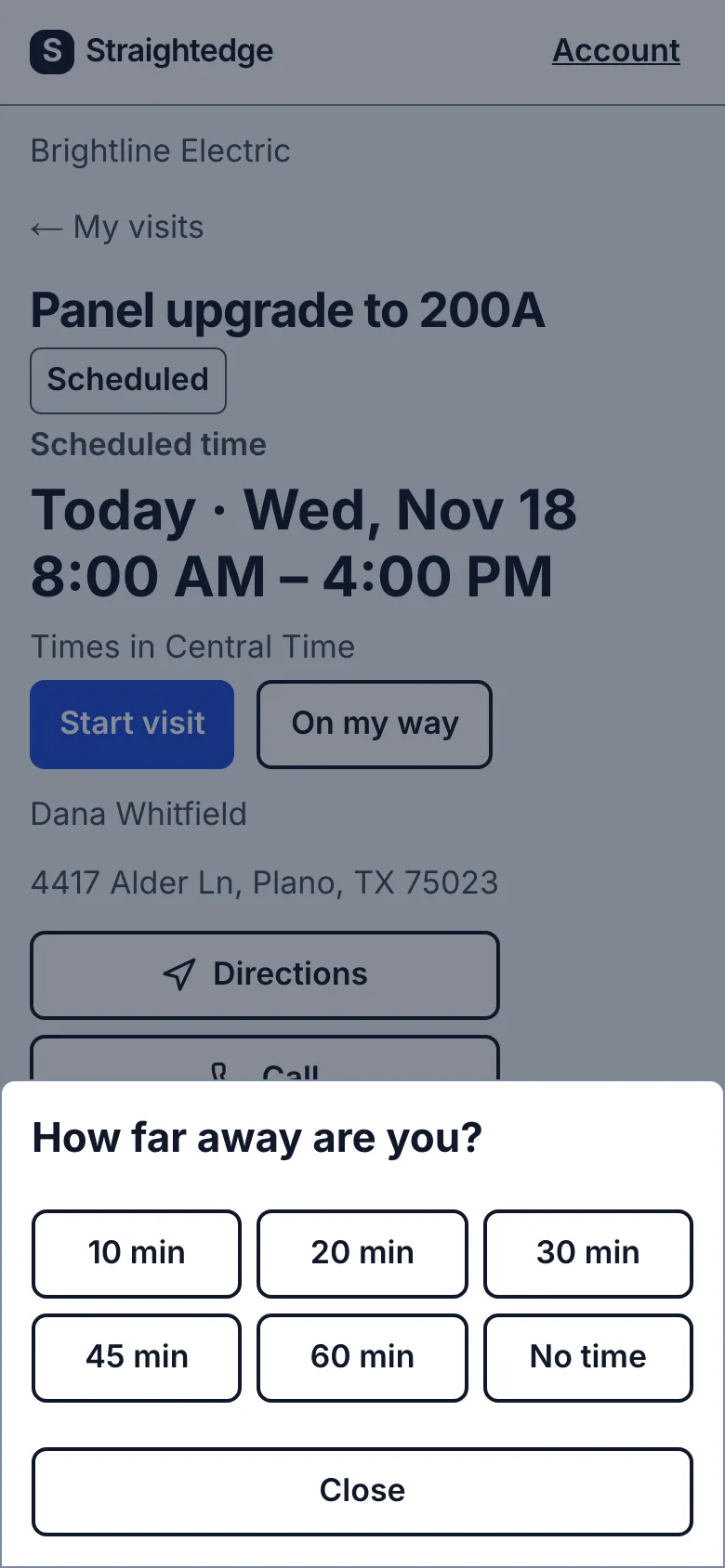
On a scheduled or in-progress visit, tap On my way, then 20 min (or another minute choice or No time). Messages opens with a drafted text from your own number. Tap Send in Messages. The visit says Opened Messages. Make sure you tap Send there. because it cannot confirm delivery.
Tap Text for Running late or Blank text. If the customer has email but no phone, Mail opens instead. If neither is saved, ask the owner to add contact details. Activity shows who opened each drafted message screen and when; Blank text stays unrecorded. Reminder is available to owners only.
Limits
- The notes you keep on a customer's record don't reach the crew. Put gate codes and dog warnings in the visit notes.
- Who can see prices? Only the owner and anyone given full access. Crew see their own visits, the address and the notes, never prices or invoices.
Still stuck? Email support@getstraightedge.com