Tick a checklist on a visit
The owner may add a checklist to remind you what to check on a job. On your visit page, it is below Visit notes and Job description, and above Activity. If there is no list, carry on with the visit as usual.
The list is shared across all visits of this job. You can see checks recorded on an earlier visit. The customer never sees the list, your reasons or your notes. You cannot change the instructions or remove items. Ask the owner if the list needs changing.
Who can do it
Crew assigned to a visit of the job. If your visit has no Checklist section, the owner has not added one to this job.
1. Tick a check, or undo your tick
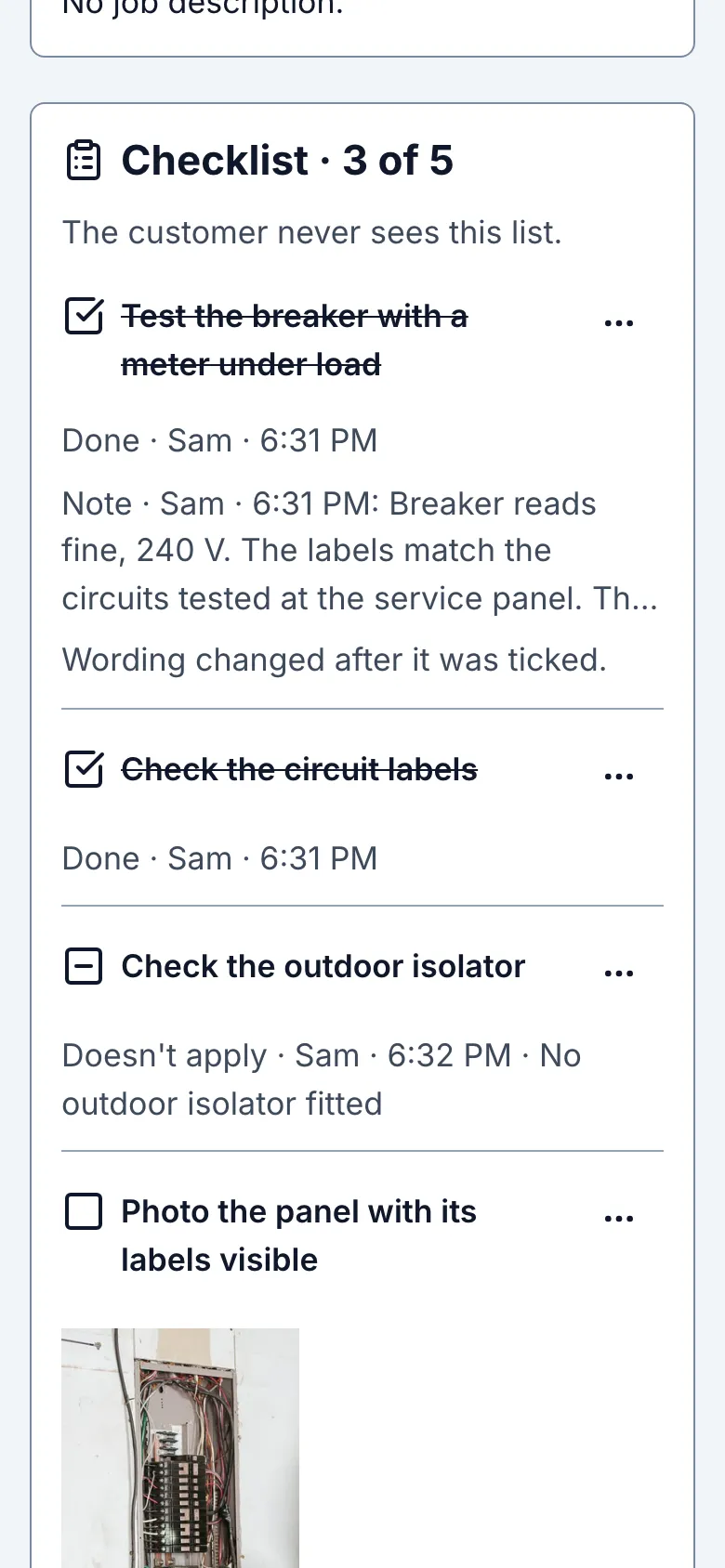
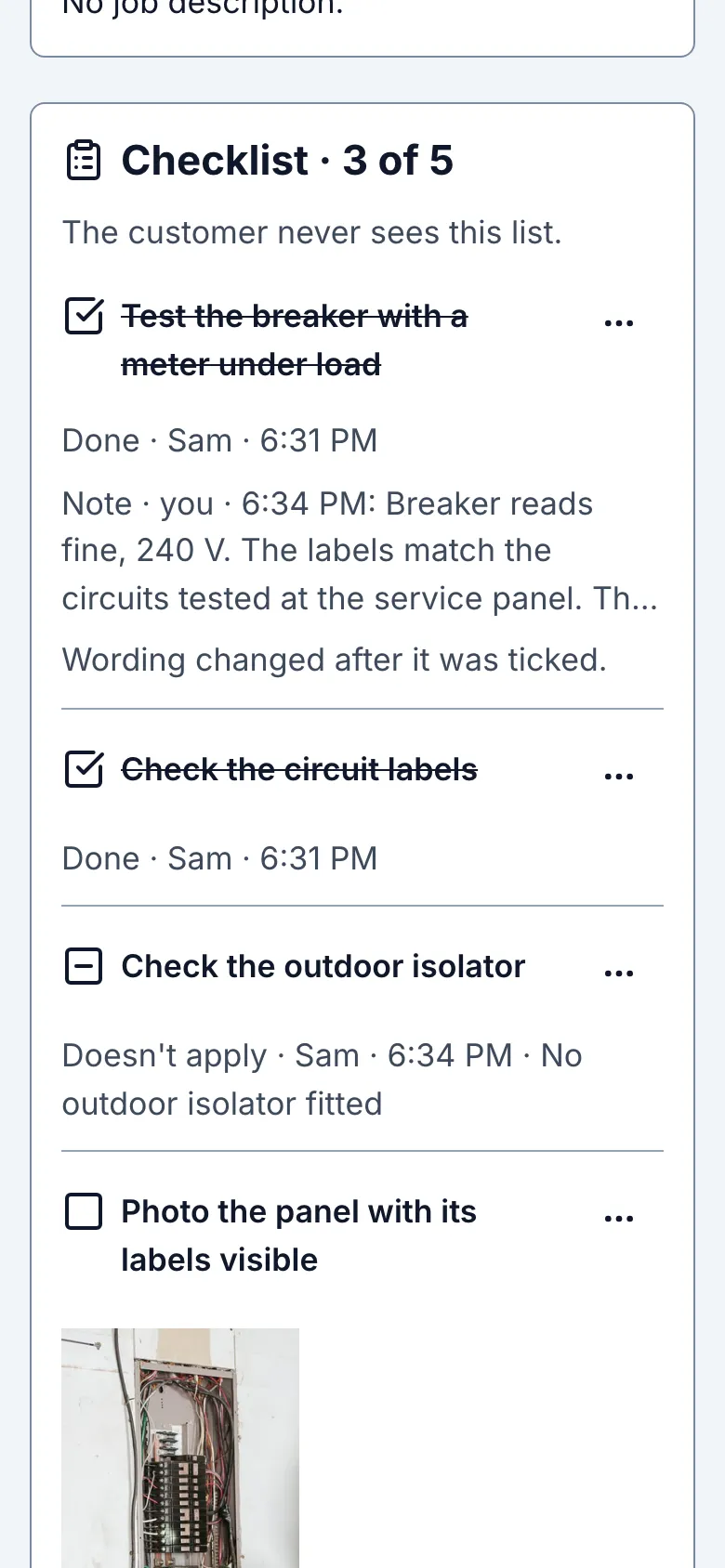
Tap the words of an item when you have done that check. Wait for Done with a name and time below the item. The box gets a tick and the words are crossed out. The count includes it.
To undo a tick, tap the words again. The box becomes empty and the item is open again. Other people assigned to the job see the same choice. A tick records your check; it does not prove the work was done correctly.
2. Say that a check does not fit the job
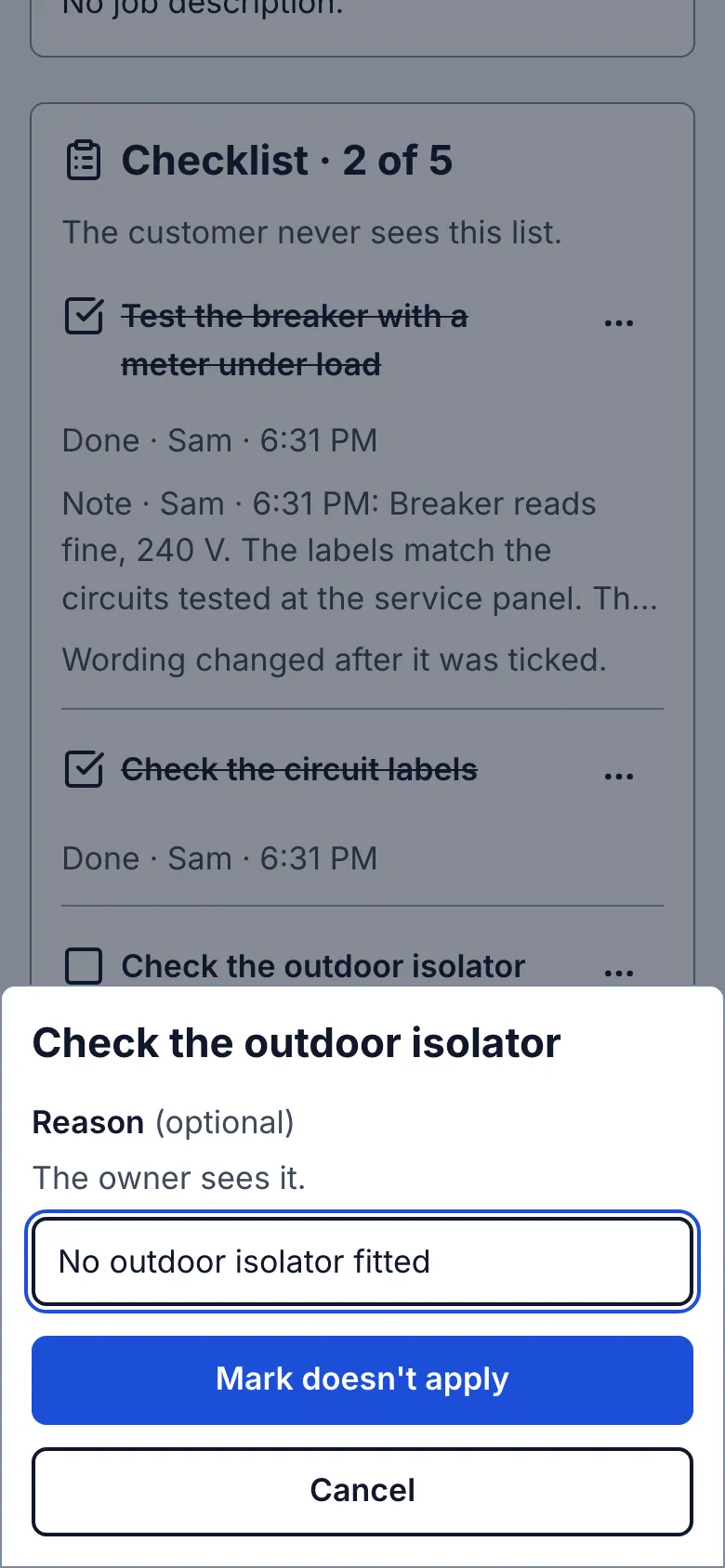
Tap Options next to the item, then Doesn't apply. A Reason (optional) field appears. For example, write No outdoor isolator fitted. The owner sees what you write. Use up to 200 characters.
Tap Mark doesn't apply to save it, or Cancel to leave the item unchanged. After saving, the item has a minus mark, your name, the time and any reason. It counts with the done items. To put it back on the open list, open Options and tap Mark open.
3. Leave a note on one item
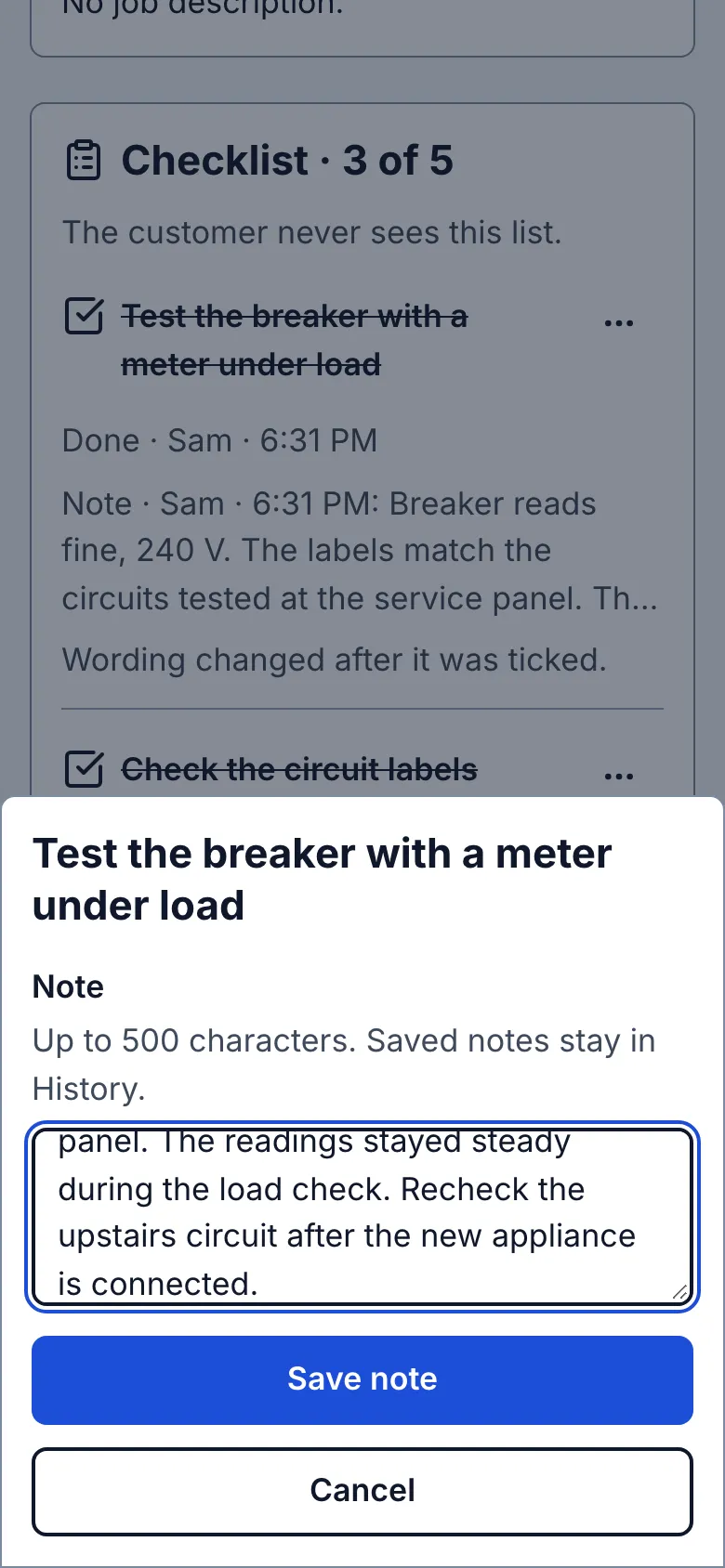
Tap Options next to the item, then Add note. In Note, describe what the next person needs to know. For example, Breaker reads fine, 240 V. You can use up to 500 characters.
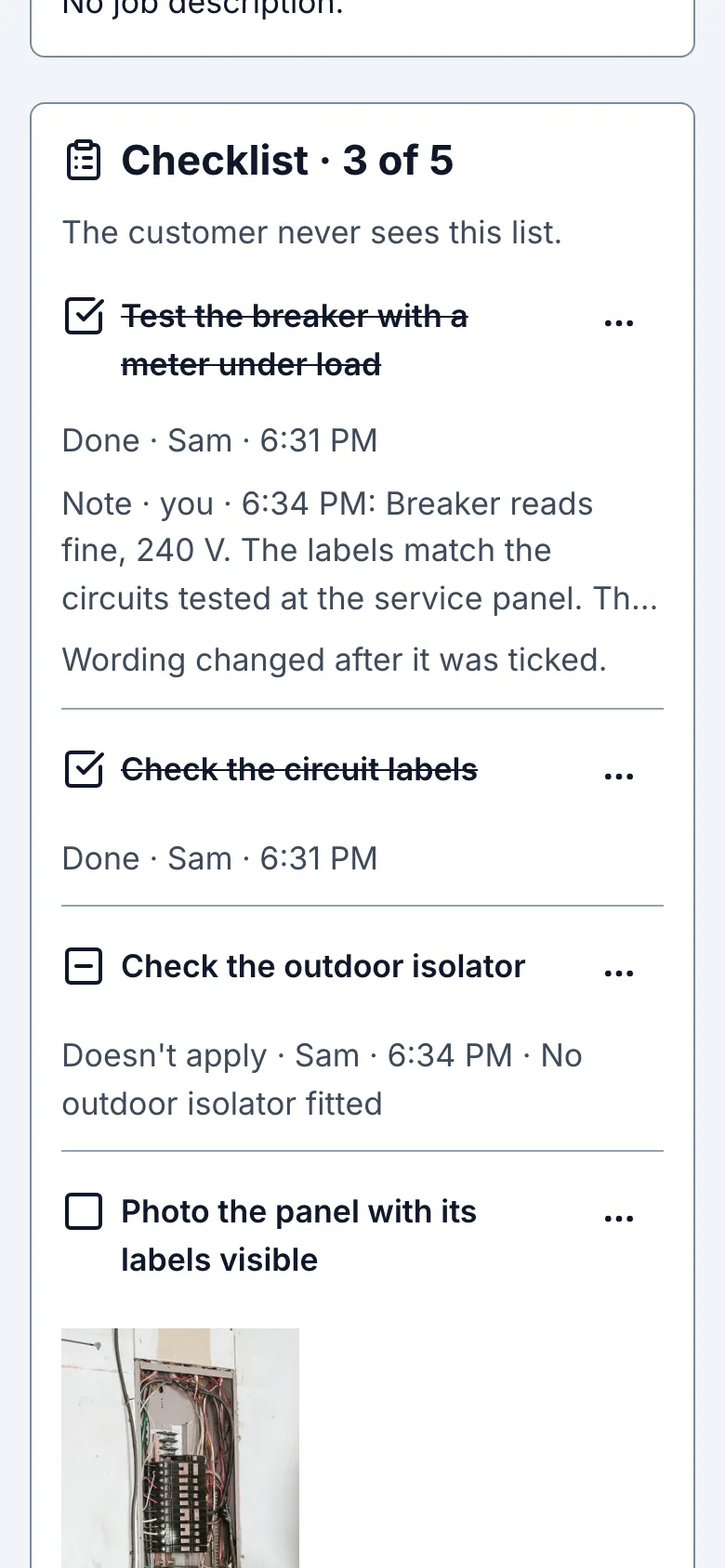
Tap Save note and wait for it to finish. The newest note appears under the item with a name and time. Long notes show three lines there; History keeps the full text and older notes. Cancel leaves the note unsent but keeps your words while this page stays open.
4. Take a photo for one item
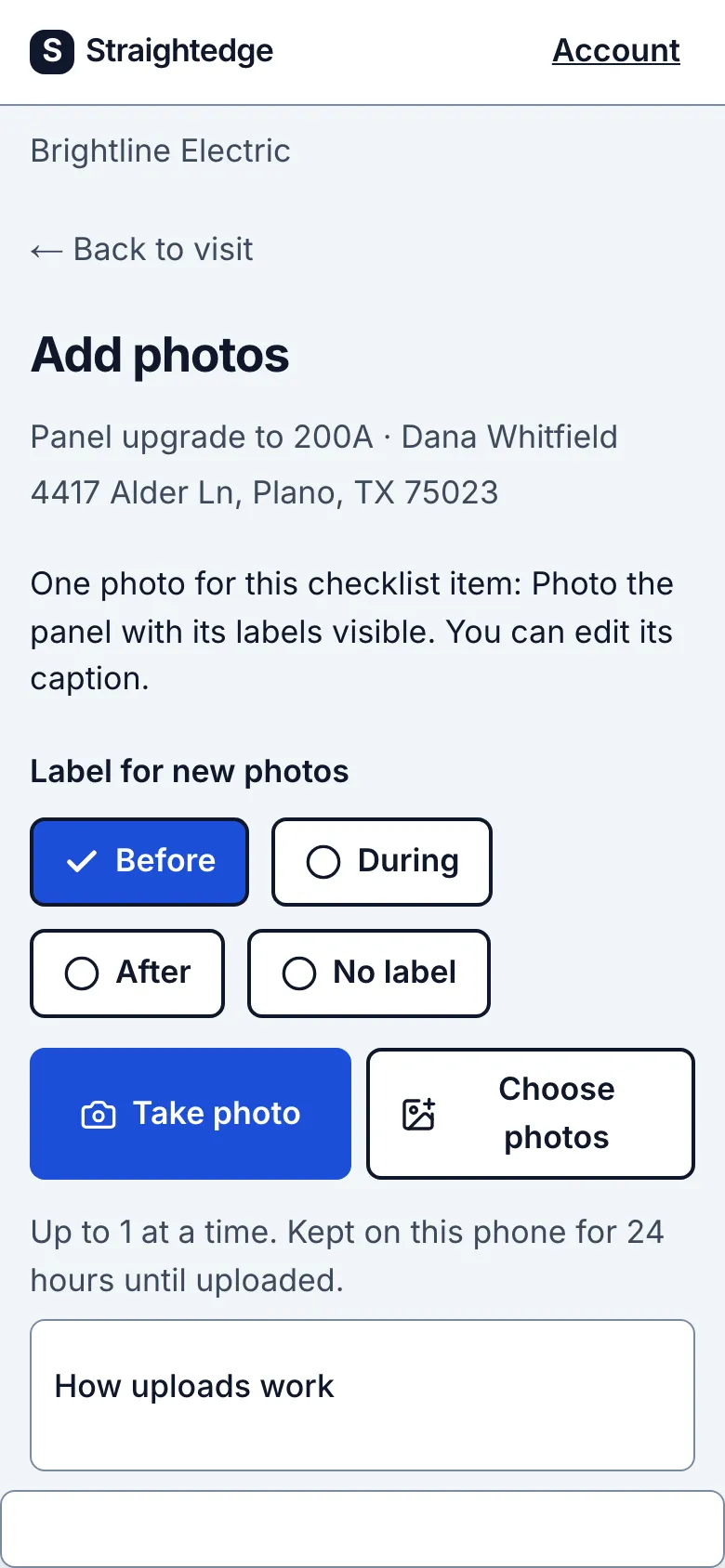
Tap Options next to the item, then Add photo. The Add photos page opens for one photo. Its suggested caption comes from the checklist wording; change the caption if you need to explain what the picture shows.
Take or choose one photo, then upload it as usual. Wait for confirmation. Return to the visit to see the photo on the item. It is also a job photo in Job photos. Adding a replacement keeps the old picture on the item until the new one finishes saving.
5. Read the full history
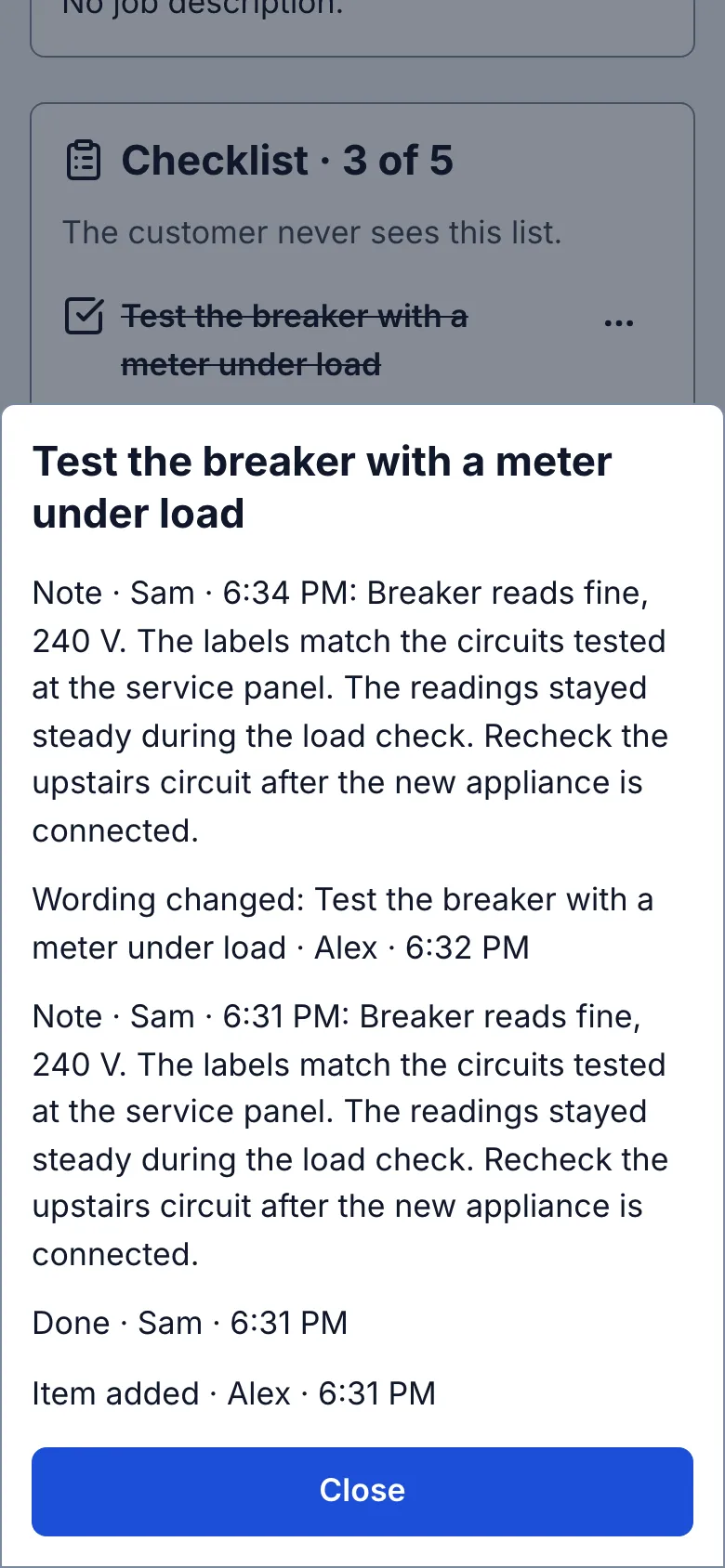
Tap Options next to the item, then History. The button includes the number of entries. Read earlier choices, reasons, full notes and photo changes with the person and time. A new entry does not erase an old one.
If offered, Earlier history shows older entries. Tap Close to return to the visit.
6. Keep your choice when the signal is poor
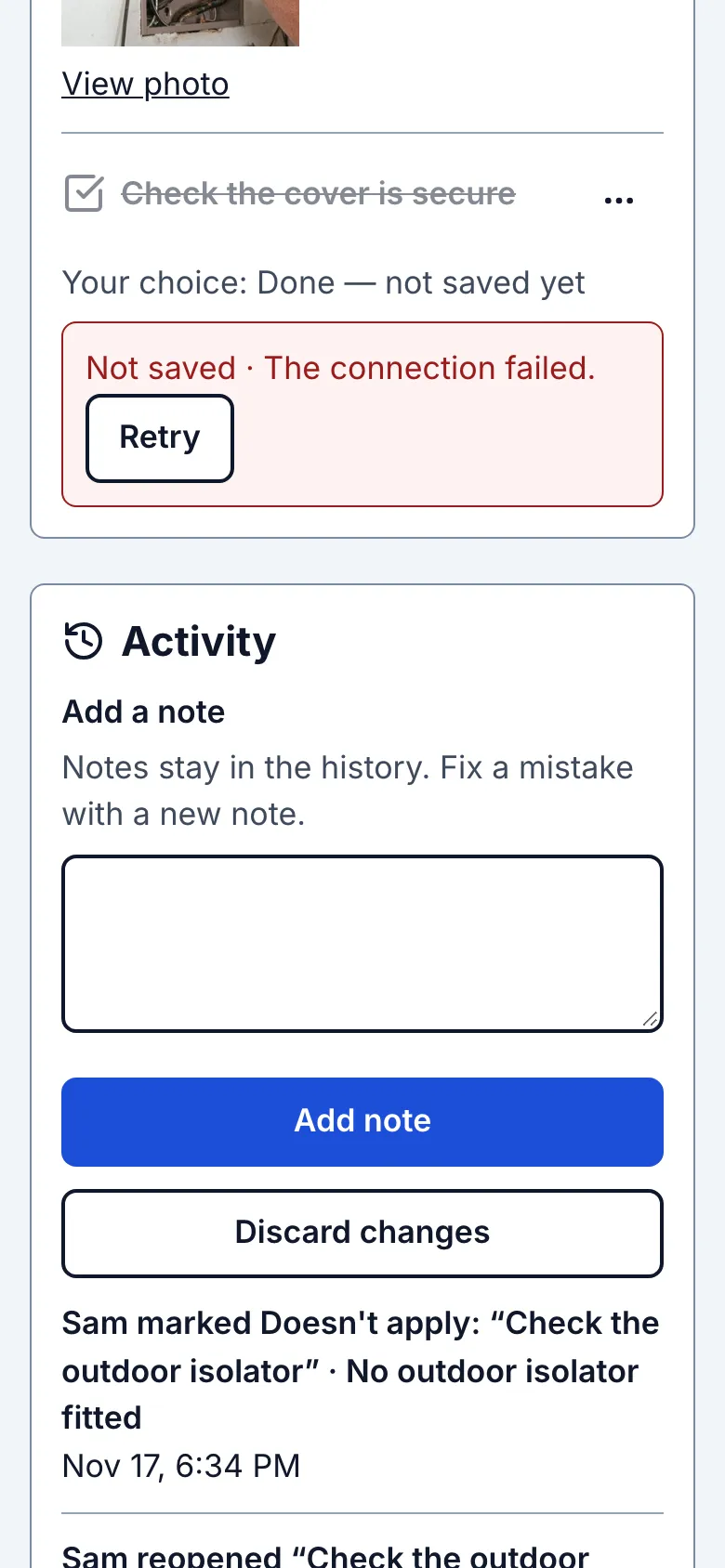
If saving fails, the line under the item keeps your choice, for example Your choice: Done — not saved yet. A separate red message says Not saved and explains the problem. Keep this page open and tap Retry when you have a connection. Retry sends the same choice again, so a reply lost on the way back does not make a second entry.
Your unsent note stays while this page stays open. Closing the page or leaving it can lose unsent work. There is no promise that a choice can be saved without a connection. If you are told someone else changed the item, check their latest choice before choosing again.
7. Complete the visit even when checks remain open
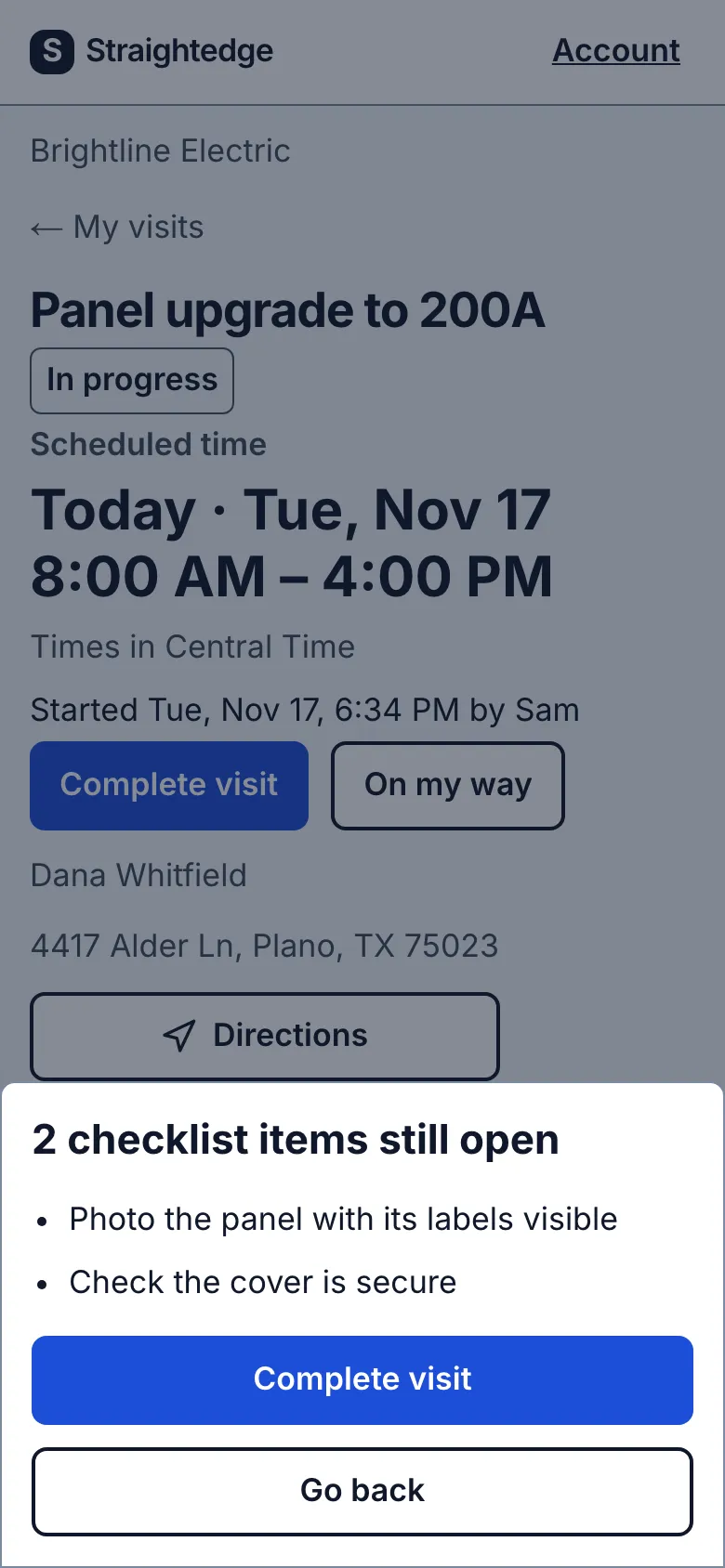
At the end of the visit, tap Complete visit. If checks are still open, you see their number and a list of their wording. Read it before you decide.
If the list cannot be checked within four seconds, you can still finish. If the page already showed the checklist, the confirmation uses those items and says “These may not include the last few minutes of changes.” If no list could be loaded, a message says “Checklist could not load. You can still complete the visit.” Its Complete visit button lets you finish.
Tap Go back if you want to check them now. Tap Complete visit in the confirmation to finish the visit anyway. No checklist item stops you completing the visit. Activity records how many were open when completion saved.
What you see after
Done and Doesn't apply both count towards the number shown beside Checklist. Everyone sees the latest choices and notes. Names and times show who recorded each check. The list carries forward to the next visit of this job.
Limits
You can tick checks and add reasons, notes and photos on jobs where you have an assigned visit. You cannot add, rewrite, move or remove the checklist items. Canceled jobs are read-only. A closed job can still accept checklist entries, but its completed visits cannot be reopened.
When it goes wrong
Keep the page open if a save has not finished. Retry when offered. If your assignment has been removed, ask the owner about access. An expired photo upload can be added again. Nothing on the checklist blocks starting or completing a visit, closing the job, invoicing or payment.
Still stuck? Email support@getstraightedge.com