Start, note and complete a visit
Who can do it
Crew members assigned to the visit. Owners and full access partners can record progress on the owner visit page.
1. Start the visit
From My visits, open your assigned visit and tap Start visit when work begins. The action becomes Complete visit.
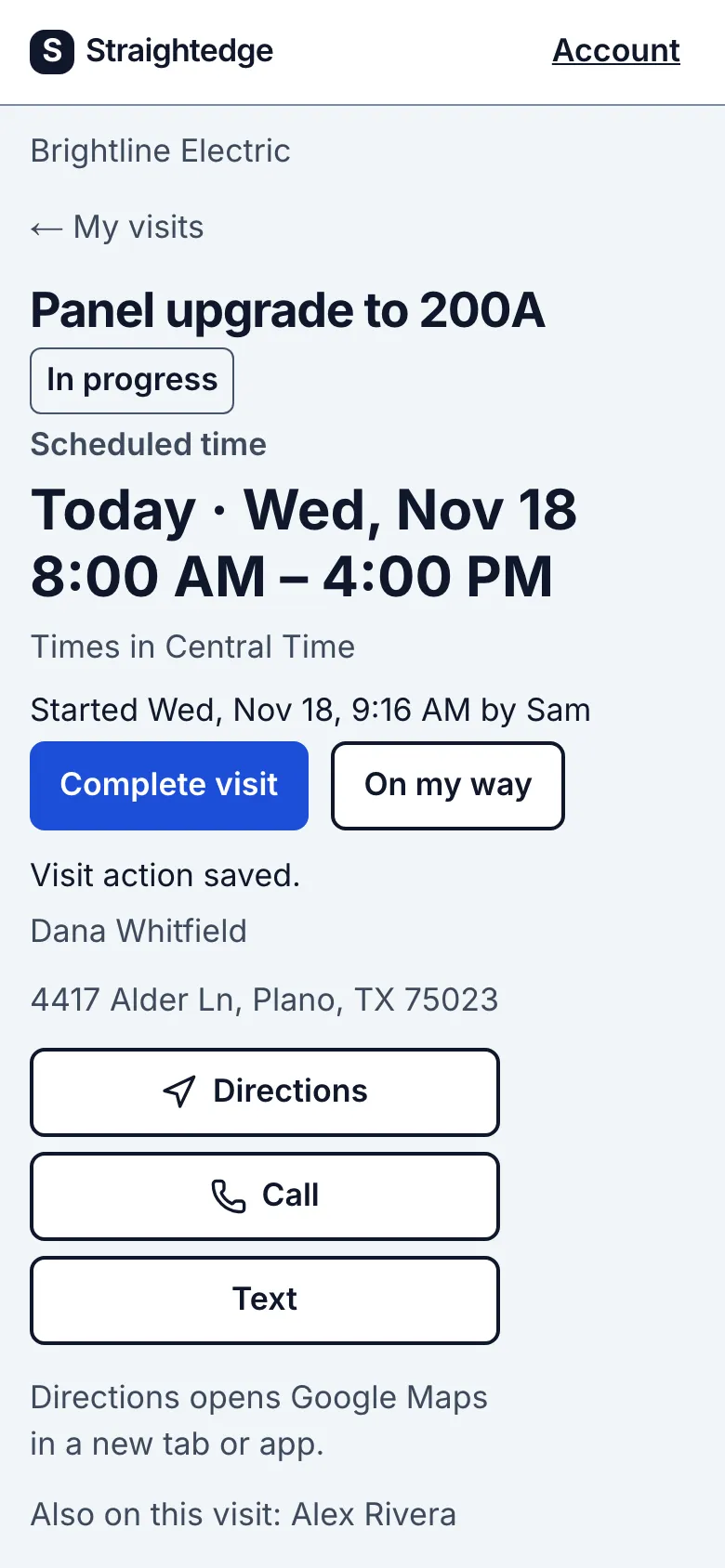
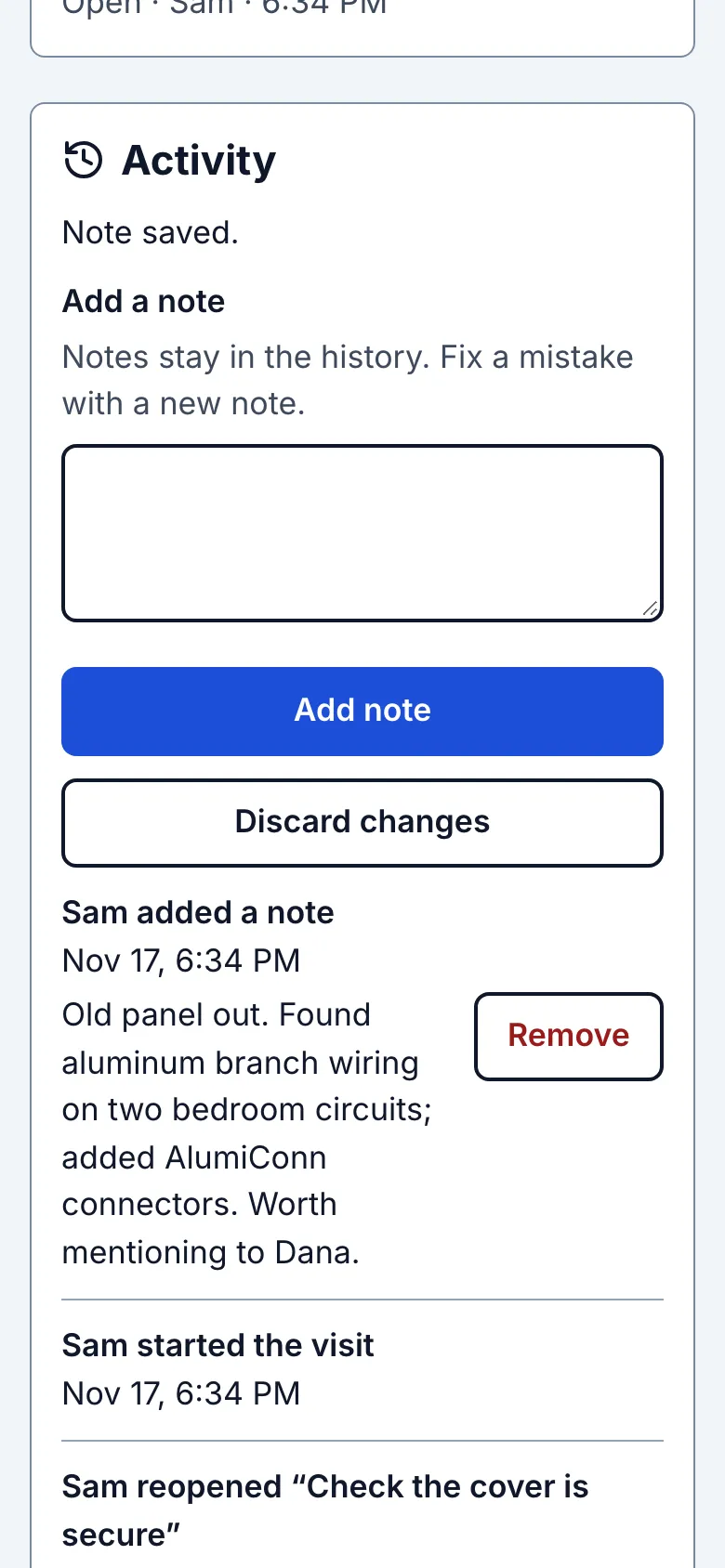
2. Add a note
Enter what the next person needs in Add a note, then tap Add note. Notes remain in Activity with your name and time. You can remove your own note within 10 minutes; after that, only the owner can.
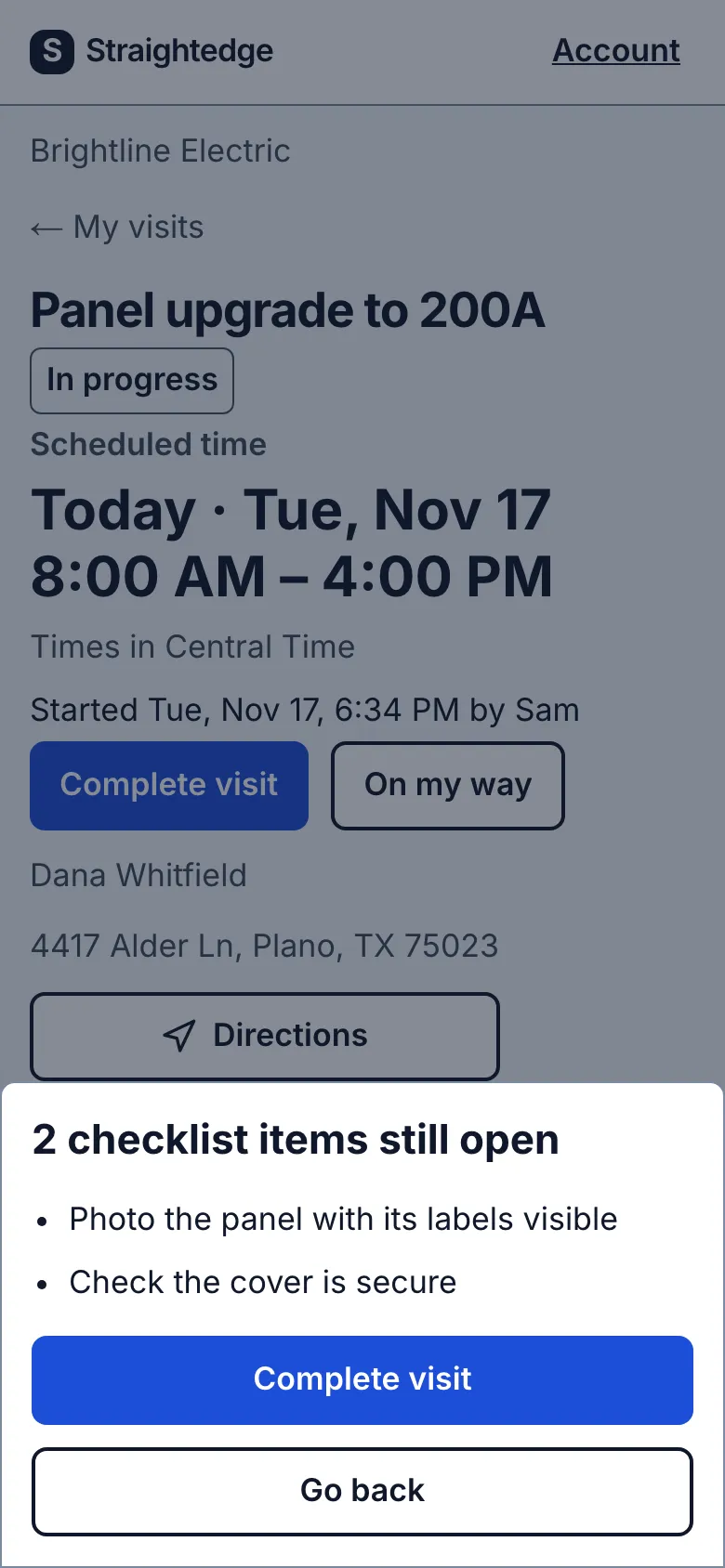
3. Complete the visit
At the end, tap Complete visit. If checklist items are still open, you see their number and the wording of each item. Read the list. Tap Go back if you want to check them now, or Complete visit in the confirmation to finish anyway. Nothing on the checklist stops you completing the visit. Activity records how many checks were open when completion saved.
If the list cannot be checked within four seconds, you can still finish. If the page already showed the checklist, the confirmation uses those items and says “These may not include the last few minutes of changes.” If no list could be loaded, a message says “Checklist could not load. You can still complete the visit.” Its Complete visit button lets you finish.
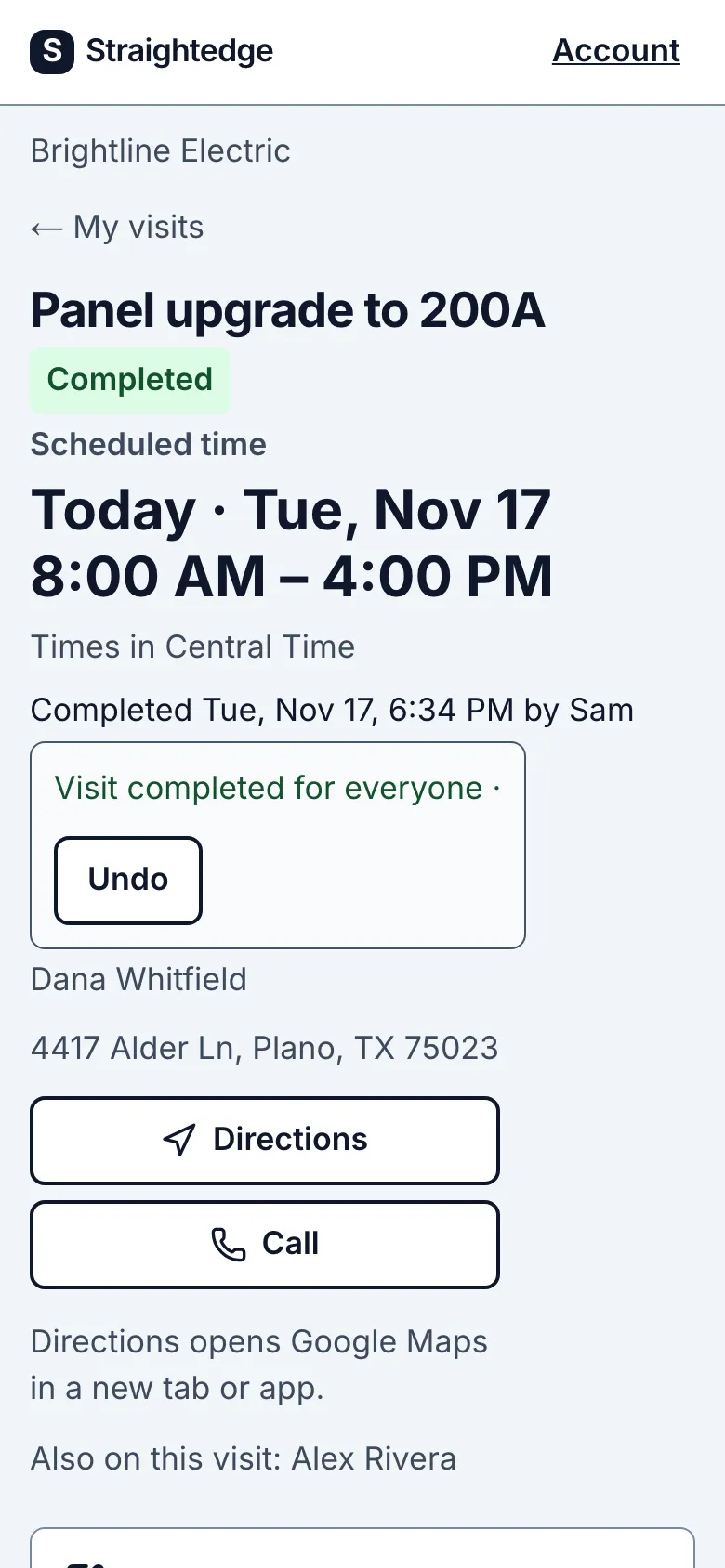
The page offers Undo immediately after a wrong tap. Later, use Reopen visit if the job remains open.
A checklist, when available, sits after Visit notes and Job description, before Activity. The same checks carry forward across visits of the job. The customer never sees the list or your notes.
What you see after
The shared visit status becomes Completed for everyone assigned; Activity keeps the start, note, completion and any reopening.
Limits
- One visit has one status for everyone. Completing it also completes it for coworkers. A closed job prevents reopening. Notes stay in the history: after 10 minutes only the owner can remove one, so correct a mistake with a new note.
When it goes wrong
- If a note says “Note: save not confirmed,” use Check visit before retrying. If an action fails, the page says “Retry with the action above.” Check the status first, then retry if needed.
Still stuck? Email support@getstraightedge.com