Add photos to an estimate or invoice
Who can do it
Owners. Add photos to the job first; only ready photos can be chosen.
1. Choose photos
Open the estimate or invoice and, in Photos, tap Choose photos. Nothing is selected by default, and nothing is sent on its own. You can also choose photos above the Message on the Send page.
2. Pick the photos
Tap Select photo on each photo you want to show. Choose up to 20. The Before, During or After label appears for the customer; No label shows no word.
3. Save your choice
Tap Done. The customer's existing link shows your selection under the lines, and the grid appears when they print. Tap a customer thumbnail to open its larger image; Close returns to the page. If an image says Tap to load, tap it to retry.
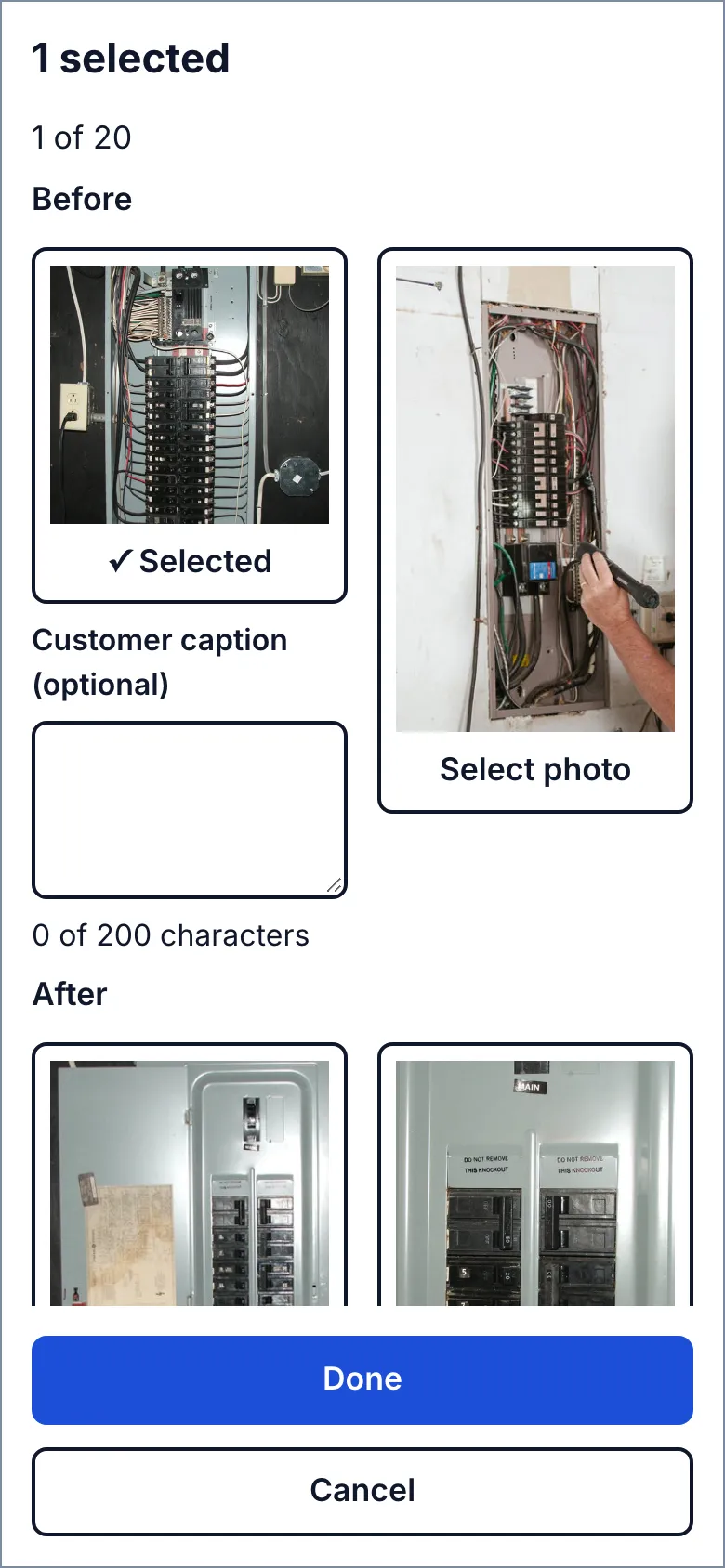
_Screens show a demo business with sample job photos._
What you see after
Each photo has an optional Customer caption of up to 200 characters. It starts empty. Use the job caption copies the internal caption only when you tap it; a longer caption is shortened with a notice. Save caption saves an edit on the record page. Later edits to the job caption do not change that copy.
Limits
Changing lines clears an approval; changing photos does not; the approved copy keeps the photos the customer saw. Photos added later appear under Added after you approved. Deleting a photo leaves a Photo removed tile in the approved copy.
Before an owner removes a chosen job photo, the warning lists the documents that show it. Those links then lose access to it. Crew cannot remove a photo shown on an estimate or invoice, even during their usual ten-minute removal window.
An invoice starts with no photos. If it came from an estimate, Use the estimate's photos copies that estimate's current selection and captions into your unsaved choice. Tap Done to save it. Converted estimates and void invoices cannot change photos; canceled jobs cannot change document photos. Done and closed jobs can.
Still stuck? Email support@getstraightedge.com