Change an estimate after sending
Who can do it
Owners.
1. Open the estimate for editing
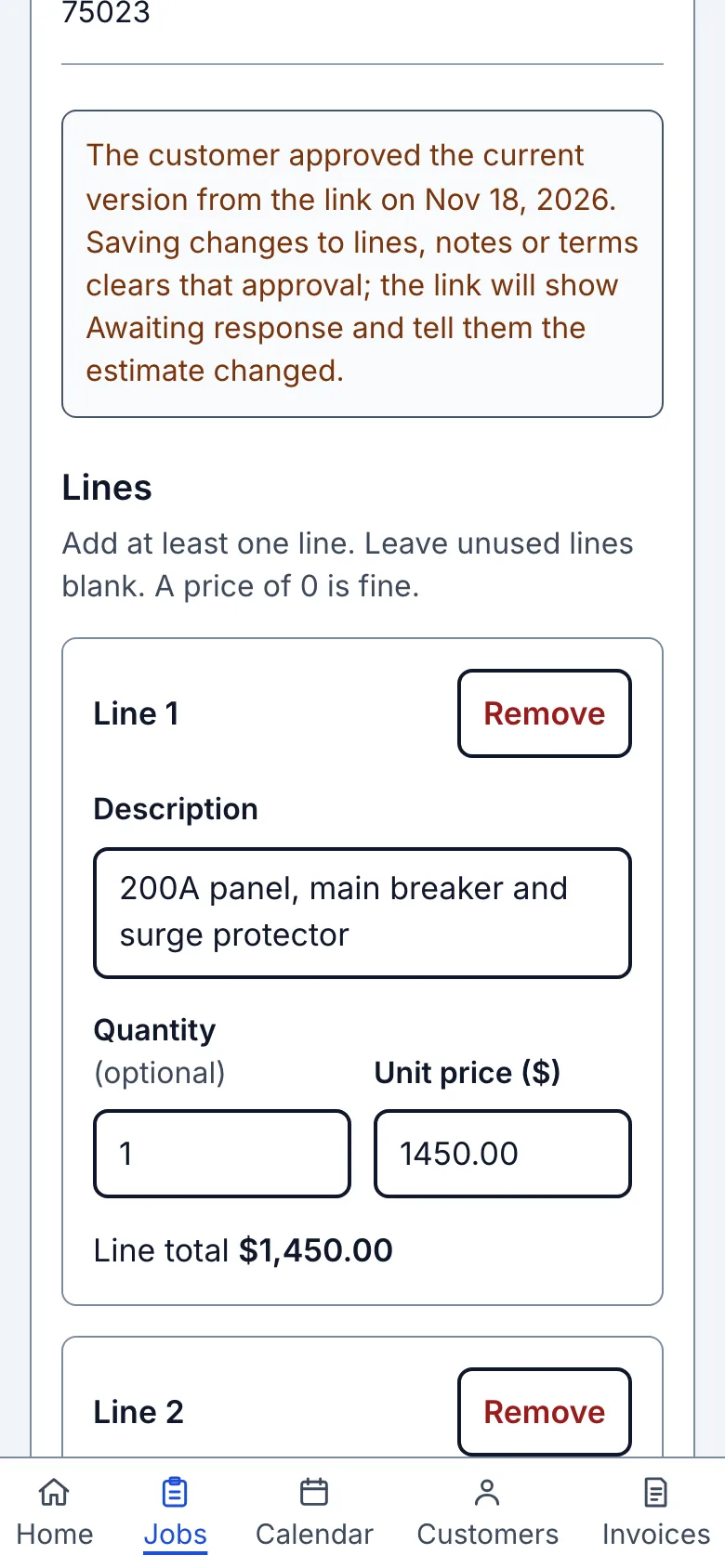
On the estimate choose Edit. If the customer approved from the link, the form warns that saving clears that approval and the link will ask for another answer.
2. Save the revision
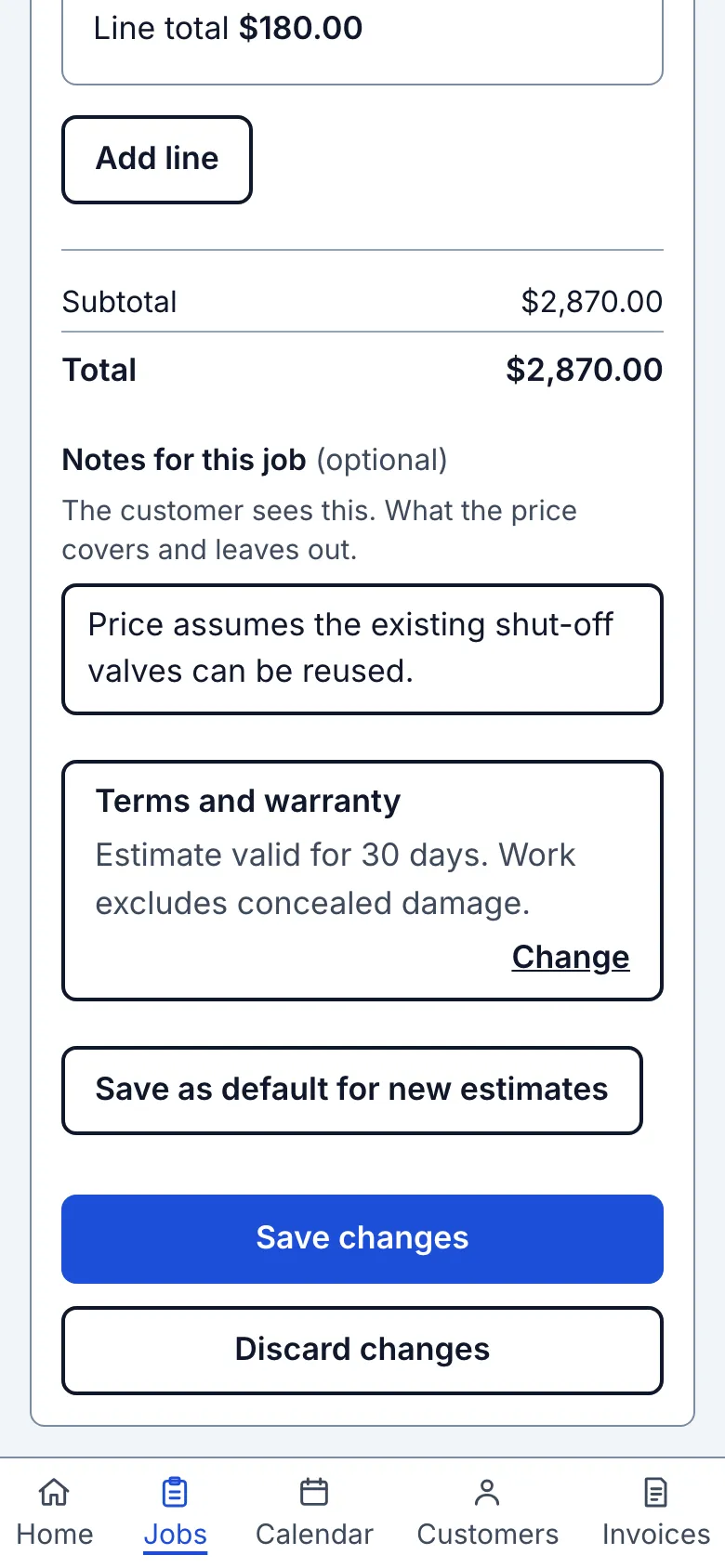
You can also change Notes for this job or Terms and warranty below the total. A single changed word can change what the customer agreed to. Saving lines, notes or terms clears an approval and asks for another answer; the response history keeps the old text. A failed save keeps your text. If another tab saved first, review the current estimate before choosing Replace with my version; that choice also replaces the text.
Change the lines, notes or terms and choose Save changes. The earlier approved total and date remain in the owner's record; the customer sees the earlier approval and the revised estimate. The Sharing section now warns that its link already shows the latest lines and the customer may have read the earlier version.
3. Tell the customer to review again
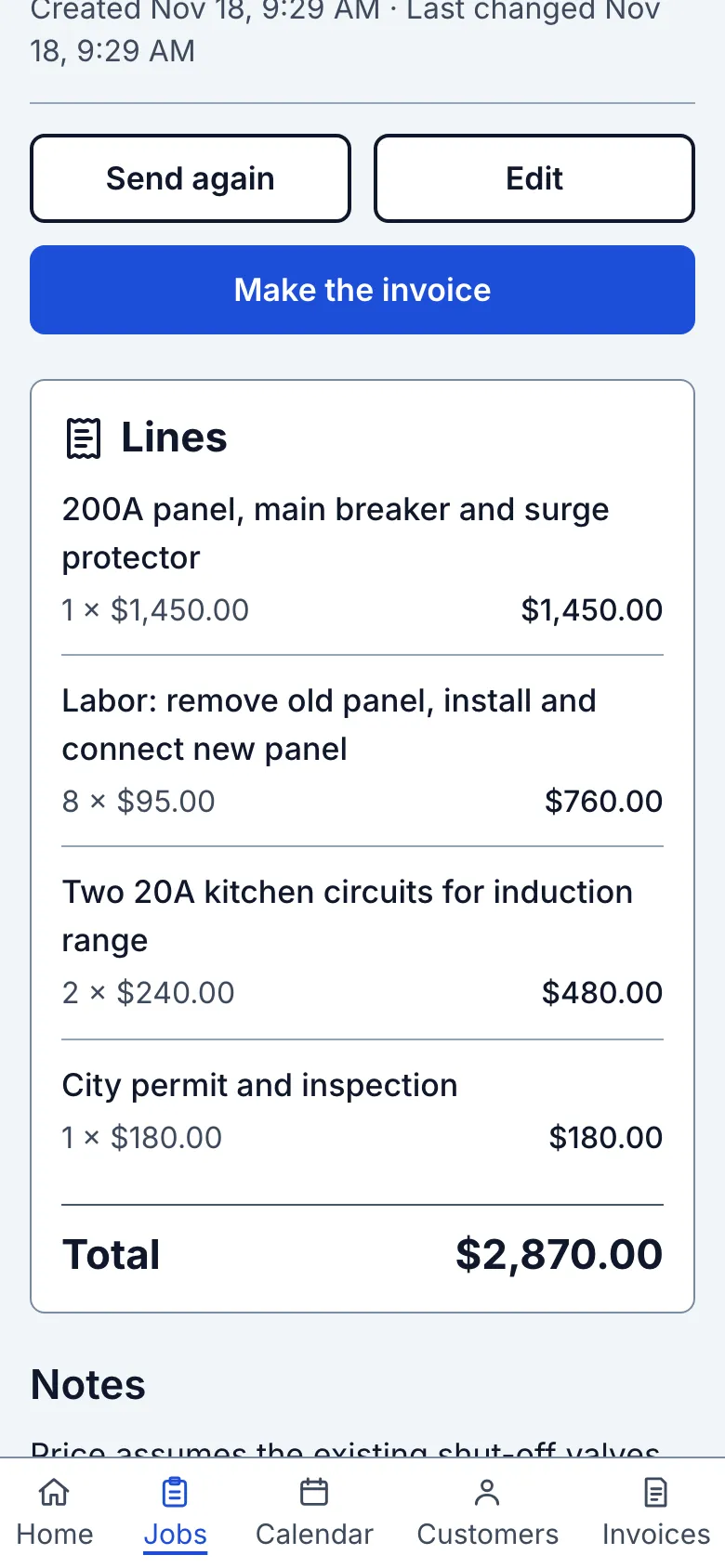
Choose Send again to open the message and share the link once more. The warning clears once you use a send option again. The customer must answer the updated estimate again.
What you see after
The link shows Awaiting response until the customer answers the revised estimate.
Limits
A declined estimate can be edited, but it cannot become an invoice until the answer changes. Stop sharing turns off the link. The approved version remains in the response history.
When it goes wrong
If you see Estimate not saved, correct the listed line and save again. Leaving Edit without saving leaves the sent version intact.
Still stuck? Email support@getstraightedge.com