The whole estimate, line by line
Who can do it
Owners.
1. The whole estimate, line by line
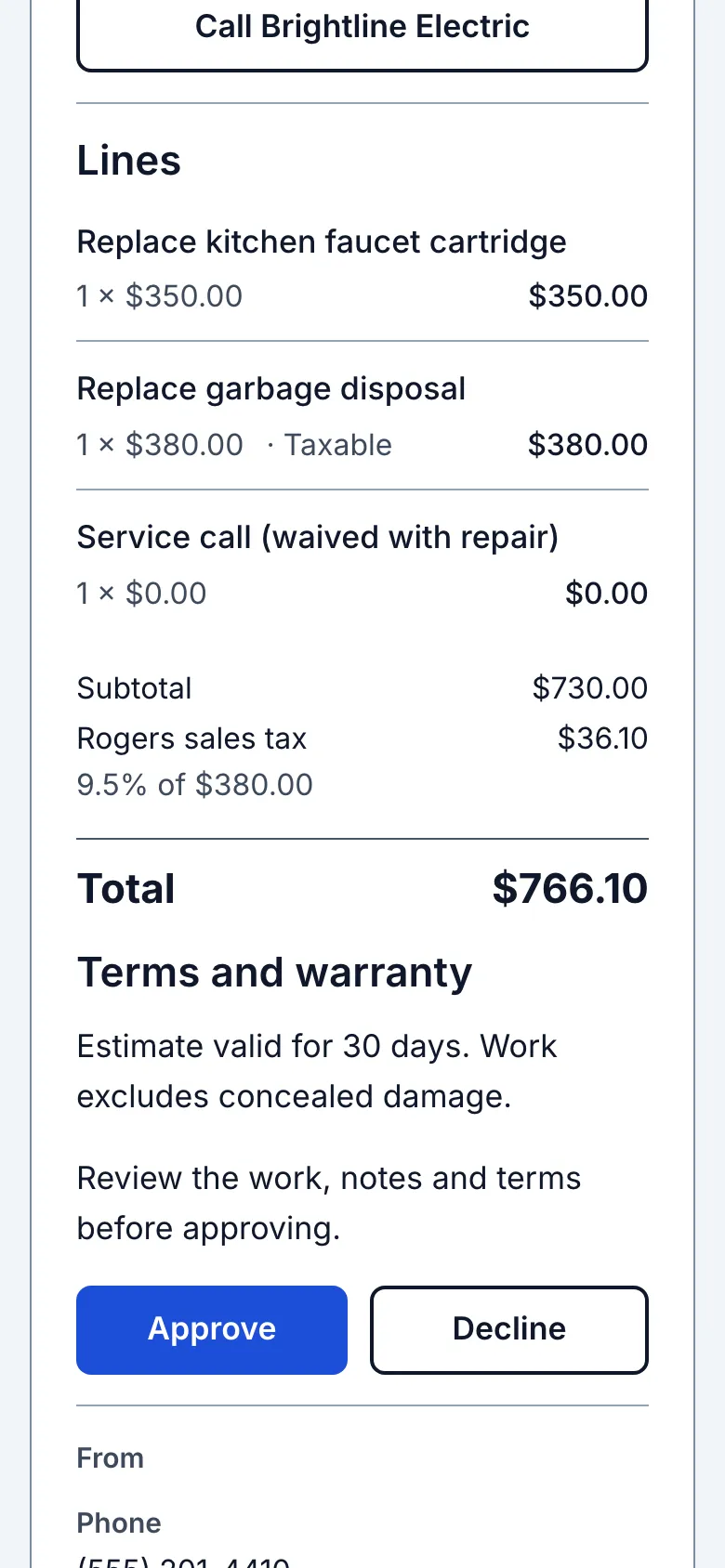
After Lines and Total come Notes and Terms and warranty when they contain text, then Photos. All the wording is visible at normal size, with line breaks; there is no Read more and web addresses in the text are not links. Approval comes after that content. Review and approve at the top moves to it. From and For follow approval. License number and license details sit under the business name and follow the current Settings values.
Below the summary, Dana sees Lines: every line with its quantity, price and line total, then the Total. If the estimate has sales tax, each ticked line with an amount says Taxable beside its quantity and price. The tax row names the rate and shows what it was charged on beneath it, for example 9.5% of $380.00. A $0.00 line shows no word. A chosen rate with no ticked lines still shows its row, with $0.00 tax and 9.5% of $0.00; choose No tax on the estimate to send it without a tax row. When you choose photos, a Photos block follows the lines, with labels and any customer captions. A tap opens a larger image. Customers see only your choices, never the job gallery. After the approval area, From lists your phone, email and address, and For shows who the estimate is for: their name, their address and the job title.
Dana doesn't see your internal notes, the customer notes you keep, or anything else on the job.

Still stuck? Email support@getstraightedge.com