Answer an estimate
Who can do it
The customer can approve from their private link or on the owner's phone. Only the owner can open the in-person view. The owner can still record an answer by hand.
1. Choose an answer from the link
At the top choose Review and approve to move to the approval area. The work, Notes, Terms and warranty and Photos come before it. Read the whole wording before answering; approval applies to the estimate as shown, not just its price. The same order is used when the owner hands over a phone.
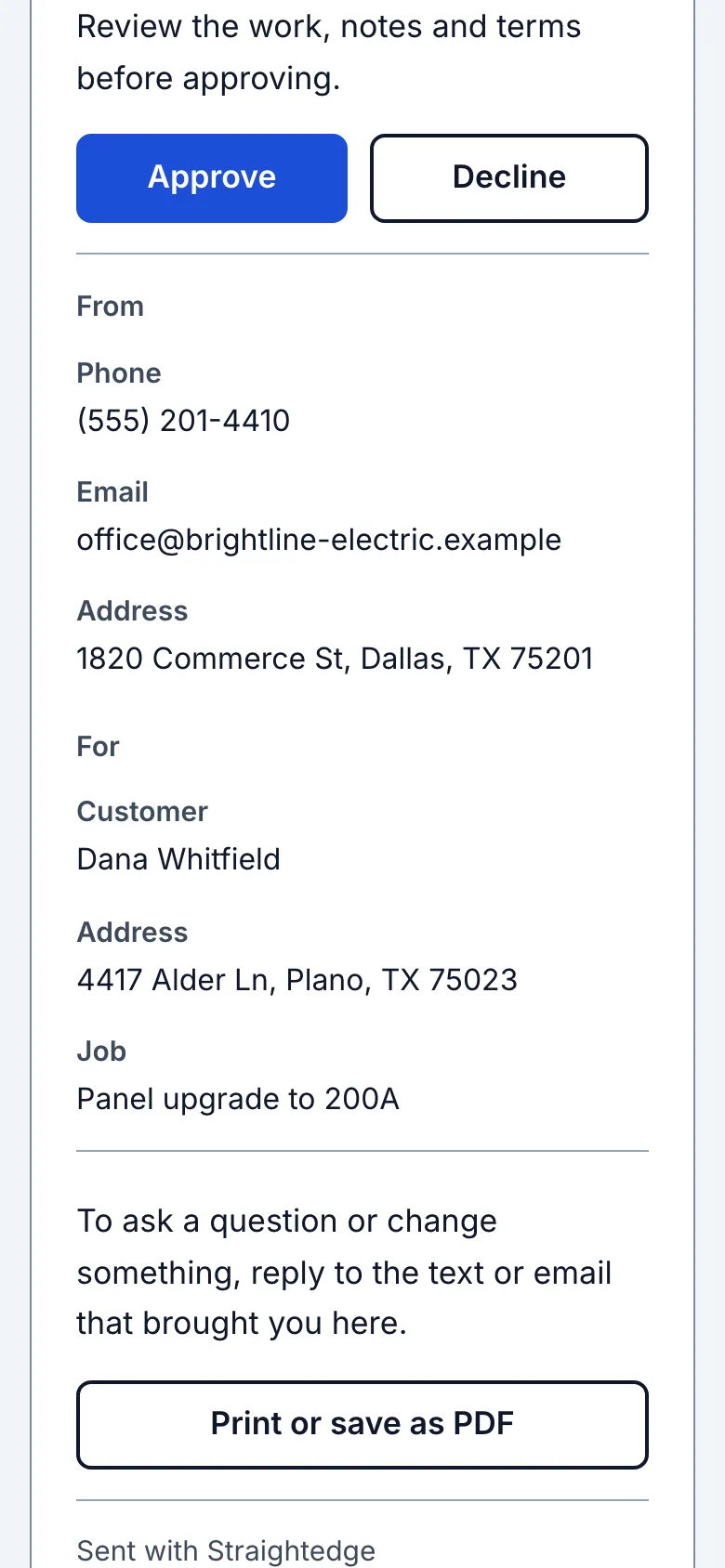
Read the estimate, then choose Approve or Decline beneath the work, notes, terms and photos. Approval confirms the displayed total; decline can include a reason.
2. Approve the estimate
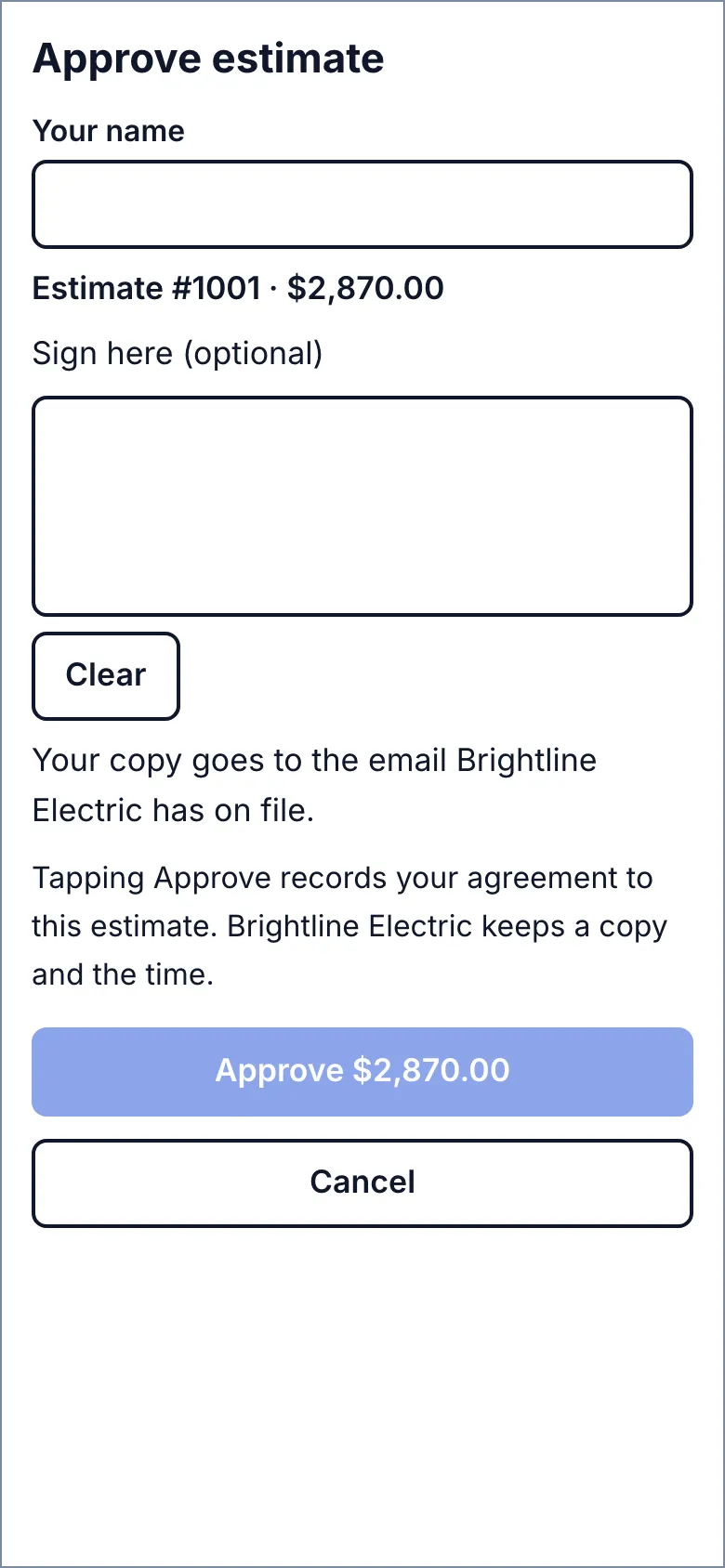
Enter Your name. Draw on the signature pad, or leave it blank when it says signing is optional. Clear erases the mark. When the business requires a signature, the approval button waits until there is ink. Cancel closes the sheet without answering.
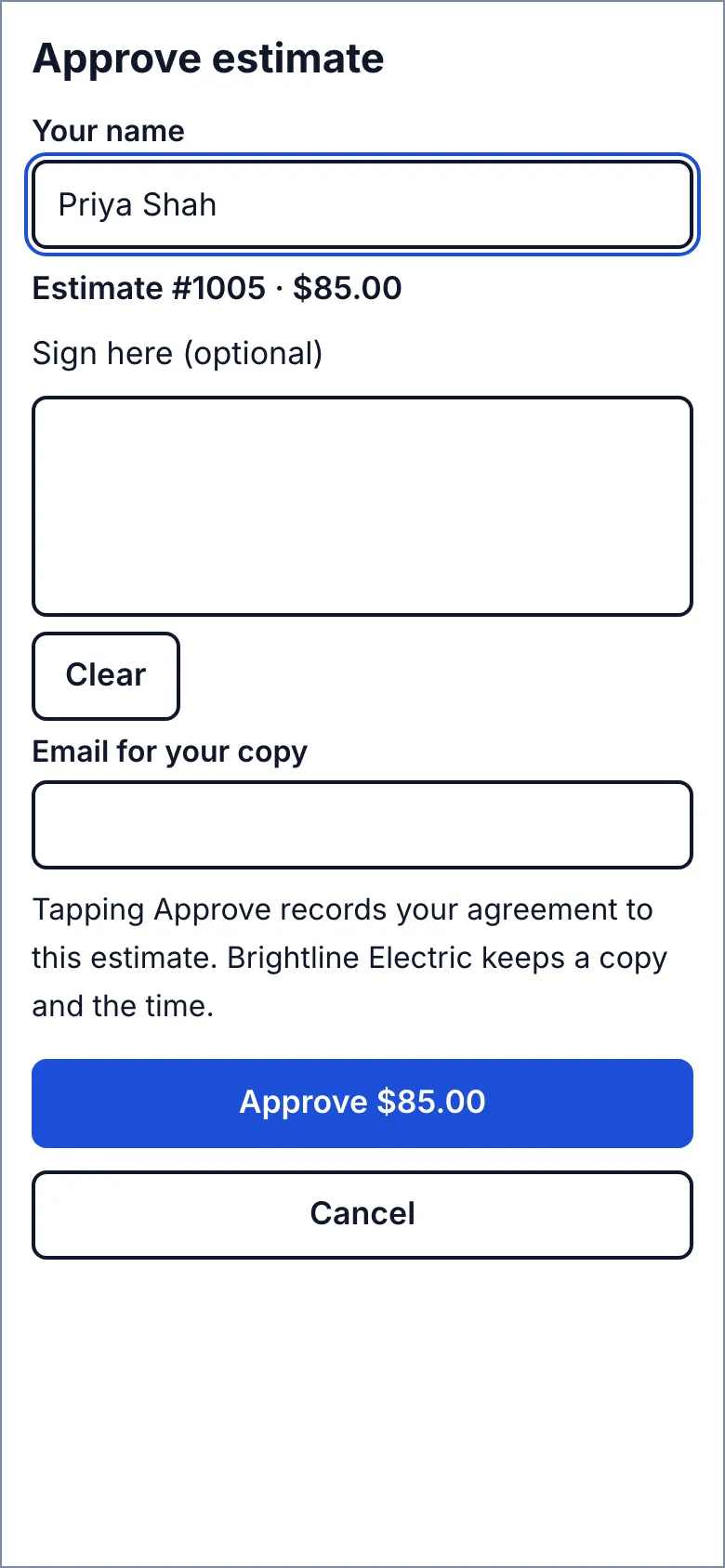
If the business can email a copy and has no customer email saved, enter Email for your copy, or leave it blank. When an address is already saved, the link says the copy goes to the email the business has on file; it never shows that address. On the owner’s phone, a saved address is prefilled and must stay filled in; change it if it is wrong. Without a business email, no email field appears.
Choose Approve with the amount shown. Tapping it records agreement to the estimate as shown, the entered name and the time. A name or mark does not verify identity. To decline instead, go back, choose Decline, enter your name and confirm; no signature or copy email is requested.
3. Approve together on site
On an unanswered estimate for an open job, the owner chooses Approve with the customer, then hands the phone over. The customer reads the same estimate without owner navigation, taps Approve, and enters Your name. The signature follows the same optional or required rule. When available, Email for your copy is prefilled and the customer can change it for this copy; an existing address on the customer record stays unchanged. Tap Approve with the amount shown.
4. Hand the phone back
After approval, the customer sees a thank-you asking them to hand the phone back to the owner. The worker chooses Done to return to the estimate. If there is no business email, the screen tells the worker to text the customer the link.

What you see after
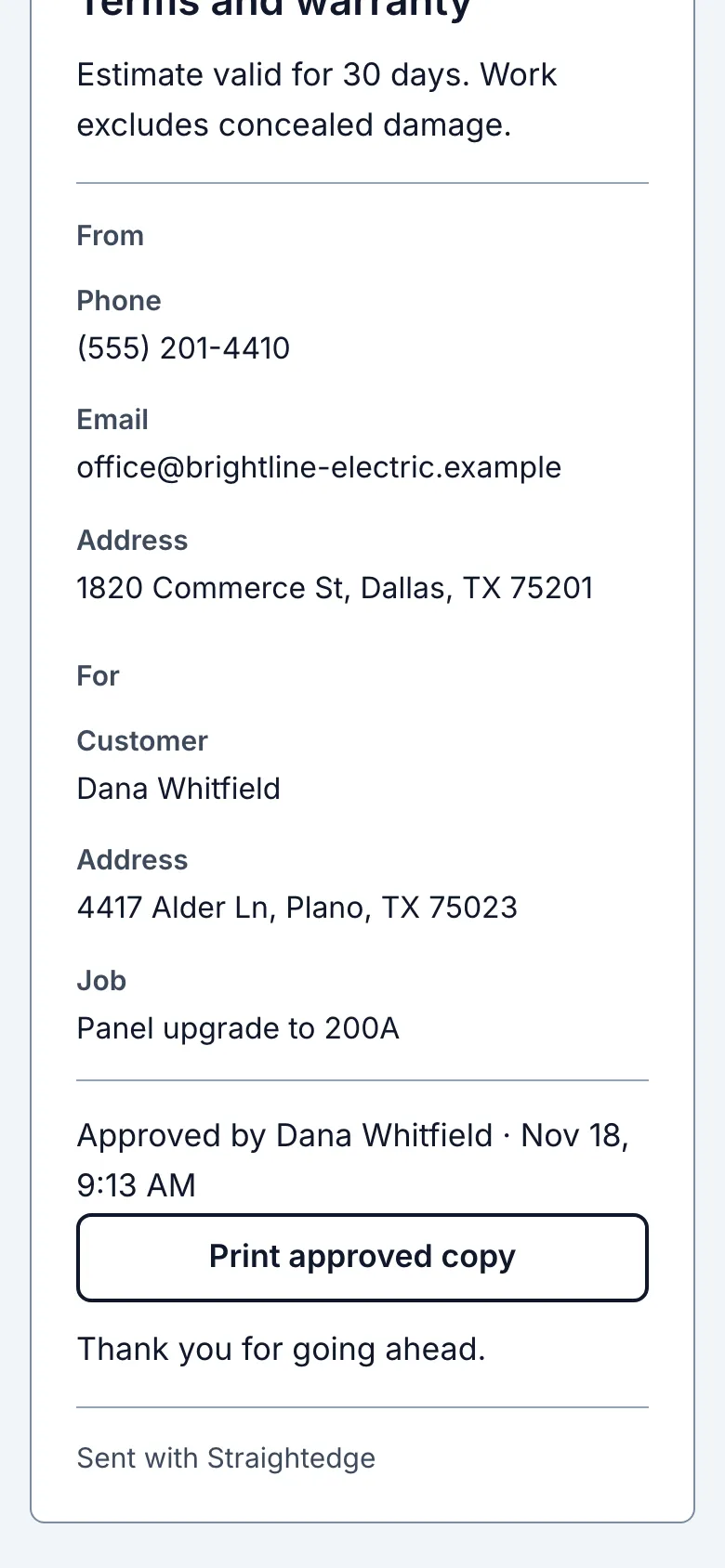
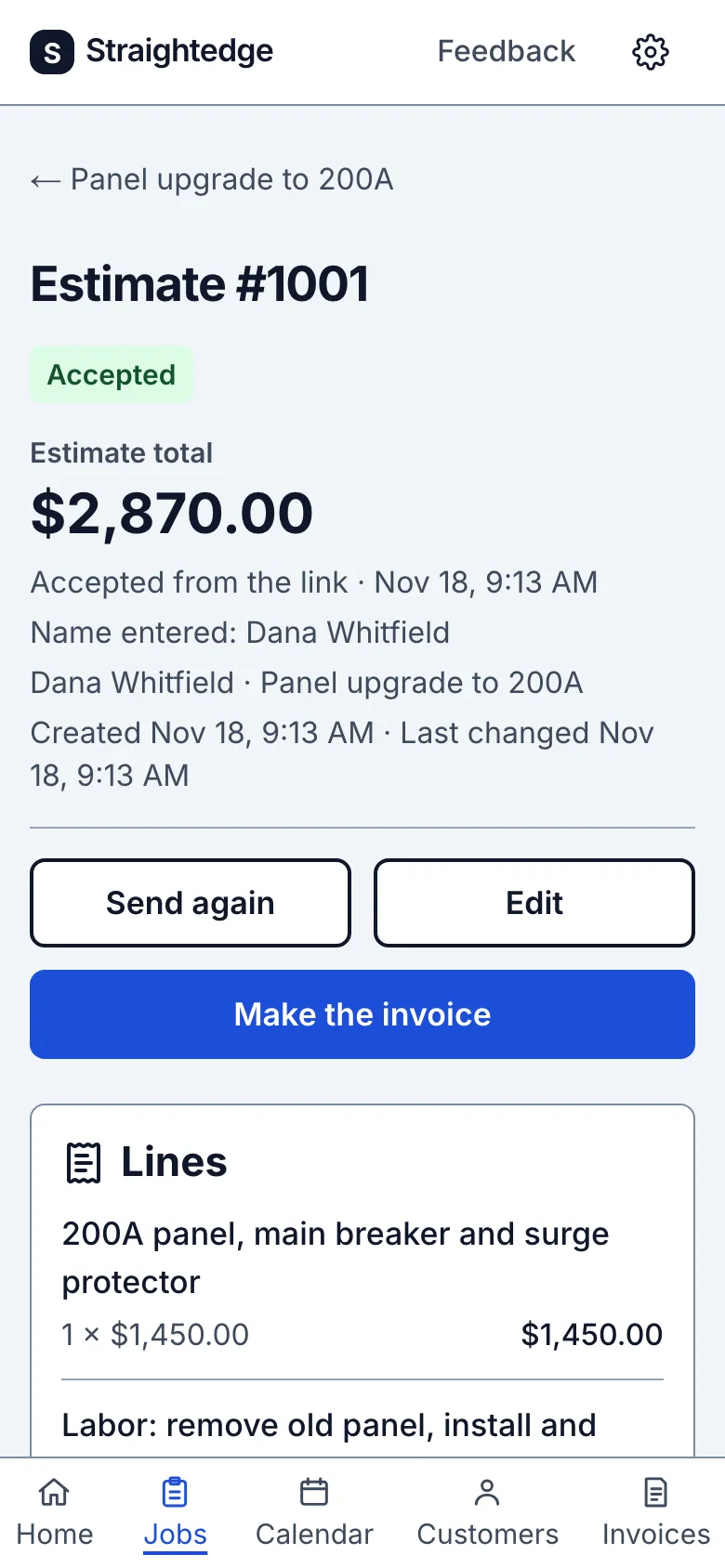
The estimate shows Accepted and the name and time. A drawn signature appears beneath the evidence line, and the customer can print the approved copy. In person, the evidence names the worker's phone; its address and device record describe the worker's device, not the customer's.
A copy is emailed automatically when the business has a reply email, a customer address is available and the customer has not stopped emails. Approval still succeeds without email. Without a business email, the customer link says to ask the business for a copy. The job's activity shows copy delivery; a failed copy offers Retry while it is still eligible. Copies more than 24 hours old are not sent; text the estimate link instead.
Limits
Anyone with a forwarded link can view and answer. Stop sharing turns that link off. An edit after approval keeps the old evidence and asks for a new answer. Approvals never block starting or completing work. This approves an estimate; it does not sign forms or confirm completed work.
When it goes wrong
If the estimate changed, review the new total and answer again. If sending fails, retry: the name and mark stay on screen. Leaving the in-person page without approving records no answer. To request changes, reply to the text or email carrying the link.
Still stuck? Email support@getstraightedge.com