Send an estimate
Who can do it
Owners.
1. Open the message
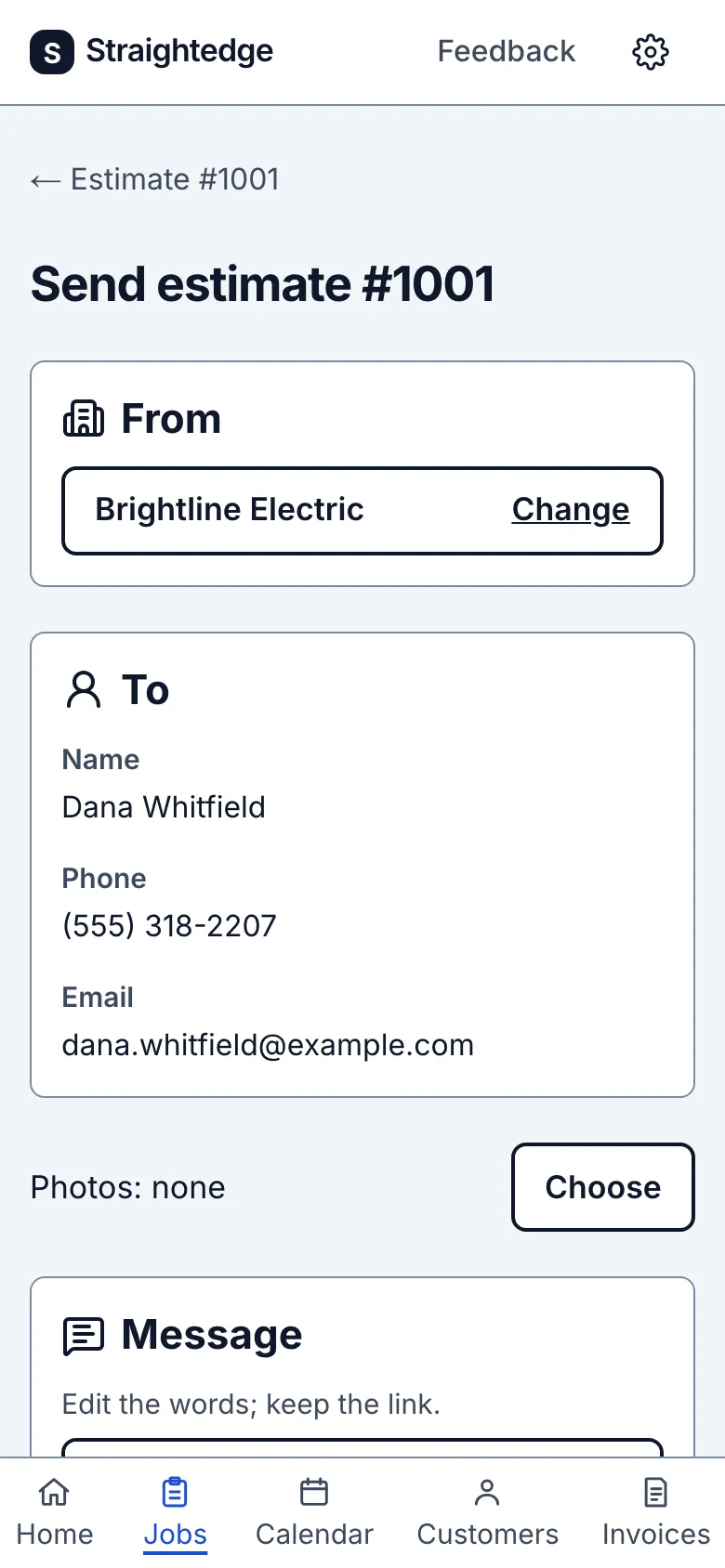
On the saved estimate choose Send to customer. The Send screen has an editable message with a private link.
2. Choose a send option
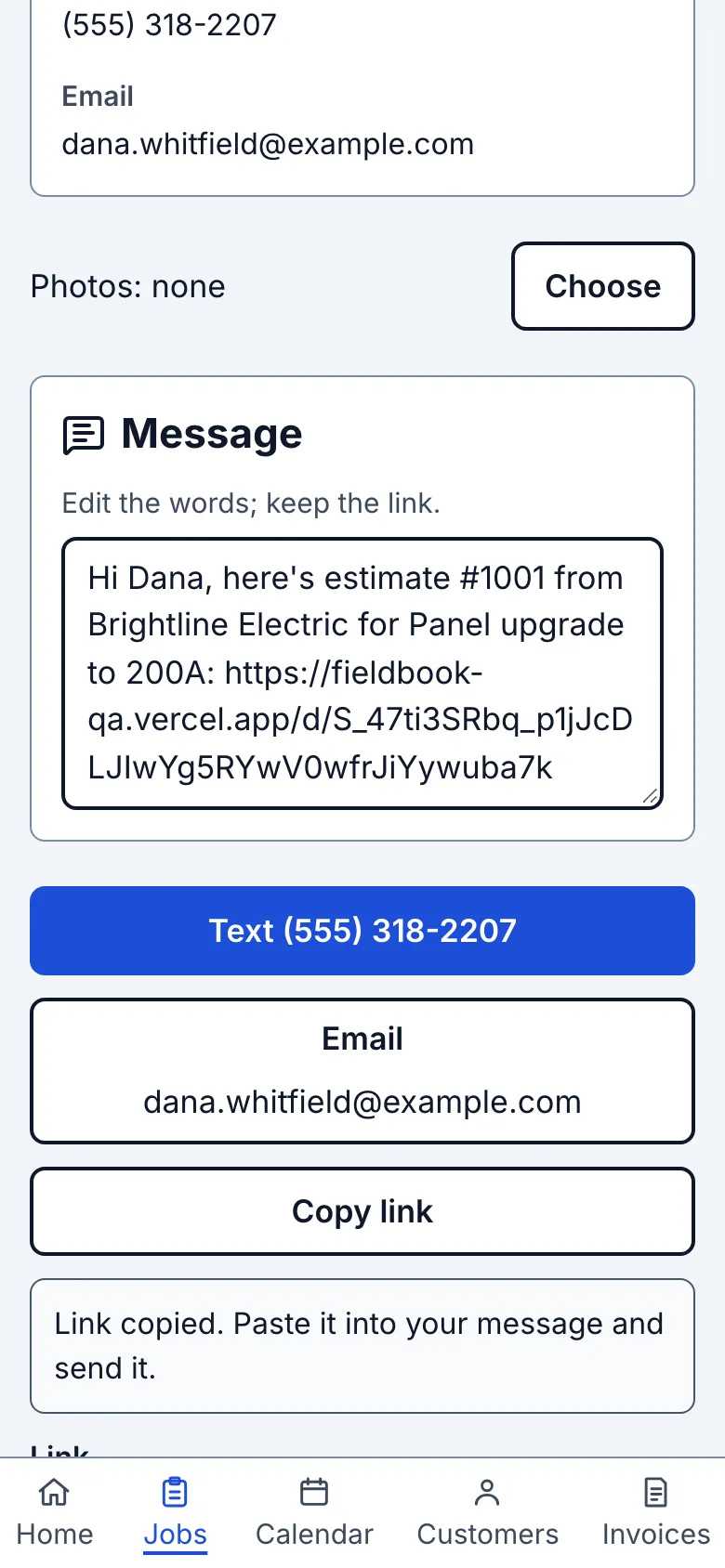
The business name under From must be saved once before a send channel works. Use the Change row to edit it here, or change it later in Settings. Text appears only when the customer has a phone number saved and is the filled button; otherwise Email is filled when a usable email is saved. The Email button shows the whole address. Share… appears when your device supports sharing, and Copy link is always available. If neither contact is usable, use Add one in To or Copy link. An unusable saved email remains visible in To for you to correct. You can edit the Message, but keep the link. Tap a channel, then press Send in the app it opens; Straightedge does not send it for you.
What you see after
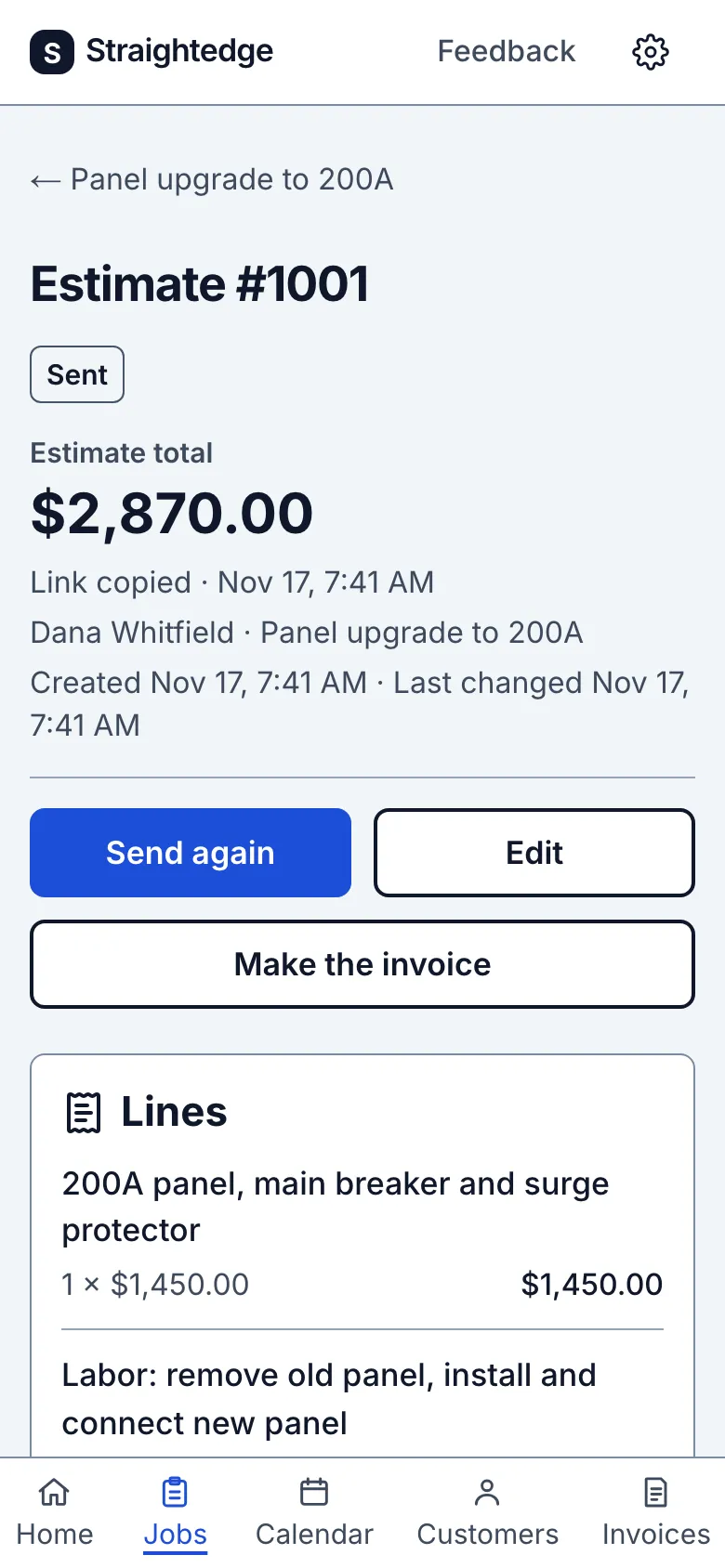
The Send page says Messages opened. Tap Send there., Mail opened. Tap Send there., Share sheet opened. Finish sending there., or Link copied. Paste it into your message and send it. The estimate shows Sent with the method and time. Link opened appears after the customer visits; your own preview does not count.
Limits
The send badge records the option used, not delivery. The link stays active until you stop sharing.
- Does it text or email my customers for me? You press Send in Messages or Mail for estimates. When the owner turns on the business switches, Straightedge emails visit reminders and estimate or invoice follow-ups automatically. It does not send platform texts.
When it goes wrong
If the customer has no phone or email, edit the customer details or use Copy link. If you remove the link from the message, restore it before using a send option.
Still stuck? Email support@getstraightedge.com