Add notes and terms to documents
Who can do it
Owners. A read-only business can read its documents and defaults but cannot save changes. Crew cannot open estimates or invoices.
1. Set your own defaults
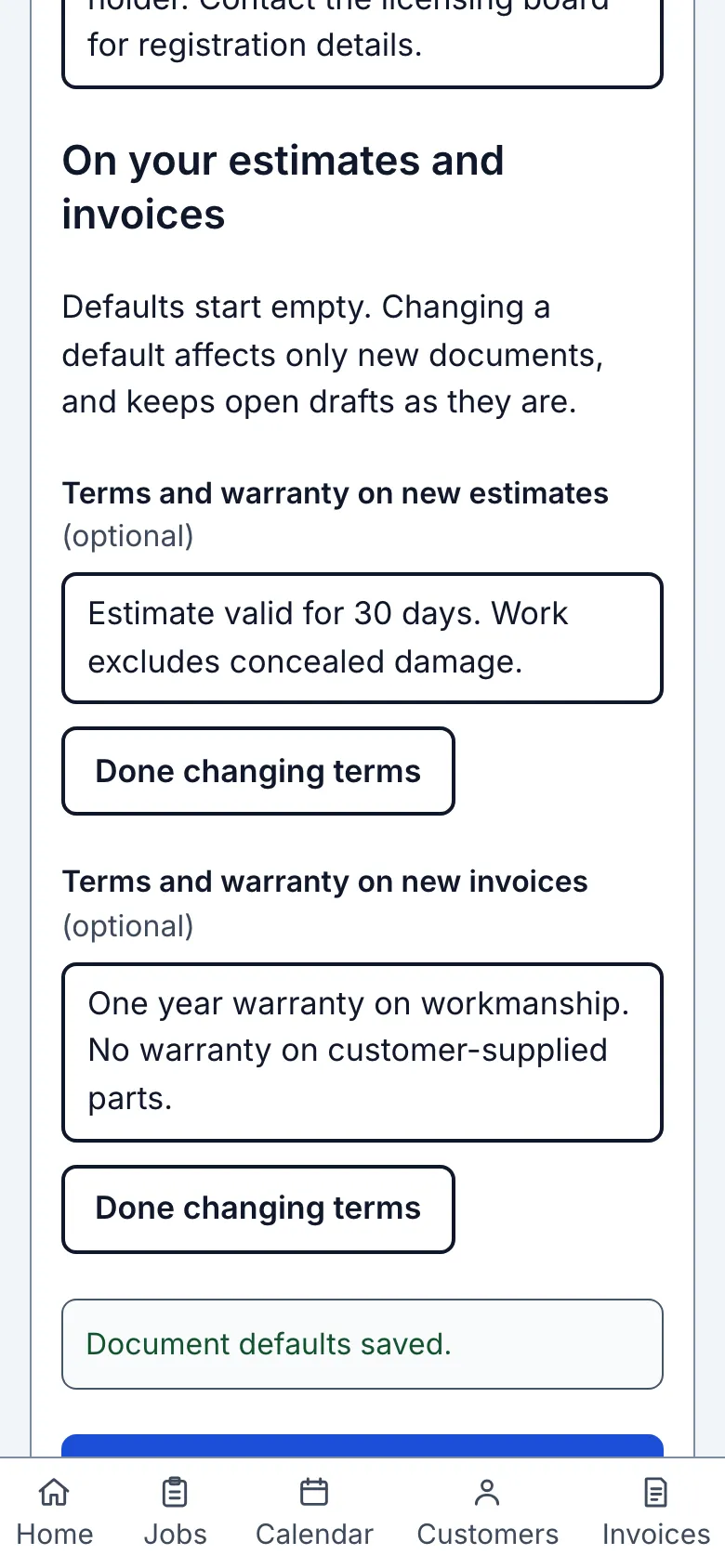
In Settings open Business details. Under On your estimates and invoices, open the Add or Change row for Terms and warranty on new estimates and enter your wording. Do the same for new invoices; the two can be different. Choose Save document defaults. Both start empty. Straightedge supplies no sample warranty or legal wording. Changing a default affects only documents created afterwards; an existing document or open draft keeps what was already there.
2. Write a note for this job
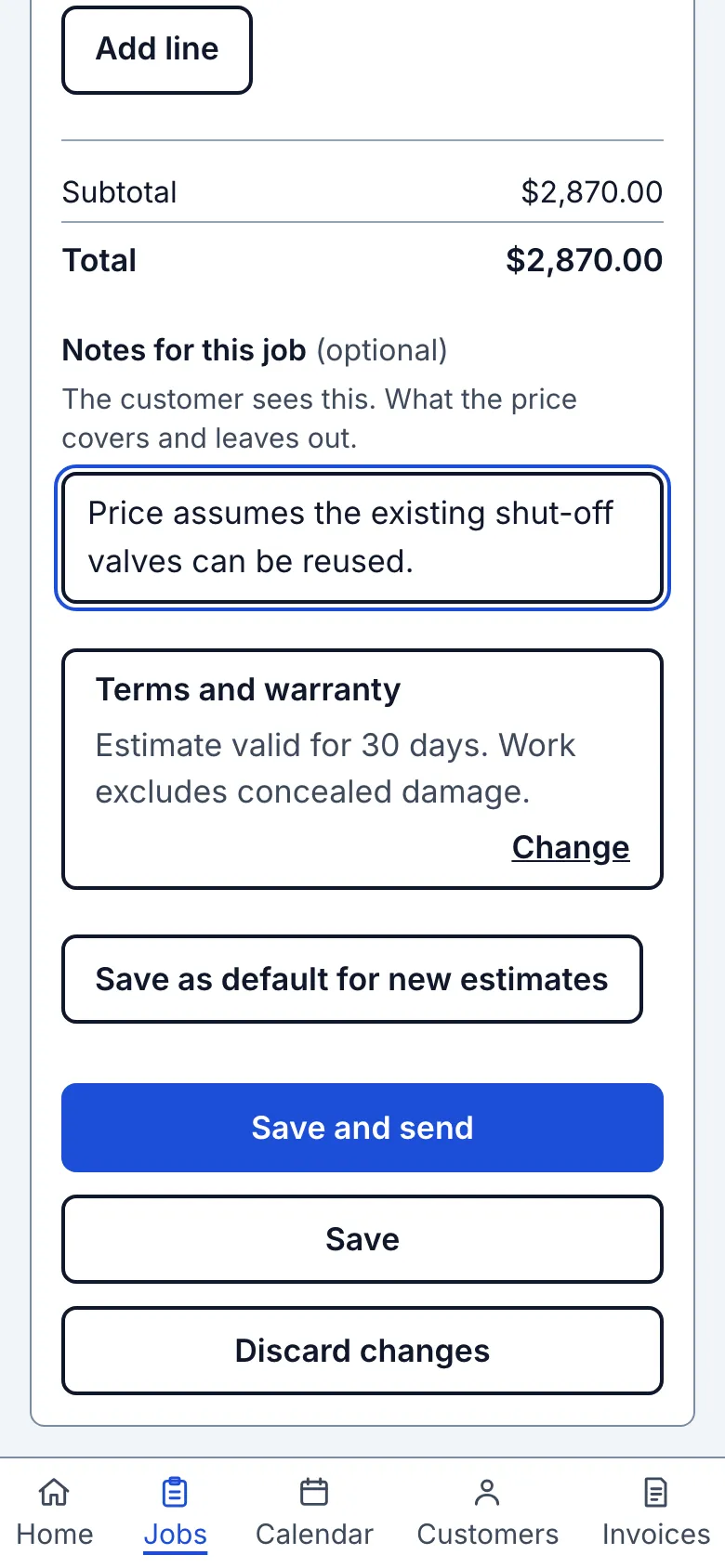
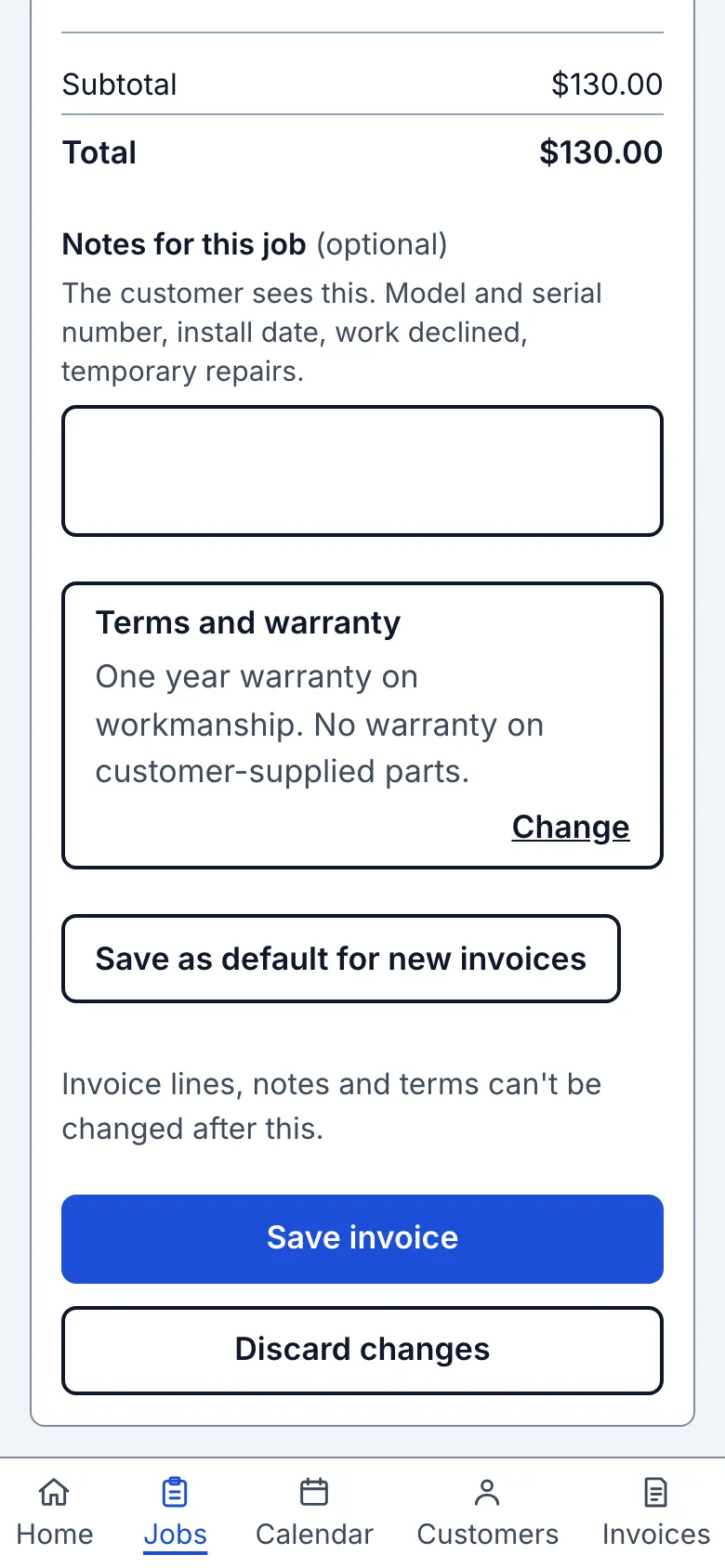
Below an estimate or new invoice's total, fill Notes for this job (optional). On an estimate this can explain what the price covers and leaves out. On an invoice it can record model and serial numbers, install date, work declined or a temporary repair. The customer sees this text; it is separate from internal job and customer notes. A note saying a customer declined work is your record, not a new customer acknowledgment.
3. Read or change the terms
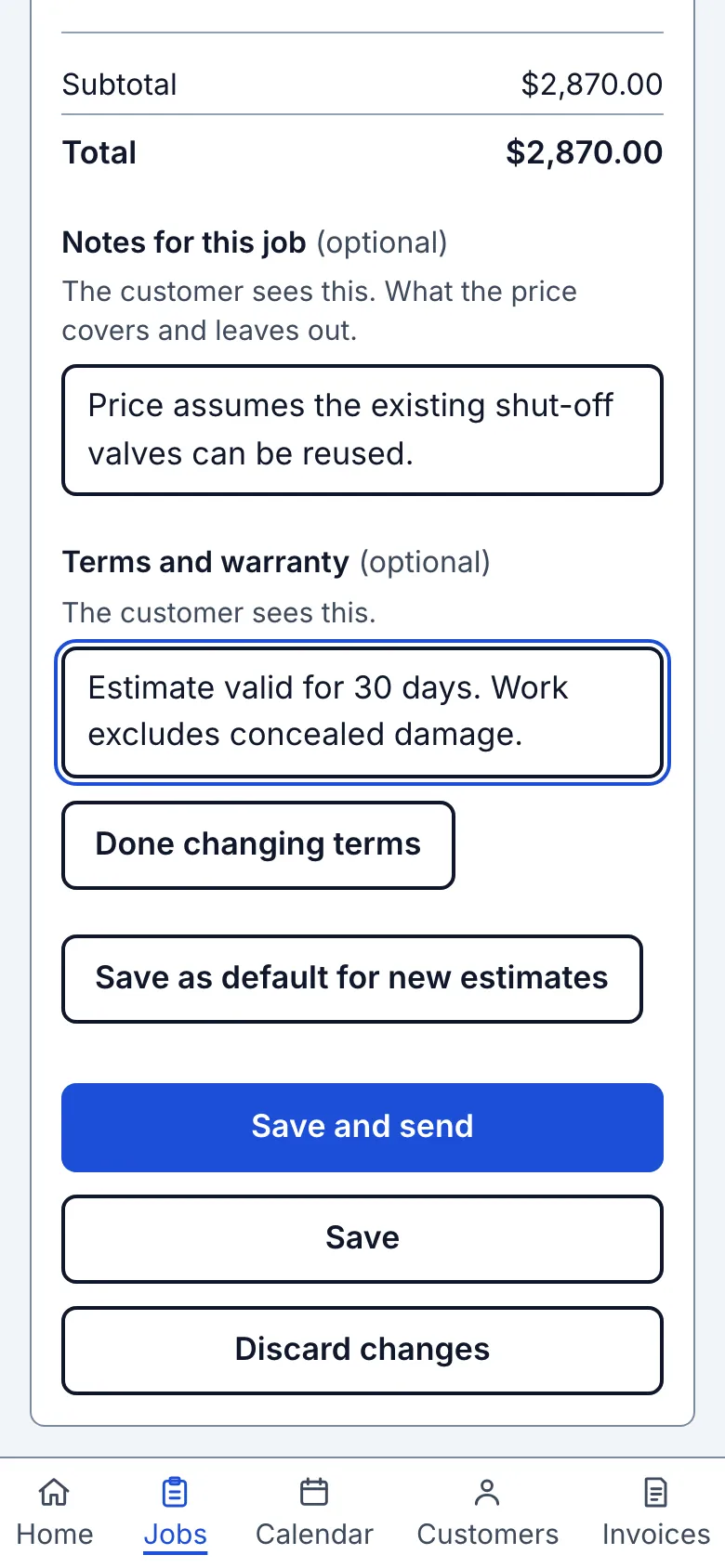
The Terms and warranty row shows the first three lines or None. Choose Change to open a filled row, or Add if it is empty. Read the whole wording and change it for this document. Clearing it means this document has no terms, even if a default exists. Choose Done changing terms to collapse it again. Save as default for new estimates or invoices replaces that one default; it has its own result line and never saves this document. Use the document's Save action when you are ready to keep the document.
4. Review an estimate before approving
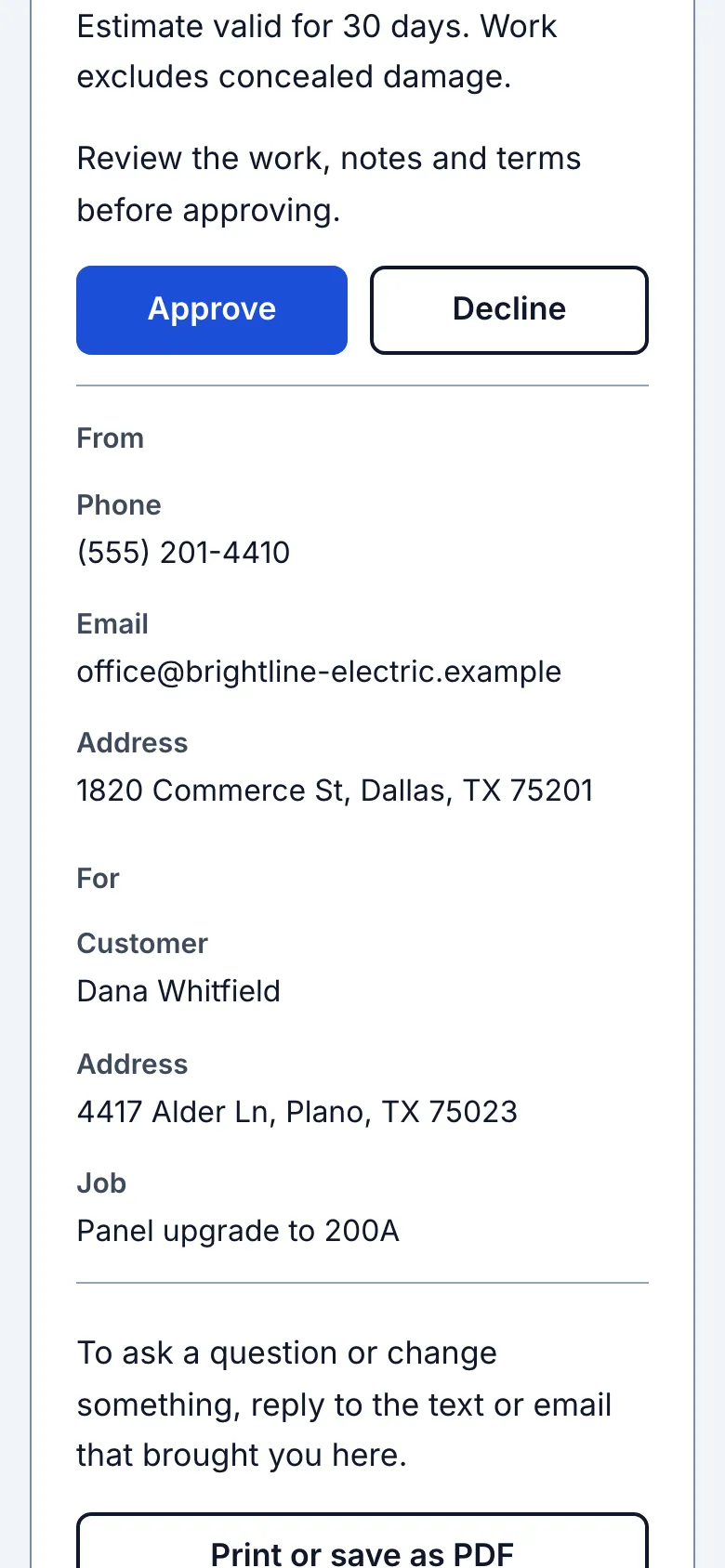
On the customer link, choose Review and approve at the top. Read the lines and total, Notes, Terms and warranty and any Photos before approving underneath them. All the text is shown and printed in full. A changed note or term on an approved estimate clears approval and asks the customer again. Response history keeps the wording from the earlier answer. The same reading order applies when the owner hands over a phone.
5. Choose the invoice wording
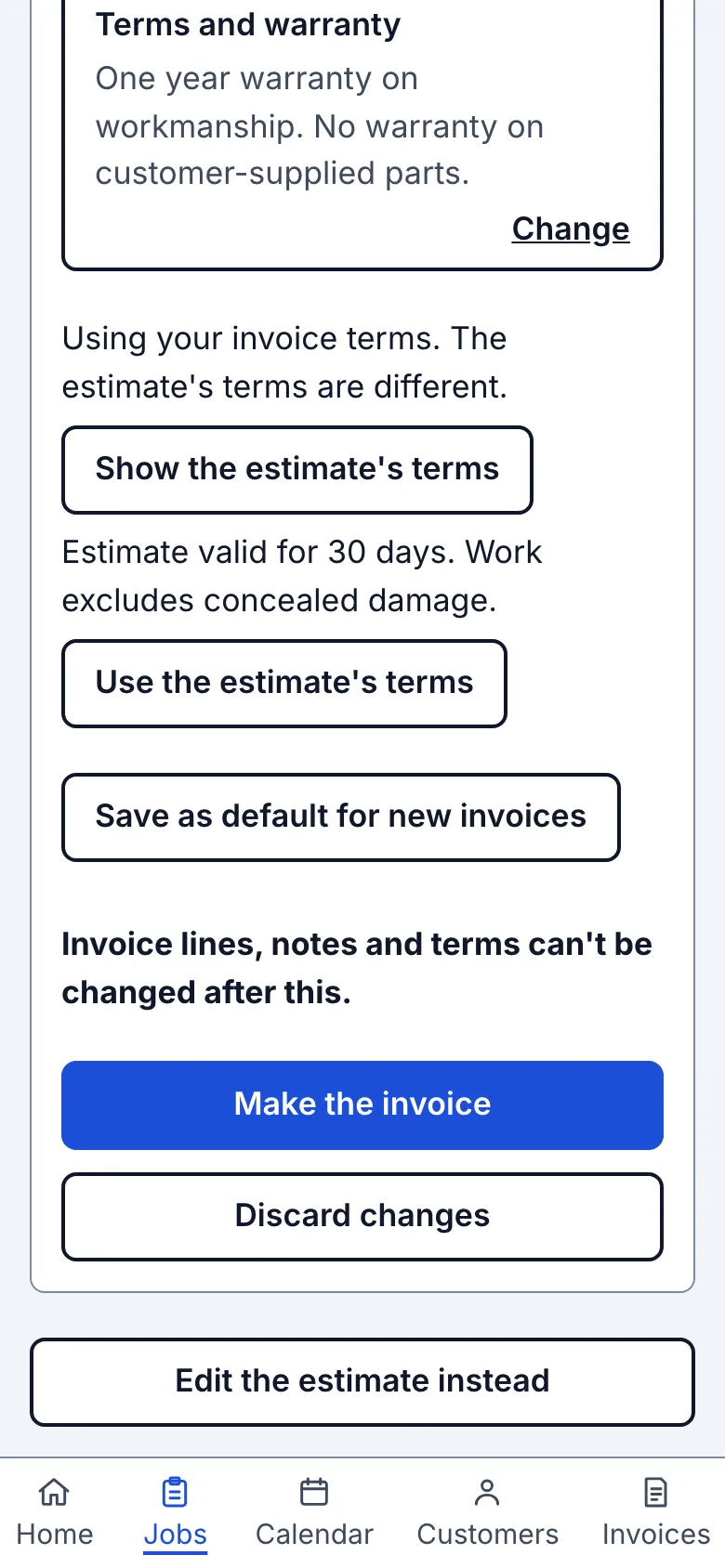
When making an invoice from an estimate, its note comes across. A nonempty invoice default supplies the terms; without one, the estimate terms come across. If the wording differs, choose Show the estimate's terms to read the source, or Use the estimate's terms to copy it into the invoice. You can edit both fields before saving. On a later visit, the earlier invoice supplies lines only: notes start empty and terms use the invoice default.
6. Check before saving an invoice
Read the whole note and terms, then choose Save invoice. Invoice lines, notes and terms cannot be changed after saving. To correct an eligible unpaid invoice, void it and make a new invoice with the right wording; a void invoice keeps the old wording and number. If a payment prevents voiding, resolve that payment first. Payment instructions are separate and always follow Settings, including on invoices already sent. License number and License details also follow Settings on old documents.
What you see after
The owner page, customer link and print show Notes then Terms and warranty under the lines and totals. Empty blocks are omitted. The invoice does not claim its terms were approved with the estimate. Notes and terms stay on the Straightedge document, not in QuickBooks or reminder emails.
Limits
Each note, terms block and terms default permits 10,000 characters counted in code points. License details permits 300. Plain text only: line breaks remain, but Markdown and web addresses are not turned into formatting or links. A date or payment period typed into terms changes no due-date setting. These fields make no promise about compliance with any rule.
When it goes wrong
A save error says how many characters to remove or asks you to remove unsupported control characters. Nothing is cut short and your input stays. If another tab changed the estimate, inspect the current version before replacing it with yours; replacement includes notes and terms. If a result is uncertain, check the saved document before leaving. Save as default reports its own result and can be retried without saving the document.
Still stuck? Email support@getstraightedge.com